

How to duplicate a map
Copy a map from the Maps portal, including its layers, styles, popups, extensions, and access settings. The copy is independent of the original.
Duplicating a map copies its layers, styles, popups, extensions, access settings, and other map settings. The copy is independent, so changes to one do not affect the other. Use it to create a version for another audience or scope, or as a template.
Before you start
- You need permission to delete the map. If you can delete it, you can duplicate it — the portal uses the same rule for both. The map creator or account Owner can do this. See Account roles reference.
- You need to be under your account’s map limit. The portal shows the same upgrade dialog you’d see when creating a new map if you’ve reached it — see What happens at the map limit.
If you can’t duplicate a map, the … menu doesn’t appear on that map’s card at all.
Open the map card menu
Find the map you want to duplicate. Hover over its card (or its row in list view) and click the … button in the top-right corner of the thumbnail.
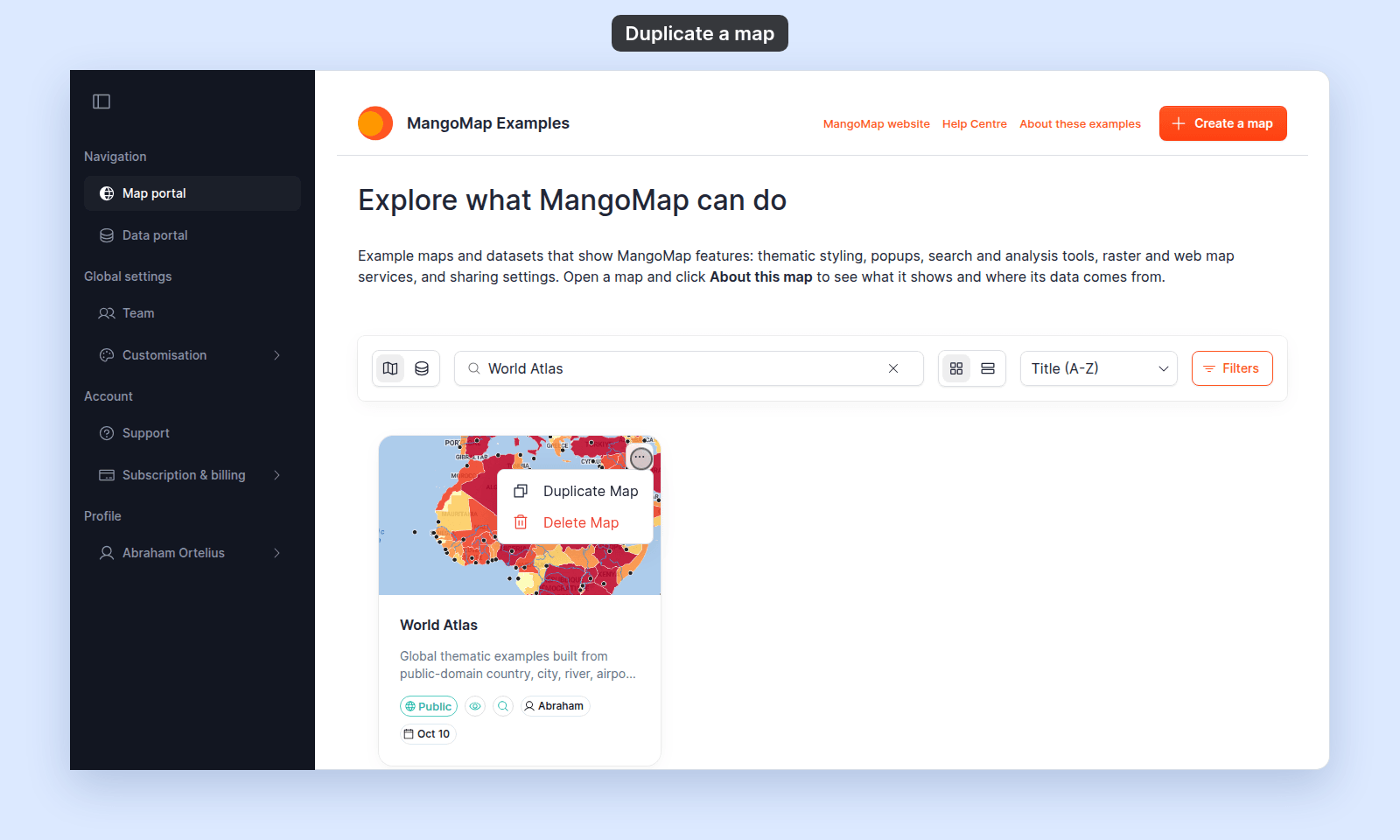
The menu opens with two items:
Duplicate MapDelete Map
Click Duplicate Map
Click Duplicate Map. A message shows Duplicating map..., then Map duplicated. Opening copy..., and the portal opens the new map in the editor.
The copy:
- Carries over every map-level setting — title (with a copy suffix or as
Untitled Mapdepending on the map), description, layers, styles, popups, extensions, access settings, custom navigation, layout choices. - Shares the same underlying datasets — layers reference the same data, so changes to a dataset still flow to both the original and the copy.
Rename the copy
The copy lands in the editor, ready to edit. Open Map settings and change the title to something meaningful before saving — leaving two maps with similar titles makes the portal harder to scan.
See How to set the map title and description.
Related
- Maps portal reference — the full set of map card controls.
- How to create a map — start from blank instead of from a copy.
- How to delete a map — the parallel destructive action on the same menu.
- Account roles reference — who can duplicate.