

Data portal reference
Look up every element on the Data page of the portal, in order, from the header and search bar to dataset cards, badges, filters, and pagination.
Every element on the Data page of the portal, in the order they appear. The page lives at /<account-slug>/data.
Everyone sees the same portal page at the same URL. This reference covers the signed-in member view, including the controls and chips that map creators use. Each section also states what visitors and signed-out members see.
For the conceptual model (what the portal is, the two pages, visitor vs signed-in mode), see How portals work in MangoMap. For the rules that decide whether a given dataset appears at all, see How dataset access works in MangoMap.
Header
A sticky bar across the top of the page.
| Where | Top of every portal page |
| Configured in | Customisation |
Left side, in order:
- Logo — the portal logo if one is uploaded under
Customisation. With no logo, nothing shows, and the portal name starts at the left. - Portal name — the name configured under
Customisation. The browser tab title also uses it.
Right side, in order:
- Navigation items — the items configured in
Customisation→ portal navigation. Each item is one of:Link,Email Link,Modal,Terms Modal,Maps,Map portal,Data portal. AMapsitem with more than one target map renders as a dropdown. ATerms Modalitem auto-opens on the first visit each session and must be accepted via a checkbox before the visitor can dismiss it. - Import data button (admin) — an
Import databutton with a database icon. Visible to signed-in account members with theImport datapermission (Owner or Admin role). Clicking it routes to the data import flow.
Banner
| Where | Below the header, above the search bar |
| Configured in | Customisation |
| Visible on | Desktop and tablet only — hidden on mobile |
Shows the banner headline and body content set under Customisation. On mobile, the banner is surfaced inside the navigation drawer instead.
Search and filters bar
A sticky horizontal toolbar that contains every browse control. Sits below the header on desktop, and below the mobile top bar on mobile.
Page tabs
| Where | Left end of the toolbar |
| Choices | Maps, Data |
Switches between the Maps page and the Data page. The icon-only toggle uses a map icon and a database icon with tooltips.
Search box
| Where | Centre of the toolbar |
| Searches | Dataset title, description, creator name, tags |
| Behaviour | Results update as you type |
A text input with a magnifying-glass icon and a clear (X) button when the field has a value. Matches are case-insensitive substrings against any of the four fields. On mobile the search collapses to a magnifying-glass icon and expands inline when tapped.
Layout toggle
| Where | Right side of the toolbar |
| Choices | Card, List |
| Default | The portal’s default layout, set in Customisation |
| Persisted | Yes — remembered for the session |
Two icon buttons: a grid icon for Card view, and a rows icon for List view.
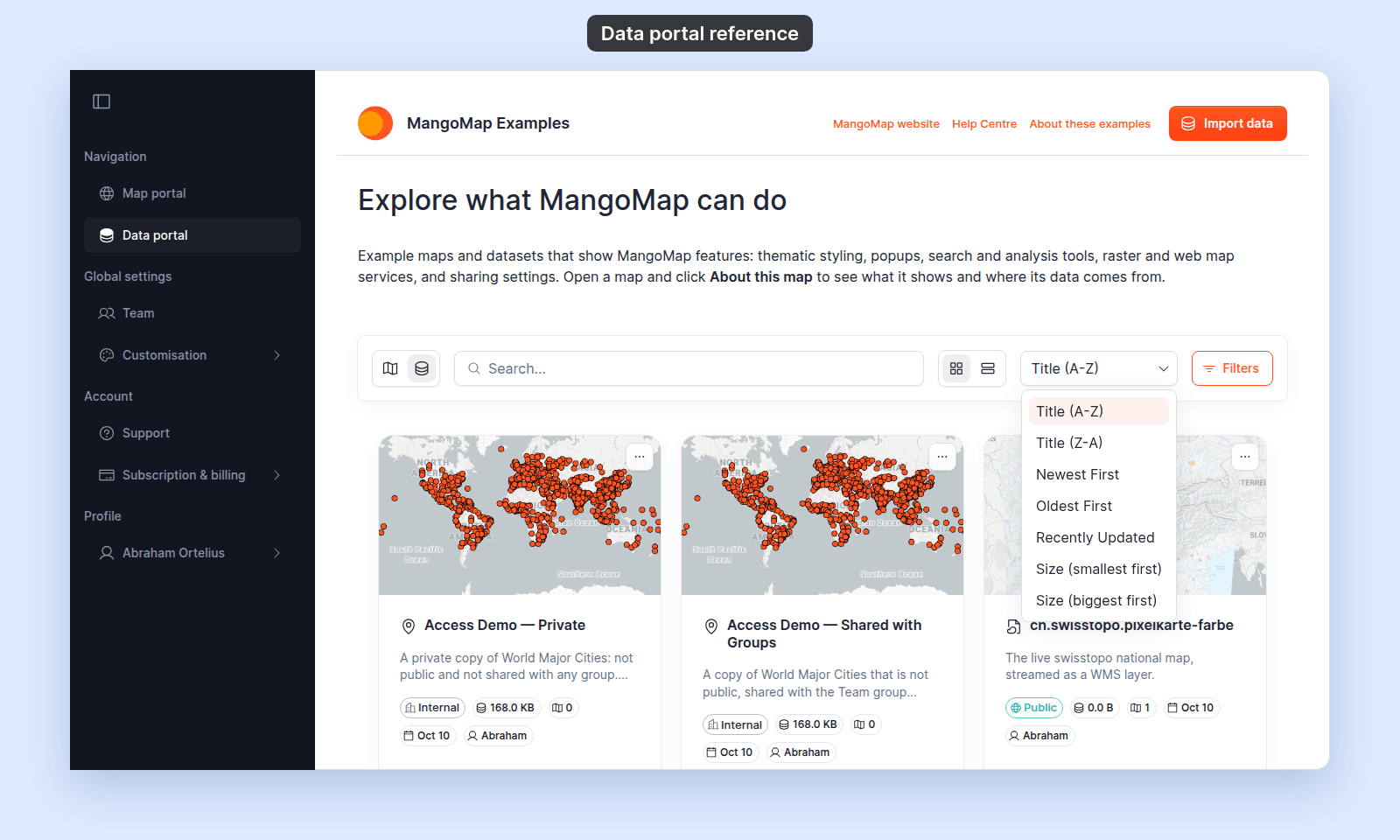
Sort menu
| Where | Right side of the toolbar, after the layout toggle |
| Default | The portal’s default data sort, set in Customisation. Title (A-Z) when not set |
| Persisted | Yes — remembered for the session |
A dropdown with seven options:
| Option | What it sorts by |
|---|---|
Title (A-Z) |
Alphabetical by title |
Title (Z-A) |
Reverse alphabetical by title |
Newest First |
Most recently created first |
Oldest First |
Oldest created first |
Recently Updated |
Most recently updated first |
Size (smallest first) |
File size, smallest first |
Size (biggest first) |
File size, biggest first |
Advanced filters button (admin)
| Where | Right end of the toolbar |
| Visible to | Signed-in account members only |
A Filters button with a filter icon that opens the Advanced filters popover. On mobile it collapses to the icon only. Visitors do not see this button.
Dataset grid
The main page body. Renders as a grid of cards or a vertical list, depending on the Layout toggle.
| Where | Below the search bar |
| Page size | 12 datasets per page |
| Empty state | A database icon with the message “No results” and guidance to adjust search or filters |
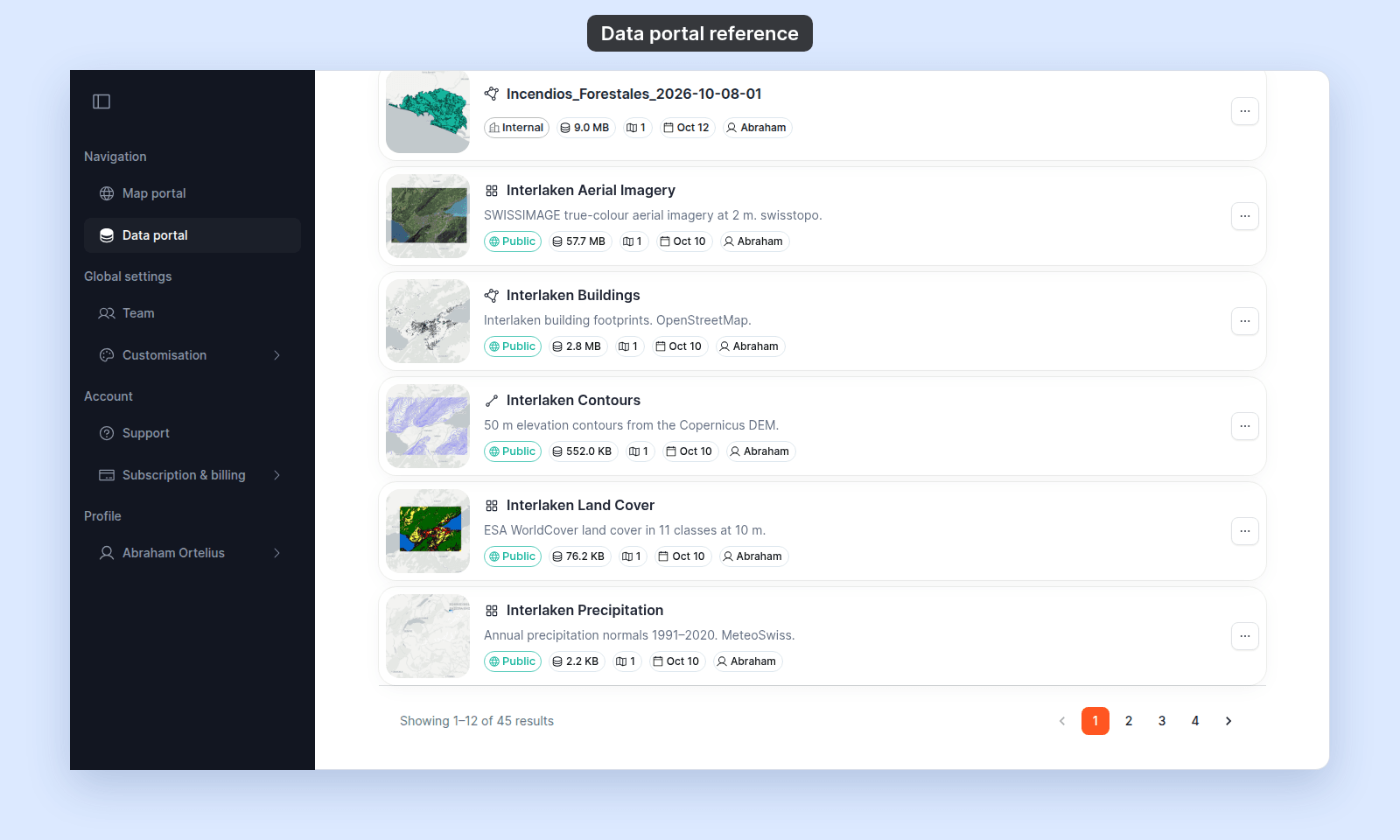
List view
A vertical stack of rows. Each row has a square thumbnail on the left. Beside it are the geometry icon and title, a one-line description, and the metadata chips. The … menu button is at the right end of the row (next to the title on mobile).
What’s on a dataset card
As a signed-in account member with permission to delete the dataset, each card surfaces the dataset’s status as a row of metadata chips below the title and description: its access mode, whether it’s actively syncing, its file size, how many maps use it, when it was last updated, and who created it. This is the rich view — designed for managing your data library quickly.
Top to bottom on each card:
- Thumbnail — a 16:9 image (the dataset’s thumbnail).
- Geometry icon — a small icon to the left of the title indicating the dataset’s geometry (point, polygon, line, raster, or WMS).
- Title
- Description
- Access-mode badge —
PublicorInternal. See Access-mode badges below. Group Editablechip — shown when the dataset isPublicorInternalAND at least one access group has edit permission.Sync Activechip — shown when the dataset has an active sync source (Dropbox or other). Green outline.- File size chip — the dataset’s size on disk (e.g.,
2.4 MB) with a database icon. Tooltip shows the record count. - Map usage chip — a count of the maps using this dataset (e.g.,
3) with a map icon. Tooltip readsUsed in 3 maps. Always shown, even when zero — a zero map count is your signal that the dataset is unused and safe to delete. - Updated chip — the last-updated date in short form (e.g.,
Mar 4) with a calendar icon. Tooltip shows the full date. - Creator chip — the creator’s first name with a person icon. Tooltip shows the full name and creation date.
…menu button — top-right corner of the thumbnail. Opens the Dataset card menu.
What anonymous visitors see
Anonymous visitors — and signed-out account members — see a stripped-down version of every card: only the thumbnail, geometry icon, title, and description. None of the metadata chips render publicly: no access-mode badge, no Group Editable or Sync Active chips, no file size, no map usage count, no creator name, no updated date, no … menu. The card is intentionally clean for the public-facing experience.
If you want to see what your audience sees, sign out and open the portal in the same browser — the chips disappear and only the cover content remains.
Access-mode badges
The access-mode chip on each card uses one of two labels:
| Label | What it means |
|---|---|
Public |
Visible in the data portal to everyone. Equivalent to the dataset’s Public access setting. |
Internal |
Public access is off. Only signed-in users with permission can open the dataset: the creator, the account owner, and groups with access. Not visible to visitors. |
Dataset card menu (admin)
Opened by clicking the … button on a dataset card. Contains a single item:
| Item | What it does | Who sees it |
|---|---|---|
Delete Dataset |
Opens the Delete flow. Red text. | Anyone with the Delete dataset permission (the dataset’s creator, the account owner, or an admin with group-edit access). |
If you cannot delete the dataset, the … button does not render at all.
Pagination controls
| Where | Below the dataset grid, when there is more than one page |
| Page size | 12 datasets per page (not user-configurable) |
Shows the current page, total pages, and a count of items being shown (e.g., Showing 1–12 of 47 results). Previous and next buttons and numeric page buttons let you jump directly to a page.
Advanced filters popover (admin)
A dialog titled Filter Data, opened from the Advanced filters button. The sections scroll inside the dialog.
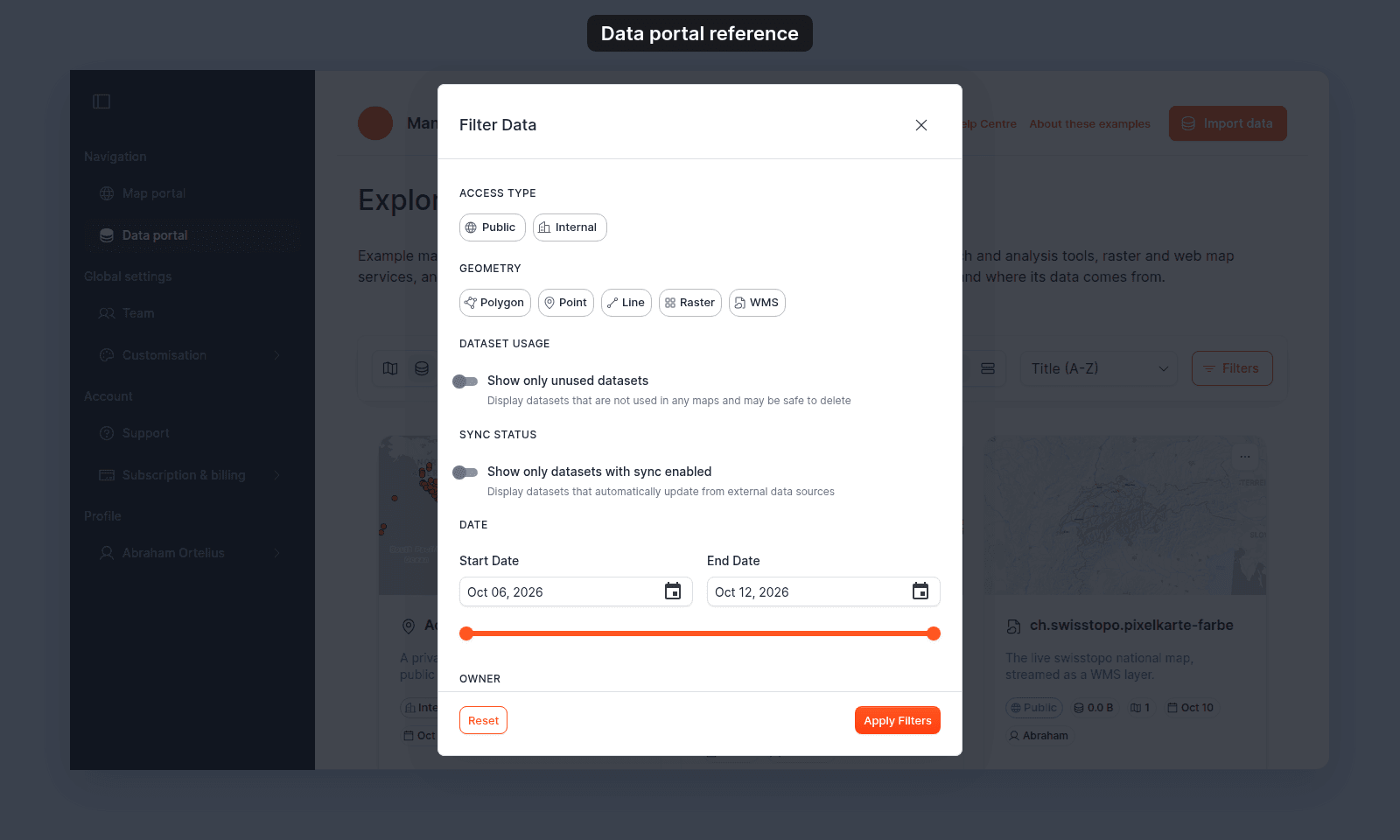
Seven filter sections, in order:
Access type
A chip for each access mode present across your datasets. Pick one or more to limit the grid to datasets in those modes.
Geometry
A chip for each geometry present: Point, Polygon, Line, Raster, WMS. Pick one or more.
Dataset usage
A single toggle. When on, the grid is limited to datasets that aren’t used in any map.
Sync status
A single toggle. When on, the grid is limited to datasets with an active sync source.
Date
A pair of date pickers — Start Date and End Date — and a range slider. The range applies to the date each dataset was created. The pickers are prefilled with the date bounds of the datasets in your account.
Owner
A chip for every account member who created at least one dataset. Pick one to limit the grid to that member’s datasets; picking another chip replaces the first.
File size
A range slider with Min (MB) and Max (MB) fields, from zero to the largest dataset in your account. Datasets without a size (e.g., WMS) are excluded by this filter when it’s active.
Apply and Clear
Two buttons at the bottom of the popover:
Apply Filters— applies the chosen filters and closes the popover.Clear All(orResetwhen no filters are active) — clears all selections.
Applied filters persist for the session.
Delete flow
Clicking Delete Dataset opens one of two modals depending on whether the dataset is currently used by any maps.
When the dataset is in use — Dataset In Use modal
| Title | Dataset In Use with a warning icon |
| Outcome | The dataset cannot be deleted from this dialog |
The modal shows:
- The message
This dataset cannot be deleted because it is currently being used by the following maps:. - The dataset name in a chip.
- A list —
Maps using this dataset (N)— with one row per map (thumbnail, name, creator). - Instructions:
To delete this dataset, you must first:
Remove the dataset from all maps that use it, orDelete the maps that depend on this dataset
- A single
Closebutton.
This modal has no Delete button. Remove the dataset layer from every listed map, or delete those maps, before you delete the dataset.
When the dataset is not in use — Delete Dataset confirmation
| Title | Delete Dataset with a warning icon |
| Permanence | Deleting a dataset is permanent; you cannot recover it |
The modal shows:
- The prompt
Are you sure you want to delete this dataset? This action cannot be undone.. Dataset to be deleted:followed by the dataset name in a red-bordered box.- A note:
All data associated with this dataset will be permanently removed. - Two buttons —
Cancel(text button) andDelete Dataset(red contained button).
Footer
| Where | Bottom of the page |
| Configured in | Customisation → portal footer content |
Shows the footer content set under Customisation.
What appears here
For visitors (and signed-out account members) a dataset appears when its access setting is Public. Datasets have no separate “show in portal” toggle; Public and listed-in-portal mean the same thing.
For signed-in account members the listed set widens to also include:
- Datasets the member created.
- Datasets shared with any access group the member belongs to.
- Every dataset in the account when the member is the account owner.
See How dataset access works in MangoMap for the full access model.
Not on this page
The Data portal is intentionally a discovery and delete surface. These controls do not appear here:
- Rename a dataset — done from the dataset settings page. See How to set the dataset name and description.
- Move a dataset — moving datasets between folders or accounts is not supported.
- Export a dataset — exporting a dataset to GeoJSON / Shapefile / CSV is not supported from the portal.
- Folders / organisation — datasets are a flat list. Folder organisation is not implemented.
To find a dataset by attribute, by geometry, or by usage, use the Advanced filters popover. To rename or change a dataset’s metadata, open the dataset and use its settings page.
What this reference does NOT cover
- Portal branding — name, logo, banner, footer, default layout, custom domain — see How to configure the portal.
- Per-dataset access settings — the controls that decide whether a dataset appears here — see Dataset access.
- The dataset detail page — opening a card or list row takes you into the per-dataset detail page, documented separately under
dataset-view/. The detail page keeps the portal header and footer, without the banner. - The Maps page — see
/docs/portals/maps-portal-referencefor the parallel page.