

How to set the dataset name and description
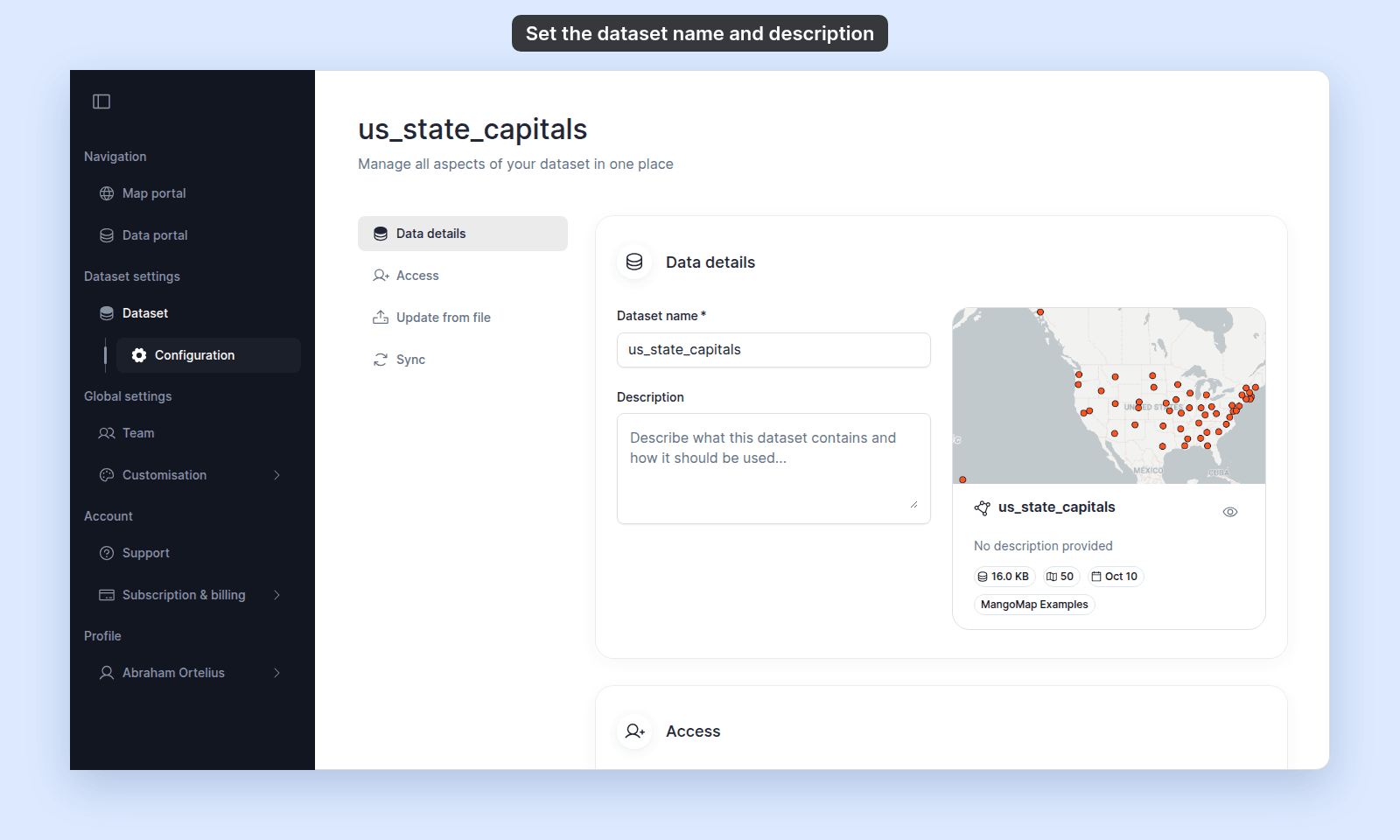
Change the Dataset name and Description in Data details. Both save when you leave the field, and the preview card shows the result as you type.
The Dataset name and Description identify the dataset in the Data portal and dataset view. The name is required; the description is optional. A layer can have its own map name, so renaming the dataset does not change an existing layer name override.
Before you start
- You need permission to edit the dataset (Owner, Admin, or an Editor with edit access).
- Choose a name that works in: the data portal listing card, the layer-add picker that shows all your account’s datasets, the dataset view header, and any layer that hasn’t had its per-map name overridden.
- The description is shown in the data portal card, the layer-add picker (when picking a dataset), and the dataset view’s info sidebar. It doesn’t appear in maps unless you wire it into a popup template explicitly.
Open the dataset settings
From the data portal, open the dataset you want to edit. From the dataset view, navigate to Settings. The page opens at Data details.
Edit the name
Click the Dataset name field and type the new name.
Click out of the field or press Enter to save.
If you leave the field empty, the field doesn’t save until you provide a value.
Edit the description
Click the Description field and type. Very long descriptions are shortened on the data portal card.
Click out of the field or tab away to save. Pressing Enter adds a new line because the description is multi-line.
Verify the result
The preview card on the right of Data details updates live as you type.
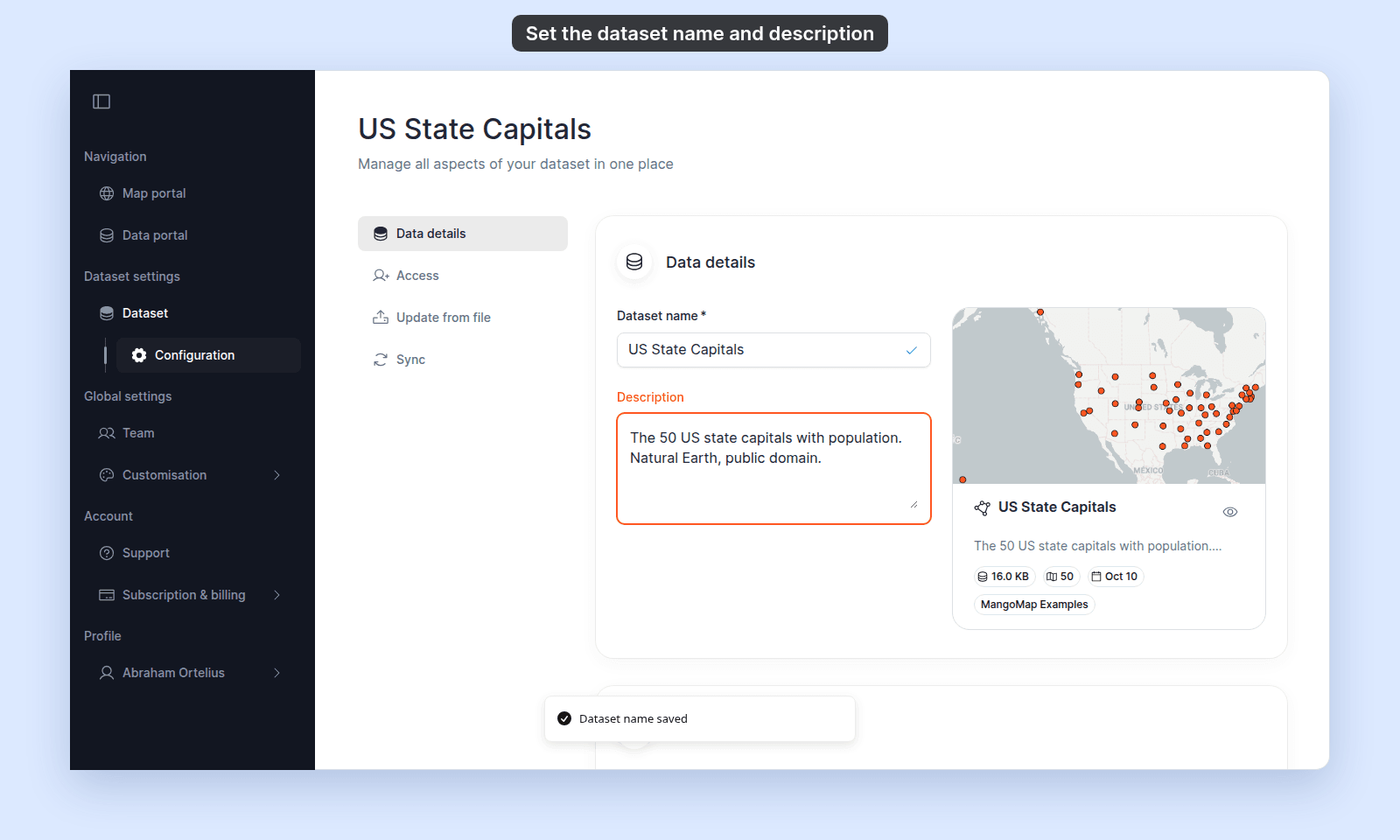
The new name and description show in the Data portal, the dataset view, and the layer picker.
What about layers already on maps
Renaming the dataset changes the dataset’s name everywhere — but a layer’s name on a specific map can be overridden independently of the dataset name. If you’ve renamed a layer on a map (via the layer panel), that map keeps the layer’s overridden name. Maps where the layer name was never overridden show the new dataset name.
To rename a layer on a specific map, see Managing layers.