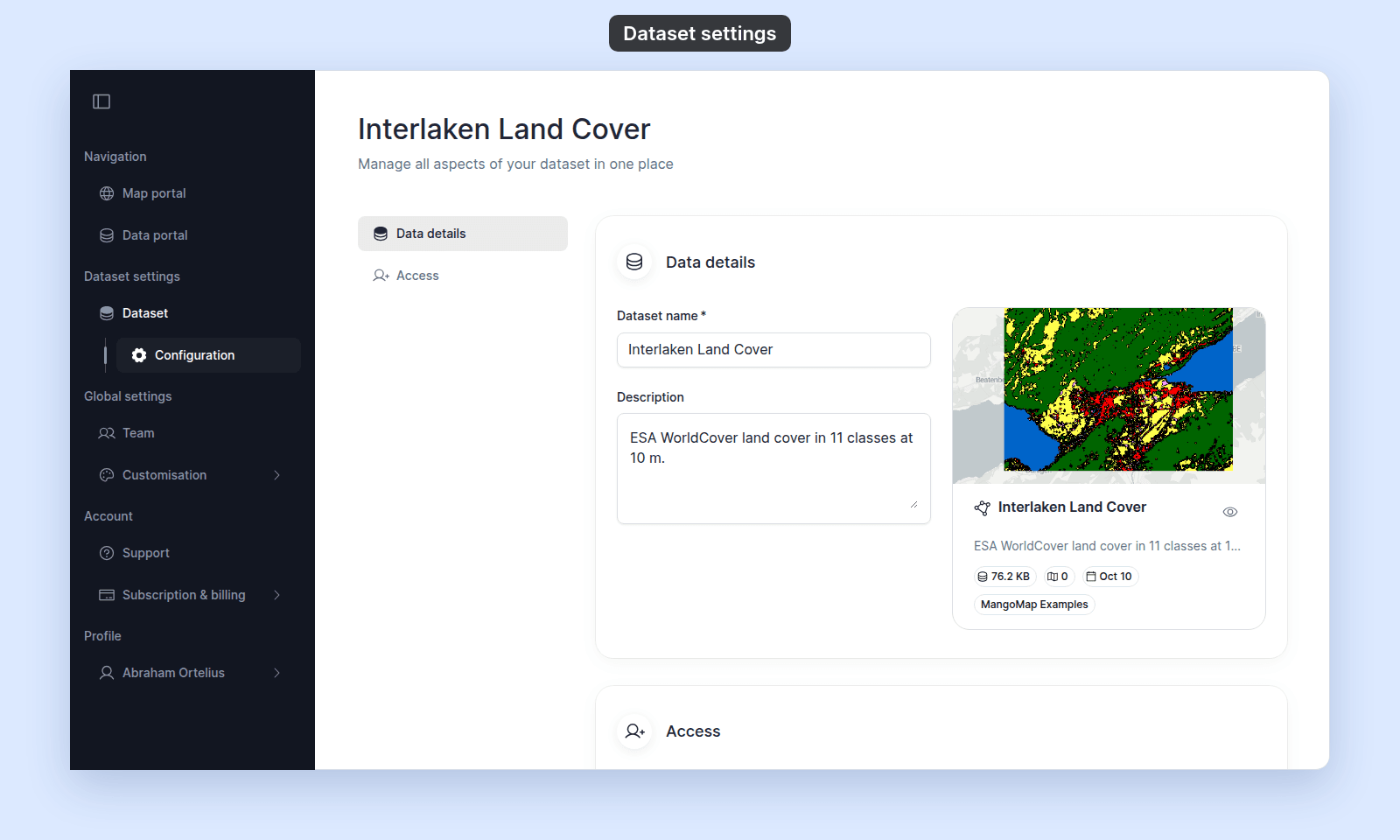
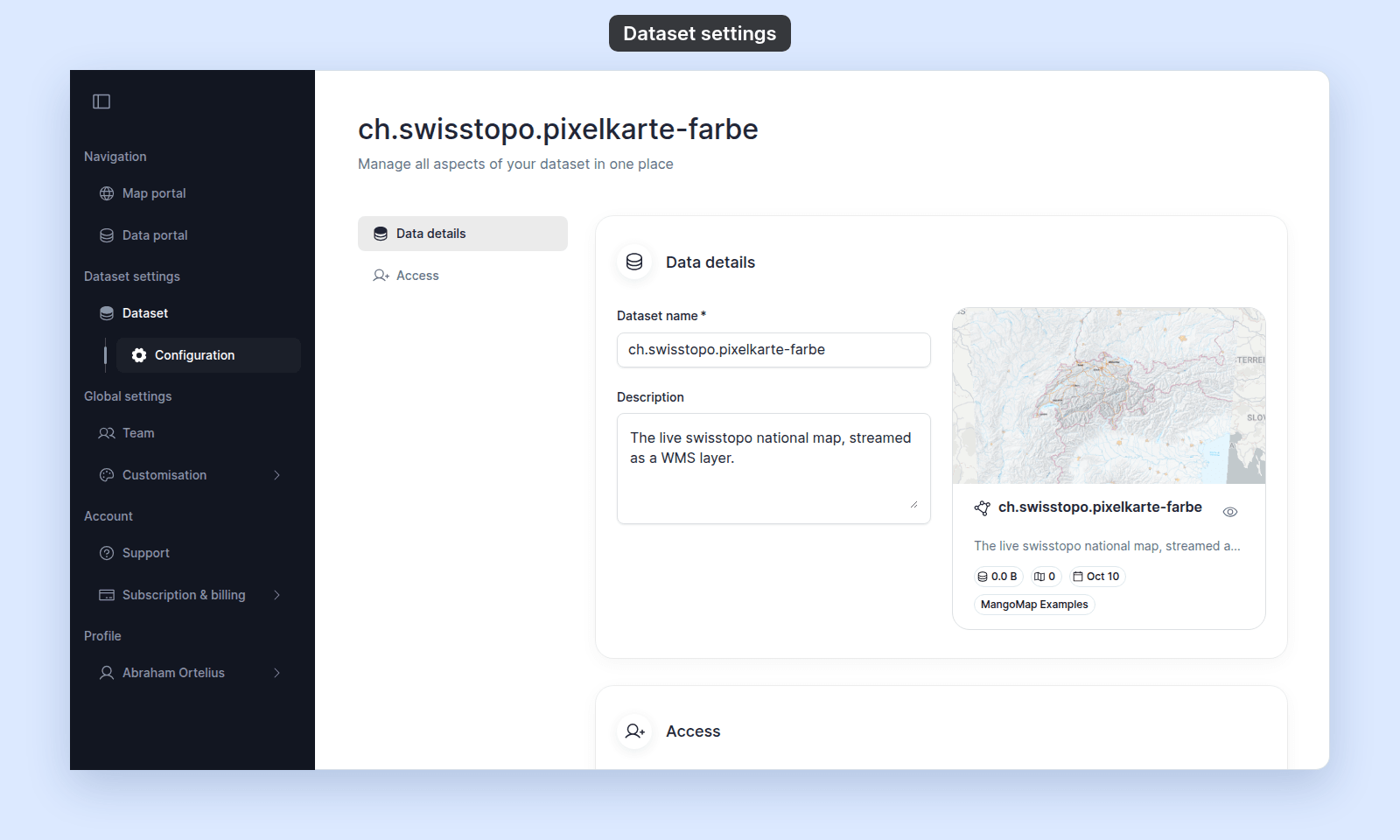
Dataset settings reference
Check every section and control on the dataset settings page: Data details, Access, Update from file, and Sync, with save behaviour for each.
Use this page to check the sections and controls on the dataset settings page.
Data details
| Control | Requirement | Save behaviour | Effect |
|---|---|---|---|
Dataset name |
Required | Leave the field or press Enter | Changes the dataset name used across the Data portal and dataset view. |
Description |
Optional | Leave the field | Changes the dataset description. |
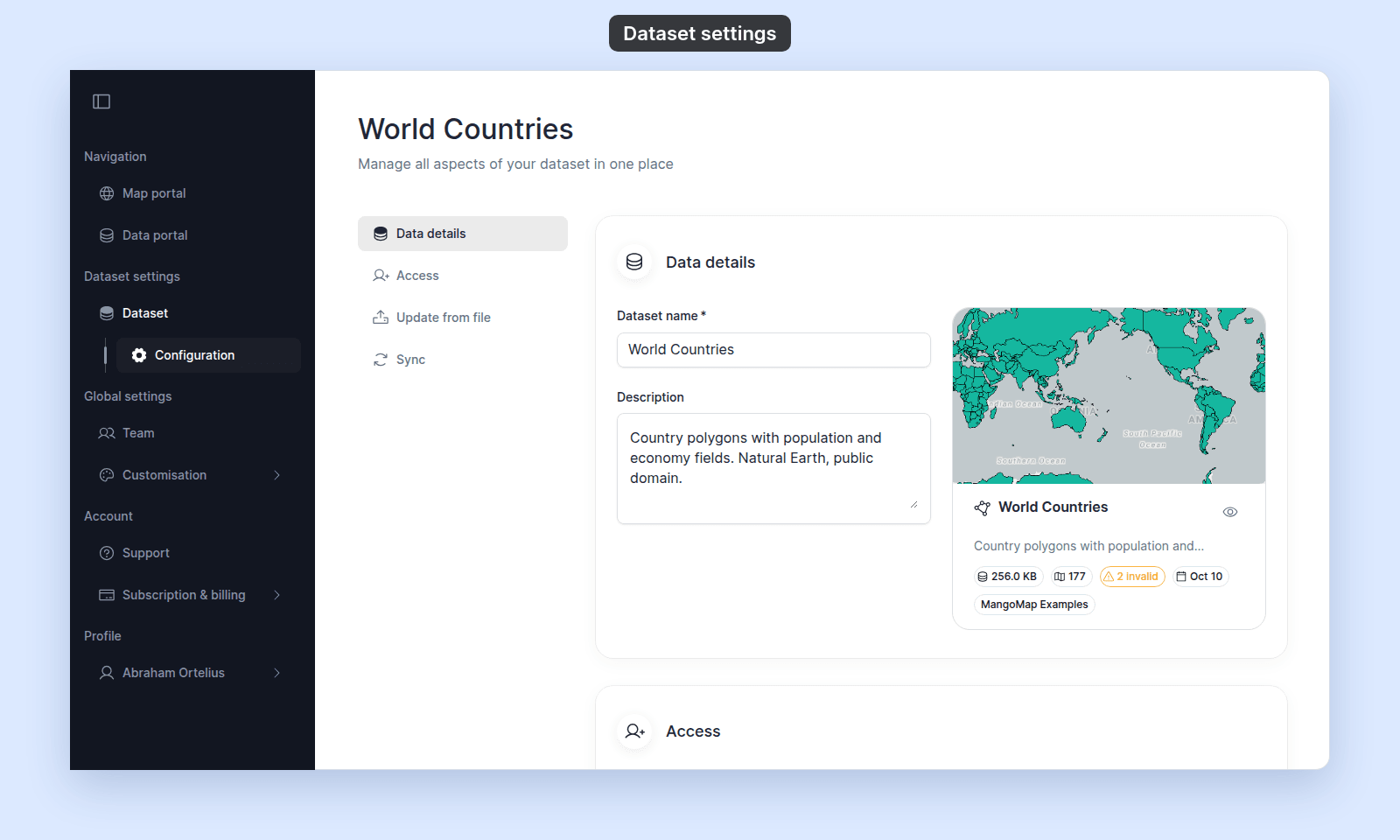
The preview card updates as these fields change. It can show the dataset thumbnail, name, description, file size, record count, last-updated date, and account name.
When some features have invalid geometry, the preview card also shows a warning chip with the count, such as 3 invalid. Invalid geometry means shapes that cross themselves or rings that don’t close. MangoMap imports these features without repairing them. They still display, but area and overlay results for them may be wrong. To fix them, repair the file and update the dataset from a file. The chip doesn’t appear when the count is 0.
Access
| Control | Effect |
|---|---|
Public access |
Allows anyone to view the dataset when enabled. |
Group View |
Allows members of the group to open the dataset. |
Group Edit |
Allows members with a compatible account role to change the dataset and its features. |
| Group-management action | Opens team access-group management. |
Controls are disabled when the current user can edit the dataset but cannot share it. See Dataset access settings for the complete access reference.
Update from file
This section is available for CSV, GeoJSON, KML, Shapefile, and MapInfo TAB datasets. It is hidden for raster and WMS datasets.
| Control | Effect |
|---|---|
Data format |
Selects the format expected for the replacement upload. |
Upload files |
Opens the file picker for the selected format. |
| Required-files list | Shows which companion files have been supplied for multi-file formats. |
| Remove action | Clears files selected before processing completes. |
The upload starts when all required files are present. Processing replaces the dataset contents in the same dataset.
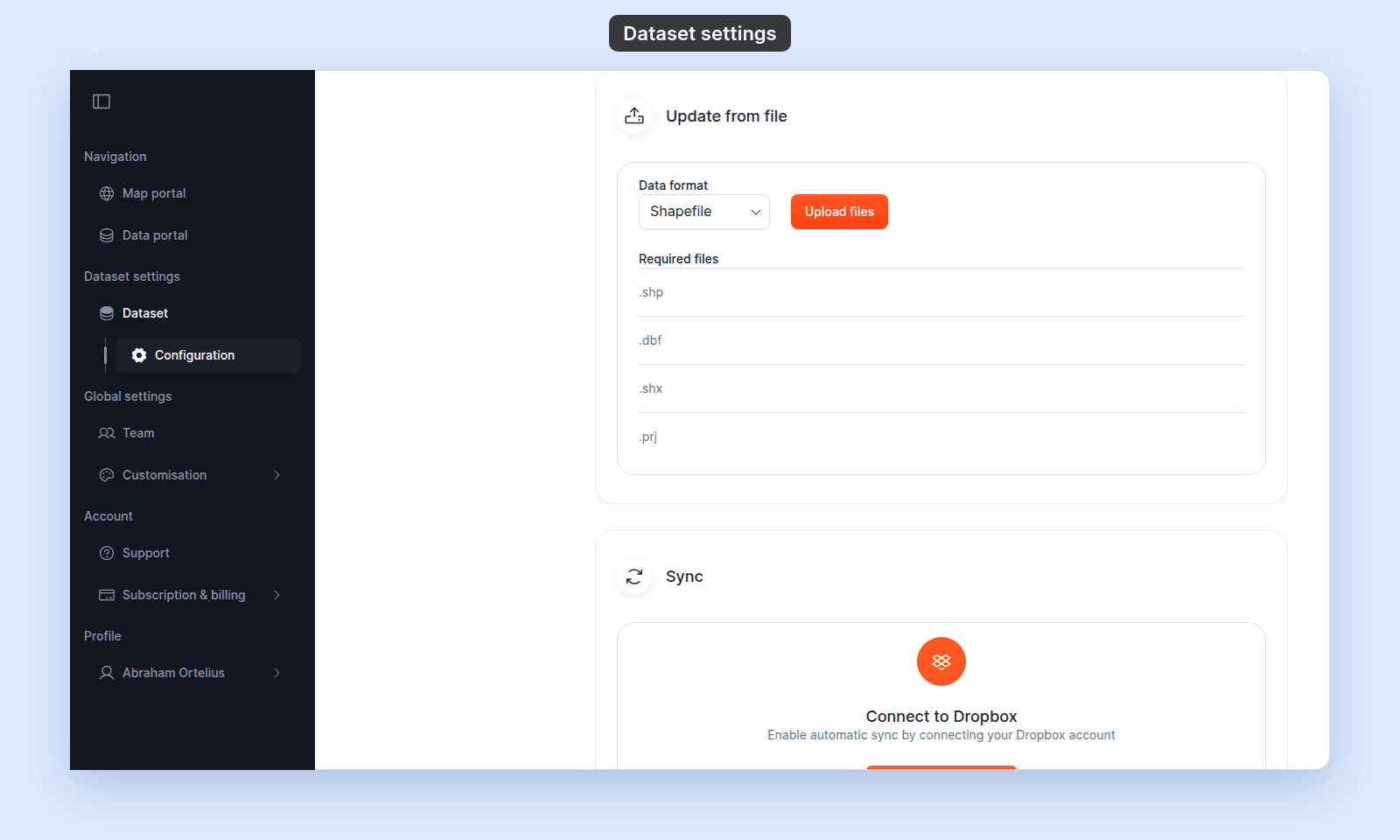
See Data updates reference for format requirements and processing states.
Sync
Enterprise and Agency onlyDropbox sync is hidden for raster and WMS datasets.
| Control | Effect |
|---|---|
| Dropbox connection action | Connects an eligible Dropbox account or opens the plan gate. |
Data format |
Selects the source format and required file set. |
| File selection action | Opens the Dropbox chooser. |
Update File Location |
Changes which Dropbox files are watched. |
Disconnect |
Removes the Dropbox connection from the dataset. |
See How to set up Dropbox sync and How to update Dropbox sync files.
Availability
| Section | Vector | Raster | WMS |
|---|---|---|---|
| Data details | Yes | Yes | Yes |
| Access | Yes | Yes | Yes |
| Update from file | Yes | No | No |
| Sync | Eligible plans | No | No |
For raster and WMS datasets, the side navigation shows only Data details and Access.