

How to change or disconnect Dropbox sync
Choose different Dropbox files for a synced dataset, or disconnect sync to stop updates. Disconnecting keeps the latest synced data.
Enterprise and Agency onlyWhen a dataset syncs, use Update File Location to choose different Dropbox files. Use Disconnect to stop updates. Disconnecting keeps the latest synced data and does not affect other datasets.
Before you start
- You need
Editaccess on the dataset. - For
Update File Location, the new file or files must already exist in your connected Dropbox account, in the right format.
Open the active Sync section
- Open the dataset from the data library.
- In the dataset’s sidebar, click
Configuration, thenSync.
When sync is active, the card has both controls, Update File Location and Disconnect, beside your Dropbox account:
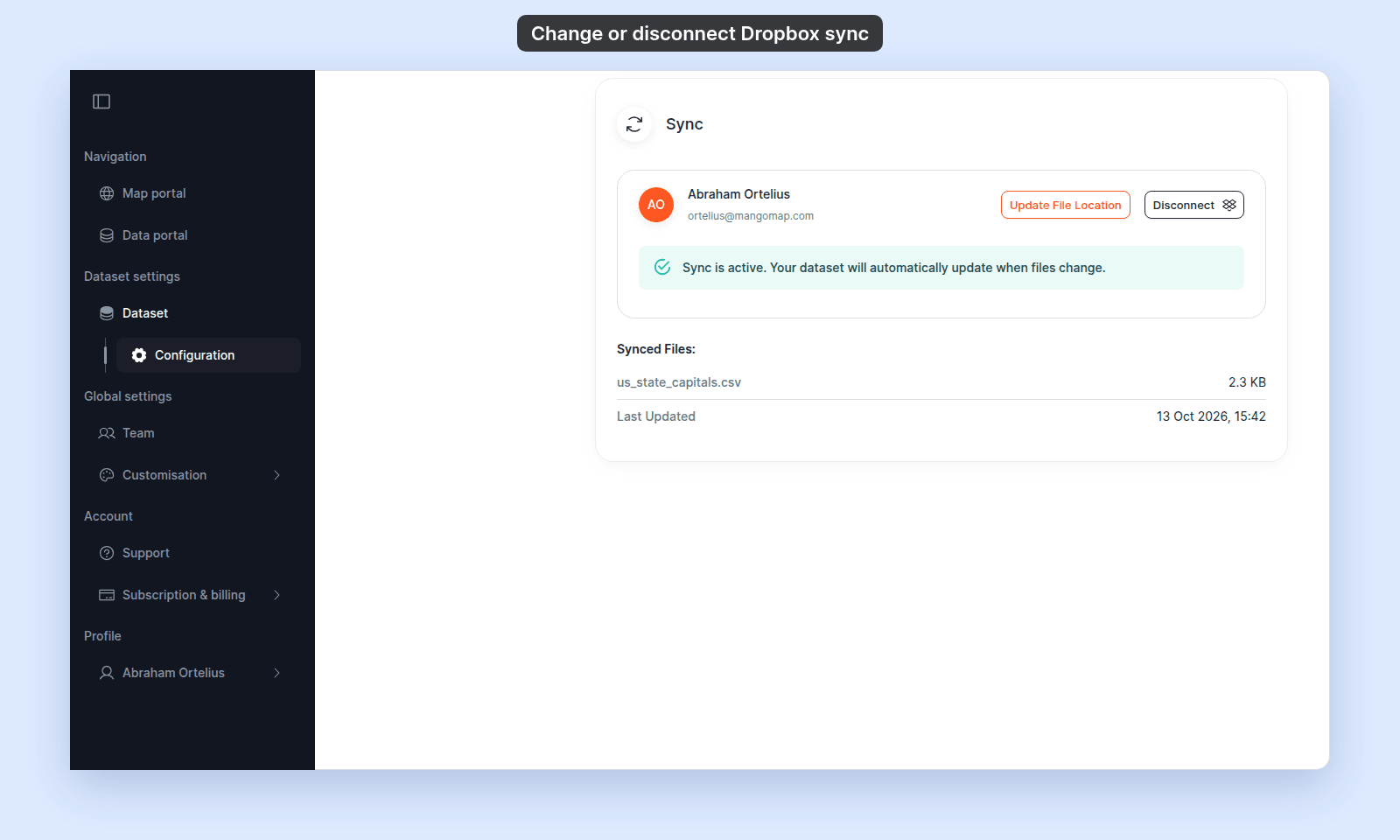
If the card is in a different state (Connect to Dropbox button, or file-selection step), see How to set up Dropbox sync instead.
Change the synced files
To switch to a different file or different folder:
- Click
Update File Location. The Dropbox file chooser opens, filtered by the dataset’s current data format. - Pick the new file or files. For multipart formats, pick all required files together.
- Confirm in the chooser.
The card returns to the file-selection layout with the files you picked. As soon as every required file is present, MangoMap syncs again, the same way as the first sync: the Processing data… dialog stays open until the sync is done. Then MangoMap shows Dataset updated successfully! and the card returns to the active layout with the new files in Synced Files.
The dataset’s content is replaced with the new files’ content. As with any update, maps that use the dataset as a layer pick up the new data the next time they’re opened.
Disconnect Dropbox
Click Disconnect. No confirmation dialog appears: the disconnect starts when you click the button. MangoMap shows Disconnecting dropbox..., then Dropbox disconnected.
After disconnecting:
- The dataset stops syncing. The current data is preserved — the last-synced content stays in the dataset.
- The dataset’s
Syncsection returns to theConnect to Dropboxempty state. - MangoMap forgets the selected files.
To resume syncing the same dataset later, click Connect Dropbox again, sign back in, and re-pick the files — see How to set up Dropbox sync.
Switching to manual updates instead
You can use Update from file while sync is connected, but a later Dropbox change can replace that manual update. Disconnect first when you want manual uploads to remain authoritative. See How to update a dataset from a file.
Switching back to Dropbox
To switch the same dataset from manual updates back to Dropbox sync, follow the connect flow in How to set up Dropbox sync. Any prior manual upload is replaced by the newly-synced files at the next sync.
Troubleshooting
Update File Location opens but the file I want isn’t visible. The chooser filters by the dataset’s data format. Change the data format dropdown first if you need to switch formats too — but note this also requires picking matching files.
The Disconnect button is disabled and says Disconnecting.... A disconnect is already running. Wait for Dropbox disconnected.
Disconnecting dropbox... stays and the card does not change. The disconnect failed. Refresh the page and try Disconnect again. If it still fails, contact support.
The Sync failed alert is showing. See Dropbox sync failed or stopped working.
Related
- How to set up Dropbox sync
- How to update a dataset from a file - the manual alternative.
- Data updates reference
- How data updates work in MangoMap