

Dropbox sync failed or stopped working
Find out why a Dropbox-synced dataset shows Sync failed or stops picking up changes, such as an invalid file or a revoked Dropbox connection, and fix it.
Enterprise and Agency onlyA dataset that used Dropbox sync now shows Sync failed: [error message] on the Sync card, or the synced files have stopped picking up changes despite changes happening in Dropbox. Sync usually fails because: a file in Dropbox that no longer parses, a Dropbox account that has revoked MangoMap’s access, or a connection to Dropbox that has expired and needs re-authorisation.
Most likely cause: the synced file is invalid
When MangoMap pulls a synced file and can’t use it, the sync fails and the card shows Sync failed: [error message] in place of Sync is active. The message says what went wrong. The dataset keeps the data from the last good sync, and Last Updated under Synced Files still shows that sync. Here the file in Dropbox lost its state column:
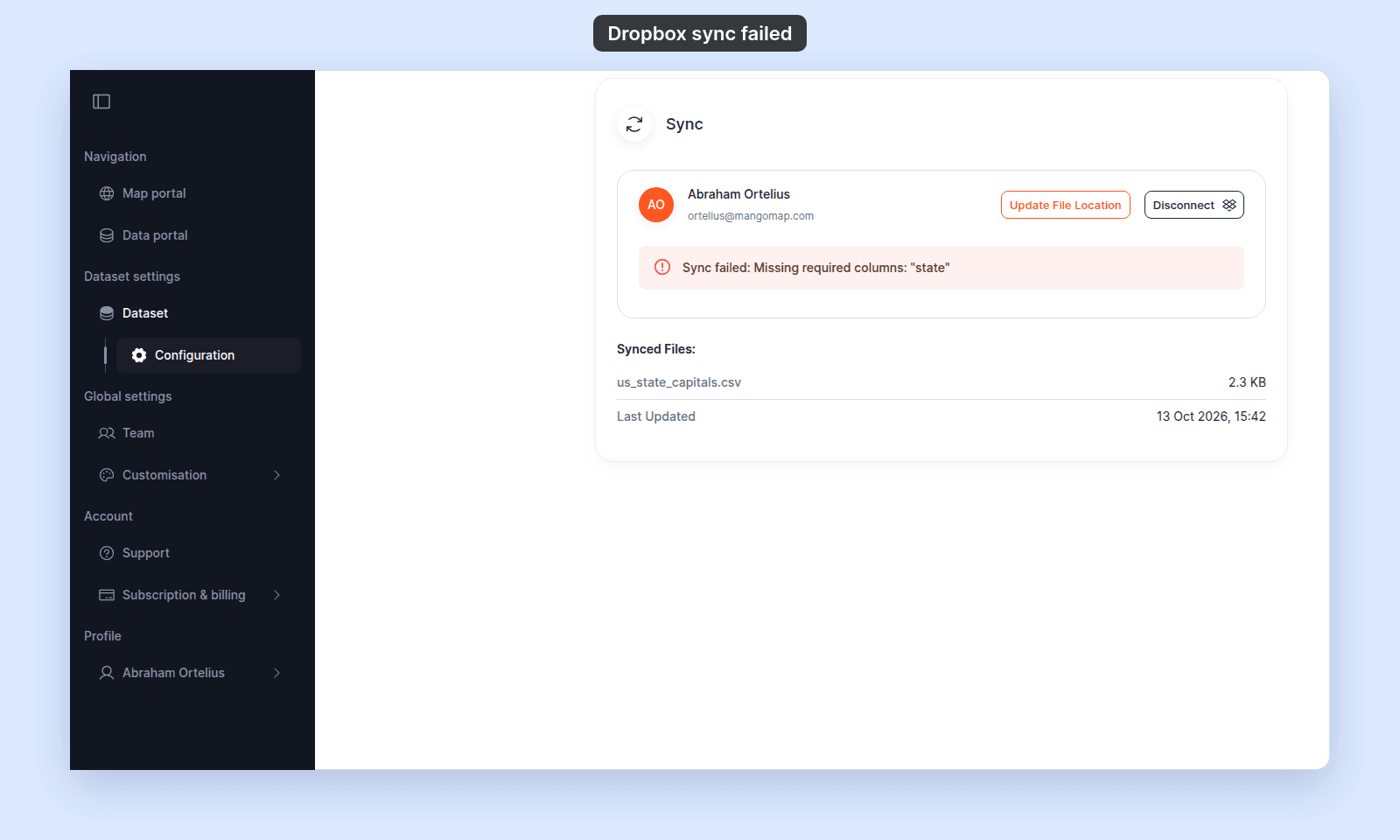
Sync runs the same checks as Update from file. Common reasons a previously-good file fails after an edit in Dropbox:
- A column the dataset already has was dropped or renamed. The message reads
Missing required columns: …. Put the listed columns back. - The file now holds more than one layer. The message reads
This file contains [N] layers (…). Please upload a single-layer file for this dataset.Keep only one layer in the synced file. - The file now holds a different geometry type. The message reads
This dataset contains [point|line|polygon] data, but the uploaded file contains …. Keep the dataset’s geometry type, or import the file as a new dataset. - A CSV was saved as a non-UTF-8 encoding (Excel sometimes writes Windows-1252).
- A shapefile was edited but a sidecar wasn’t updated (e.g.
.shpchanged but.dbfdidn’t).
To verify:
- Read the error message in the alert.
- Open the file in Dropbox and check whether it’s structurally valid.
To fix:
- Edit the file in Dropbox to fix the issue, then save again. The next change triggers a fresh sync.
- If you can’t fix the source file, restore an older version from Dropbox’s version history. MangoMap re-syncs whatever’s in Dropbox now.
- As a last resort, disconnect Dropbox sync and update the dataset manually with Update from file.
Less common: the Dropbox app authorisation was revoked
If you (or the person who connected Dropbox) revoked MangoMap’s access from inside Dropbox’s account settings, MangoMap can’t read the files. Sync stops; the next attempt fails.
To verify:
- Sign in to Dropbox and check
Connected apps(under your Dropbox account settings). MangoMap should be in the list. - If MangoMap isn’t listed, the app’s authorisation was revoked.
To fix:
- Re-authorise. In MangoMap, click
Disconnecton theSynccard to clear the stale connection. Then clickConnect Dropboxand sign in to Dropbox and approve access again. Re-pick the files.
Less common: the file was moved or deleted in Dropbox
If the synced file is renamed or moved to a different folder in Dropbox, MangoMap can’t find it. Sync fails on the next change.
To verify:
- In Dropbox, look in the original location for the file. If it’s gone, find it elsewhere or check your trash.
To fix:
- Move the file back to its original location, or
- In MangoMap, click
Update File Locationon the activeSynccard and pick the file from its new location. See How to change or disconnect Dropbox sync.
Less common: you ran out of MangoMap storage
If your subscription’s storage limit was exceeded by a sync that brought in a much larger file, the sync fails. The dataset doesn’t accept content that puts you over the limit.
To verify:
- Open
Subscription summary(Subscription & billing>Subscription summary) and check theStoragetile.
To fix:
- Free space by deleting unused datasets, or upgrade
Storageadd-ons. See How to manage your subscription. - After making space, edit the file in Dropbox to trigger a fresh sync. (A no-op edit is enough.)
Less common: the subscription no longer includes the Dropbox integration
If your subscription was downgraded to a tier without the Dropbox integration, sync stops working even though the connection details are still in place.
To verify:
- On the
Synccard, the controls may be disabled or behave differently. - Check your current subscription on
Subscription summary.
To fix:
- Upgrade the subscription back to a tier that includes the Dropbox integration, or
- Disconnect Dropbox and switch to manual
Update from fileupdates.
When the sync card shows nothing wrong but data isn’t updating
Two cases:
- The file in Dropbox isn’t actually changing. Sync only runs in response to changes. If the file modification time isn’t updating in Dropbox, MangoMap doesn’t see anything to sync. Check Dropbox’s file history.
- The sync hasn’t yet completed. Large files take time. Refresh the dataset settings page and check the
Last Updatedtimestamp underSynced Files.
If sync just won’t start at all
If Dropbox is connected but sync does not start:
- Check that you’ve selected every required file. The card shows
[N] files are requiredwhen the set is incomplete. - Click
Update File Locationto reopen the chooser and confirm your selection.
If none of these checks
Ask support. Include:
- The dataset URL.
- The exact
Sync failed:message from the card. - A note about whether the file in Dropbox has been edited recently.
- The Dropbox account email used for the connection.
Related
- How to set up Dropbox sync
- How to change or disconnect Dropbox sync
- How to update a dataset from a file - the manual fallback when sync isn’t working.
- Data updates reference