

How to find a dataset (signed in)
Find datasets while signed in, including private and internal ones. Use the admin filter and the badges for size, geometry, sync status, and map use.
The signed-in Data page lists every dataset you can access, including private and internal datasets that don’t appear publicly. It has the visitor search, sort, layout, and pagination controls, plus an admin filter and badges for size, geometry, sync status, and map use.
This how-to focuses on what changes for signed-in account members. For the basics (search box, sort menu, layout toggle, pagination), see How to find a dataset in the public portal. For a full catalog of every control, see the Data portal reference.
Before you start
- You need to be signed in to your MangoMap account. Open the portal at
https://mangomap.com/<account-slug>/data. - Your account role and group memberships decide which datasets you see. Owners see every dataset in the account; Admins, Editors, and Viewers see datasets they created and datasets shared with their groups. See Account roles reference.
See your full dataset set
Signed-in members see more datasets than visitors:
- Datasets you created.
- Datasets shared with any access group you belong to.
- Every dataset in the account (Owner only).
Read the badge chips on each card
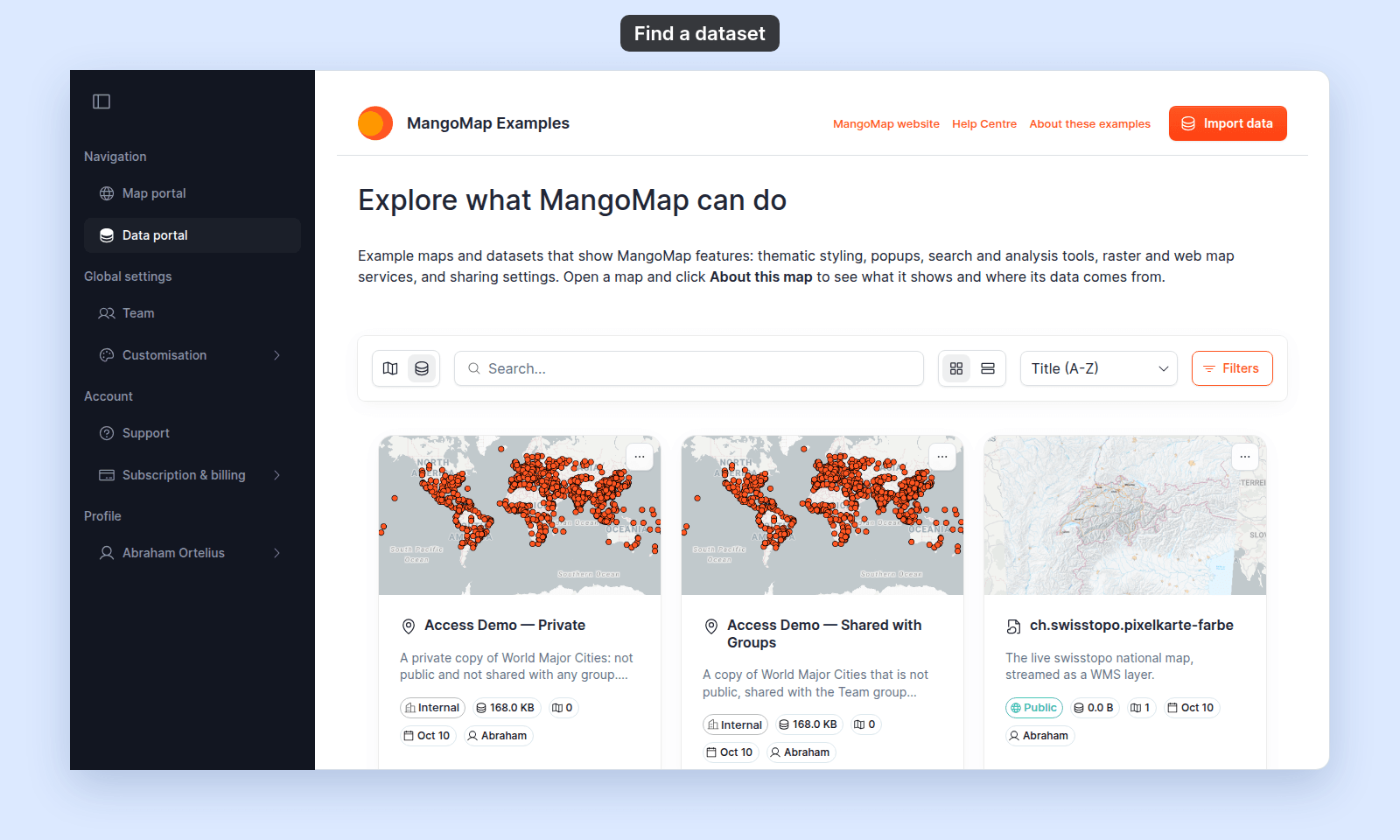
Every dataset card shows a row of chips. Visitors don’t see these.
- Access-mode badge —
PublicorInternal.Internalmeans public access is off. Group Editablechip — appears when the dataset isPublicorInternalAND an access group has edit permission.Sync Activechip — appears when the dataset has an active sync source (e.g., Dropbox sync). Green outline.- File size chip — the dataset’s size on disk. Hover for the record count.
- Map usage chip — the count of maps using this dataset (e.g.,
3). Hover forUsed in 3 maps. Always shown for admins, even when zero. - Updated chip — the last-updated date. Hover for the full date.
- Creator chip — the creator’s first name. Hover for the full name and creation date.
For the full meaning of each access-mode label, see Access-mode badges.
Use the advanced filters
The Filters button at the right end of the search bar opens the Filter Data dialog. Visitors don’t see this button.
Seven filter sections, applied together as AND:
- Access type — limit the list to datasets in one or more access modes.
- Geometry —
Point,Polygon,Line,Raster,WMS. Pick one or more. - Dataset usage — when on, the list shows only datasets that aren’t used in any map. Useful for housekeeping.
- Sync status — when on, the list shows only datasets with an active sync source.
- Date — pick a start and end date. The range applies to the date each dataset was created.
- Owner — limit the list to the datasets one account member created. Picking another member replaces the first.
- File size — a range slider with
Min (MB)andMax (MB)fields. Datasets without a size (WMS) are excluded when this filter is active.
Click Apply Filters to apply. Click Clear All to reset every section.
Applied filters persist for the rest of the session and are remembered alongside the sort and layout choices.
Find unused datasets to clean up
To find datasets you can delete:
- Open the filter popover.
- Turn on
Show unused only. - Click
Apply Filters.
The list narrows to datasets that aren’t used in any map. From there you can review and delete them. See How to delete a dataset.
Combine filters with search and sort
Search, sort, and advanced filters are independent and all apply together:
- Search by keyword to narrow by title, description, creator, or tag.
- Open the filter popover to constrain by access, geometry, usage, sync, date, creator, or size.
- Sort the results with the sort dropdown.
The total result count appears at the bottom of the page next to the pagination controls.
Related
- How to find a dataset in the public portal — the basics, from a visitor’s perspective.
- Data portal reference — every control on the page, in order.
- How portals work in MangoMap — visitor mode vs signed-in mode.
- How dataset access works in MangoMap — the rules behind each badge.
- Account roles reference — what each role can see and do.