

How to find a dataset in the public portal
Search, sort, switch layout, and page through the public Data page to find a dataset an account has made public. No sign-in is needed.
The Data page lists every dataset that an account has made public. You can search, sort, switch between card and list layout, and page through the results. This guide explains each visitor control.
For a full catalog of every element on the page, see the Data portal reference. For the rules that decide which datasets appear, see How portals work in MangoMap.
Open the portal
The portal lives at https://mangomap.com/<account-slug>/data (or the equivalent path on a connected custom domain).
A connected custom domain redirects its root URL to the Maps page, not the Data page. To land on Data from a custom domain, use the Maps / Data toggle at the left end of the search bar to switch.
Search by name
Type into the search box in the centre of the search bar. The list filters as you type.
A match is any case-insensitive substring in:
- The dataset’s title.
- The dataset’s description.
- The dataset creator’s name.
- Any tag on the dataset.
The clear button (X) at the right of the search box empties the field.
Sort the list
The sort dropdown sits on the right side of the search bar. The list starts in the order the account owner set, or Title (A-Z) if they didn’t set one. You can sort by:
| Option | What it does |
|---|---|
Title (A-Z) |
Alphabetical |
Title (Z-A) |
Reverse alphabetical |
Newest First |
Most recently created first |
Oldest First |
Oldest created first |
Recently Updated |
Most recently updated first |
Size (smallest first) |
File size, smallest first |
Size (biggest first) |
File size, biggest first |
Your choice is remembered for the rest of the session.
Switch between card and list view
The layout toggle (two icons — a grid for Card and rows for List) sits between the search box and the sort menu.
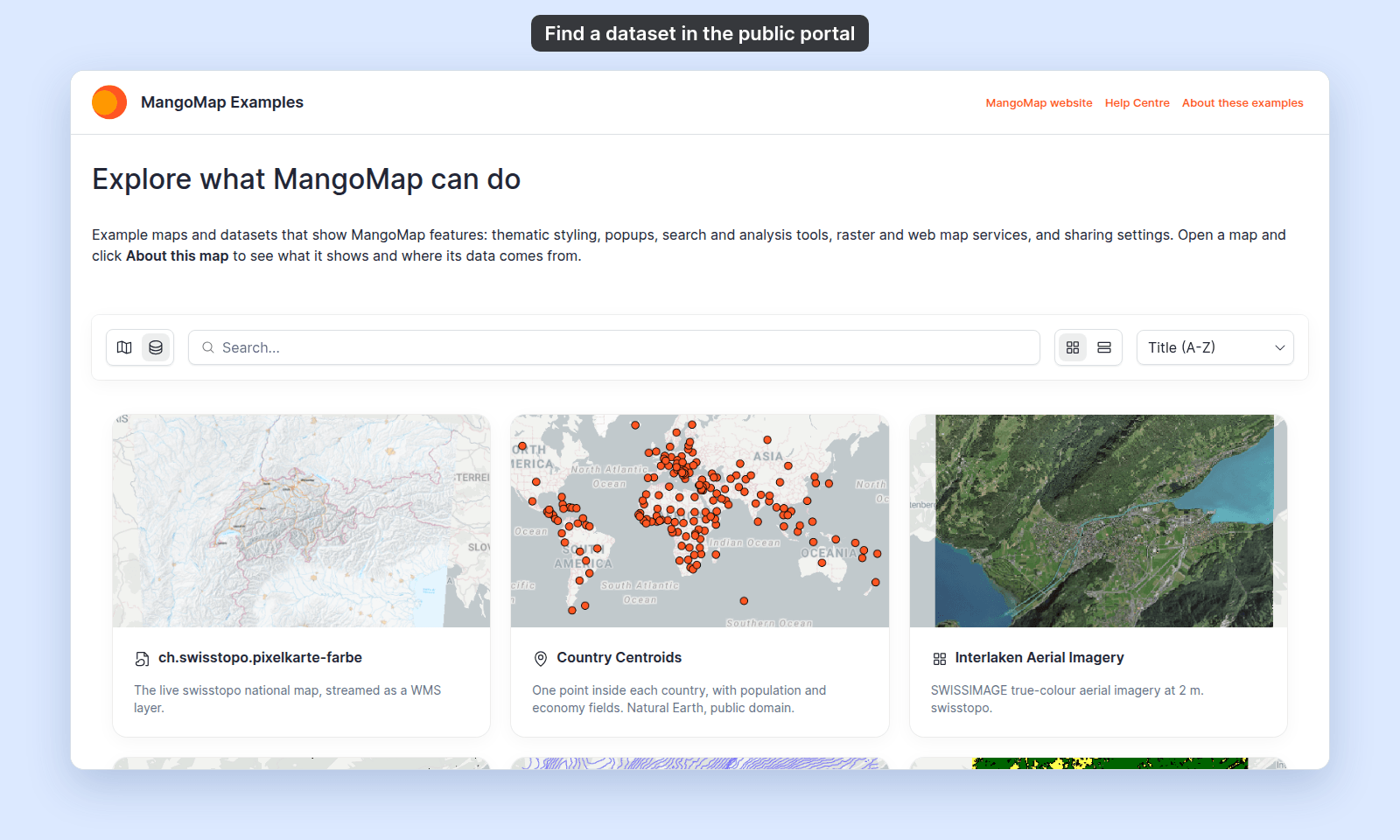
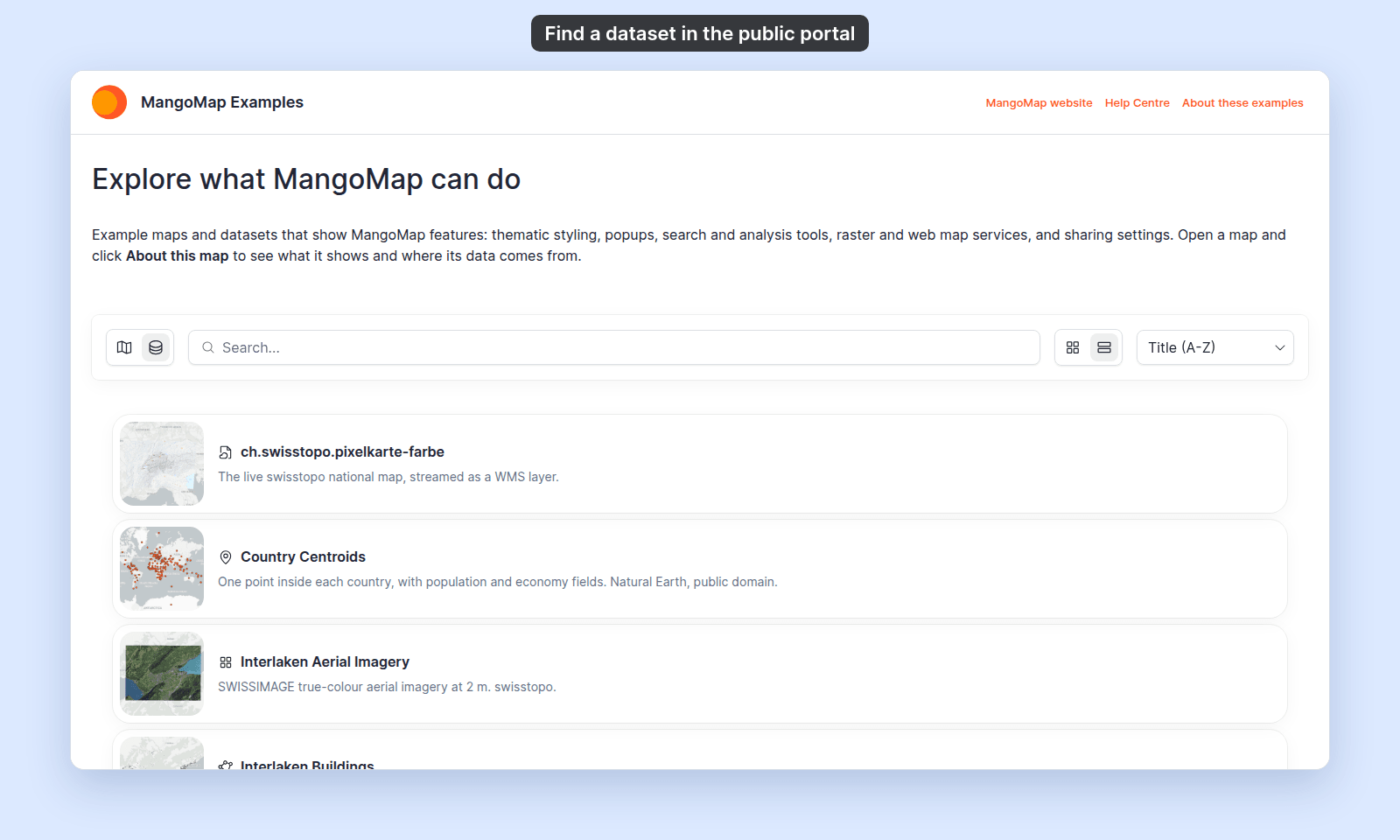
- Card view shows a 16:9 thumbnail above the title and description for each dataset. A small geometry icon (point, polygon, line, raster, or WMS) sits to the left of the title.
- List view stacks compact rows with a square thumbnail on the left. Useful when scanning many datasets at once.
The portal’s default layout is set by the account owner under Customisation. Your switch overrides the default for the session.
Page through the results
The grid shows 12 datasets per page. When there are more, a pagination control appears at the bottom of the page with previous, next, and direct page-number buttons.
Open a dataset
Click anywhere on a card (or anywhere on a list row) to open the dataset’s detail page in the same tab. The detail page keeps the portal header and footer.
Related
- Data portal reference — every element on the page, in order.
- How portals work in MangoMap — what the portal is, and the difference between visitor and signed-in modes.
- How to find a map in the public portal — the parallel page for browsing maps.