

Tutorial: Build your first map
Build a public map of the world's major cities from sample data in about 10 minutes. Colour the cities by population, add a popup and search, and publish.
In about 10 minutes, you build a map of 1,072 of the world’s major cities from MangoMap sample data. You colour the cities by population, add a popup and a search box, and publish the map so anyone can open it. To see where you will end up, open the finished map.
Before you start
- A MangoMap account. A free trial is enough.
Step 1: Download the sample data
Open the MangoMap Examples Data portal. Search for World Major Cities and open it. Click Download, then CSV.
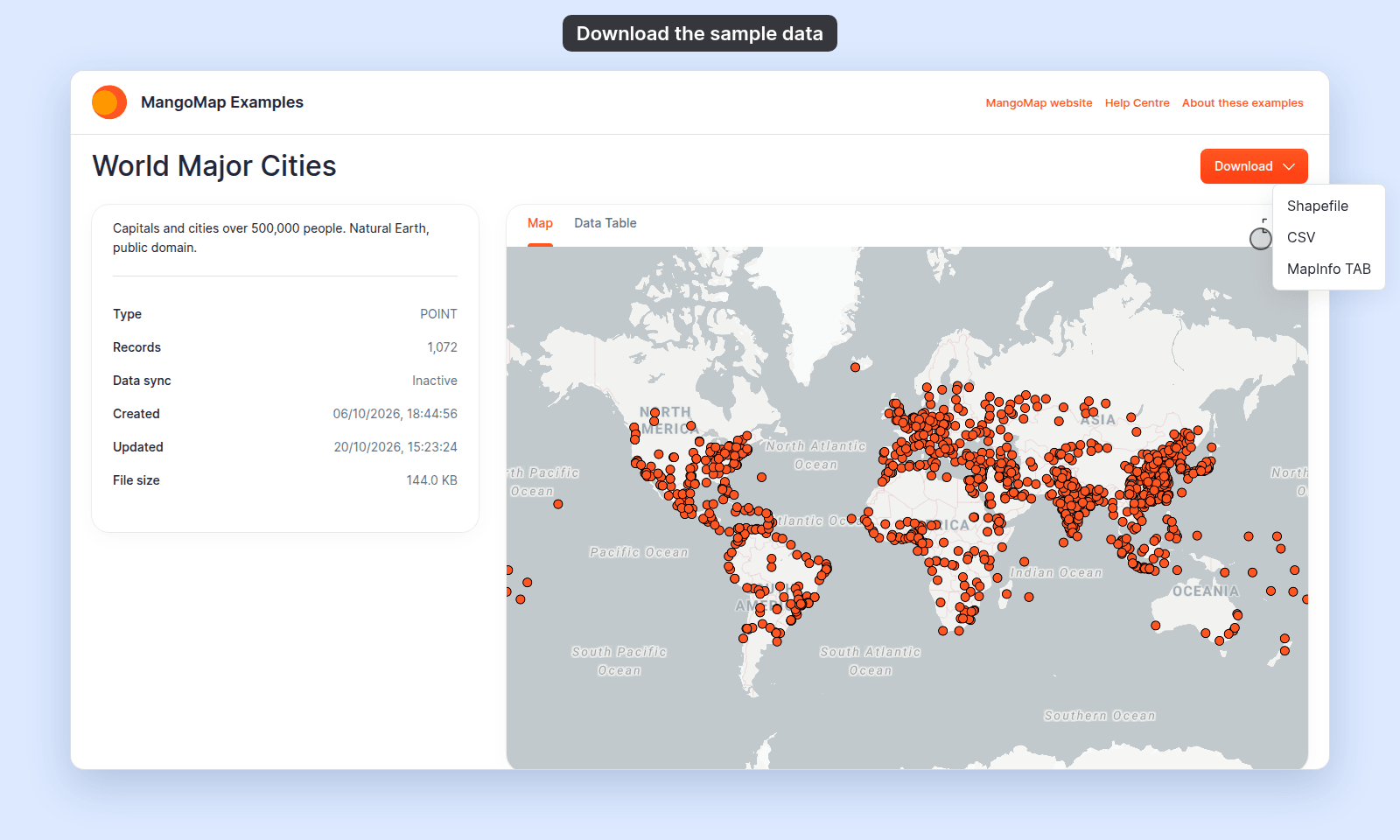
A file named like World_Major_Cities_2026-10-07-01.csv downloads. It holds each city’s name, country, population, and location.
Step 2: Create a map
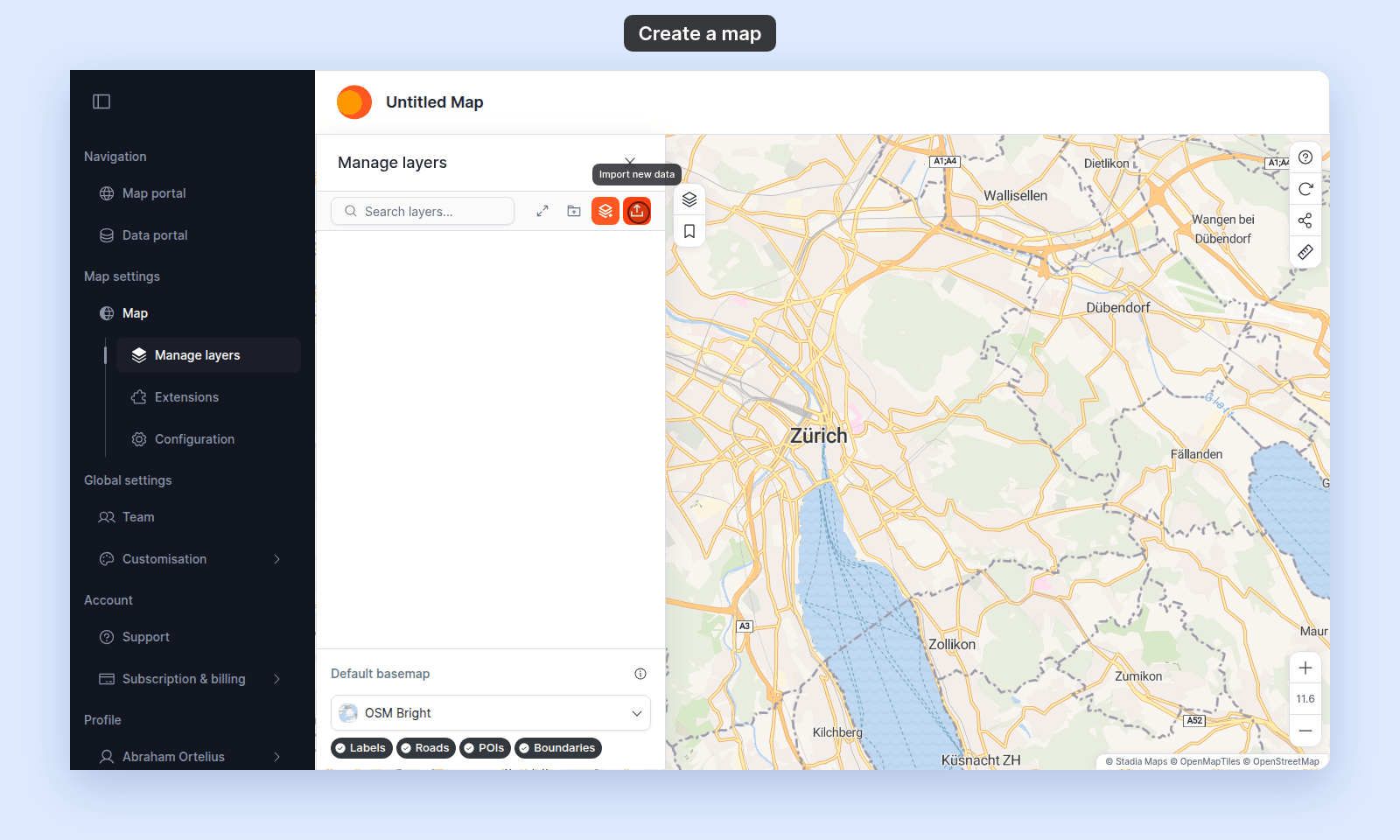
Sign in to MangoMap. In the left menu, click Map portal, then click Create a map. A new map named Untitled Map opens, with an empty Manage layers panel.
Step 3: Add the cities
- In
Manage layers, clickImport new data, the orange upload button. TheImport datapage opens. - Set
Data formattoCSV, clickUpload files, and choose the file you downloaded. - In
Dataset name, replace the name withMajor cities. - Click
Save.
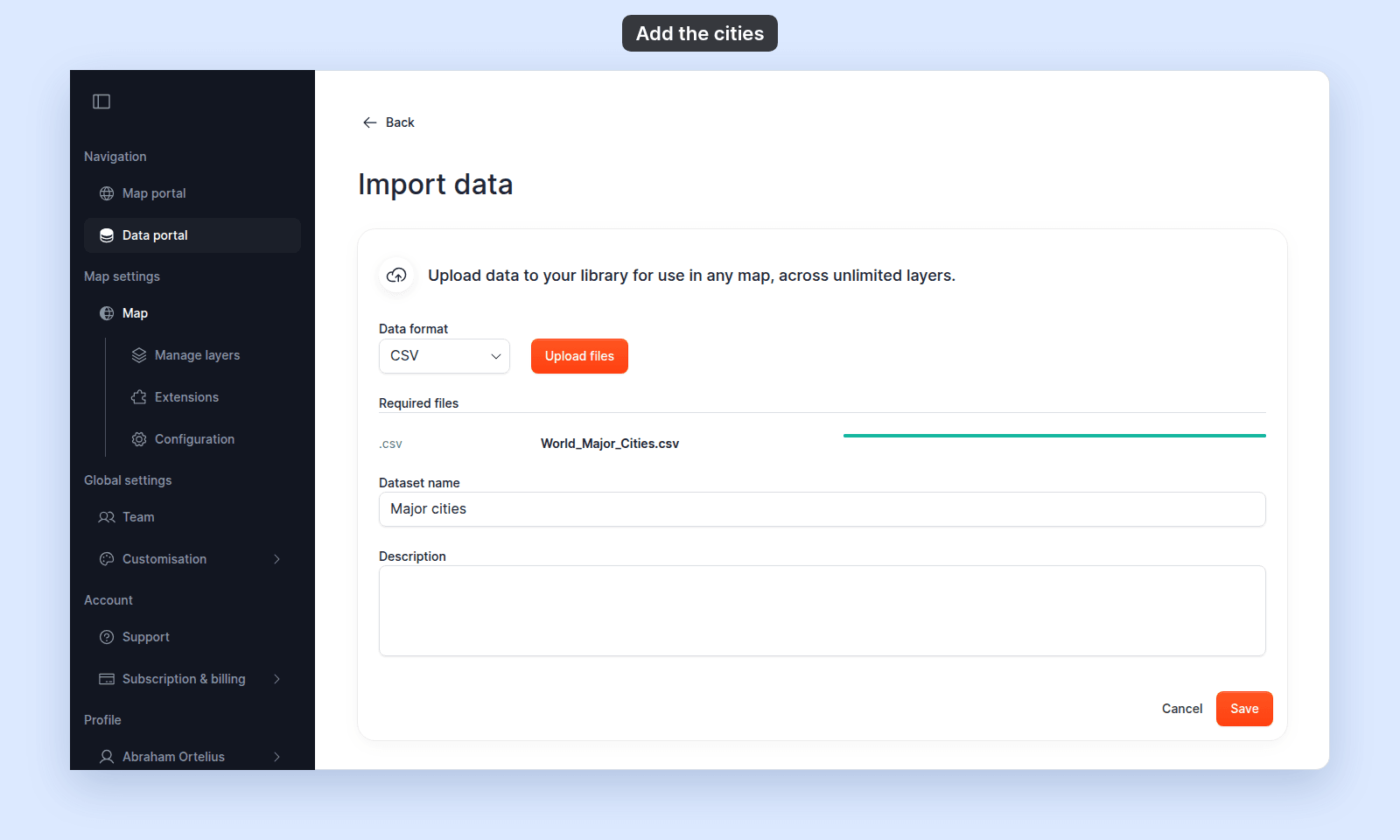
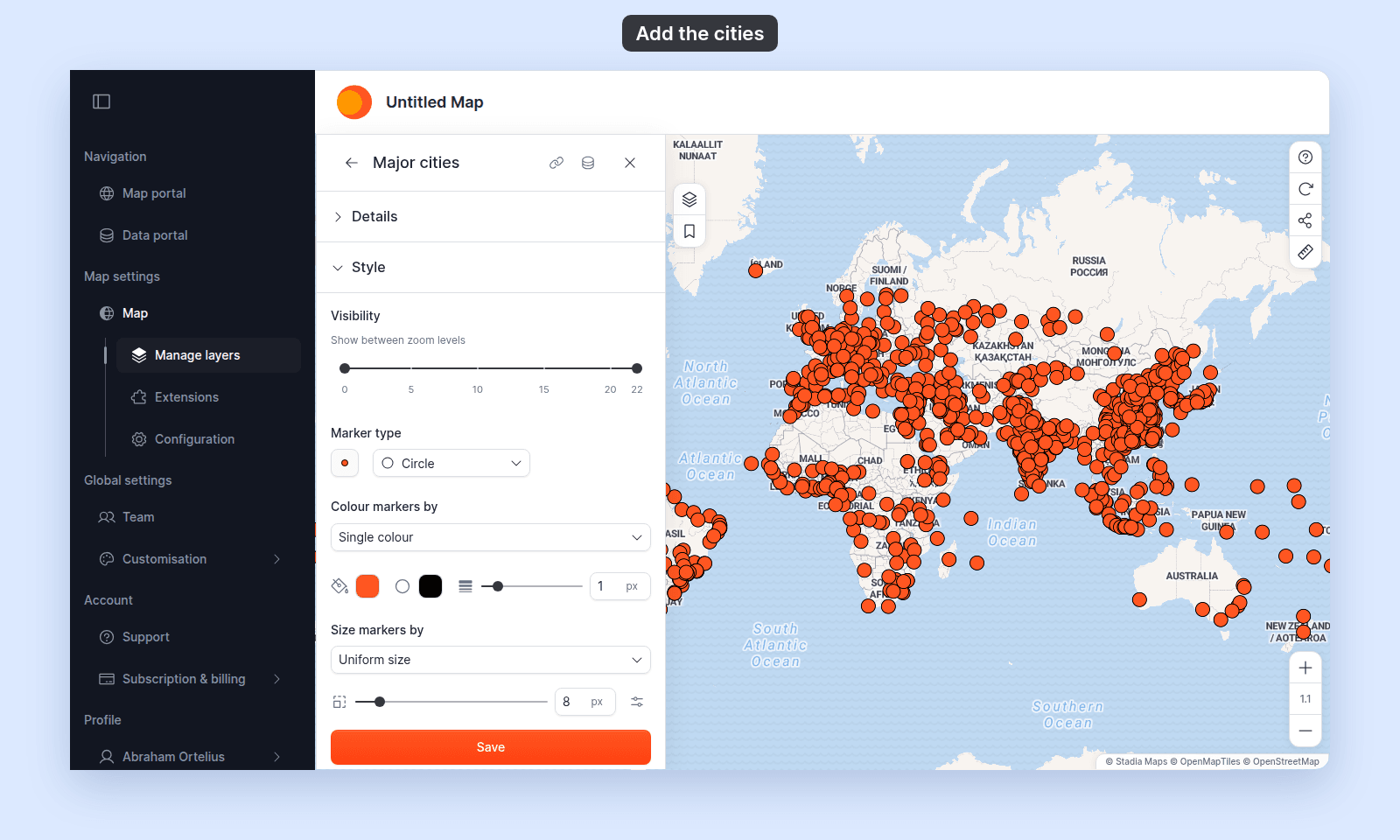
MangoMap processes the file, which takes about 30 seconds. Stay on the page until it finishes. The map then shows a Major cities layer with an orange marker for each city, and the layer’s settings open at Style.
Step 4: Colour the cities by population
- In
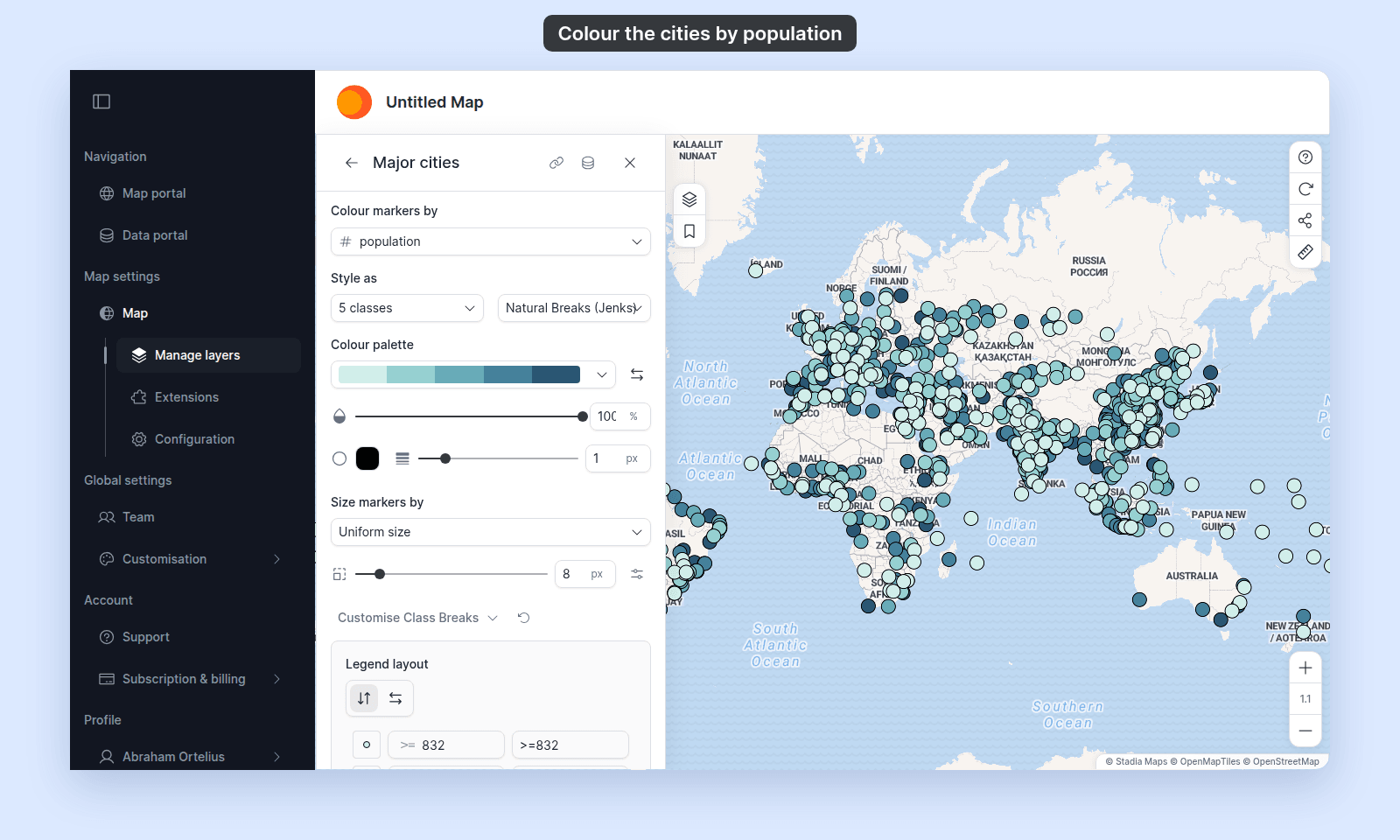
Style, setColour markers bytopopulation. MangoMap sorts the cities into 5 classes. - Click
Save.
The markers change to five shades of teal: the darker the marker, the larger the city. The map shows a style change only after you save it.
Step 5: Write a popup
A popup shows a city’s details when a viewer clicks it.
- Open
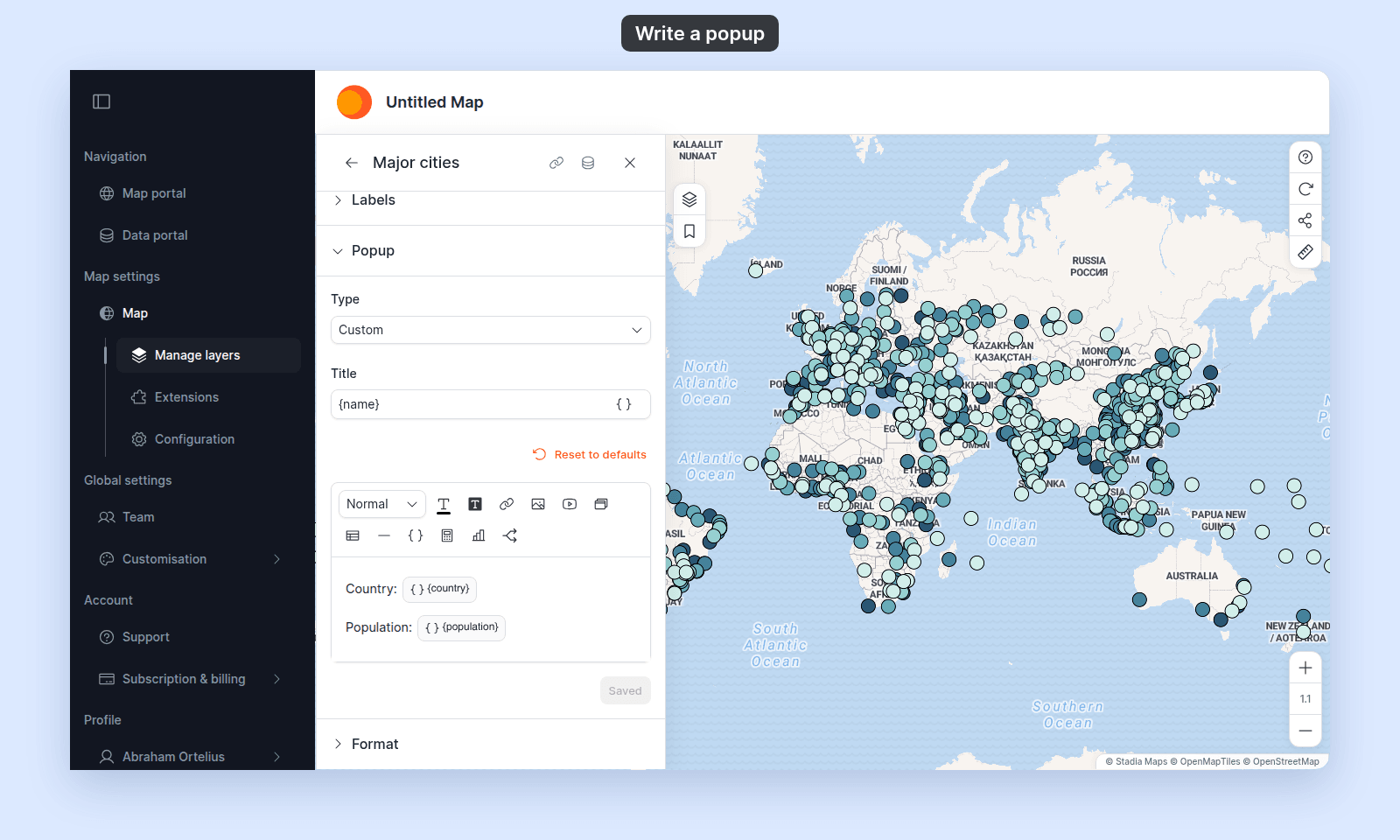
Popupand setTypetoCustom. - In
Title, clickInsert simple variable(the{ }button) and chooseName. The title becomes{name}. - The popup body starts with one line for each field. Delete every line except
Country:andPopulation:. - Click
Save Changes.
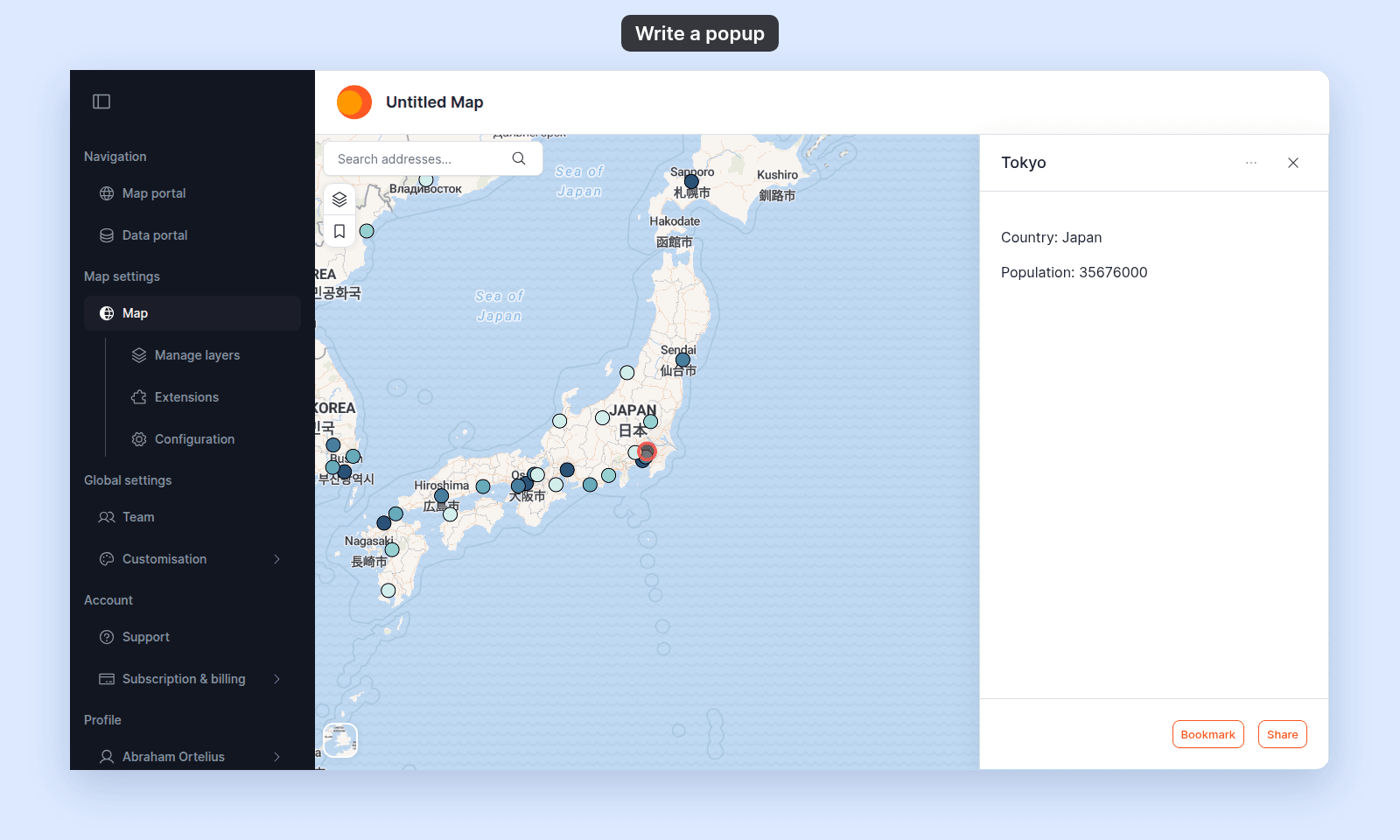
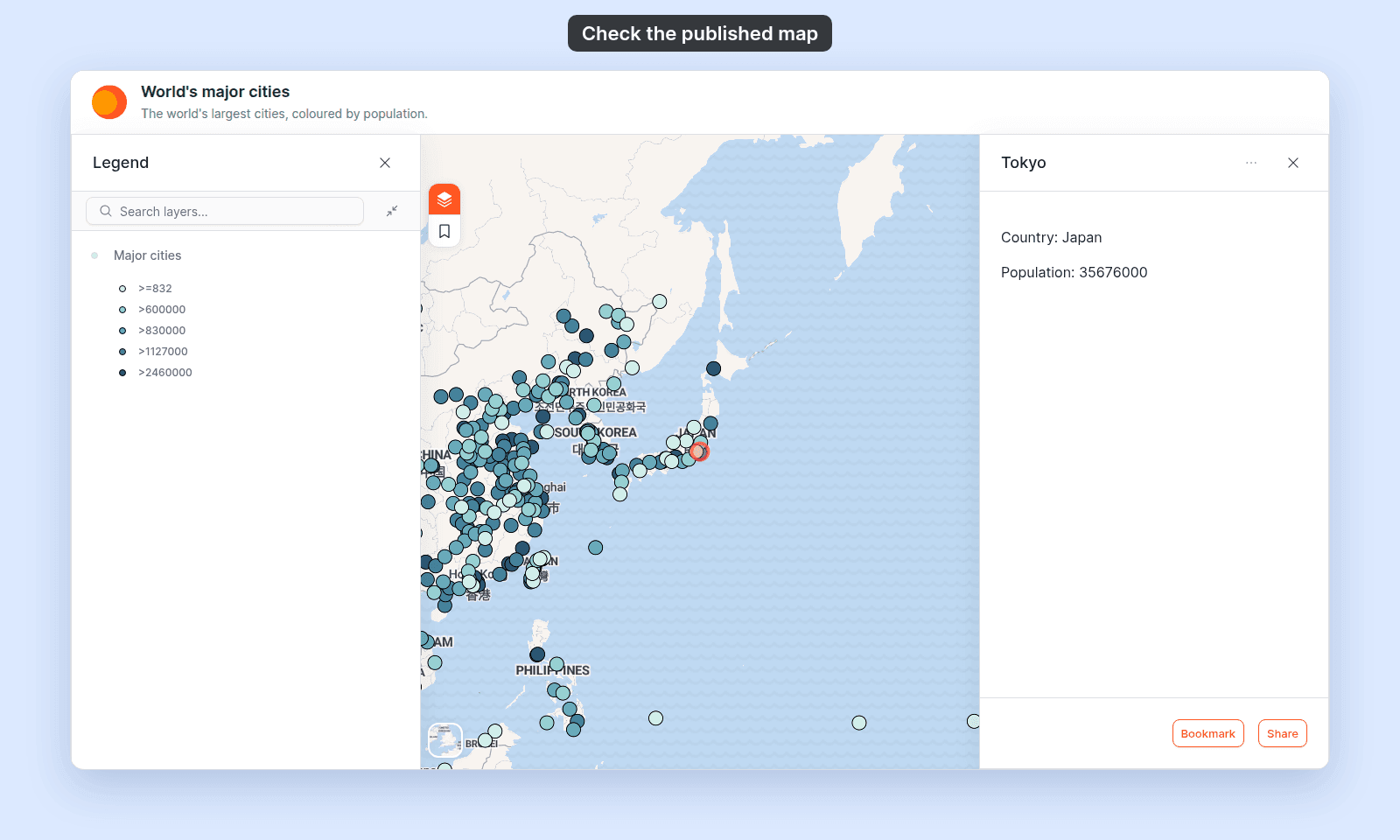
Click a city on the map, for example Tokyo. Its popup opens with the city’s name as the title, and its country and population.
Step 6: Add search
Search lets viewers find a city by its name.
- In the left menu, click
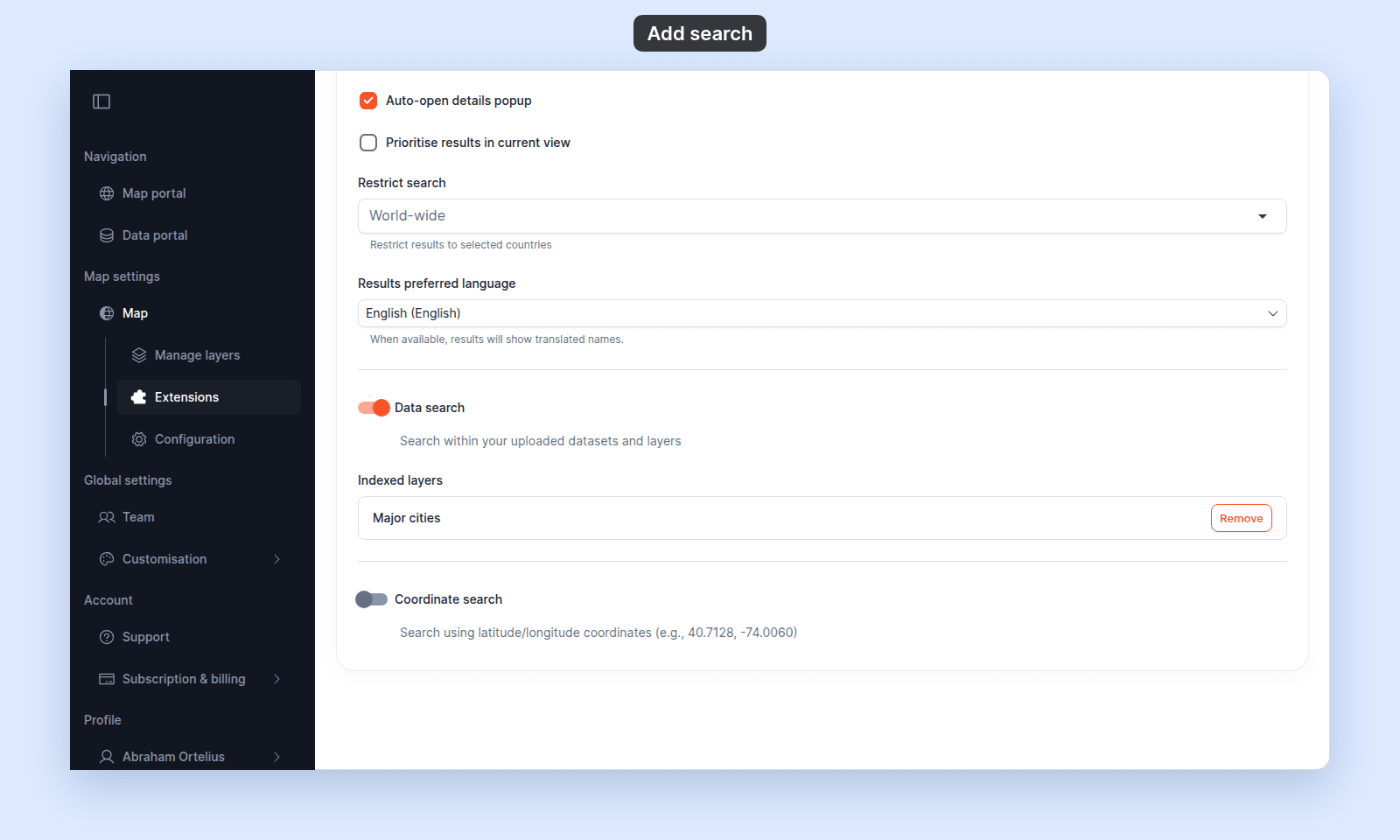
Extensions. Search is already on for a new map, so on theSearchcard, clickSettings. - Turn on
Data search. UnderIndexed layers, clickAddnext toMajor cities.
- At the top of the page, set
Default search typetoData search, so the search box looks for cities first.
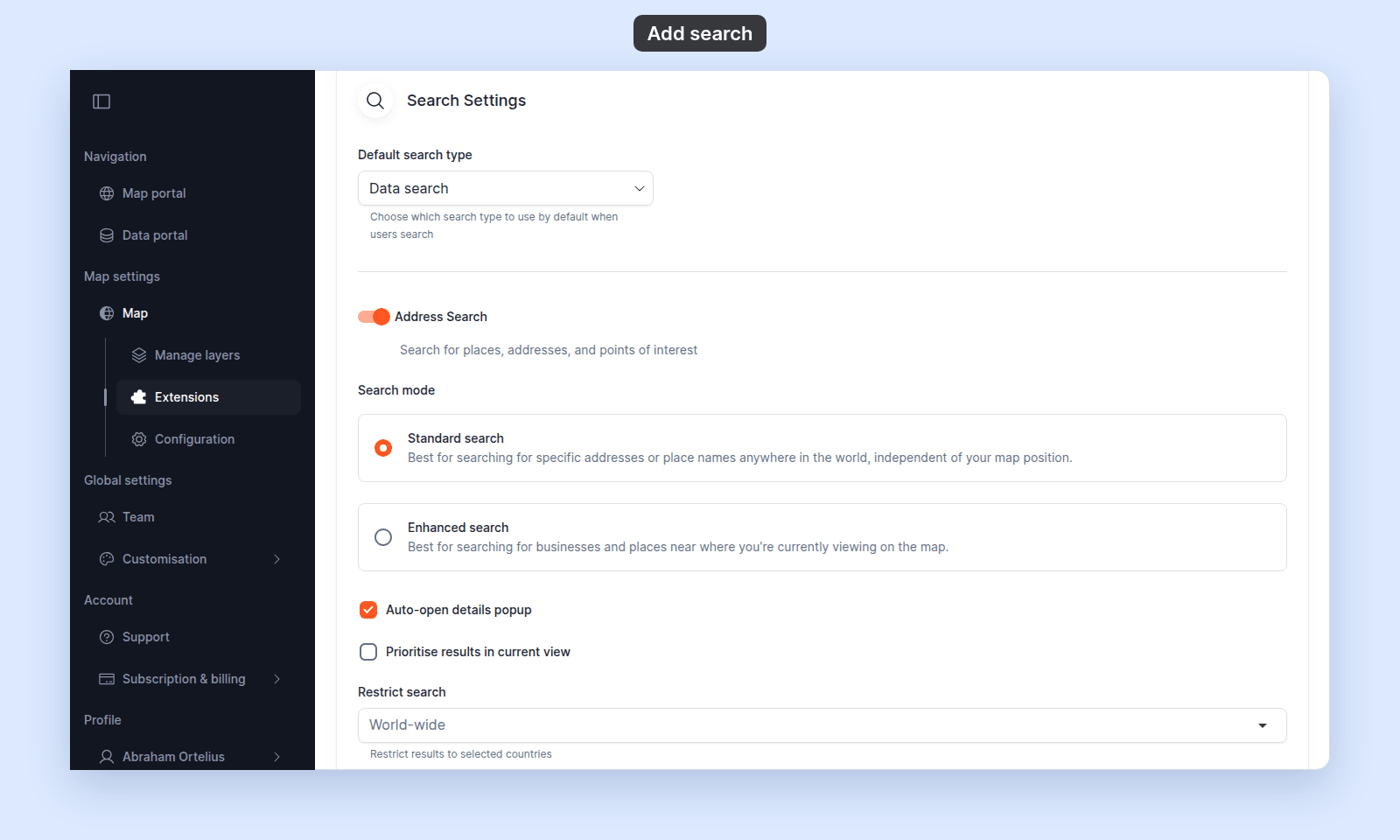
The settings save as you change them.
Step 7: Name the map
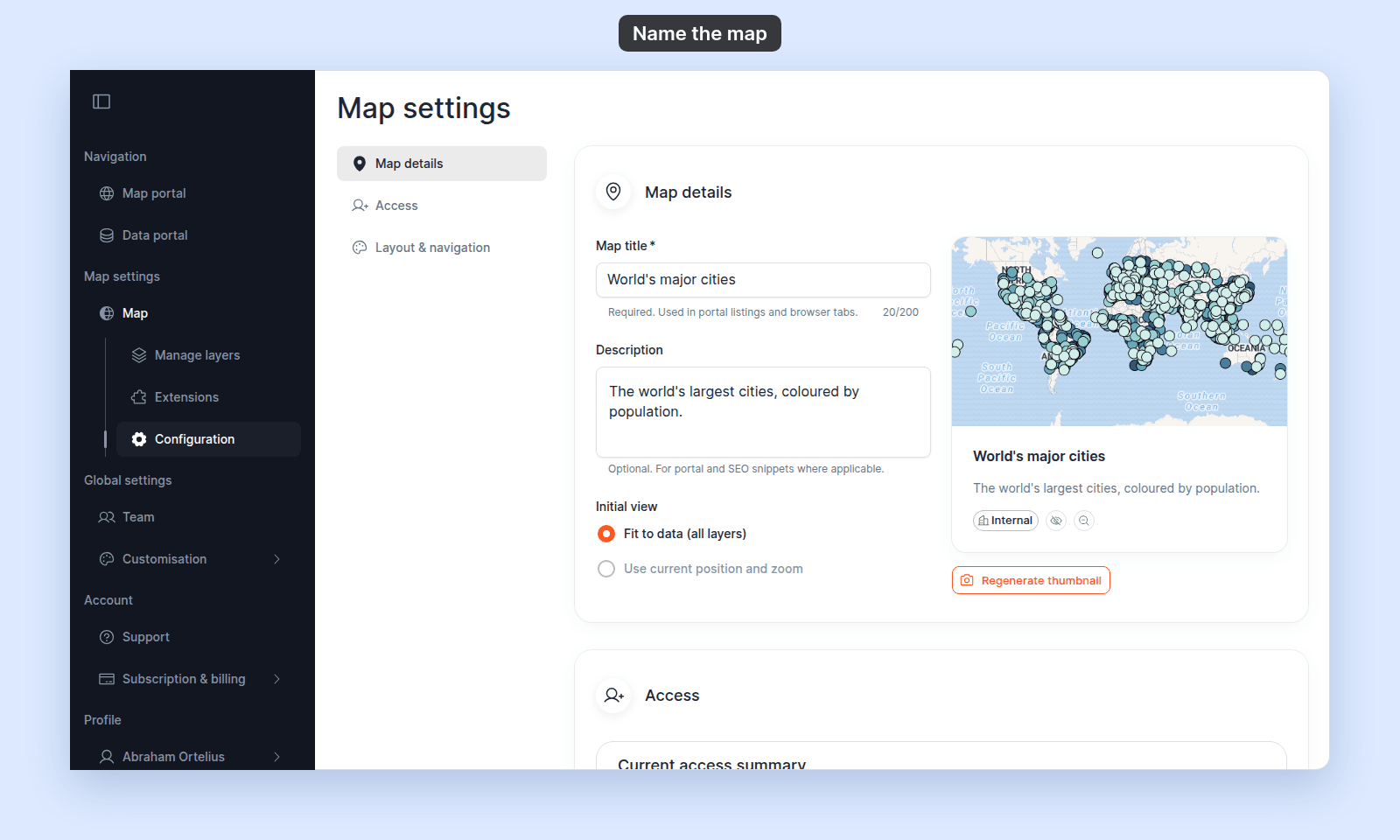
- In the left menu, click
Configuration. - In
Map title, typeWorld's major cities. - In
Description, typeThe world's largest cities, coloured by population.
Each field saves when you leave it.
Step 8: Publish the map to the web
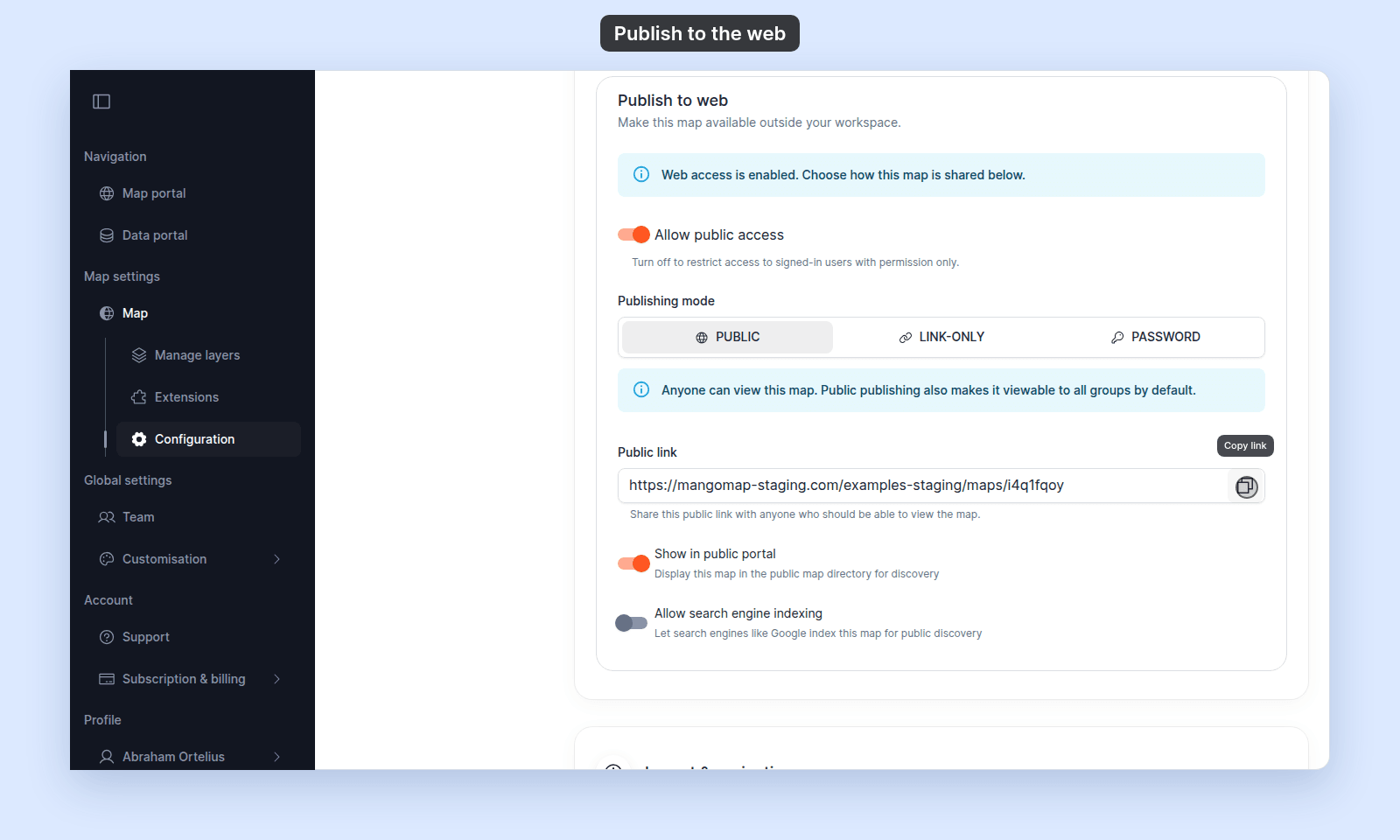
- On the same page, go to
Access, thenPublish to web. - Turn on
Allow public access.Publishing modechanges toPublic. - Click the copy button in the
Public linkfield.
Step 9: Check your map
Open the link in a private browser window, so you see the map as a visitor who is not signed in. The map opens with its title and the legend. Click a city to see its popup. To search, close the legend, type a city name in the search box, and press Enter.
What you’ve built
A public map of the world’s major cities. The cities are coloured by population, each one has a popup, and viewers can find any city by name. Anyone with the link can open the map, and it is listed in your public Map portal. Compare it with the finished map.
Next steps
- Format numbers: show populations with thousands separators, such as 35,676,000.
- Style by quantity: change the classes, the classification method, or the colours.
- Write a custom popup template: add headings, links, and images to the popup.
- Set up Search: the other search settings.
- Share a map with groups: share the map with your team instead of the public.
- Embed a map in another website: show the map on your own web page.
- Import a CSV: import your own data.
Related
- Glossary: definitions for map, layer, dataset, popup, portal, and related terms.
- Map controls and shortcuts: the interactions used in this tutorial.
- Supported browsers and devices: device support and mobile differences.