

How to format a number column
Show a numeric column with thousands separators or rounded decimals. Set Data Type to Number on the Format tab. The stored value does not change.
Number formatting displays values such as 12345.6789 as 12,345, 12,345.6789, or a rounded whole number. Click the pencil on the column on the Format tab, set Data Type to Number, and pick the format and decimals count; The stored value stays unchanged. Use the Currency or Measurement type for those displays — see How to format a currency column and How to format a measurement column.
See it on an example map
Open the Attribute Formatting Lab. In the legend, turn on Planning Areas — Formatted and turn off Sites — Formatted Attributes. Click an area. Population shows as a whole number, and Area (km²) shows two decimals.
Before you start
- The layer must be a vector layer (point, line, or polygon). Raster and WMS layers don’t have a Format tab.
- The column must hold numeric values. Text and true/false columns don’t show format options on the Format tab.
Open the Format tab
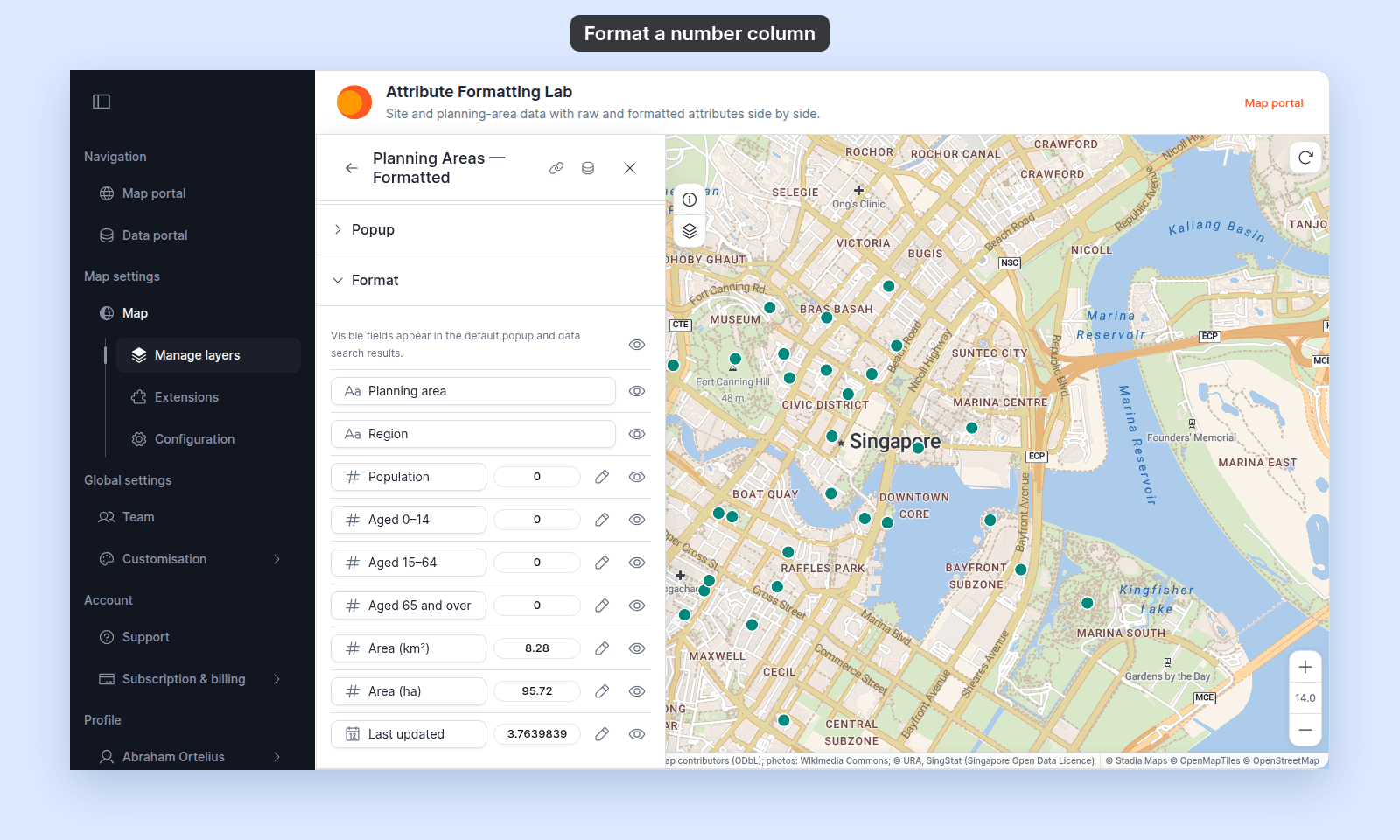
In the layer panel, select your layer. Click the Format tab.
Each numeric row has three controls: the alias, a format chip with a pencil icon, and a visibility eye.
Open the format drawer
Click the pencil icon next to the column you want to format. The right-side Attribute formatting drawer opens with Data Type at the top.
Pick the Number data type
In the Data Type dropdown, select Number. Two more controls appear: Number Format and (conditionally) Decimals.
Choose the number format
In Number Format, pick:
Integer— whole number, no decimals.12345.67displays as12345.Float— full precision as stored.12345.67displays as12345.67.Rounded— rounds to the nearest whole number. Adds aDecimalsdropdown below.
(If Rounded) Pick the decimal count
If you picked Rounded, set Decimals to a value from 0–6. The default is 2.
The Preview at the bottom of the drawer updates live as you change the controls — check the result before saving.
Save
Click Save. Closing or cancelling the drawer does not save the change. The format applies in the default popup, custom popup templates, data search results, and print/export popups.
If you want thousand separators
Float renders with the thousand separator built in (12,345.67, not 12345.67). Rounded rounds to the nearest whole number and keeps separators (12,346, not 12345.6789). Integer also renders separated. There’s no separate toggle.
If your numbers should be currency
Currency is its own Data Type, with a currency-symbol picker and a separate decimal control. See How to format a currency column.
If your numbers should be a measurement
Measurement is its own Data Type, with unit selection and conversion. See How to format a measurement column.
If your popup still shows the unformatted value
Check that the row’s visibility eye is on. Hidden attributes don’t show in the popup regardless of their format. Also check that the layer’s popup mode (in the Popup tab) isn’t set to None.
If your legend shows the unformatted value
Class-break labels in the legend use the raw value, not the formatted one. Round the boundaries in the style’s Customise Class Breaks panel. Those edits live with the style, not the format. See How to customise category and class break symbology.
The numbers at the ends of a continuous gradient, and beside a size key, do use your Number format.
Related
- Attribute format controls
- How attribute formatting works in MangoMap
- How to format a currency column
- How to format a measurement column