

How to rename an attribute label
Give an attribute a friendly label, such as Population (2024), in the alias box on the Format tab. Popups and search show it. Exports keep the field name.
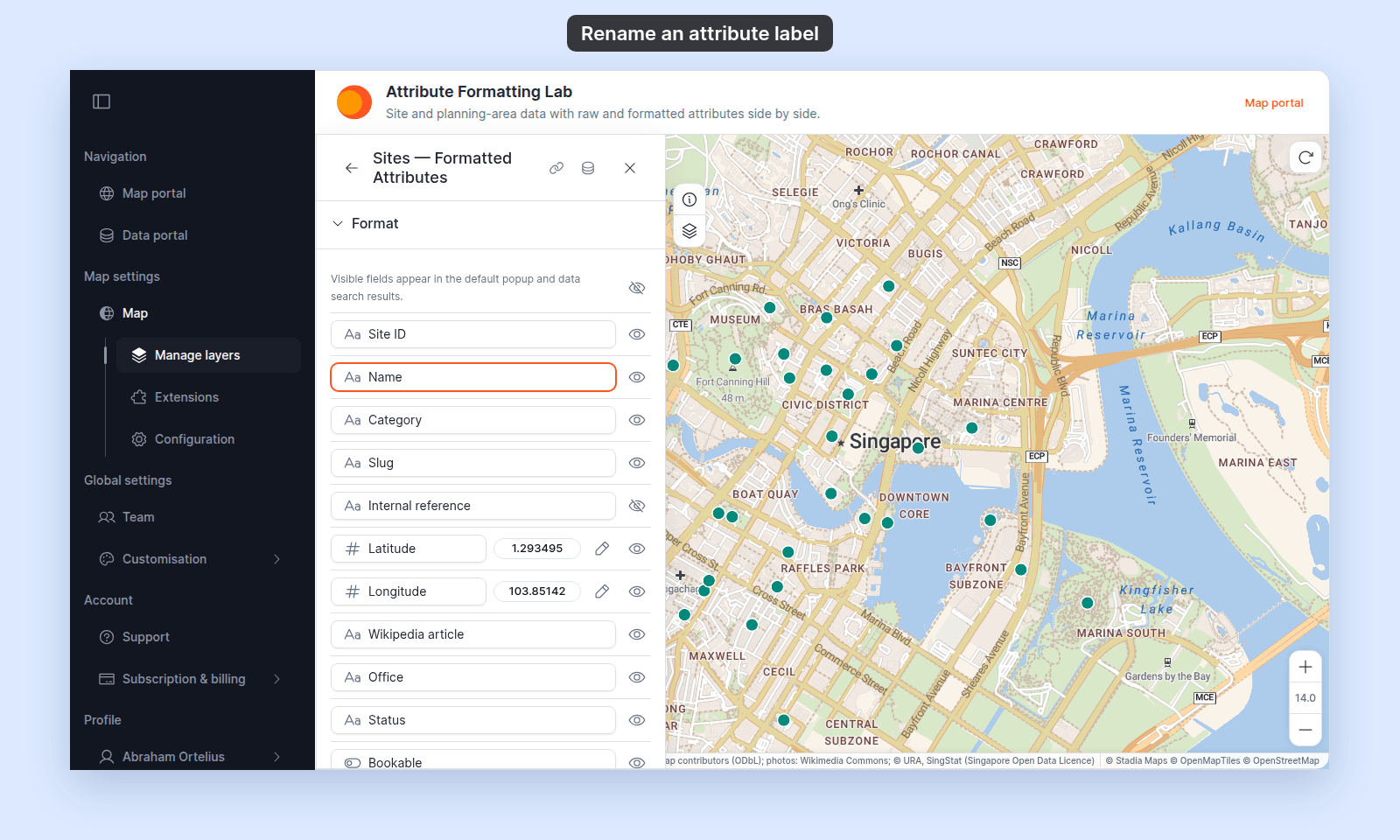
A renamed attribute uses a friendly label wherever it appears. For example, pop_2024 can display as Population (2024). Click into the alias input on the attribute’s row on the Format tab and type the label. The alias changes display only: exports keep the original field name, and filters and queries use the original.
See it on an example map
Open the Attribute Formatting Lab. The Sites — Formatted Attributes layer is on when the map opens. Click a site. The popup shows friendly names such as Land value and Lot size. To compare, turn on Sites — Raw Attributes and turn off the formatted layer.
Before you start
- The layer must be a vector layer (point, line, or polygon).
- The rename affects display only. If you want to rename the column in your source data, do it before importing.
Open the Format tab
In the layer panel, select your layer. Click the Format tab.
The tab shows one row per attribute. The text input at the start of each row is the alias.
Edit the alias
Click into the alias input on the row of the attribute you want to rename. Type the new label.
As soon as you type, the alias replaces the original name in popups and search.
The change saves automatically when you click out of the input or move to another field — there’s no separate save button.
Where the alias appears
The alias replaces the original field name in:
- The default popup label.
- Custom popup templates that reference the field by its display label (variables that reference the underlying field name use the original).
- Data search result cards.
- Print and export popups.
- The legend, wherever it names the field — for example, the caption under a size key.
The alias does not appear in:
- Category and class labels in the legend. These show the values in the field, not its name. Edit them in the style’s
Customise categoriesorCustomise Class Breakspanel. - Filters and queries (use the original field name).
- Exports of the underlying data (CSV, GeoJSON keep the original field name).
If you want to revert to the original
If the alias has special characters
Aliases accept any text — spaces, punctuation, mixed case. Population (2024) is fine. Total CO₂ (kg) is fine. Keep aliases short so they fit in popup tables.
If you also want to hide the attribute
Renaming and hiding are independent. Set both: the rename takes effect if you turn visibility back on, and the alias persists across visibility toggles. See How to hide an attribute from popups.