

How to format a currency column
Show a numeric column with a currency symbol and set the decimals. Pick Currency as the Data Type on the Format tab. The stored value stays a number.
Currency formatting displays a numeric column such as 1234.56 as $1,234.56, €1,234.56, or ¥1,235 in popups, search, print, and export. Click the pencil on the column on the Format tab, pick Currency, and choose a symbol; The stored value stays numeric, and each field uses one currency — for true mixed-currency data, add a separate currency-code column before import.
See it on an example map
Open the Attribute Formatting Lab. The Sites — Formatted Attributes layer is on when the map opens. Click a site. The Land value shows as a dollar amount with two decimals.
Before you start
- The layer must be a vector layer (point, line, or polygon).
- The column must hold numeric values. Currency formatting works on plain numbers; you don’t need a special “currency” column type — you tell MangoMap to interpret the values as currency at display.
Open the Format tab
In the layer panel, select your layer. Click the Format tab.
Open the format drawer
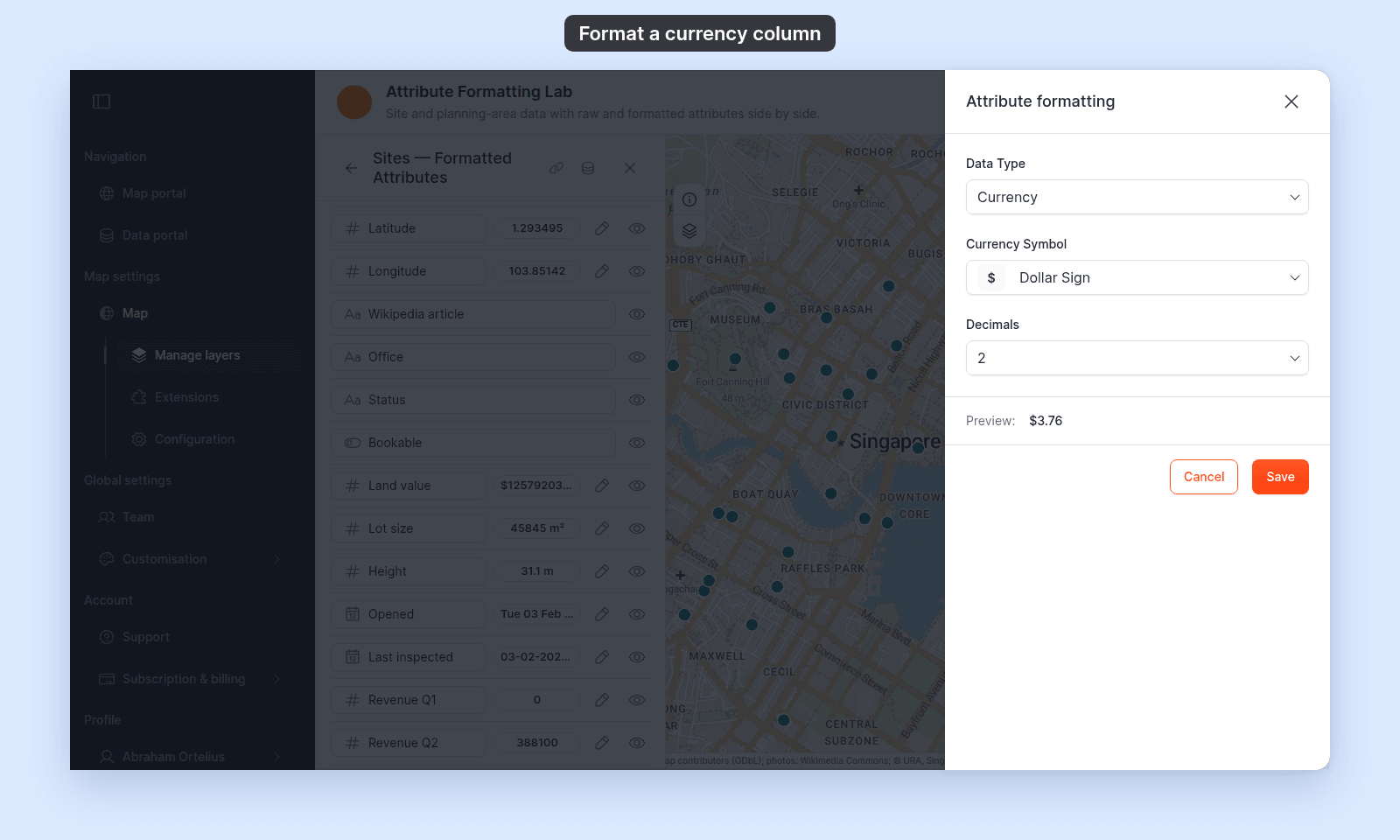
Click the pencil icon next to the column you want to format. The Attribute formatting drawer opens.
Pick the Currency data type
In the Data Type dropdown, select Currency. Two controls appear: Currency Symbol and Decimals.
Pick the currency symbol
In the Currency Symbol dropdown, pick the currency you want. The list includes 31 currency symbols — $ (Dollar Sign), € (Euro), £ (Pound Sign), ¥ (Yen), and major regional currencies.
The symbol is prepended to every value ($1,234.56). Some currencies place the symbol after the value or with a space — those follow the convention for the chosen currency.
Pick the decimal count
In Decimals, set the number of decimal places. The default is 2 — appropriate for currencies with cents or pence. Set to 0 for currencies that don’t use decimals (Japanese yen, Korean won) or when you’re showing rounded amounts.
The Preview at the bottom of the drawer updates live as you change the controls.
Save
Click Save. Closing or cancelling the drawer does not save the change. The format applies in the default popup, custom popup templates, data search results, and print/export popups.
If your data has multiple currencies in the same field
Each attribute carries one format. If your data mixes currencies — some rows in dollars, some in euros — pick the most common currency and treat the others as approximate. There’s no per-row or per-feature currency selection.
For mixed-currency datasets, the cleaner option is to add a separate currency-code column to your data before importing, and reference it in a custom popup template alongside the value.
If your numbers are already prefixed with a currency symbol
Currency formatting expects raw numeric values. If your data has values like $1234.56 (a string with a symbol baked in), the Format tab won’t strip the symbol — it’ll treat the field as text and the format chip won’t appear at all.
Strip the symbol from the source data before importing, or skip the Currency format and let the popup display the strings as-is.
If your popup still shows the unformatted value
Check that the row’s visibility eye is on, and that the layer’s popup mode (in the Popup tab) isn’t None.