

How to format a measurement column
Add a unit symbol such as km to a numeric column. Pick Measurement on the Format tab, then the unit type and unit. The format does not convert units.
Measurement formatting adds a unit symbol to a numeric column when it displays. For example, 1500 with Kilometres displays as 1,500 km. The format does not convert units, so choose the unit that matches the stored values. Click the pencil on the column on the Format tab, pick Measurement, then set the unit type and display unit; the format adds the symbol only and doesn’t convert between units, so pick the unit that matches what your stored values represent — to display data in a different unit (a metres column shown as kilometres), convert the source before import.
See it on an example map
Open the Attribute Formatting Lab. The Sites — Formatted Attributes layer is on when the map opens. Click a site. The Lot size and Height values show with their units.
Before you start
- The layer must be a vector layer (point, line, or polygon).
- The column must hold numeric values. Measurement formatting works on plain numbers — you pick a unit symbol to label them with at display time.
- Know the unit your stored values are already in. The format doesn’t convert —
1500shown asKilometresreads1,500 km, not1.5 km— so pick the unit that matches what’s in the column.
Open the Format tab
In the layer panel, select your layer. Click the Format tab.
Open the format drawer
Click the pencil icon next to the column. The Attribute formatting drawer opens.
Pick the Measurement data type
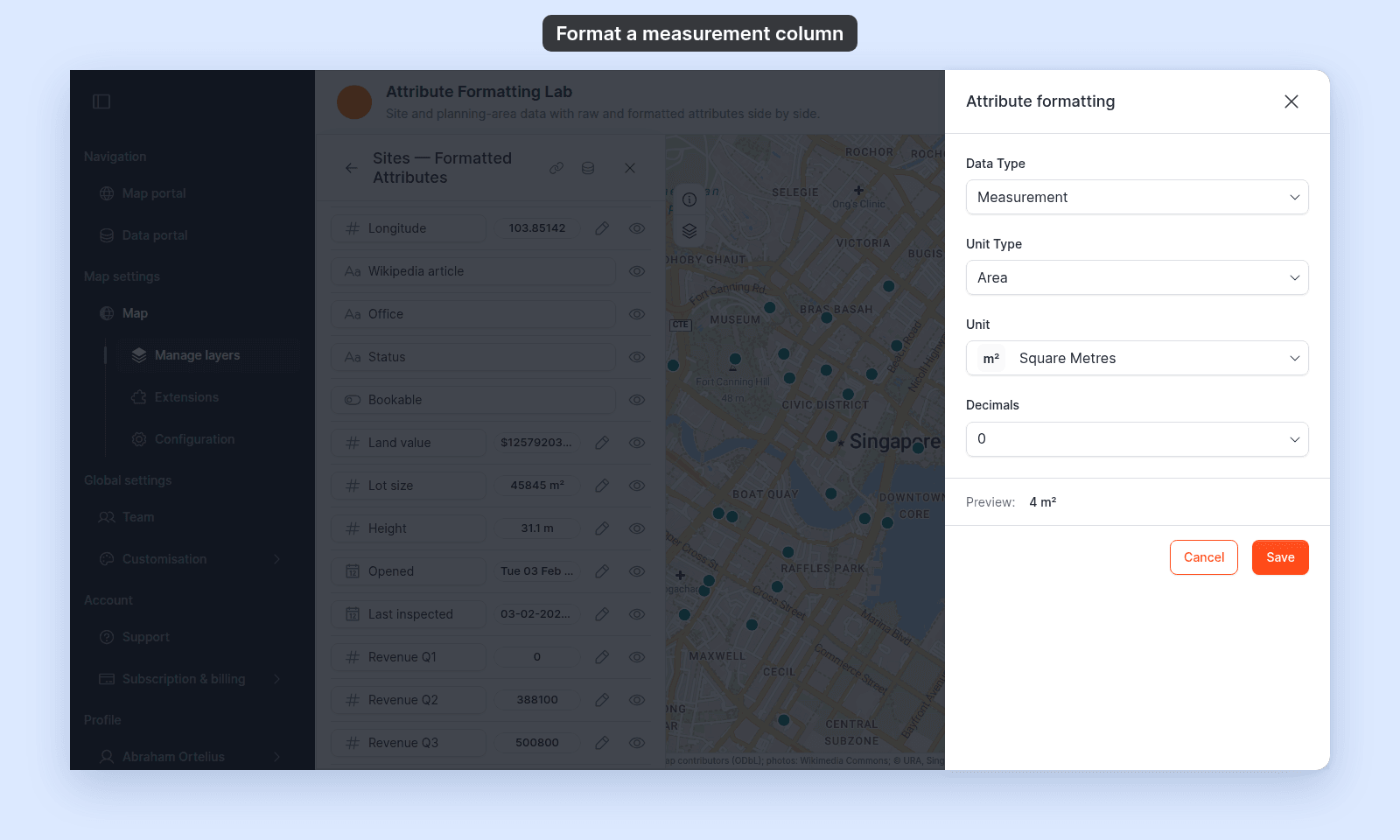
In the Data Type dropdown, select Measurement. Three controls appear: Unit Type, Unit, and Decimals.
Pick the unit type
In Unit Type, pick:
Distance— for lengths.Area— for areas.Velocity— for speeds.
The Unit dropdown below populates with the matching options.
Pick the unit
In Unit, pick the display unit:
- Distance:
Millimetres,Centimetres,Metres,Kilometres,Inches,Feet,Yards,Miles,Nautical Miles. - Area:
Square Millimetres,Square Centimetres,Square Metres,Square Kilometres,Square Inches,Square Feet,Square Yards,Square Miles,Hectares,Acres. - Velocity:
Millimetres per second,Centimetres per second,Metres per second,Kilometres per hour,Feet per second,Miles per hour,Knots.
Pick the decimal count
In Decimals, set the number of decimal places. The default is 2.
The Preview at the bottom updates live as you change the controls.
Save
Click Save. Closing or cancelling the drawer does not save the change. The format applies in the default popup, custom popup templates, data search results, and print/export popups.
Match the unit to your stored values
The format doesn’t convert — it appends the chosen unit’s symbol to the stored value as-is. If your column holds metre values, pick Metres; if it holds feet, pick Feet; if it holds hectares, pick Hectares. Picking a mismatched unit produces visibly wrong output: a column of 5280 (feet) labelled as Kilometres shows 5,280 km, not 1.61 km.
To display the same data in a different unit (a metres column shown as kilometres), convert the source data to that unit before import — there’s no in-product conversion step.
If the dropdown doesn’t show your unit
The unit list above is the complete set. If you need a unit that’s not on the list, there’s no custom unit option. Convert your data to a supported unit before import.
If your popup still shows the raw number
Check that the row’s visibility eye is on, and that the layer’s popup mode (in the Popup tab) isn’t None.
Related
- Attribute format controls
- How attribute formatting works in MangoMap
- How to format a number column — for numeric columns that aren’t measurements.