

How to format a date column
Show a date or timestamp column as a readable date. Set Data Type to Date & Time on the Format tab, then pick date only or datetime and a built-in pattern.
Date formatting changes a timestamp such as 2026-05-09T10:00:00Z to a readable date in popups, search, print, and export. Click the pencil on the date column on the Format tab, set Data Type to Date & Time, and pick a pattern; MangoMap provides four built-in patterns and no custom format string. The Format tab cannot change a text or number column into a date column.
See it on an example map
Open the Attribute Formatting Lab. The Sites — Formatted Attributes layer is on when the map opens. Click a site. The Opened and Last inspected values show as readable dates.
Before you start
- The layer must be a vector layer (point, line, or polygon).
- The column must hold date or timestamp values. The Format tab shows date controls for date columns automatically.
Open the Format tab
In the layer panel, select your layer. Click the Format tab.
Open the format drawer
Click the pencil icon next to the date column. The Attribute formatting drawer opens.
Pick the Date & Time data type
In the Data Type dropdown, select Date & Time. Two controls appear: Format Style and Date Format.
Choose date-only or datetime
In Format Style, pick:
Date only— the date portion.2026-05-09T10:00:00Zdisplays as2026-05-09(or your chosen pattern).Datetime— the date plus the time of day.2026-05-09T10:00:00Zdisplays as2026-05-09 10:00:00.
Pick the date format
In Date Format, pick the pattern:
DD-MM-YYYY—09-05-2026(or09-05-2026 10:00:00withDatetime). Common in the UK and most of Europe.YYYY-MM-DD—2026-05-09. The default.MM-DD-YYYY—05-09-2026. Common in the US.Long format—Sat 09 May 2026(or10:00:00 AM Sat 09 May 2026withDatetime). Day name + day + month name + year.
The Preview at the bottom of the drawer updates live.
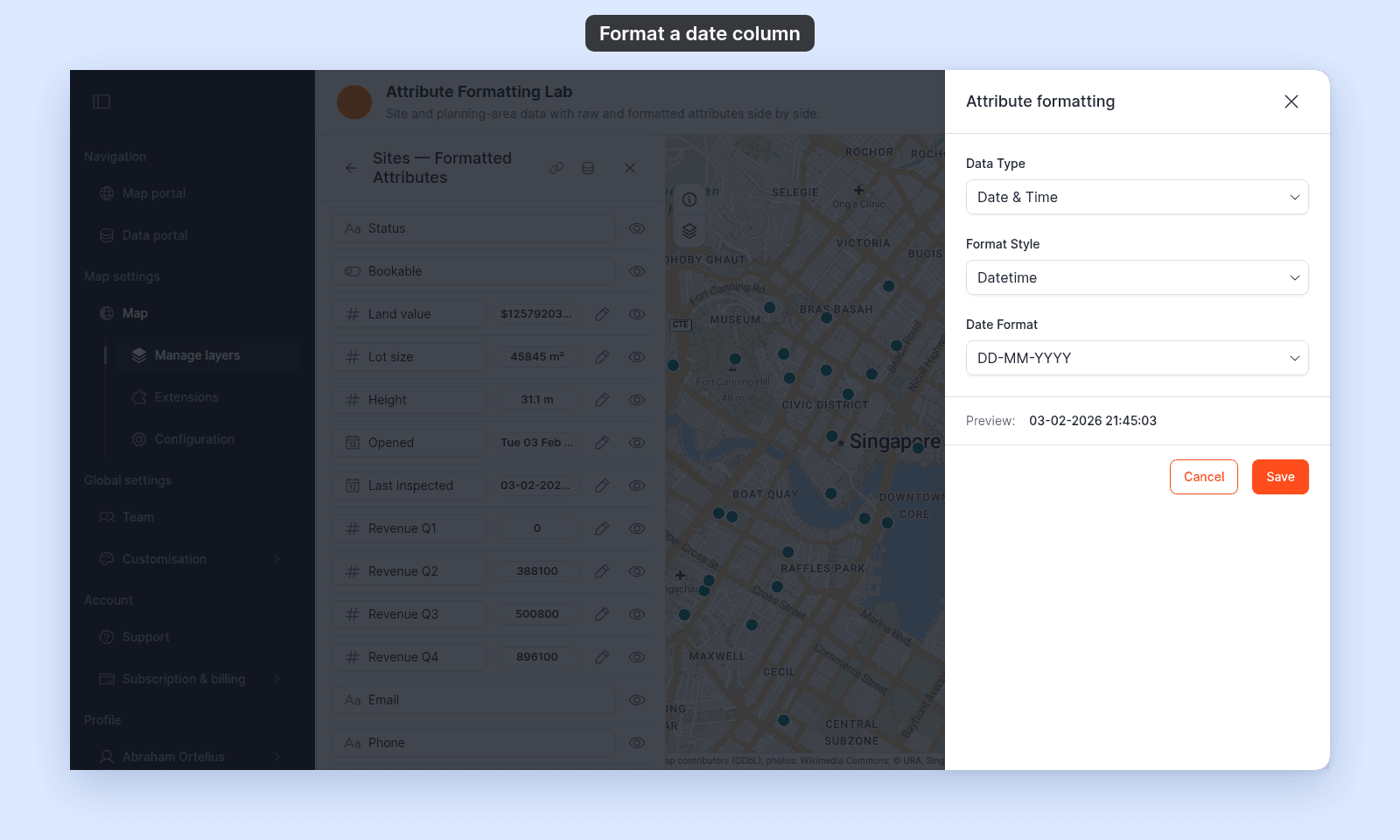
Save
Click Save. Closing or cancelling the drawer does not save the change. The format applies in the default popup, custom popup templates, data search results, and print/export popups.
If your dates have time zones
MangoMap displays the date in the original time zone of the data (or as it was stored). If your data is stored in UTC and you want local-time display, the Format tab won’t convert — you’d need to convert the column to local time before importing.
If you want a different pattern
If you need something specific (May 9, 2026 American long form, or 09/05/26 two-digit year), choose the closest of the four built-in options.
If the date displays as a number or as raw text
The column may not be detected as a date column at import time — it could have been imported as text or as a number. Check the row’s data-type chip on the Format tab. If it shows a non-date type, you’d need to re-import the source data with the column flagged as a date in the source format (in your CSV’s column header, in your shapefile’s .dbf, etc.). The Format tab can’t reinterpret a non-date column as a date.
If your popup still shows the raw timestamp
Check that the row’s visibility eye is on, and that the layer’s popup mode (in the Popup tab) isn’t set to None.
Related
- Attribute format controls
- How attribute formatting works in MangoMap
- How to import a CSV — covers how columns are typed at import time.