

How to hide an attribute from popups
Remove an attribute from the default popup and data search results with the eye icon on the Format tab. The data stays on the layer for styles and filters.
Hiding an attribute removes it from the default popup and data search results. The data stays on the layer and remains available to styles, filters, custom popups, and exports. Click the eye icon on the attribute’s row on the Format tab; hidden attributes stay available for Category and Quantity styling, for filters, for custom popup templates that reference them by name, and for exports of the underlying data — visibility controls only the default popup.
See it on an example map
Open the Attribute Formatting Lab. The Sites — Formatted Attributes layer is on when the map opens. Click a site. The popup has no Internal reference row. To compare, turn on Sites — Raw Attributes and turn off the formatted layer.
Before you start
- The layer must be a vector layer (point, line, or polygon).
- Hiding is a per-attribute display setting. To remove the data entirely, you’d need to re-import the source without that column or edit the layer’s underlying dataset.
Open the Format tab
In the layer panel, select your layer. Click the Format tab.
The eye icon at the end of each row is the visibility toggle.
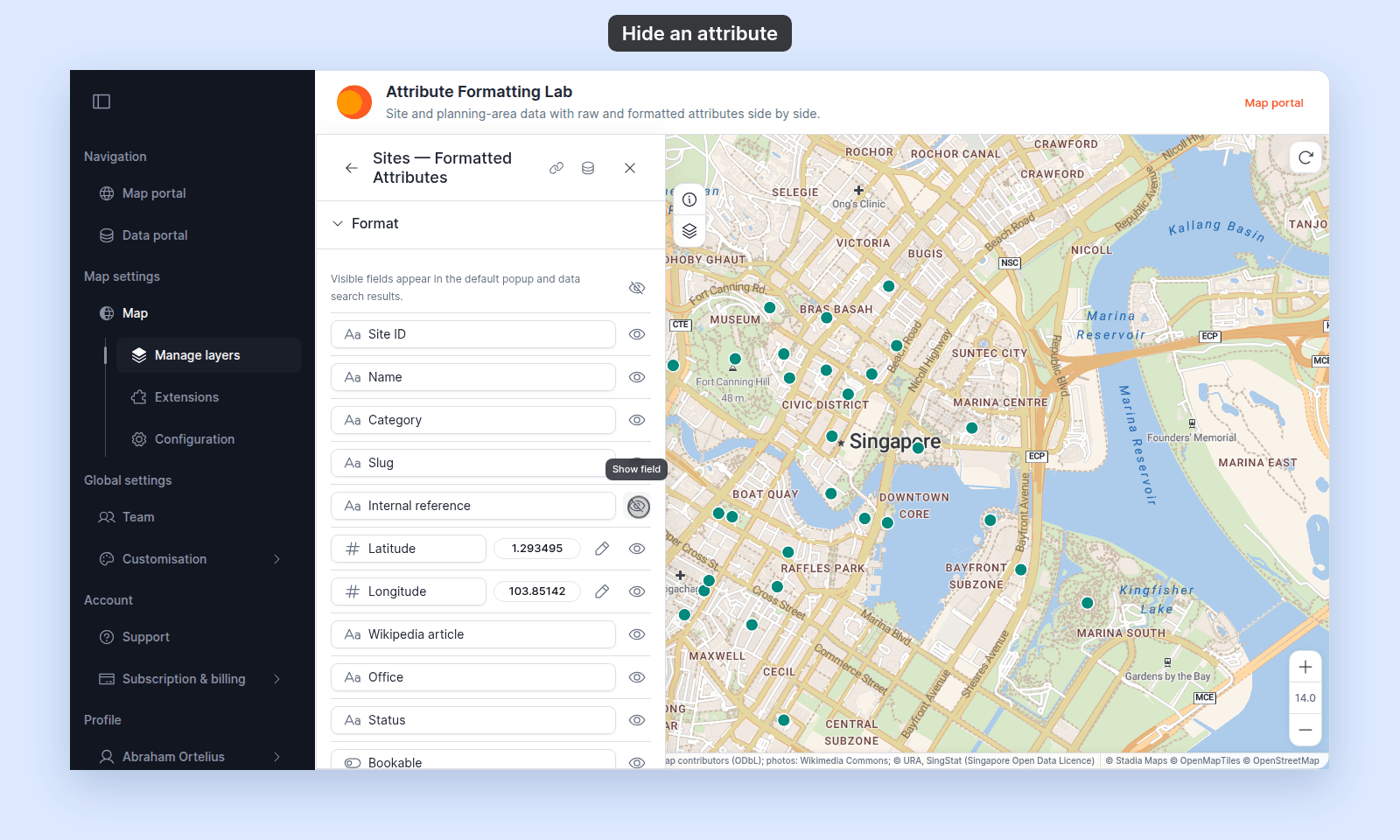
Toggle the visibility
Click the eye icon on the row of the attribute you want to hide. The icon switches to eye-with-slash; the attribute is now hidden in popups and search.
Click again to make it visible. The change saves automatically — there’s no separate save button.
Hide multiple attributes at once
A header-level eye icon at the top of the table toggles every attribute. Click it once to hide all; click again to show all.
To hide a subset, click each row’s eye icon one at a time.
Where hidden attributes are still in effect
Hidden attributes are excluded from display only. They still:
- Drive
CategoryandQuantitystyling — you can colour by an attribute that’s hidden from the popup. - Drive filters — you can filter the layer by a hidden attribute’s value.
- Appear in exports of the underlying data — hidden columns aren’t stripped from CSV or GeoJSON exports.
- Show up in custom popup templates if the template references the attribute directly. Visibility only governs the default popup. A custom template with
{my_field}includes the field even if it’s hidden on the Format tab.
If you want to remove the attribute entirely
Re-import the source data with the column removed, or use the underlying dataset’s column-management tools (if available) to drop the column.