

How to update a client subscription
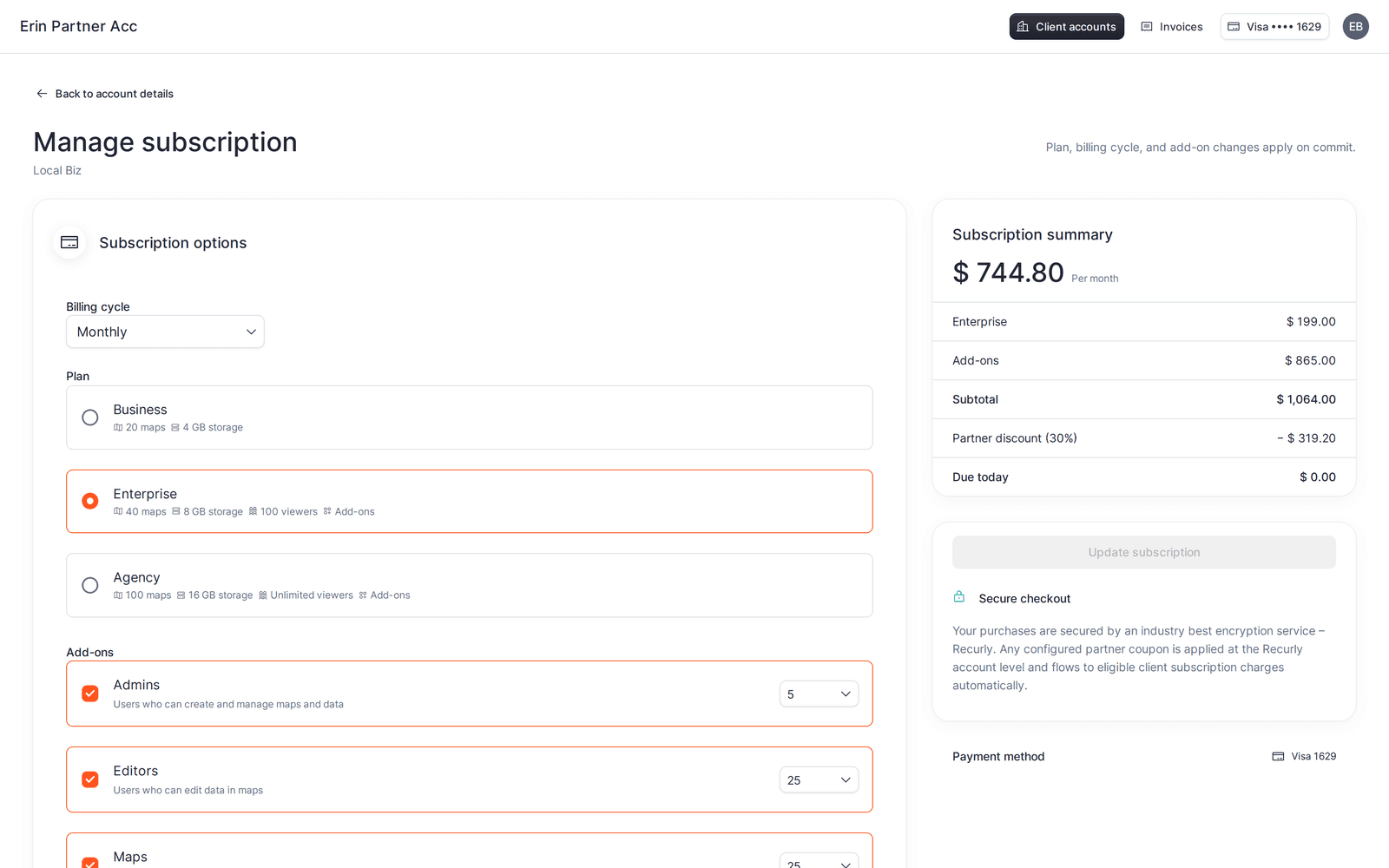
Change a paid client account's plan, billing cycle, or add-ons from Manage subscription. The summary shows the price change before you confirm.
Change a paid client account’s plan, billing cycle, or add-ons. The summary shows price changes before you confirm.
Before you start
- The account must be on a paid (active) subscription. For trials, see how to activate a client trial to paid.
- Your partner account must not be suspended.
Steps
- Open the account, then click
Manage subscription. - In
Subscription options, change theBilling cycle,Plan, orAdd-ons. Switching plans resets add-ons, so re-add any you need. - Review the
Subscription summary. It shows the newDue todayamount and, where a change produces a refund of unused time, aCredit to account. - Click
Update subscription. UseDiscard changesto revert.
If card verification is required, complete the 3D Secure Verification dialog and the change finishes automatically.
If a downgrade is blocked
You cannot drop a plan or add-on below what the account is already using. If the new plan has too few maps or seats, a dialog lists the limit and blocks the change. Reduce the account’s usage (remove maps, data, or team members) and try again, or pick a higher option.
What your client sees
The client owner keeps their access. Their available limits change to match the new plan and add-ons. They are not shown any billing screen.