

Partner portal reference
Look up every Partner Portal page and control, including navigation, the sign-in states, the Client accounts page, subscription options, and invoices.
This page lists every Partner Portal page and control. For the model behind these screens - partners, client accounts, and the lifecycle - see how the partner portal works.
Navigation
After sign-in, the portal shows this fixed top navigation:
Client accounts- your portfolio of client accounts (the landing page).Invoices- invoices issued for your client subscriptions.Set payment method- opens billing details on a Recurly page when no payment method is on file.Sign out.
Sign-in page
The partner sign-in page has five states. Each state shows a heading, a short description, and its fields:
| State | Heading | Fields | Action |
|---|---|---|---|
| Sign in | Sign in |
Email, Password |
Sign in; link Forgot your password? |
| Request a reset | Reset your password |
Email |
Send reset code |
| Reset code sent | Check your email |
- | Continue |
| Set a new password | Set a new password |
Reset code, New password |
Update password |
| First-time password | Set your new password |
New password |
Update password |
Forgot your password? starts the reset flow; Back to sign in returns from any other state. The first-time password state appears the first time a partner signs in with a temporary password.
Client accounts page
The portfolio home page.
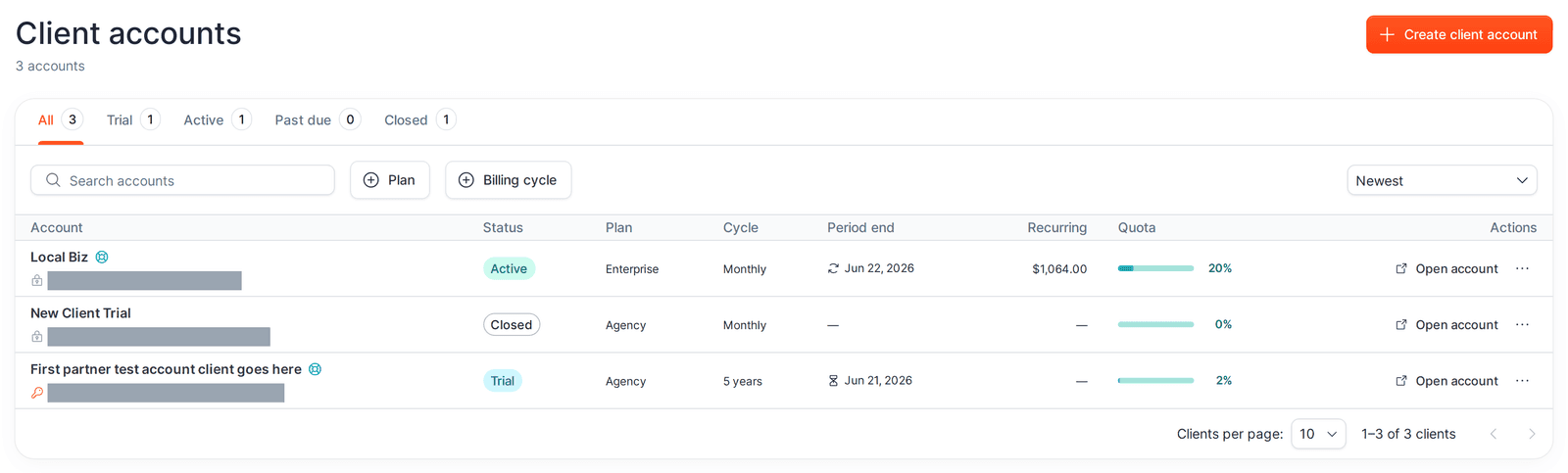
Top controls
Create client account- opens the create dialog. Disabled with aYour partner account is suspendedtooltip when your partner account is suspended.
Status tabs
A row of tabs filters the list by status, each with a count:
AllTrialActive(paid)Past dueClosed
Filters, search, and sort
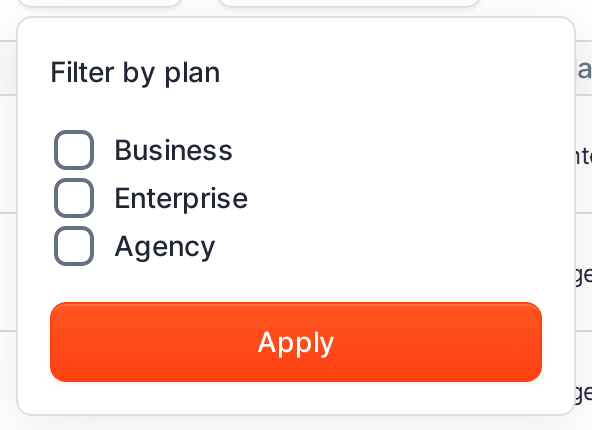
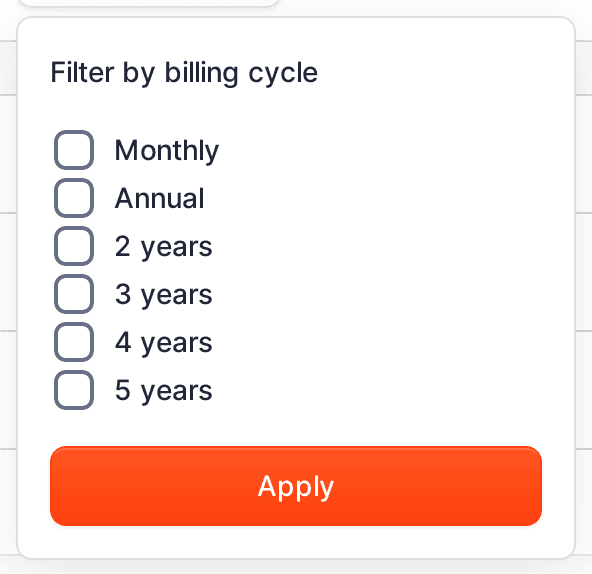
- Search - free-text search over accounts.
Planfilter -Business,Enterprise,Agency(multi-select).Billing cyclefilter -Monthly,Annual(multi-select).Clear filters- appears when any filter or search is active.- Sort -
Newest,Oldest,Name A→Z,Name Z→A,Renewal soonest,Renewal latest,Recurring high→low,Recurring low→high.
The account table
| Column | Shows |
|---|---|
Account |
Company name (links to account details), a support-access icon when MangoMap support access is on, the client owner email, an owner-credentials icon (key = has login credentials, lock = none), and a Handoff pending chip when an ownership handoff is in flight. |
Status |
Trial, Active, Past due, or Closed. |
Plan |
Business, Enterprise, or Agency. |
Cycle |
Monthly, Annual, or the multi-year cycle. |
Period end |
Trial end date for trials; next renewal date for paid; otherwise —. |
Recurring |
The current period amount. |
Quota |
A usage health indicator for the account’s maps, storage, and seats. |
Actions |
The Open account button and the row action menu. |
Pagination at the bottom offers 5, 10, 25, or 50 Clients per page.
Row actions
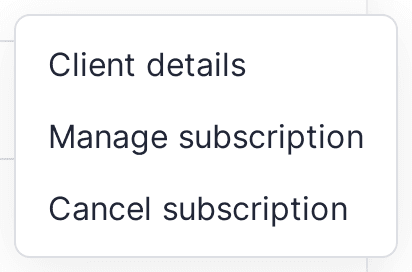
Open account- opens a temporary signed-in session into the client’s MangoMap account in a new tab (tooltipOpen managed account session). ShowsOpeningwhile it loads.- Row action menu (the
⋯button) - the items shown depend on the account’s state: Client details- always present; opens the account details page.Manage subscription- present unless the account is closed.Start a trial- on closed accounts; restarts a 30-day trial.Cancel subscription- on active (paid) accounts.Terminate trial- on trial accounts; ends the trial early.Delete account- only when the account is closed or its trial has expired.
When your partner account is suspended, billing actions are disabled and show the suspension tooltip.
Create client account dialog
The Create client account dialog has these fields:
| Field | Notes |
|---|---|
Company name |
Required. Also sets the default slug as you type. |
Slug |
Required. Used in URLs; lower-case letters, numbers, and hyphens only. |
Owner name |
Optional. |
Owner email |
Required; must be a valid, unused email. |
Allow MangoMap support access |
Toggle; lets MangoMap support open the account. |
A Trial defaults panel states the account starts on a 30-day Enterprise trial. The submit button is Create account. Creating the account does not email the client owner; you invite them separately afterwards.
If you have no payment method on file, the dialog shows an error with a Set payment method action.
Account details page
Open this page from Client details or a company name. The header shows the company name, a Created <date> subtitle, a Back to clients link, and a Manage subscription button unless the account is closed. A Subscription past due banner appears at the top when a payment has failed.
Account identity card
Company name- editable. Helper text notes it also updates the display name on invoices.Slug- read-only with anEditbutton that opens the URL-slug modal. Editing the slug affects shared map links.- Client owner identity - the
Owner namefield. - Client owner email - shows the current owner email with a
Change emailbutton. Used to start an ownership handoff (see below). - Support access -
Allow MangoMap support access for this accounttoggle. Discard/Save changes- enabled once you change something.
Invite client owner card
Shown until the client owner is active:
- When not invited: a
Send invitationbutton and an explanation that the owner will be emailed to set a password and access the account, while you keep ownership. - When the invitation is sent: a disabled
Sentbutton and aCancel invitationbutton.
Client owner email / handoff
In the email section:
- View - the current email and a
Change emailbutton. - Editing - a
New emailfield andSend verification email. - Handoff in flight - an
Ownership handoff in progressbanner with aCancel handoffaction.
Subscription card
A status chip plus summary rows: Plan, Billing cycle, Current period amount, Trial ends (trials) or Next renewal (paid), and Add-ons when any are set.
Usage card
A breakdown of the account’s quota usage against its limits.
Subscription page
Reached by Manage subscription. Back link Back to account details. The title is Manage subscription. When the account is past due, a Subscription past due banner appears at the top with an Update payment method action. The page has two cards.
Subscription options
Billing cycle-Monthly,Annual(Save 20%),2 years/3 years/4 years/5 years(Save 30%).Plan-Business,Enterprise,Agency. Each option lists its maps, storage, viewers, and whether add-ons are available. Switching plans resets add-ons.Add-ons- available onEnterpriseandAgencyonly (Businessdisallows them). Each is a checkbox plus a quantity:Admins- 0 to 5.Editors- 0, 5, 10, 15, 20, 25.Maps- 0, 5, 10, 15, 20, 25.Storage- 0, 50, 100, 150, 200, 250 GB.
Subscription summary
A live price summary - Plan, Add-ons, Subtotal, Partner discount, Due today, and Credit to account (on changes that produce a credit) - plus the action buttons:
- On a trial:
Activate subscription(begin billing now) andContinue trial(save the chosen plan/cycle/add-ons and keep the trial running until expiry). - On a paid account:
Update subscription, plusDiscard changes. A past-due account is still a paid subscription, so the button staysUpdate subscription; to fix the payment, use theUpdate payment methodaction in theSubscription past duebanner and pay the open invoice fromInvoices.
The card also shows the partner payment method (card brand and last four) and a Secure checkout note that purchases are secured by Recurly and any partner coupon is applied automatically.
3D Secure and downgrade blocking
- If the card issuer requires extra verification, a
3D Secure Verificationdialog appears. Completing it retries the action automatically. - If a plan or add-on change would drop the account below its current usage (for example, fewer maps than are already in use), a downgrade-block dialog explains what is over the new limit and prevents the change until usage is reduced.
Invoices page
| Column | Shows |
|---|---|
Date |
Invoice date. |
Invoice |
Invoice number. |
Status |
Paid, Past due, Failed, Voided, Closed, Processing, Pending, or Open. |
Amount |
Invoice total. |
Actions |
Pay now for past-due and pending invoices; View for the rest. Both open the invoice’s Recurly hosted page in a new tab. |
Pagination offers 5, 10, 25, or 50 Invoices per page.