

How to create a client account
Create a managed account for a customer from the Client accounts page. Enter the company name, slug, and owner email. You need a payment method on file.
Create a managed account for a customer. The account joins your portfolio with a 30-day Enterprise trial. You own it and handle billing.
Before you start
- You need a payment method on file. If you have none, the create dialog shows an error with a
Set payment methodaction - set it on the Recurly hosted page first. See you cannot create a client account. - Your partner account must not be suspended. When it is,
Create client accountis disabled. - Have the client’s company name and the client owner’s email ready.
Steps
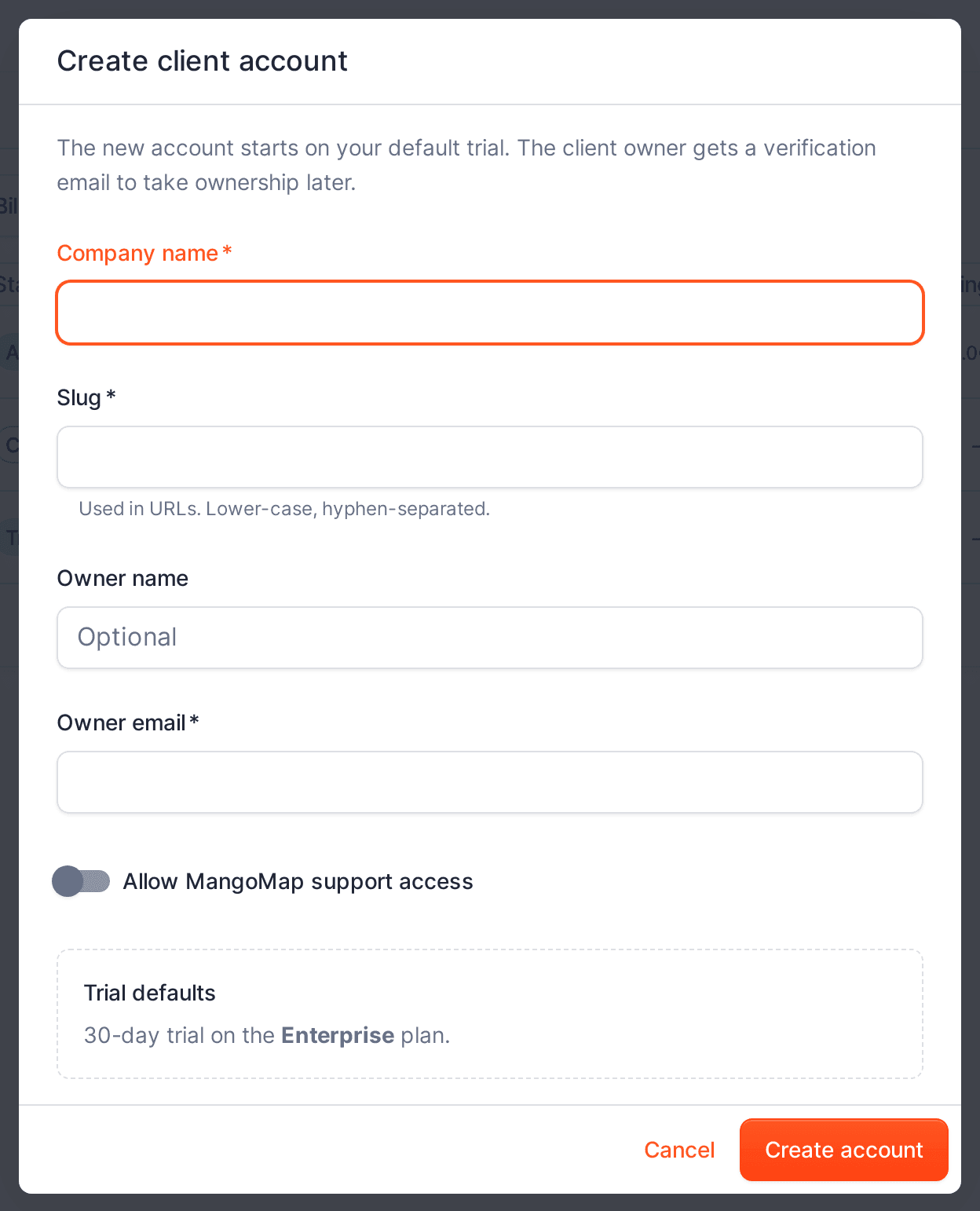
- On the
Client accountspage, clickCreate client account. - Fill in the dialog:
Company name- the customer’s company. As you type, aSlugis suggested automatically.Slug- the account’s URL identifier. Lower-case letters, numbers, and hyphens only, and it must be unused. Edit the suggestion if you want.Owner name- optional; the client owner’s name.Owner email- the client owner’s email. It must be valid and not already used by another account.Allow MangoMap support access- turn on if you want MangoMap support to be able to open the account.
- Note the
Trial defaultspanel: the account starts on a 30-day Enterprise trial with no add-ons. - Click
Create account. On success the dialog confirms and the account appears in your portfolio.
What your client receives
Creating the account does not email the client owner. It only creates the account and records the owner. When you are ready for the client to sign in, send them an invitation separately. See how to invite a client owner.
Next steps
- Configure the trial or activate it to paid: how to activate a client trial to paid.
- Give the client owner access: how to invite a client owner.