

How to open a managed session into a client account
Open a temporary signed-in session in a client's account from the Client accounts page, and edit its company name, slug, owner name, and support access.
Open a temporary managed session in a client account. You can work in it and edit its company name, slug, owner name, and support access from the partner portal.
Open a client account
Use this to set up maps and data, check the client’s workspace, or help them.
- On the
Client accountspage, find the account row. - Click
Open account. A temporary signed-in session into the client’s MangoMap account opens in a new tab.
The button shows Opening while the session loads. The session ends after a set time. Reopen it the same way when it expires.
Edit account details
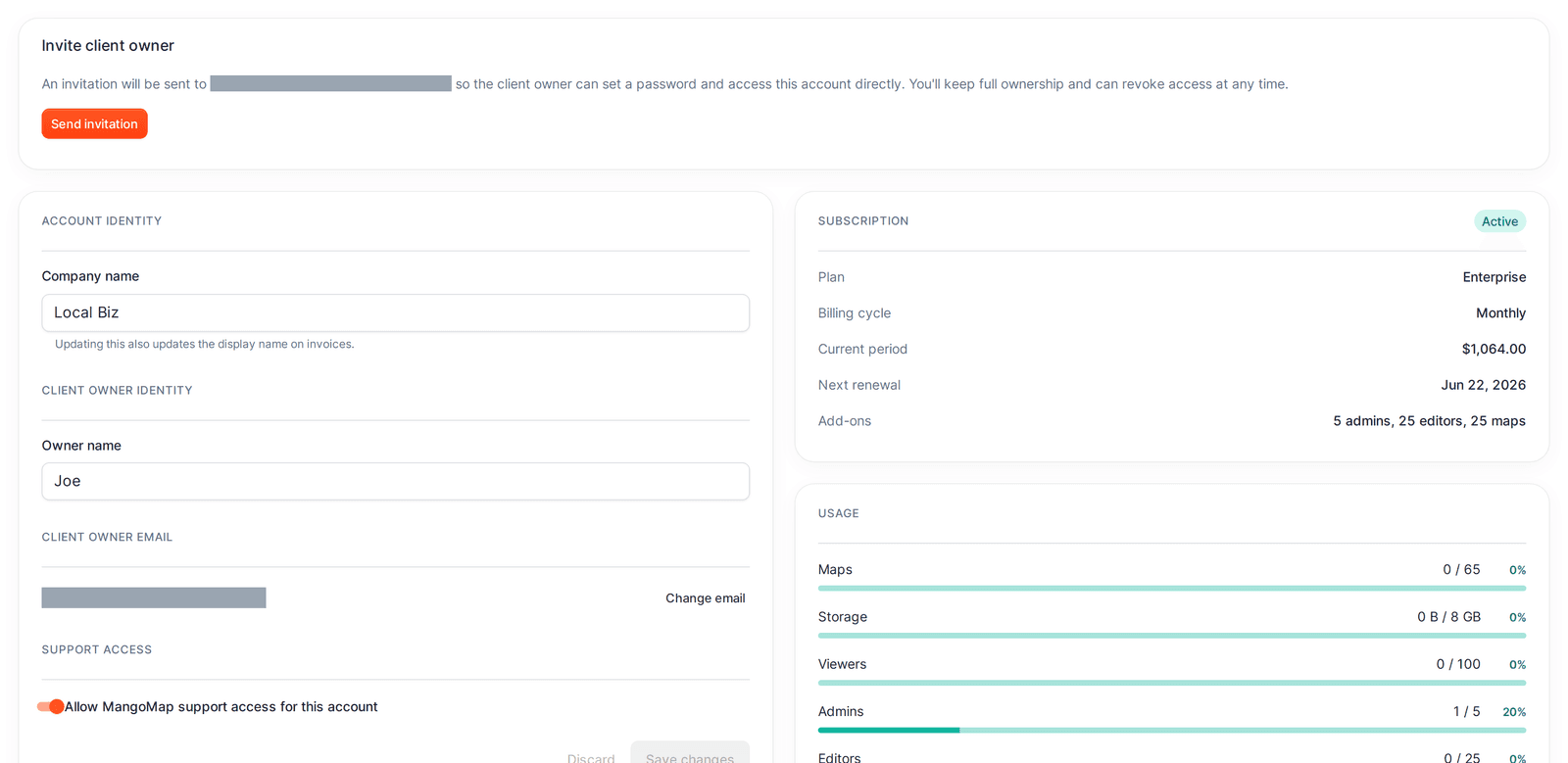
- Open the account details page (click the company name, or
Client detailsin the row menu). - In the
Account identitycard, edit any of:
Company name- also updates the display name on invoices.Slug- clickEditto open the slug editor. Changing the slug affects shared map links for the account.Owner name- the client owner’s name.Allow MangoMap support access for this account- whether MangoMap support can open the account.
- Click
Save changes. UseDiscardto drop unsaved edits.
To change the client owner’s email, use how to transfer a client account to its owner instead - that starts an ownership handoff rather than a simple edit.