

Subscription & billing reference
Check the pages, controls, states, and limits in the Subscription & billing area. Only the owner of a directly billed account can open it.
Use this page to check the pages, controls, states, and limits in MangoMap’s Subscription & billing area. Only the owner of a directly billed account can open it.
For the lifecycle and plan model, see How subscription and billing work in MangoMap.
Access and menu
| Field | Value |
|---|---|
| Sidebar group | Account |
| Menu | Subscription & billing |
| Items | Subscription summary, Manage subscription, Update billing, Invoices |
| Required role | Owner |
| Partner-managed accounts | The MangoMap billing menu is hidden; billing is managed by the partner. |
Admin, Editor, and Viewer users cannot open these pages.
Subscription summary
| Field | Value |
|---|---|
| Main action | Manage subscription |
The page content depends on the account state.
Paid accounts
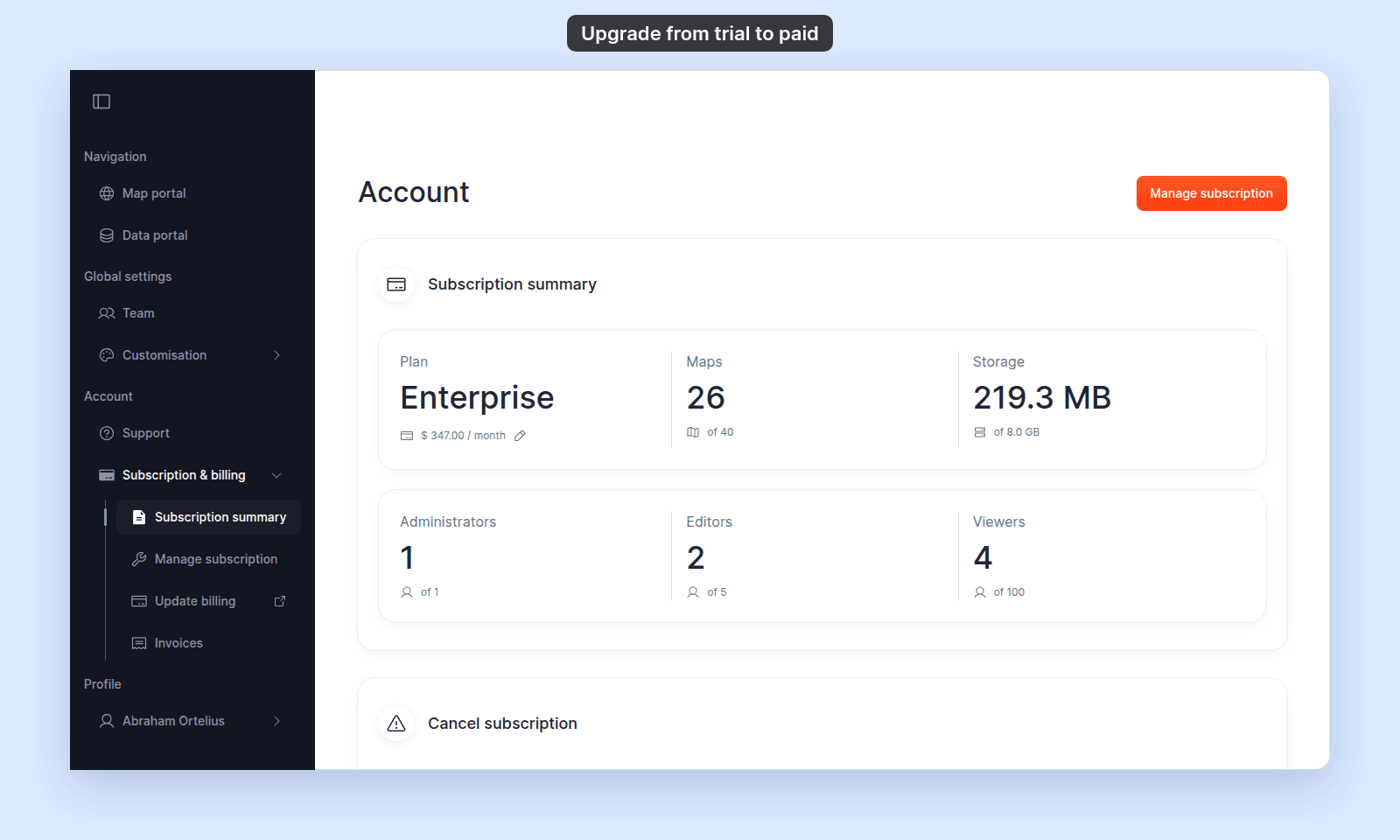
The summary shows these usage tiles:
| Tile | Shows |
|---|---|
Plan |
Business, Enterprise, or Agency, with the billing cycle and current price. A pencil link opens the billing portal in a new tab. |
Maps |
Current maps used and the account limit. |
Storage |
Current storage used and the account limit. |
Administrators |
Current administrator seats used and the account limit. |
Editors |
Current editor seats used and the account limit. |
Viewers |
Current viewers used and the account limit, or unlimited for Agency. |
A Cancel subscription card appears below the summary for non-trial accounts.
Trial accounts
The summary includes a trial card with:
| Field | Value |
|---|---|
| Heading | Welcome to your trial |
| Action | Upgrade to paid |
| Status | Trial expiry date and remaining days |
Trial accounts use Enterprise base limits with no add-ons. The cancellation card is not shown during a trial.
Plans and allowances
| Plan | Base maps | Base storage | Viewers | Add-ons |
|---|---|---|---|---|
Business |
20 | 4 GB | 0 | Not available |
Enterprise |
40 | 8 GB | 100 | Available |
Agency |
100 | 16 GB | Unlimited | Available |
Add-on quantities
| Add-on | Choices |
|---|---|
Admins |
0, 1, 2, 3, 4, 5 |
Editors |
0, 5, 10, 15, 20, 25 |
Maps |
0, 5, 10, 15, 20, 25 |
Storage |
0, 50, 100, 150, 200, 250 GB |
Add-ons are disabled when Business is selected. Map and storage limits equal the plan allowance plus active add-ons.
Manage subscription
| Field | Value |
|---|---|
| Default page title | Manage subscription |
| Expired-trial title | Your trial has expired - subscribe to continue |
| Closed-account title | Your account is closed - subscribe to reactivate |
| Expired/closed action | Contact sales link in the page header |
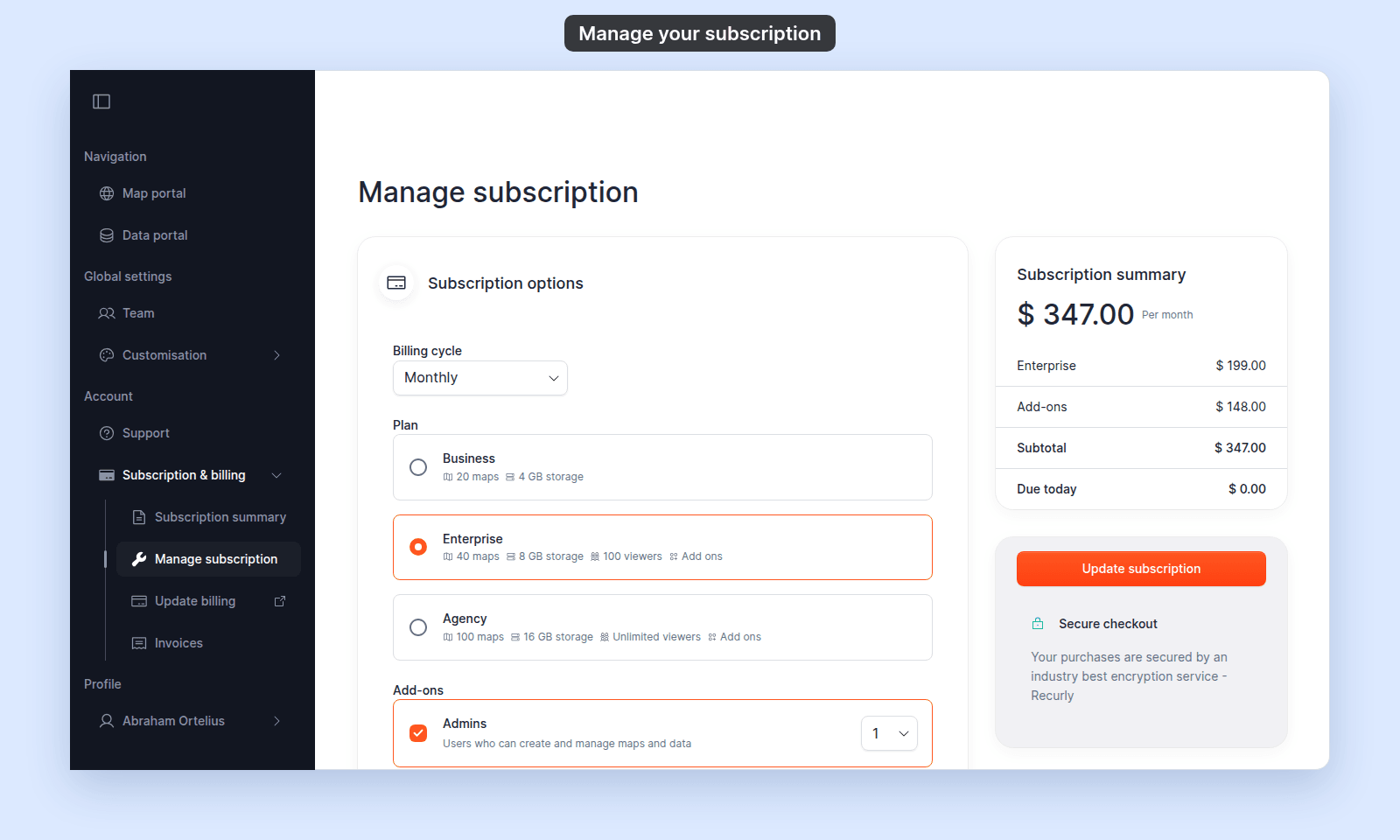
Subscription options
| Control | Type | Choices |
|---|---|---|
Billing cycle |
Dropdown | Monthly, Annual (Save 20%), 2 years / 3 years / 4 years / 5 years (Save 30%) |
Plan |
Radio group | Business, Enterprise, Agency |
Add-ons
Each add-on has a checkbox and, when enabled, a quantity dropdown. The available quantities are listed in Plans and allowances.
Subscription summary card
The pricing summary shows:
| Row | Condition |
|---|---|
| Plan and price | Always |
Add-ons |
Always; zero when no add-ons are selected |
Subtotal |
Always; UK accounts may show Subtotal (ex-VAT) |
Taxes |
Trial checkout before the final tax calculation |
VAT [rate]% |
UK billing addresses when the rate is returned |
Due today |
Always |
Credit to account |
Paid accounts when a change refunds unused time |
Actions by account state
| State | Actions |
|---|---|
| Paid | Update subscription |
| Active trial | Continue trial and Checkout with Recurly |
| Expired trial or closed | Checkout with Recurly |
When a paid change requires extra verification, MangoMap can open a 3D Secure Verification dialog.
Payment method
Paid accounts can show either:
- A saved card with its brand, last four digits, and expiry date, plus a pencil link to the billing portal.
- A manual or invoice payment method with an invoice description.
Update billing
| Field | Value |
|---|---|
| Sidebar item | Update billing |
| Destination | Recurly-hosted billing portal |
| Opens | New tab |
| Required role | Owner |
Use the portal to update card details and billing address. The pencil links on Subscription summary and Manage subscription open the same portal.
Invoices
| Field | Value |
|---|---|
| Page title | Invoice |
| Card heading | Invoice history |
| Rows per page | 5, 10, or 20; default 5 |
Invoice history table
| Column | Format or behavior |
|---|---|
Created At |
MMM D, YYYY |
| Action (no heading) | Pay now for past_due and pending; Invoice for all other states |
Invoice |
#[number] |
Status |
Paid, Past due, or another state from the list below |
Amount |
Currency-formatted invoice total |
Both actions open a Recurly invoice page in a new tab. Use Pay now to pay; use Invoice to view or download the invoice.
Invoice states
| Visible status |
|---|
Paid |
Past due |
pending |
open |
processing |
closed |
failed |
voided |
Cancel subscription
| Field | Value |
|---|---|
| Page title | Cancel subscription |
| Card heading | Cancellation details |
| Required role | Owner |
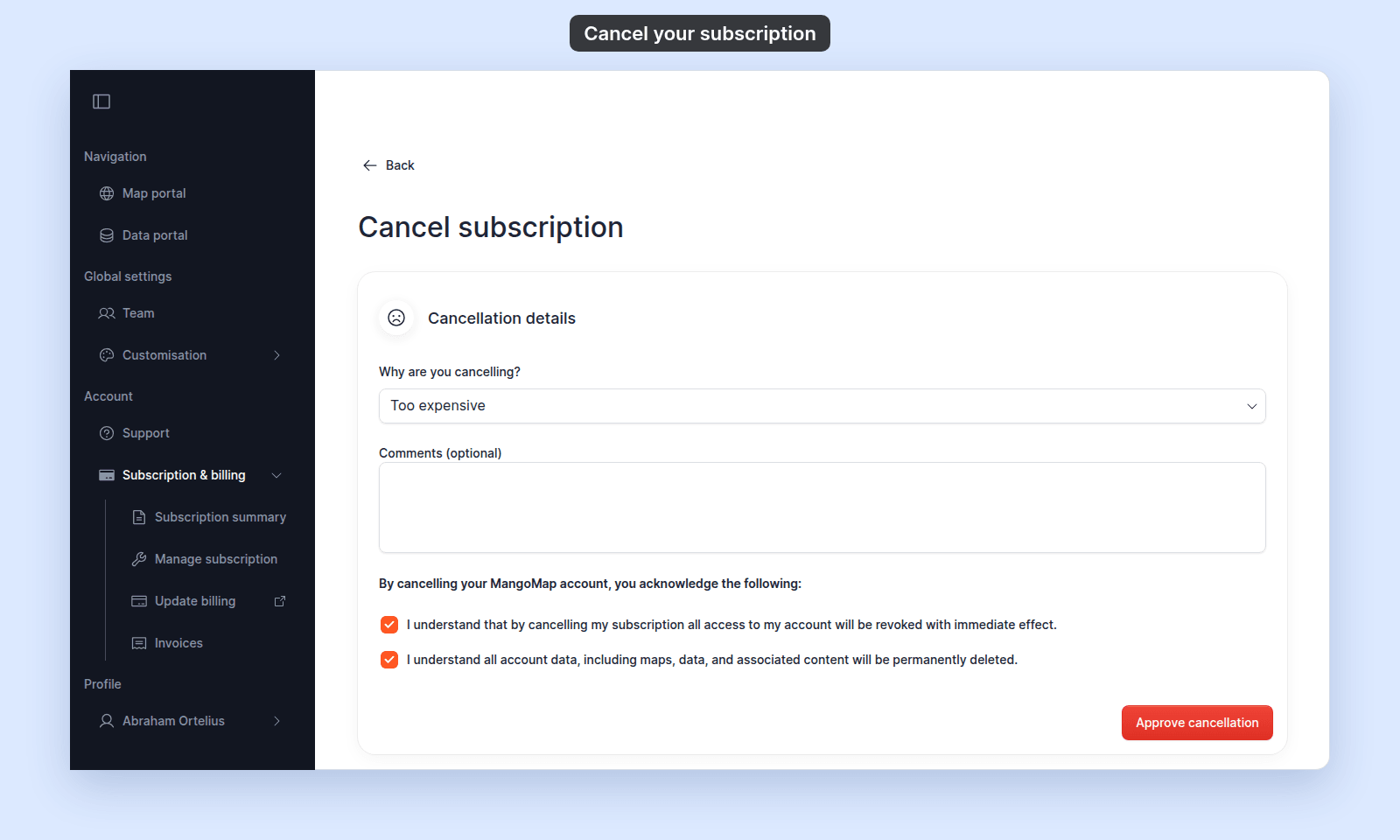
Cancellation controls
| Control | Type | Choices |
|---|---|---|
Why are you cancelling? |
Dropdown | Too expensive, Too complicated, Not enough time, Missing features, Performance issues, Change in key account stakeholder, Changes to business (e.g., business no longer in operation), Poor support experience, Poor sales experience, Other |
Comments (optional) |
Multiline text | Optional free text |
Approve cancellation does not submit the form until a reason is selected and both acknowledgement checkboxes are ticked. Submitting changes the account to CLOSED, revokes access, and signs users out.
Checkout
| Field | Value |
|---|---|
| Page title | Checkout |
| Opens from | Checkout with Recurly on Manage subscription |
| Required role | Owner |
Billing card
Card details are entered in a Recurly-hosted card field. MangoMap can display Invalid card details when the card field is invalid.
Billing address
| Field | Required |
|---|---|
First Name |
Yes |
Last Name |
Yes |
Street line 1 |
Yes |
Street line 2 (optional) |
No |
City |
Yes |
State / Province |
Yes |
Zip / Postal code |
Yes |
Country |
Yes |
Company Name (optional) |
No |
VAT number |
Only when Country is GB |
Submit and confirmation
The order summary shows plan, add-ons, subtotal, taxes, and total. The submit button is Pay [currency] [amount] and subscribe.
When payment succeeds, a confirmation page opens.
Subscription confirmation
| Field | Value |
|---|---|
| Heading | Thank You for Subscribing |
| Action | Go to my account |
The confirmation page confirms the change. Return to Subscription summary to review the active plan and cycle.