How to upgrade from trial to paid
Upgrade your trial to a paid plan as the account owner. Choose a plan and billing cycle, review the price, enter card details, and complete checkout.
Upgrade the 30-day trial by choosing a plan and billing cycle, reviewing the price, entering payment details, and completing checkout. Only the account owner can do this.
Before you start
- You need to be the account owner, and the account must not be partner-managed.
- Choose
Business,Enterprise, orAgency. - Choose
Monthly,Annual, or a 2- to 5-year billing cycle. - Have a payment card ready. Card details are entered in a Recurly-hosted form during checkout.
The trial starts with the Enterprise feature set. You can choose any paid plan at checkout. For plan details, see How subscription and billing work.
Open the upgrade flow
From Account > Subscription & billing > Subscription summary, click Upgrade to paid.
You can also open Manage subscription from the Subscription & billing menu. If the trial has expired, the same page remains available for the owner and offers the checkout flow.
Choose the plan and billing cycle
In Subscription options:
- Choose a
Billing cycle. - Choose a
Plan. - Review the updated price in
Subscription summary.
The available cycles are Monthly, Annual, 2 years, 3 years, 4 years, and 5 years. Annual shows Save 20%; each multi-year cycle shows Save 30%.
Configure add-ons
Add-ons are available only for Enterprise and Agency:
| Add-on | Choices |
|---|---|
Admins |
0, 1, 2, 3, 4, or 5 |
Editors |
0, 5, 10, 15, 20, or 25 |
Maps |
0, 5, 10, 15, 20, or 25 |
Storage |
0, 50, 100, 150, 200, or 250 GB |
Business does not support add-ons.
Continue to checkout
Click Checkout with Recurly. The Checkout page opens with the selected plan, cycle, and add-ons.
If the trial has not expired and you are not ready to upgrade, click Continue trial to return to Subscription summary.
Enter payment details
On Checkout:
- Enter your card details in the
Billing cardsection. - Complete the required fields in
Billing address. - If your country is the United Kingdom, enter the
VAT numberwhen it appears. - Add
Company Name (optional)if needed.
The summary shows the selected plan, add-ons, subtotal, taxes, and total.
Submit the payment
Click Pay [amount] and subscribe.
If your bank requires 3D Secure, complete the verification dialog before returning to MangoMap. If payment fails, see A payment failed or an invoice is past due.
Confirm activation
MangoMap opens a subscription confirmation page after a successful payment. Click Go to my account to return to Subscription summary.
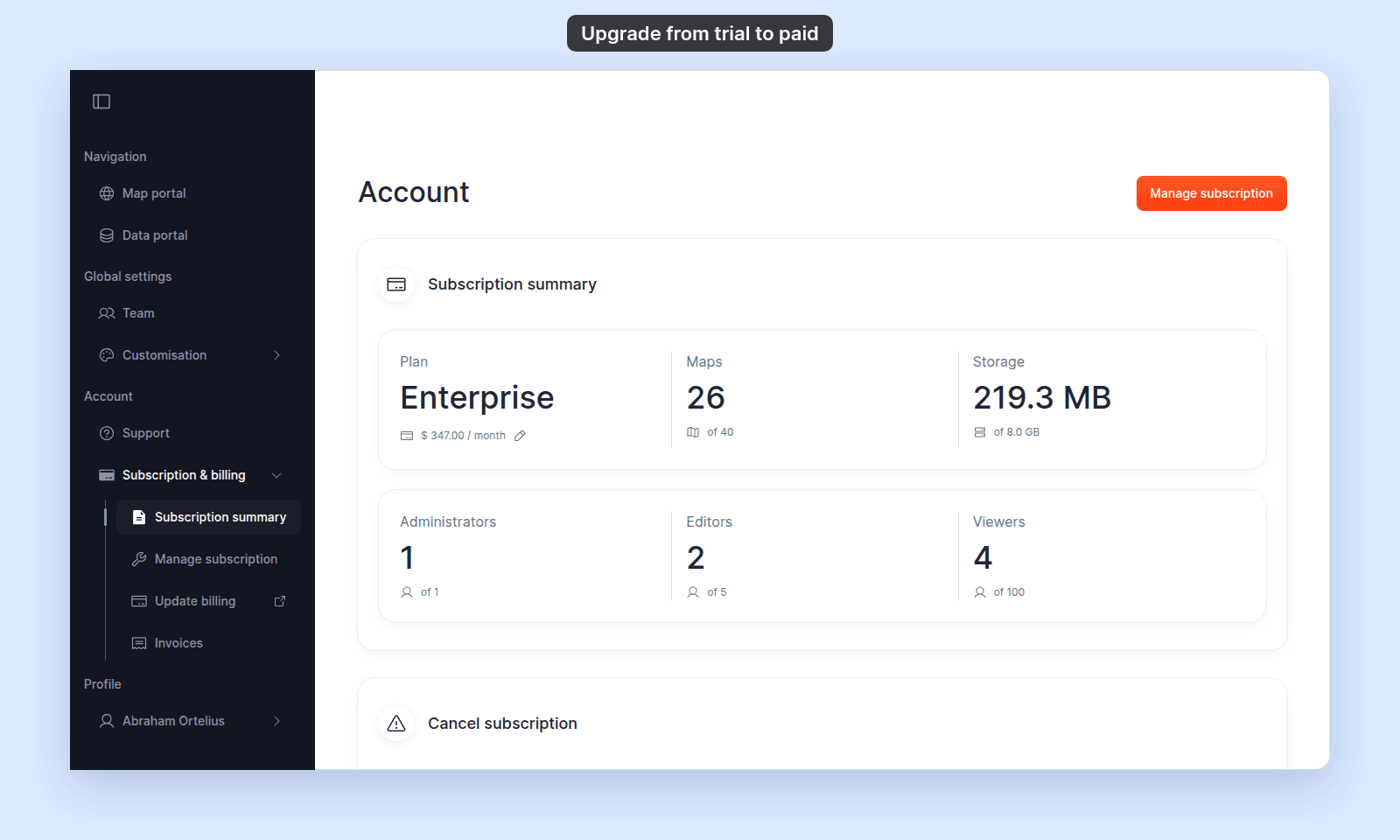
Subscription summary now shows the plan you chose, its price for the billing cycle, and the account limits. The trial card is gone.