

A payment failed or an invoice is past due
Fix a failed payment or past due invoice. Update the payment method or billing address in Recurly, complete bank checks, and retry the invoice.
Update the payment method or billing address in Recurly, complete bank verification if asked, and retry the invoice in Invoices.
Most likely cause: the card or billing address was rejected
Common causes include an expired card, low funds, a billing-address mismatch, or a bank decline.
To check the invoice:
- Open
Account>Subscription & billing>Invoices. - Find the invoice with
Past dueorpendingstatus.
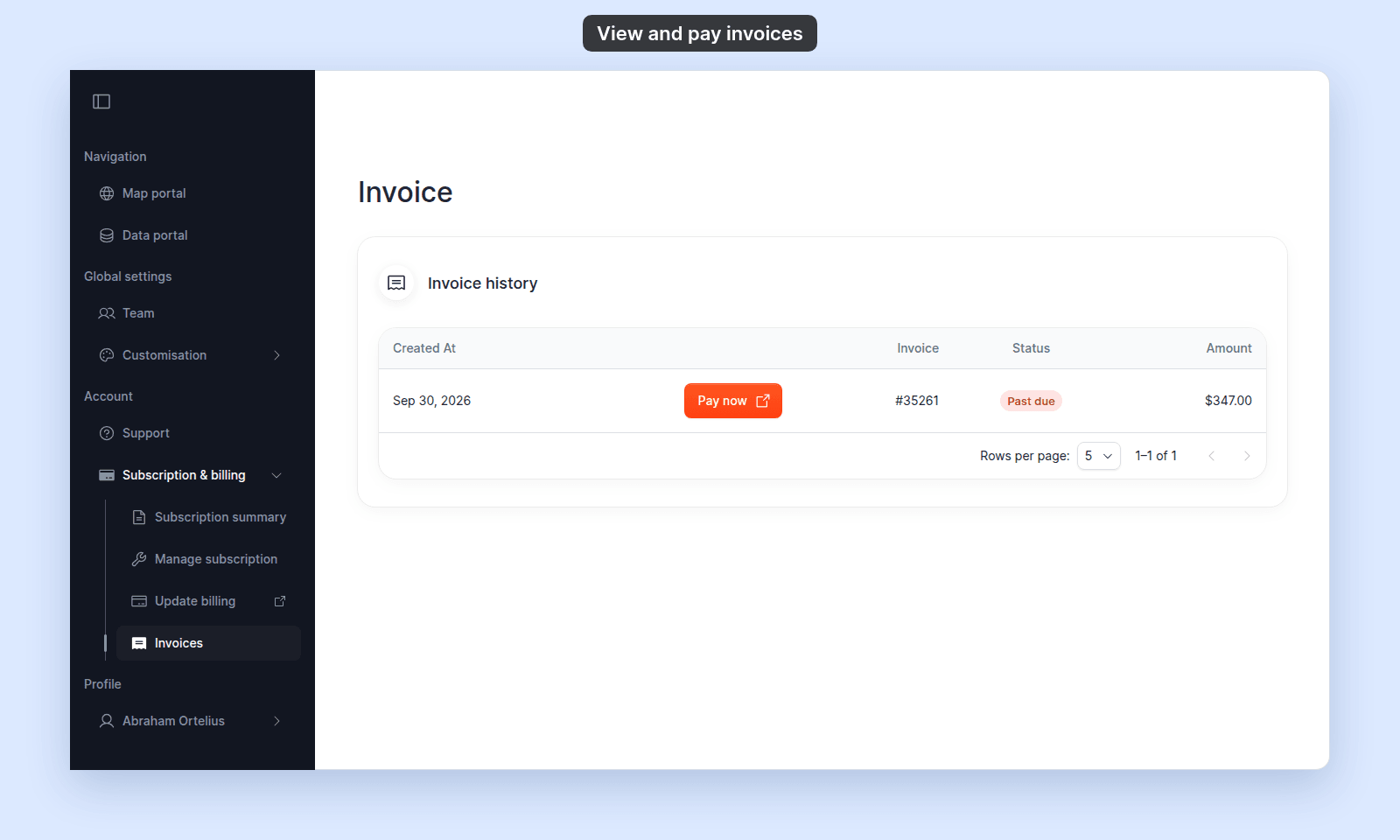
To fix it:
- Click
Update billingin the sidebar. The Recurly billing portal opens in a new tab. - Update the card or billing address.
- Return to MangoMap and open
Invoices. - Click
Pay nowon the invoice.
Less common: your bank declined the charge
Your bank may block an international, recurring, or large charge even when the card works elsewhere. Check your bank’s app or contact the bank, then retry Pay now.
Less common: 3D Secure verification was not completed
When your bank requires 3D Secure, a verification dialog appears during checkout or invoice payment. Complete the bank’s verification step. If you closed it, retry the payment so the verification can open again.
If the account is no longer accessible
Check the account state in Manage subscription:
- An expired trial uses the checkout flow to restore access.
- A closed account uses the same checkout flow to reactivate.
See The trial expired or account is closed.
If the invoice amount looks wrong
Open the invoice with Invoice and review the line items in Recurly. If the amount still looks incorrect, contact support with the invoice number and the date of the charge.
If none of these checks
Contact support with the account name, invoice number, payment date, and any error message.