

How the dataset view works in MangoMap
The dataset view lets you preview a dataset, browse its records, download vector data, see which maps use it, and delete it when no map does.
The dataset view lets you inspect a dataset without changing it. Open it from the Data portal.
The page uses your portal header and footer. To set the header and footer, see How to configure the portal.
Preview or inspect records
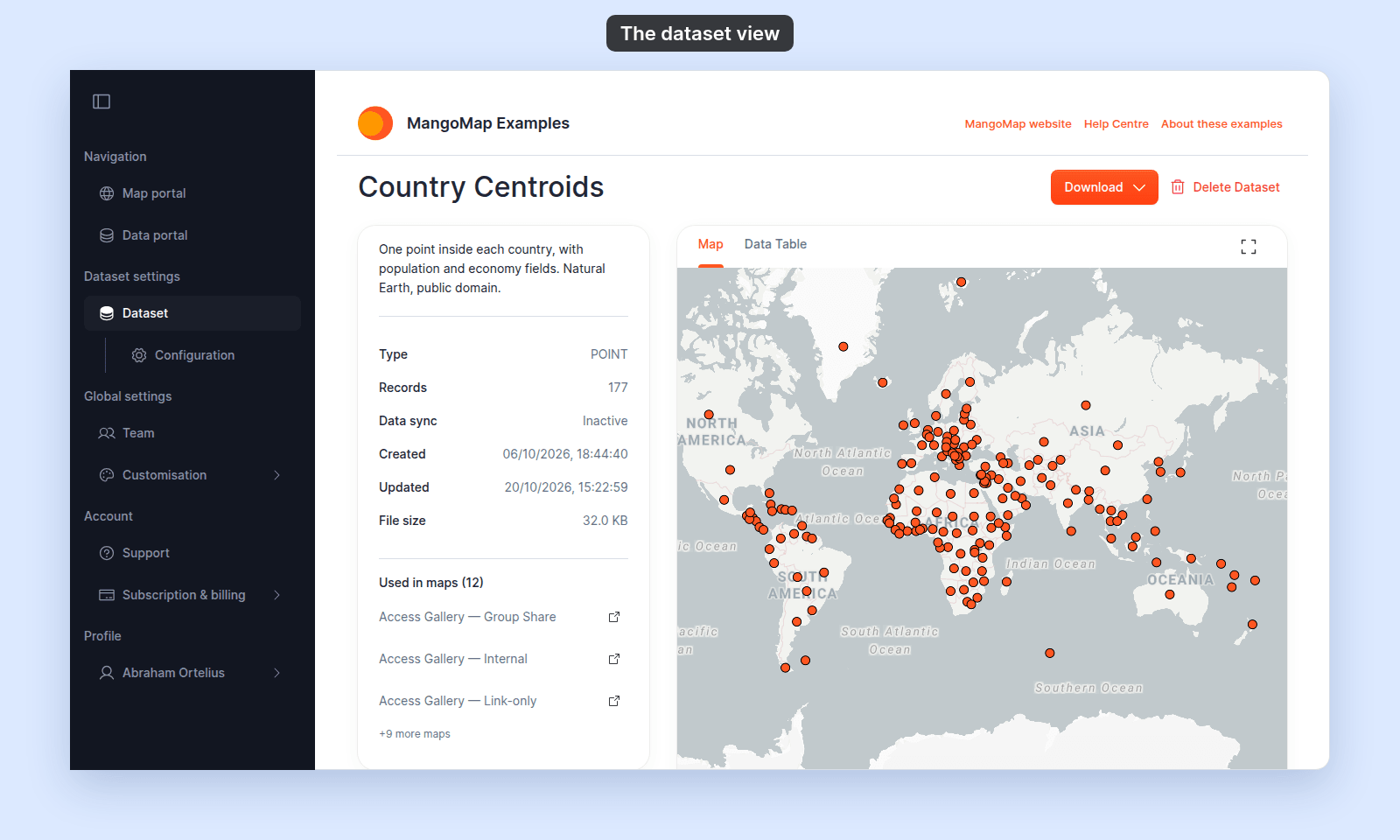
The page opens on the Map tab, which fits the dataset to an interactive preview. Switch to Data Table to browse and sort vector records. The table shows 20, 50, or 100 rows per page and is read-only.
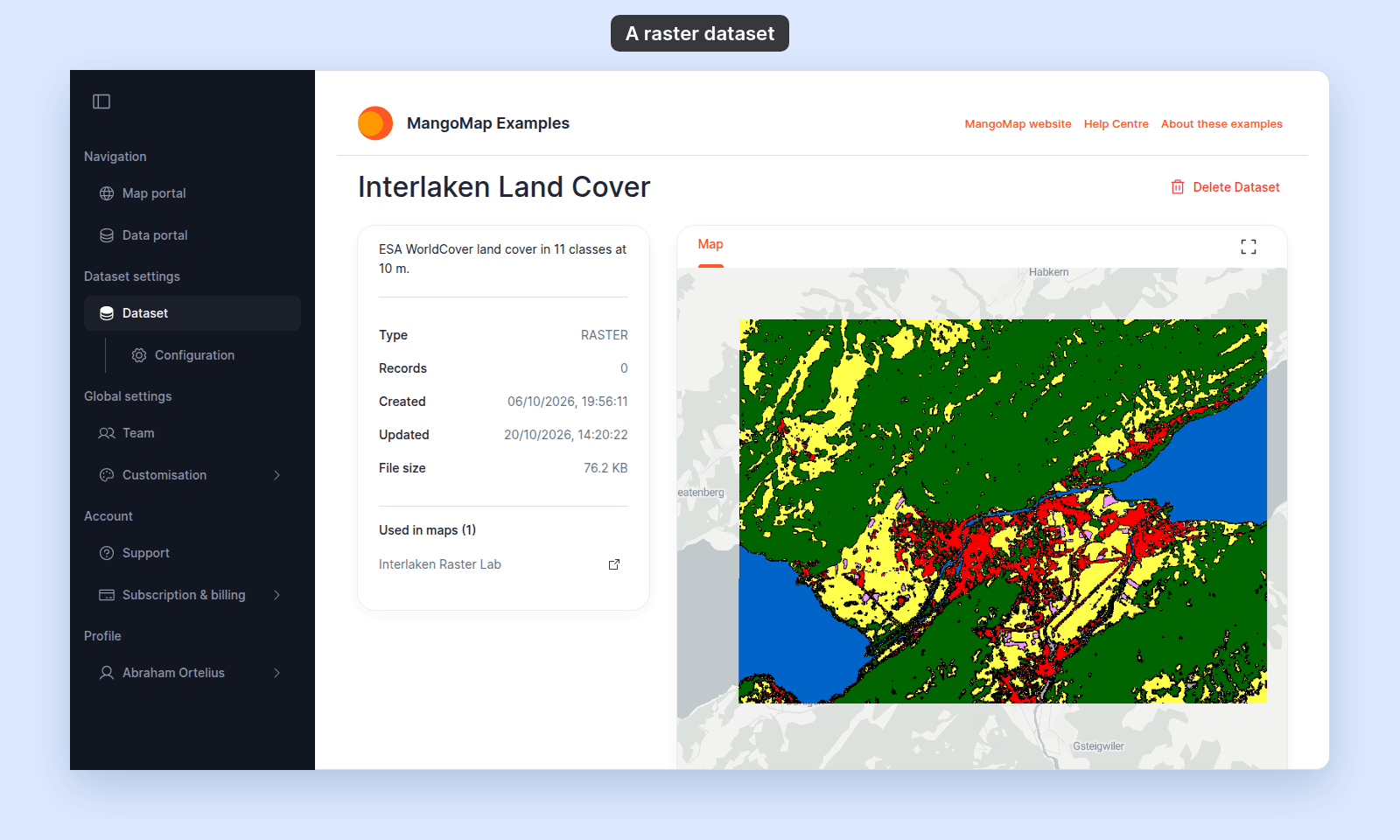
Raster and WMS datasets show only the map preview because they do not have tabular feature records.
Use the expand control beside the tabs to make the preview or table fill the page. This hides the information card until you close the expanded view.
Understand the information card
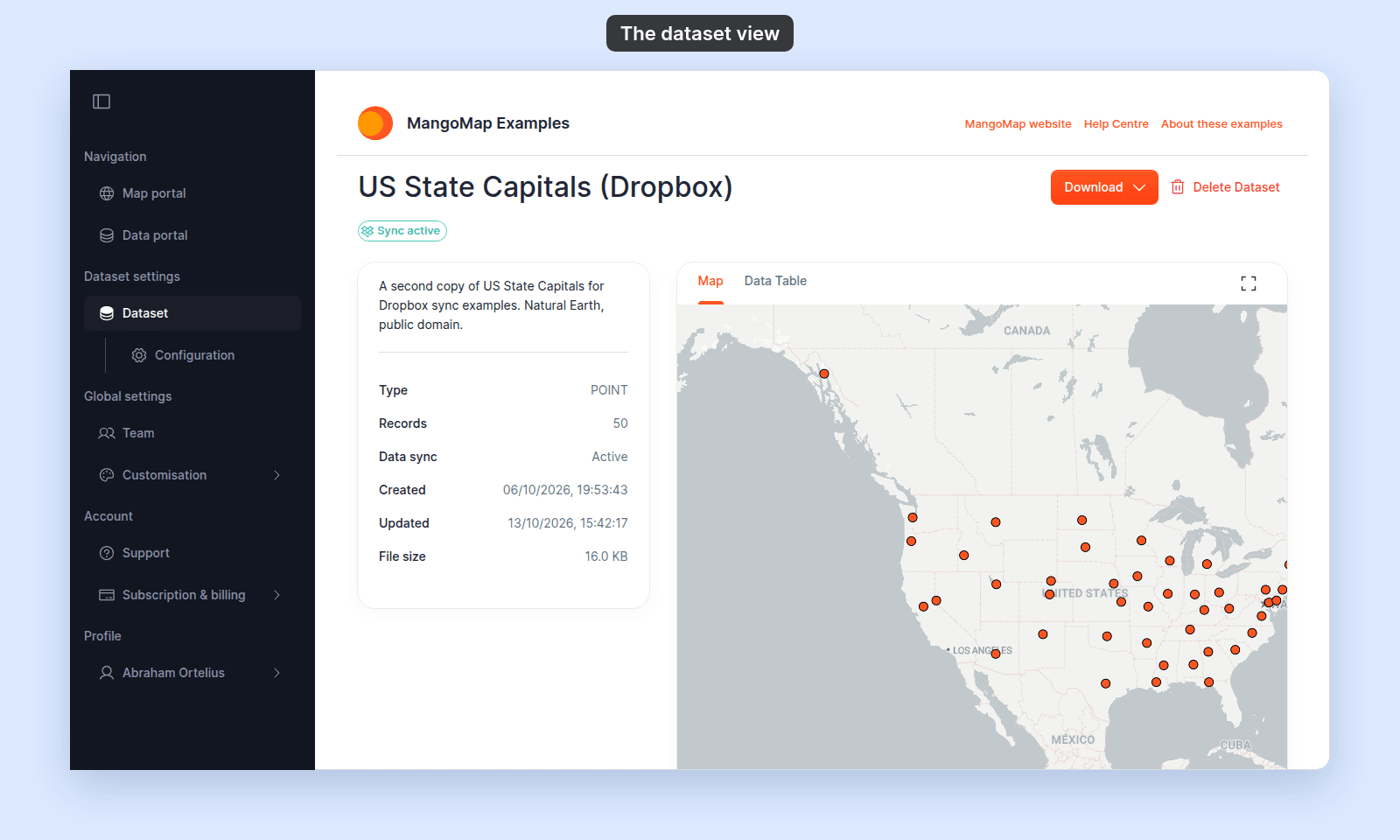
The information card shows the dataset description when one exists, followed by its type, record count, sync state, and created and updated dates. Data sync shows Active or Inactive. A dataset with active Dropbox sync also shows a Sync active badge under its name. Raster and WMS datasets do not show a sync state.
When maps use the dataset, the card lists them under Used in maps. It shows the first three maps and the number of other maps. Open a listed map in a new tab to inspect where the data is used. Only signed-in users who can view the dataset see this list.
Download vector data
For vector datasets, open Download and choose one of these output formats:
- Shapefile
- CSV
- MapInfo TAB
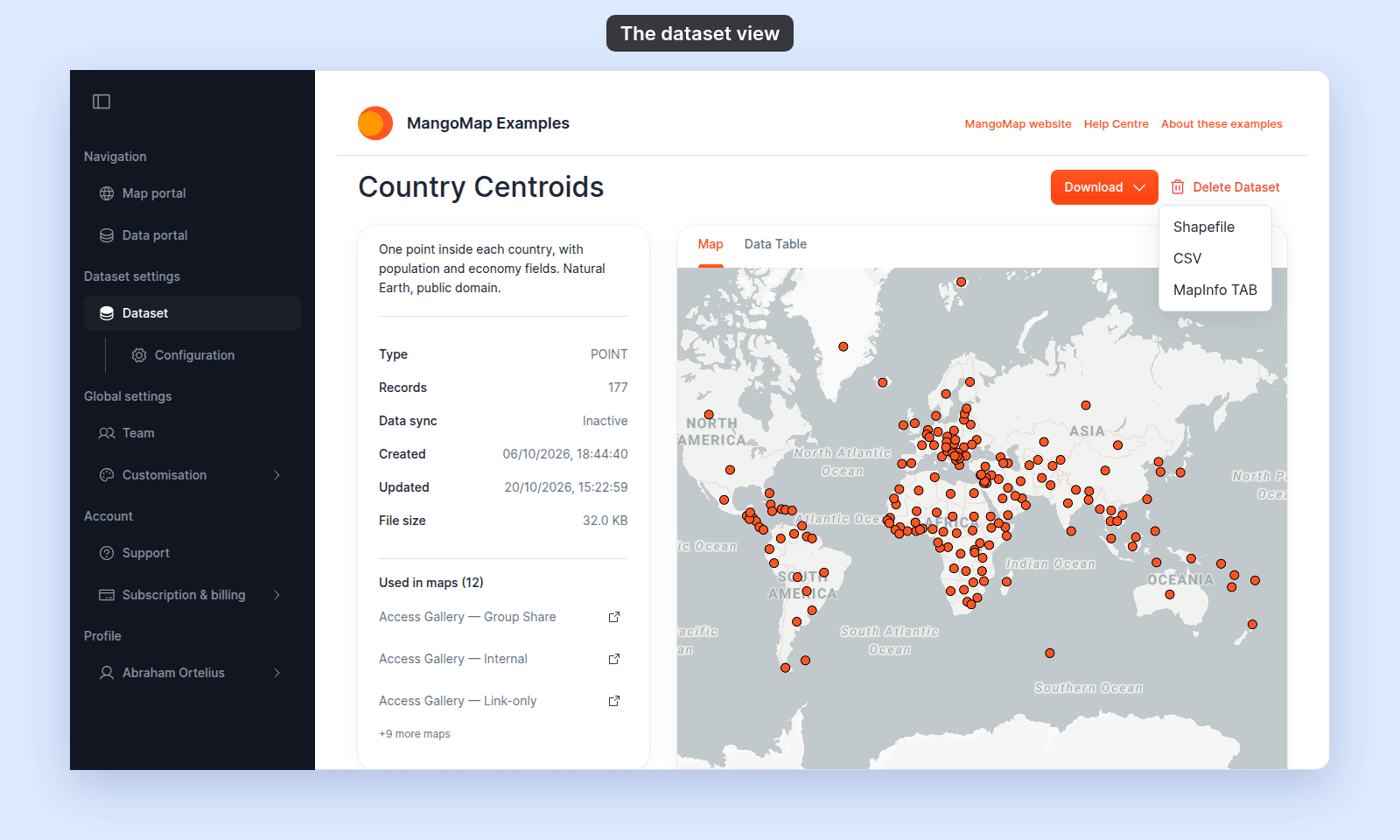
MangoMap downloads the file to your computer. Raster and WMS datasets do not show the download action.
Anyone who can open a vector dataset can download all of its data.
Dataset view and dataset settings
The dataset view is for inspection, downloads, usage checks, and deletion. Use Dataset settings to change the name or description, configure access, replace source files, or manage Dropbox sync.
Delete a dataset
Users with delete permission see Delete Dataset at the top of the page. MangoMap blocks deletion while any map still uses the dataset and lists the affected maps. Remove those map layers before trying again.
If the dataset is unused, confirm the permanent deletion. See How to delete a dataset for the complete workflow.
Who can open the view
A public dataset can be opened without signing in. A private dataset requires account membership and sufficient owner, creator, or access-group permission. See How dataset access works.