

Dataset view reference
Check the controls on a dataset page: the Map and Data Table tabs, the information card, the Download formats, and what happens when you delete a dataset.
Use this reference to check the controls and information on a dataset page.
Portal header and footer
| Element | Behaviour |
|---|---|
| Portal header | Shown to every user, signed in or not. Your logo (if one is uploaded), the portal name, and the portal navigation items. No Create button. |
| Portal footer | Your footer text. Nothing shows when the footer is empty. |
| Portal banner | Not shown on a dataset page. |
Page actions
| Control | Availability | Effect |
|---|---|---|
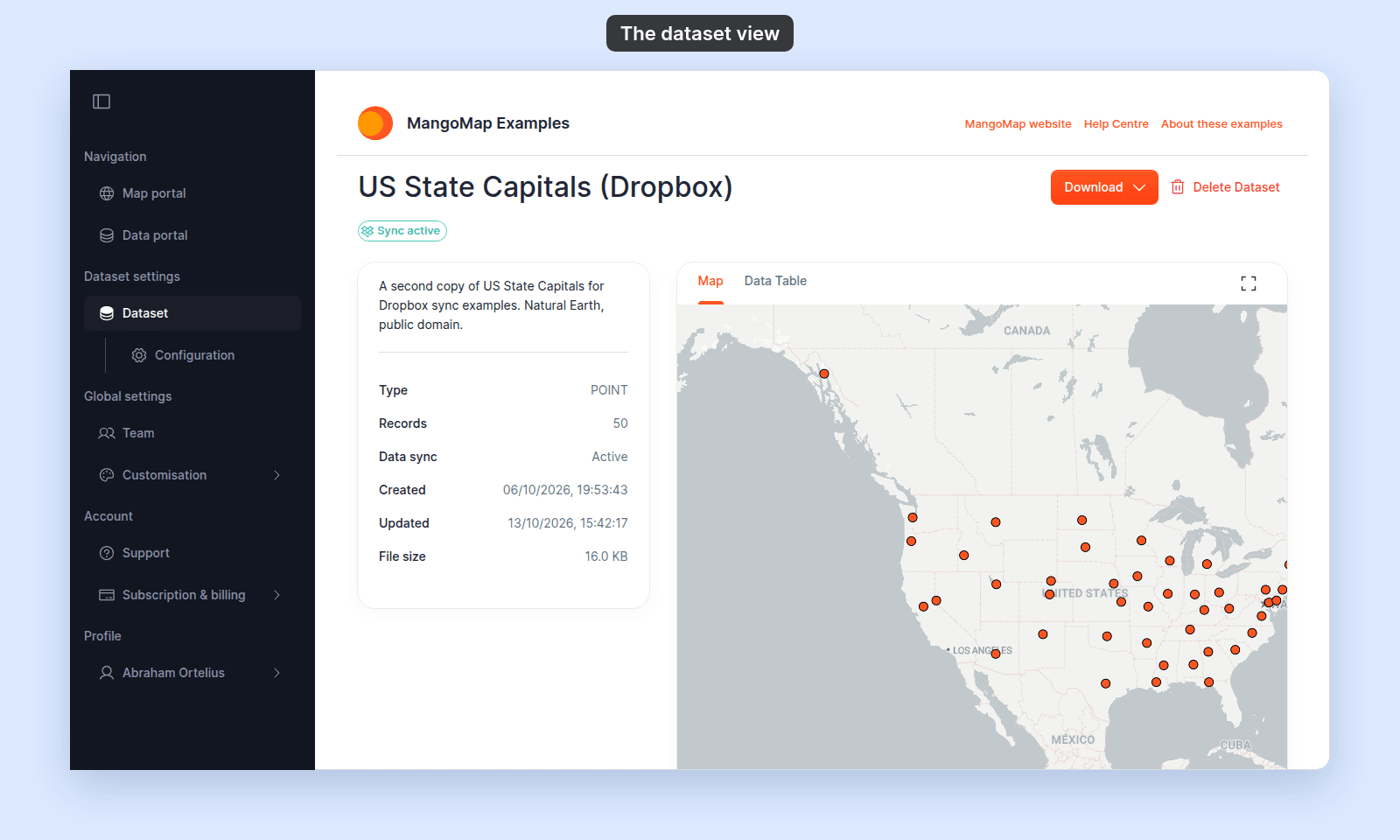
Sync active |
Shown when Dropbox sync is active | Indicates the current sync state. Configure sync in Dataset settings. |
Download |
Vector datasets | Exports the complete dataset as Shapefile, CSV, or MapInfo TAB. |
Delete Dataset |
Users with delete permission | Checks whether maps use the dataset, then starts deletion. |
Raster and WMS datasets do not provide the download action.
Preview tabs
| Control | Default | Effect |
|---|---|---|
Map |
Selected | Shows an interactive preview fitted to the dataset bounds. |
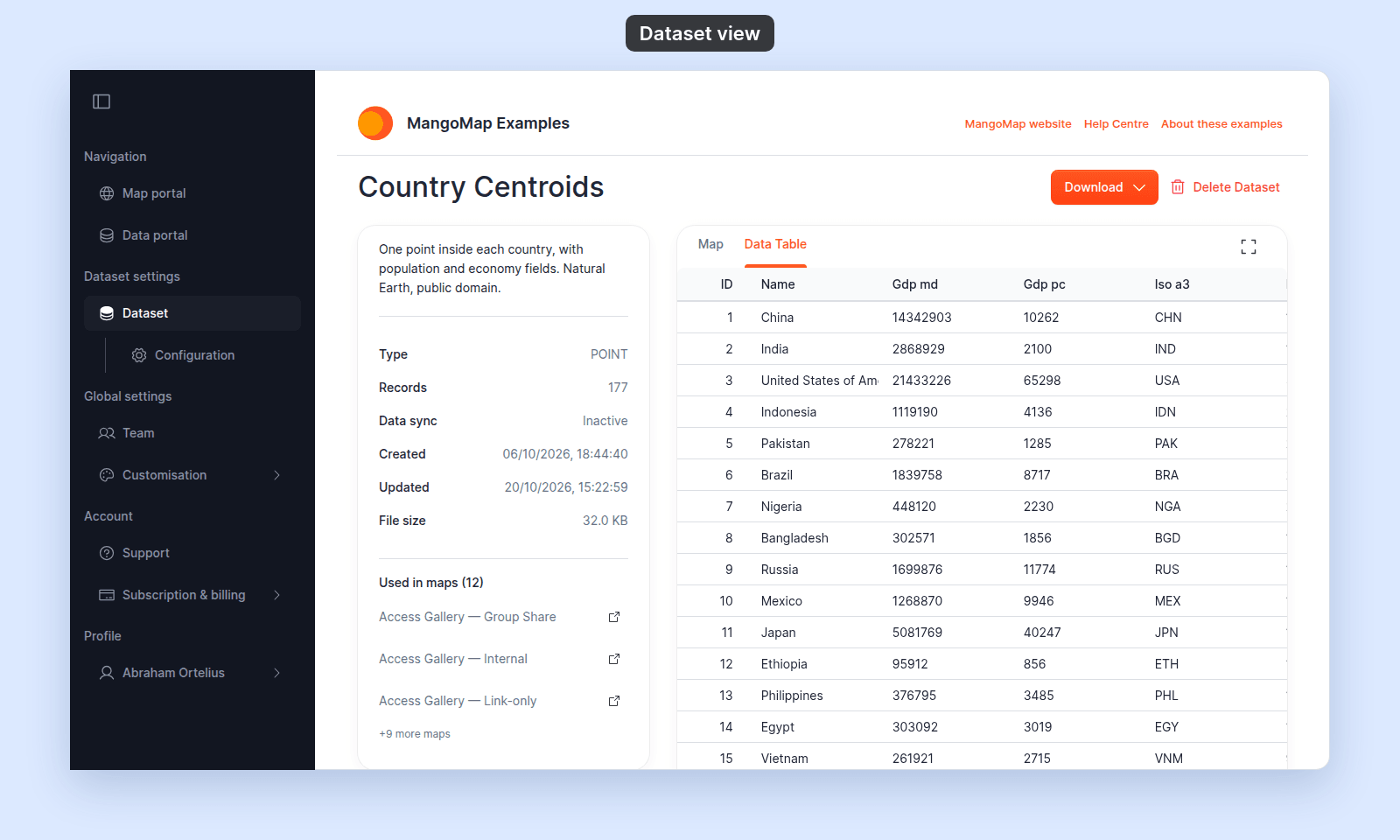
Data Table |
Not selected | Shows sortable, paginated vector records. Hidden for raster and WMS datasets. |
| Expand control | Off | Hides the information card and gives the selected tab the full content width. |
Data table
| Property | Behaviour |
|---|---|
| Editing | Read-only |
| Sorting | Select a column heading to sort |
| Page sizes | 20, 50, or 100 rows |
Information card
| Field | When shown |
|---|---|
| Description | When the dataset has a description |
| Type | Always |
| Records | Always |
| Invalid geometries | When at least one feature has invalid geometry |
| Data sync | Vector datasets. Shows Active or Inactive |
| Created | Always |
| Updated | Always |
| Created by | When the creator is known |
| File size | When the size is known |
| Used in maps | When at least one map uses the dataset and you are signed in with permission to view the dataset |
Used in maps shows the number of maps, the first three maps, and +N more maps for the rest. Each listed map links to that map in a new browser tab.
Invalid geometries shows how many features have invalid geometry, such as shapes that cross themselves or rings that don’t close. MangoMap imports these features without repairing them. They still display, but area and overlay results for them may be wrong. To fix them, repair the file and update the dataset from a file.
Download formats
| Format | Menu label |
|---|---|
| Esri Shapefile | Shapefile |
| Comma-separated values | CSV |
| MapInfo interchange files | MapInfo TAB |
The export includes the complete dataset. Anyone who can view a vector dataset can download it.
Delete flow
When maps use the dataset, MangoMap blocks deletion and lists those maps. Each listed map opens in a new tab so its dependent layer can be removed.
When no map uses the dataset, the confirmation dialog allows permanent deletion. A successful deletion returns the user to the Data portal.
Permissions
| Action | Requirement |
|---|---|
| Open the page | Public access, or signed-in view access through ownership, creation, or an access group |
| Download a vector dataset | Permission to open the dataset |
| Delete the dataset | Dataset delete permission |
| Open a map using the data | Permission to open that map |
See Dataset access settings for the access controls and Account roles for account-wide permissions.