

How to reset a forgotten password
Get a reset link or a verification code by email, then set a new password. Which one you get depends on your account.
Request a reset from the public sign-in page, and MangoMap emails you a reset link or a verification code. Which one you get depends on your account, not on the page you use; both end with a new password and a signed-in Maps portal.
If you know your current password, use How to change your password instead.
Before you start
- You need access to the email inbox linked to your account.
- Use the public sign-in page. An account-scoped sign-in page may not show the password-reset link.
- Use a password with at least 6 characters. If you get a verification code, use only letters, numbers, dashes, and underscores.
Request a reset
- Open https://mangomap.com/forgot-password.
- Enter the email address registered with your account.
- Submit the form.
MangoMap does not reveal whether an email address belongs to an account. If the address is registered, reset instructions are sent to that inbox.
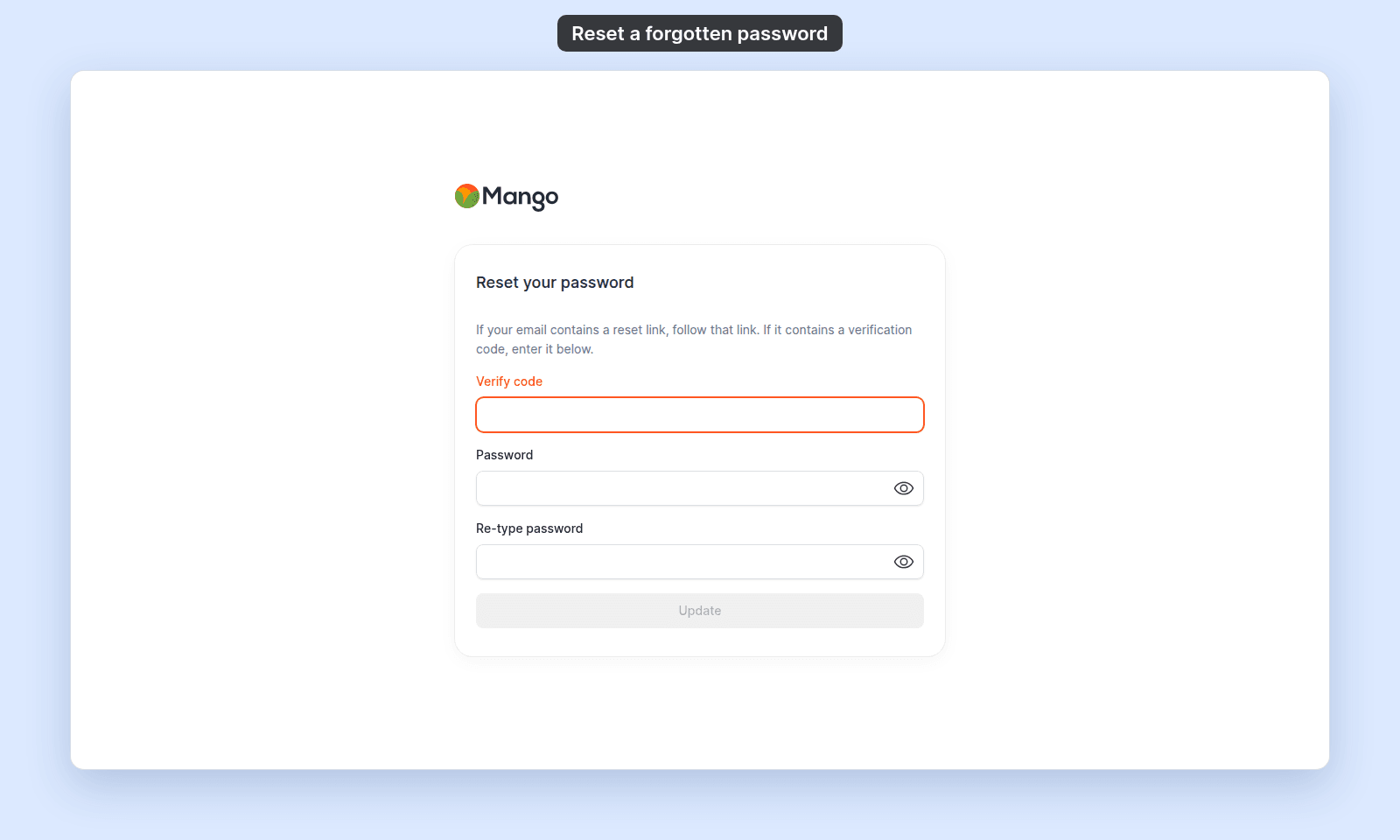
After you submit the form, the browser opens the Reset your password page. Keep it open. If your email has a verification code, you enter it there. If your email has a reset link, follow the link instead.
If you receive a reset link
- Open the reset email.
- Follow its reset link.
- Enter your new password in
Password. - Enter it again in
Re-type password. - Click
Update.
MangoMap updates the password and returns you to the Maps portal.
If you receive a verification code
- Open the verification email and copy the code.
- On the
Reset your passwordpage, enter the code inVerify code. - Enter your new password in
Password. - Enter it again in
Re-type password. - Click
Update.
If you closed the page, open https://mangomap.com/forgot-password and request a new code.
MangoMap verifies the code, updates the password, and signs you in to the Maps portal.
If the email does not arrive
- Check the spam or junk folder.
- Confirm that you used the address registered with MangoMap, including any
+tagor work-address variation. - Wait a few minutes, then submit the form again.
- Use the newest reset email or code if you requested more than one reset.
If you still cannot reset the password, see I can’t sign in.
Related
- How signing in works in MangoMap
- How to sign in to MangoMap
- How to change your password — for a password you still know.
- I can’t sign in
- How to get help or send feedback