---
title: "Partner portal reference"
description: "Look up every Partner Portal page and control, including navigation, the sign-in states, the Client accounts page, subscription options, and invoices."
---
This page lists every Partner Portal page and control. For the model behind these screens - partners, client accounts, and the lifecycle - see [how the partner portal works](/partner/concepts-partner-portal).
## Navigation
After sign-in, the portal shows this fixed top navigation:
- `Client accounts` - your portfolio of client accounts (the landing page).
- `Invoices` - invoices issued for your client subscriptions.
- `Set payment method` - opens billing details on a Recurly page when no payment method is on file.
- `Sign out`.
## Sign-in page
The partner sign-in page has five states. Each state shows a heading, a short description, and its fields:
| State | Heading | Fields | Action |
| --- | --- | --- | --- |
| Sign in | `Sign in` | `Email`, `Password` | `Sign in`; link `Forgot your password?` |
| Request a reset | `Reset your password` | `Email` | `Send reset code` |
| Reset code sent | `Check your email` | - | `Continue` |
| Set a new password | `Set a new password` | `Reset code`, `New password` | `Update password` |
| First-time password | `Set your new password` | `New password` | `Update password` |
`Forgot your password?` starts the reset flow; `Back to sign in` returns from any other state. The first-time password state appears the first time a partner signs in with a temporary password.
## Client accounts page
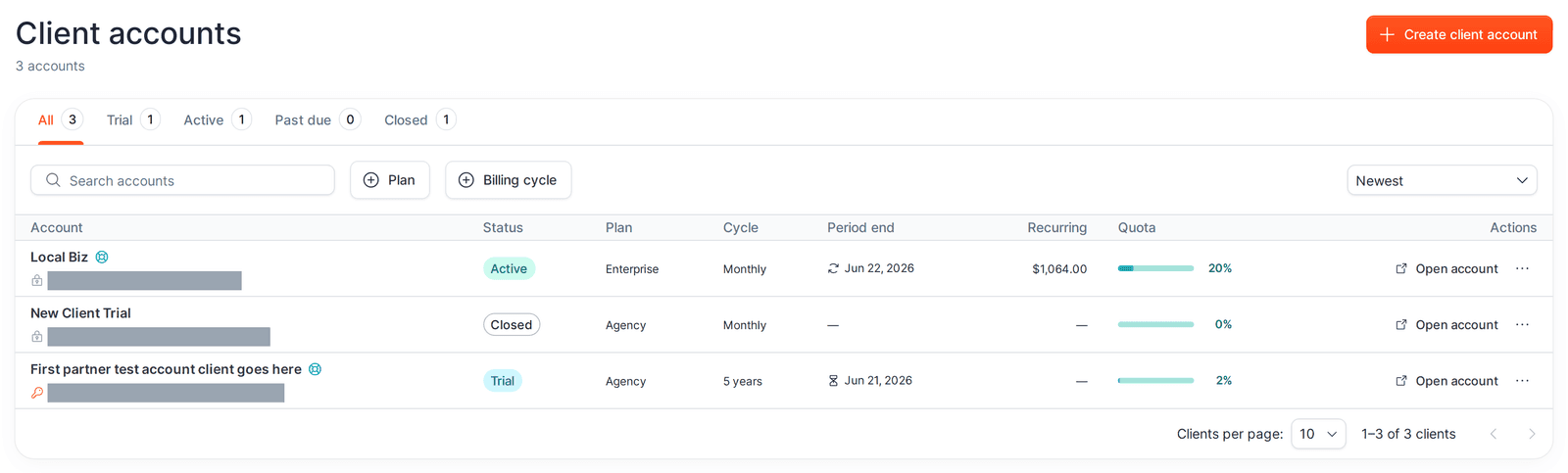
The portfolio home page.
 ### Top controls
- **`Create client account`** - opens the create dialog. Disabled with a `Your partner account is suspended` tooltip when your partner account is suspended.
### Status tabs
A row of tabs filters the list by status, each with a count:
- `All`
- `Trial`
- `Active` (paid)
- `Past due`
- `Closed`
### Filters, search, and sort
### Top controls
- **`Create client account`** - opens the create dialog. Disabled with a `Your partner account is suspended` tooltip when your partner account is suspended.
### Status tabs
A row of tabs filters the list by status, each with a count:
- `All`
- `Trial`
- `Active` (paid)
- `Past due`
- `Closed`
### Filters, search, and sort
 - **Search** - free-text search over accounts.
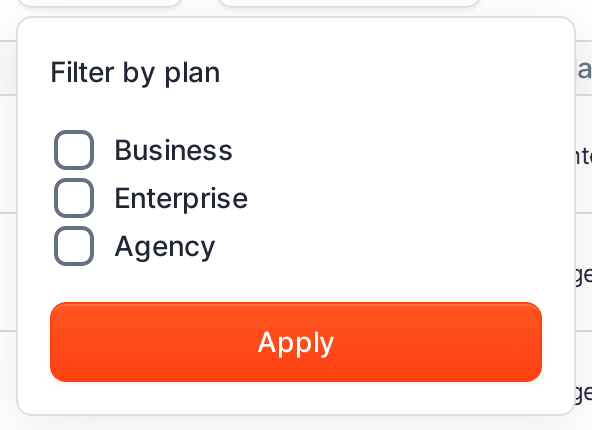
- **`Plan`** filter - `Business`, `Enterprise`, `Agency` (multi-select).
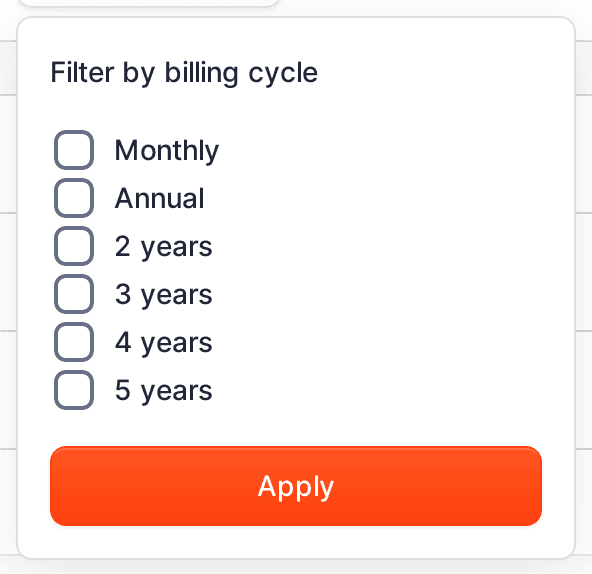
- **`Billing cycle`** filter - `Monthly`, `Annual` (multi-select).
- **`Clear filters`** - appears when any filter or search is active.
- **Sort** - `Newest`, `Oldest`, `Name A→Z`, `Name Z→A`, `Renewal soonest`, `Renewal latest`, `Recurring high→low`, `Recurring low→high`.
### The account table
| Column | Shows |
| --- | --- |
| `Account` | Company name (links to account details), a support-access icon when MangoMap support access is on, the client owner email, an owner-credentials icon (key = has login credentials, lock = none), and a `Handoff pending` chip when an ownership handoff is in flight. |
| `Status` | `Trial`, `Active`, `Past due`, or `Closed`. |
| `Plan` | `Business`, `Enterprise`, or `Agency`. |
| `Cycle` | `Monthly`, `Annual`, or the multi-year cycle. |
| `Period end` | Trial end date for trials; next renewal date for paid; otherwise `—`. |
| `Recurring` | The current period amount. |
| `Quota` | A usage health indicator for the account's maps, storage, and seats. |
| `Actions` | The `Open account` button and the row action menu. |
Pagination at the bottom offers 5, 10, 25, or 50 `Clients per page`.
### Row actions
- **Search** - free-text search over accounts.
- **`Plan`** filter - `Business`, `Enterprise`, `Agency` (multi-select).
- **`Billing cycle`** filter - `Monthly`, `Annual` (multi-select).
- **`Clear filters`** - appears when any filter or search is active.
- **Sort** - `Newest`, `Oldest`, `Name A→Z`, `Name Z→A`, `Renewal soonest`, `Renewal latest`, `Recurring high→low`, `Recurring low→high`.
### The account table
| Column | Shows |
| --- | --- |
| `Account` | Company name (links to account details), a support-access icon when MangoMap support access is on, the client owner email, an owner-credentials icon (key = has login credentials, lock = none), and a `Handoff pending` chip when an ownership handoff is in flight. |
| `Status` | `Trial`, `Active`, `Past due`, or `Closed`. |
| `Plan` | `Business`, `Enterprise`, or `Agency`. |
| `Cycle` | `Monthly`, `Annual`, or the multi-year cycle. |
| `Period end` | Trial end date for trials; next renewal date for paid; otherwise `—`. |
| `Recurring` | The current period amount. |
| `Quota` | A usage health indicator for the account's maps, storage, and seats. |
| `Actions` | The `Open account` button and the row action menu. |
Pagination at the bottom offers 5, 10, 25, or 50 `Clients per page`.
### Row actions
 - **`Open account`** - opens a temporary signed-in session into the client's MangoMap account in a new tab (tooltip `Open managed account session`). Shows `Opening` while it loads.
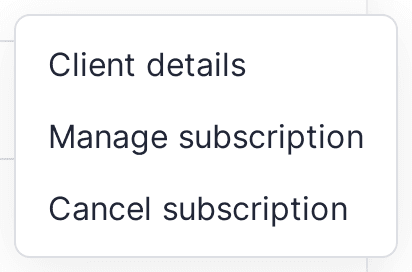
- **Row action menu** (the `⋯` button) - the items shown depend on the account's state:
- `Client details` - always present; opens the account details page.
- `Manage subscription` - present unless the account is closed.
- `Start a trial` - on closed accounts; restarts a 30-day trial.
- `Cancel subscription` - on active (paid) accounts.
- `Terminate trial` - on trial accounts; ends the trial early.
- `Delete account` - only when the account is closed or its trial has expired.
When your partner account is suspended, billing actions are disabled and show the suspension tooltip.
## Create client account dialog
The `Create client account` dialog has these fields:
| Field | Notes |
| --- | --- |
| `Company name` | Required. Also sets the default slug as you type. |
| `Slug` | Required. Used in URLs; lower-case letters, numbers, and hyphens only. |
| `Owner name` | Optional. |
| `Owner email` | Required; must be a valid, unused email. |
| `Allow MangoMap support access` | Toggle; lets MangoMap support open the account. |
A `Trial defaults` panel states the account starts on a 30-day Enterprise trial. The submit button is `Create account`. Creating the account does not email the client owner; you invite them separately afterwards.
If you have no payment method on file, the dialog shows an error with a `Set payment method` action.
## Account details page
Open this page from `Client details` or a company name. The header shows the company name, a `Created ` subtitle, a `Back to clients` link, and a `Manage subscription` button unless the account is closed. A `Subscription past due` banner appears at the top when a payment has failed.
### Account identity card
- **`Company name`** - editable. Helper text notes it also updates the display name on invoices.
- **`Slug`** - read-only with an `Edit` button that opens the URL-slug modal. Editing the slug affects shared map links.
- **Client owner identity** - the `Owner name` field.
- **Client owner email** - shows the current owner email with a `Change email` button. Used to start an ownership handoff (see below).
- **Support access** - `Allow MangoMap support access for this account` toggle.
- **`Discard`** / **`Save changes`** - enabled once you change something.
### Invite client owner card
Shown until the client owner is active:
- When not invited: a `Send invitation` button and an explanation that the owner will be emailed to set a password and access the account, while you keep ownership.
- When the invitation is sent: a disabled `Sent` button and a `Cancel invitation` button.
### Client owner email / handoff
In the email section:
- **View** - the current email and a `Change email` button.
- **Editing** - a `New email` field and `Send verification email`.
- **Handoff in flight** - an `Ownership handoff in progress` banner with a `Cancel handoff` action.
### Subscription card
A status chip plus summary rows: `Plan`, `Billing cycle`, `Current period` amount, `Trial ends` (trials) or `Next renewal` (paid), and `Add-ons` when any are set.
### Usage card
A breakdown of the account's quota usage against its limits.
## Subscription page
Reached by `Manage subscription`. Back link `Back to account details`. The title is `Manage subscription`. When the account is past due, a `Subscription past due` banner appears at the top with an `Update payment method` action. The page has two cards.
### Subscription options
- **`Billing cycle`** - `Monthly`, `Annual` (`Save 20%`), `2 years` / `3 years` / `4 years` / `5 years` (`Save 30%`).
- **`Plan`** - `Business`, `Enterprise`, `Agency`. Each option lists its maps, storage, viewers, and whether add-ons are available. Switching plans resets add-ons.
- **`Add-ons`** - available on `Enterprise` and `Agency` only (`Business` disallows them). Each is a checkbox plus a quantity:
- `Admins` - 0 to 5.
- `Editors` - 0, 5, 10, 15, 20, 25.
- `Maps` - 0, 5, 10, 15, 20, 25.
- `Storage` - 0, 50, 100, 150, 200, 250 GB.
### Subscription summary
A live price summary - `Plan`, `Add-ons`, `Subtotal`, `Partner discount`, `Due today`, and `Credit to account` (on changes that produce a credit) - plus the action buttons:
- On a **trial**: `Activate subscription` (begin billing now) and `Continue trial` (save the chosen plan/cycle/add-ons and keep the trial running until expiry).
- On a **paid** account: `Update subscription`, plus `Discard changes`. A past-due account is still a paid subscription, so the button stays `Update subscription`; to fix the payment, use the `Update payment method` action in the `Subscription past due` banner and pay the open invoice from `Invoices`.
The card also shows the partner payment method (card brand and last four) and a `Secure checkout` note that purchases are secured by Recurly and any partner coupon is applied automatically.
### 3D Secure and downgrade blocking
- If the card issuer requires extra verification, a `3D Secure Verification` dialog appears. Completing it retries the action automatically.
- If a plan or add-on change would drop the account below its current usage (for example, fewer maps than are already in use), a downgrade-block dialog explains what is over the new limit and prevents the change until usage is reduced.
## Invoices page
| Column | Shows |
| --- | --- |
| `Date` | Invoice date. |
| `Invoice` | Invoice number. |
| `Status` | `Paid`, `Past due`, `Failed`, `Voided`, `Closed`, `Processing`, `Pending`, or `Open`. |
| `Amount` | Invoice total. |
| `Actions` | `Pay now` for past-due and pending invoices; `View` for the rest. Both open the invoice's Recurly hosted page in a new tab. |
Pagination offers 5, 10, 25, or 50 `Invoices per page`.
## Related
- [How the partner portal works](/partner/concepts-partner-portal)
- [How to create a client account](/partner/create-a-client-account)
- [How to activate a client trial to paid](/partner/activate-a-client-trial-to-paid)
- [How to view partner invoices](/partner/view-partner-invoices)
- **`Open account`** - opens a temporary signed-in session into the client's MangoMap account in a new tab (tooltip `Open managed account session`). Shows `Opening` while it loads.
- **Row action menu** (the `⋯` button) - the items shown depend on the account's state:
- `Client details` - always present; opens the account details page.
- `Manage subscription` - present unless the account is closed.
- `Start a trial` - on closed accounts; restarts a 30-day trial.
- `Cancel subscription` - on active (paid) accounts.
- `Terminate trial` - on trial accounts; ends the trial early.
- `Delete account` - only when the account is closed or its trial has expired.
When your partner account is suspended, billing actions are disabled and show the suspension tooltip.
## Create client account dialog
The `Create client account` dialog has these fields:
| Field | Notes |
| --- | --- |
| `Company name` | Required. Also sets the default slug as you type. |
| `Slug` | Required. Used in URLs; lower-case letters, numbers, and hyphens only. |
| `Owner name` | Optional. |
| `Owner email` | Required; must be a valid, unused email. |
| `Allow MangoMap support access` | Toggle; lets MangoMap support open the account. |
A `Trial defaults` panel states the account starts on a 30-day Enterprise trial. The submit button is `Create account`. Creating the account does not email the client owner; you invite them separately afterwards.
If you have no payment method on file, the dialog shows an error with a `Set payment method` action.
## Account details page
Open this page from `Client details` or a company name. The header shows the company name, a `Created ` subtitle, a `Back to clients` link, and a `Manage subscription` button unless the account is closed. A `Subscription past due` banner appears at the top when a payment has failed.
### Account identity card
- **`Company name`** - editable. Helper text notes it also updates the display name on invoices.
- **`Slug`** - read-only with an `Edit` button that opens the URL-slug modal. Editing the slug affects shared map links.
- **Client owner identity** - the `Owner name` field.
- **Client owner email** - shows the current owner email with a `Change email` button. Used to start an ownership handoff (see below).
- **Support access** - `Allow MangoMap support access for this account` toggle.
- **`Discard`** / **`Save changes`** - enabled once you change something.
### Invite client owner card
Shown until the client owner is active:
- When not invited: a `Send invitation` button and an explanation that the owner will be emailed to set a password and access the account, while you keep ownership.
- When the invitation is sent: a disabled `Sent` button and a `Cancel invitation` button.
### Client owner email / handoff
In the email section:
- **View** - the current email and a `Change email` button.
- **Editing** - a `New email` field and `Send verification email`.
- **Handoff in flight** - an `Ownership handoff in progress` banner with a `Cancel handoff` action.
### Subscription card
A status chip plus summary rows: `Plan`, `Billing cycle`, `Current period` amount, `Trial ends` (trials) or `Next renewal` (paid), and `Add-ons` when any are set.
### Usage card
A breakdown of the account's quota usage against its limits.
## Subscription page
Reached by `Manage subscription`. Back link `Back to account details`. The title is `Manage subscription`. When the account is past due, a `Subscription past due` banner appears at the top with an `Update payment method` action. The page has two cards.
### Subscription options
- **`Billing cycle`** - `Monthly`, `Annual` (`Save 20%`), `2 years` / `3 years` / `4 years` / `5 years` (`Save 30%`).
- **`Plan`** - `Business`, `Enterprise`, `Agency`. Each option lists its maps, storage, viewers, and whether add-ons are available. Switching plans resets add-ons.
- **`Add-ons`** - available on `Enterprise` and `Agency` only (`Business` disallows them). Each is a checkbox plus a quantity:
- `Admins` - 0 to 5.
- `Editors` - 0, 5, 10, 15, 20, 25.
- `Maps` - 0, 5, 10, 15, 20, 25.
- `Storage` - 0, 50, 100, 150, 200, 250 GB.
### Subscription summary
A live price summary - `Plan`, `Add-ons`, `Subtotal`, `Partner discount`, `Due today`, and `Credit to account` (on changes that produce a credit) - plus the action buttons:
- On a **trial**: `Activate subscription` (begin billing now) and `Continue trial` (save the chosen plan/cycle/add-ons and keep the trial running until expiry).
- On a **paid** account: `Update subscription`, plus `Discard changes`. A past-due account is still a paid subscription, so the button stays `Update subscription`; to fix the payment, use the `Update payment method` action in the `Subscription past due` banner and pay the open invoice from `Invoices`.
The card also shows the partner payment method (card brand and last four) and a `Secure checkout` note that purchases are secured by Recurly and any partner coupon is applied automatically.
### 3D Secure and downgrade blocking
- If the card issuer requires extra verification, a `3D Secure Verification` dialog appears. Completing it retries the action automatically.
- If a plan or add-on change would drop the account below its current usage (for example, fewer maps than are already in use), a downgrade-block dialog explains what is over the new limit and prevents the change until usage is reduced.
## Invoices page
| Column | Shows |
| --- | --- |
| `Date` | Invoice date. |
| `Invoice` | Invoice number. |
| `Status` | `Paid`, `Past due`, `Failed`, `Voided`, `Closed`, `Processing`, `Pending`, or `Open`. |
| `Amount` | Invoice total. |
| `Actions` | `Pay now` for past-due and pending invoices; `View` for the rest. Both open the invoice's Recurly hosted page in a new tab. |
Pagination offers 5, 10, 25, or 50 `Invoices per page`.
## Related
- [How the partner portal works](/partner/concepts-partner-portal)
- [How to create a client account](/partner/create-a-client-account)
- [How to activate a client trial to paid](/partner/activate-a-client-trial-to-paid)
- [How to view partner invoices](/partner/view-partner-invoices)