---
title: "How to view and pay invoices"
description: "Review invoices on the Invoices page, pay past due or pending invoices in Recurly, and open invoice PDFs. Only the account owner can open this page."
sidebar:
label: "View and pay invoices"
search:
keywords: [receipt, billing history, credit card, payment method]
boost: 2
---
Review invoices on the `Invoices` page, pay `Past due` or `pending` invoices in Recurly, and open invoice PDFs in a new tab. Only the account owner can open this page.
## Before you start
- You need to be the account owner, and the account must not be partner-managed.
- If the card on file needs updating, use `Update billing` before retrying payment.
## Open the Invoices page
Open `Account` > `Subscription & billing` > `Invoices`. The `Invoice history` table lists one row for each invoice.
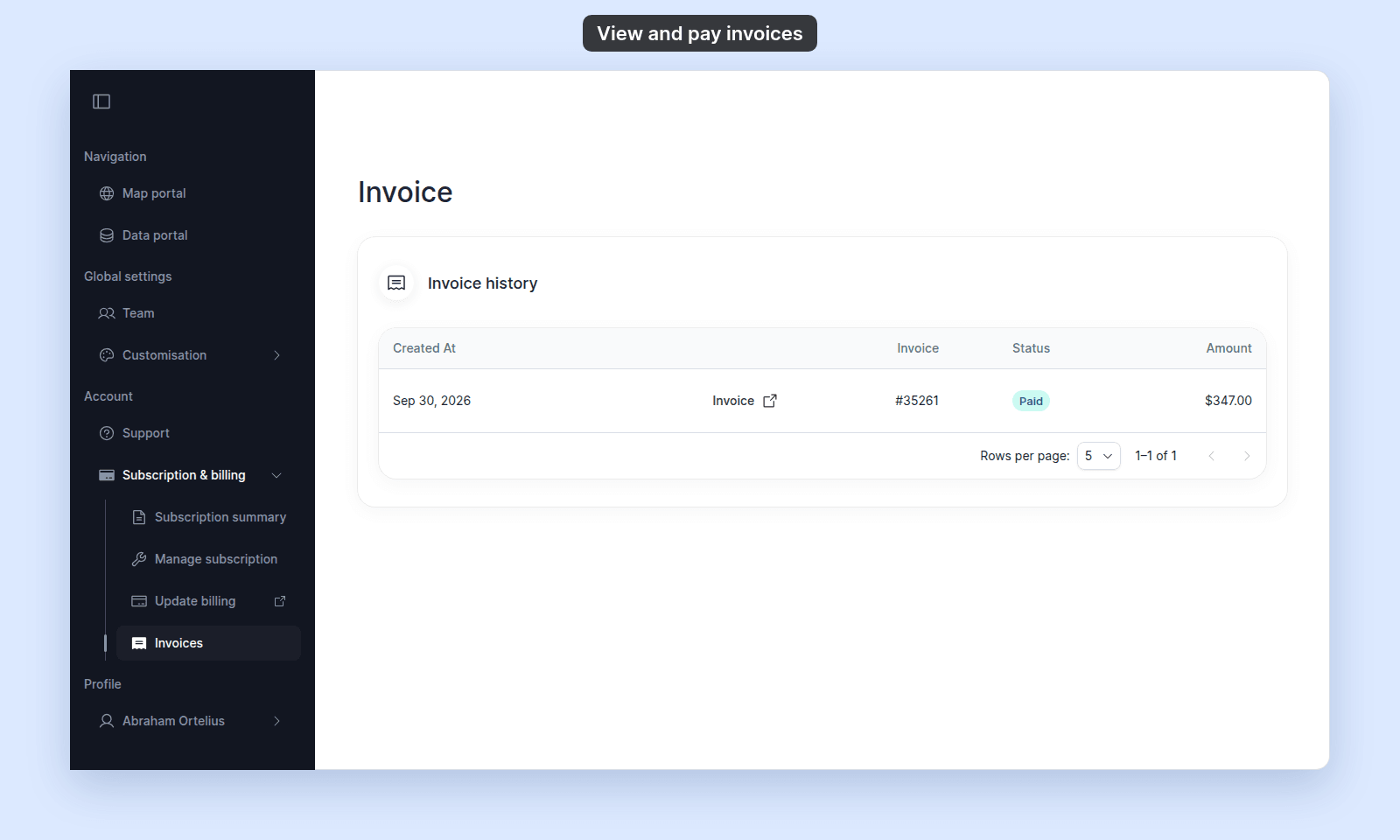 Use `Rows per page` to show 5, 10, or 20 invoices.
## Pay an open or past-due invoice
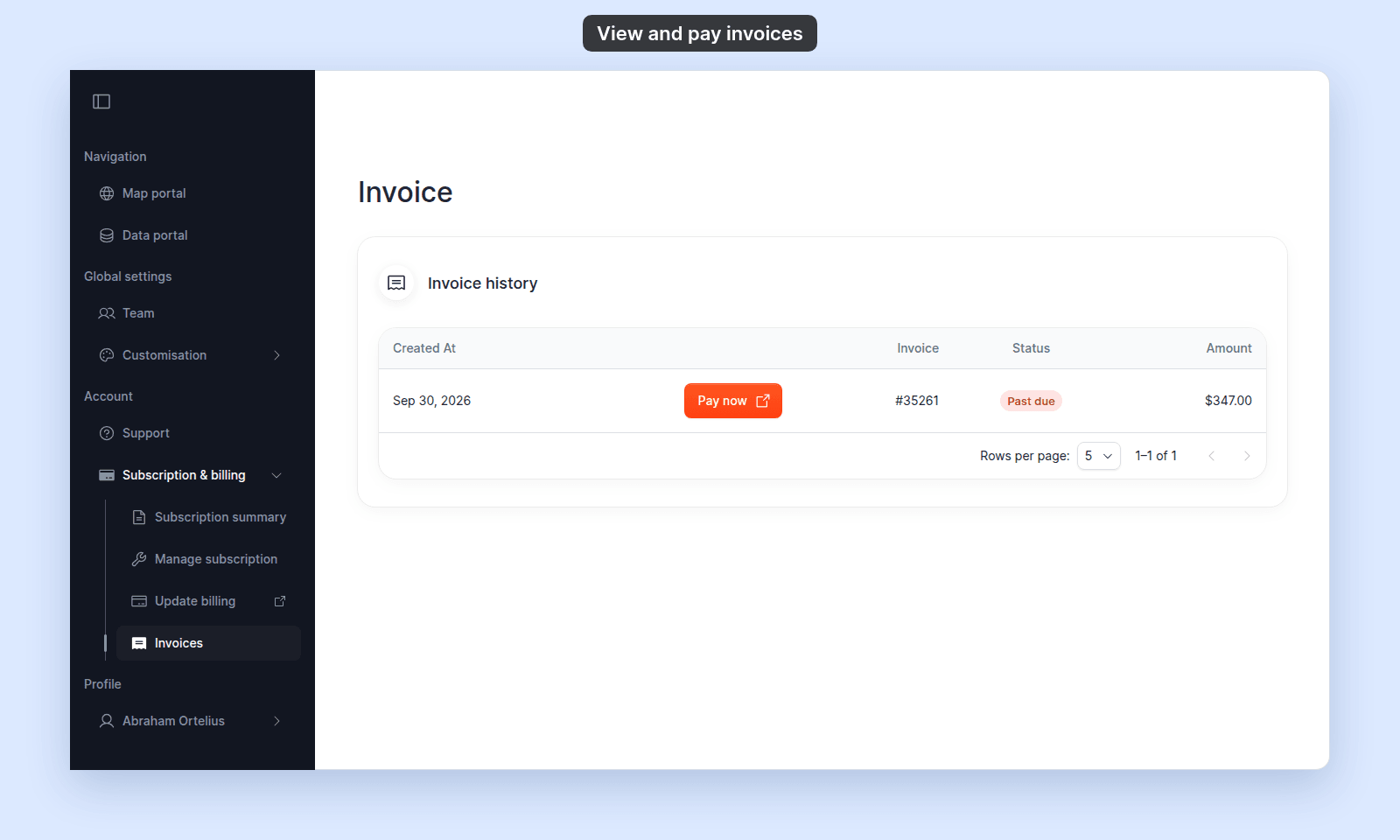
Rows with `Past due` or `pending` status show `Pay now`:
1. Click `Pay now` on the invoice row.
2. Complete payment in the Recurly page that opens in a new tab.
3. Return to MangoMap and refresh the invoice list if the status has not updated.
If payment fails again, see [A payment failed or an invoice is past due](/docs/subscription-and-billing/troubleshoot-payment-failed).
## Open an invoice PDF
Rows that do not need a payment action show `Invoice`:
1. Click `Invoice`.
2. Use the invoice page that opens in a new tab to view or download the PDF.
The invoice page is hosted by Recurly.
## Read the status chips
| Status | Meaning | Action |
| --- | --- | --- |
| `Paid` | The invoice is paid. | Open `Invoice` to view the PDF. |
| `Past due` | Payment is overdue. | Use `Pay now`. |
| `pending` | The invoice is awaiting payment. | Use `Pay now`. |
| `open` | The invoice is open but not past due. | Open `Invoice`. |
| `processing` | A payment is being processed. | Wait for the status to update. |
| `closed` | The invoice is closed. | Open `Invoice`. |
| `failed` | A payment attempt failed. | Open `Invoice` or contact support if it remains unresolved. |
| `voided` | The invoice was voided. | Open `Invoice` for the record. |
Use `Rows per page` to show 5, 10, or 20 invoices.
## Pay an open or past-due invoice
Rows with `Past due` or `pending` status show `Pay now`:
1. Click `Pay now` on the invoice row.
2. Complete payment in the Recurly page that opens in a new tab.
3. Return to MangoMap and refresh the invoice list if the status has not updated.
If payment fails again, see [A payment failed or an invoice is past due](/docs/subscription-and-billing/troubleshoot-payment-failed).
## Open an invoice PDF
Rows that do not need a payment action show `Invoice`:
1. Click `Invoice`.
2. Use the invoice page that opens in a new tab to view or download the PDF.
The invoice page is hosted by Recurly.
## Read the status chips
| Status | Meaning | Action |
| --- | --- | --- |
| `Paid` | The invoice is paid. | Open `Invoice` to view the PDF. |
| `Past due` | Payment is overdue. | Use `Pay now`. |
| `pending` | The invoice is awaiting payment. | Use `Pay now`. |
| `open` | The invoice is open but not past due. | Open `Invoice`. |
| `processing` | A payment is being processed. | Wait for the status to update. |
| `closed` | The invoice is closed. | Open `Invoice`. |
| `failed` | A payment attempt failed. | Open `Invoice` or contact support if it remains unresolved. |
| `voided` | The invoice was voided. | Open `Invoice` for the record. |
 ## If the table is empty
A trial account can have no invoices until checkout is completed. If a paid account has no expected invoice, refresh the page and contact support with the account name.
## If a charge looks wrong
Open the matching invoice with `Invoice` and review its line items in Recurly. If the charge still does not match the subscription change, contact [support](/docs/getting-started/get-help-or-send-feedback) with the invoice number.
## Troubleshooting
**`Pay now` opens an empty page.** Return to `Invoices` and click `Pay now` again.
**The status does not update after payment.** Refresh after a short delay. If it is still incorrect, contact support with the invoice number.
## Related
- [Subscription & billing reference](/docs/subscription-and-billing/subscription-and-billing-reference)
- [How to manage your subscription](/docs/subscription-and-billing/manage-your-subscription)
- [A payment failed or an invoice is past due](/docs/subscription-and-billing/troubleshoot-payment-failed)
## If the table is empty
A trial account can have no invoices until checkout is completed. If a paid account has no expected invoice, refresh the page and contact support with the account name.
## If a charge looks wrong
Open the matching invoice with `Invoice` and review its line items in Recurly. If the charge still does not match the subscription change, contact [support](/docs/getting-started/get-help-or-send-feedback) with the invoice number.
## Troubleshooting
**`Pay now` opens an empty page.** Return to `Invoices` and click `Pay now` again.
**The status does not update after payment.** Refresh after a short delay. If it is still incorrect, contact support with the invoice number.
## Related
- [Subscription & billing reference](/docs/subscription-and-billing/subscription-and-billing-reference)
- [How to manage your subscription](/docs/subscription-and-billing/manage-your-subscription)
- [A payment failed or an invoice is past due](/docs/subscription-and-billing/troubleshoot-payment-failed)