---
title: "Subscription & billing reference"
description: "Check the pages, controls, states, and limits in the Subscription & billing area. Only the owner of a directly billed account can open it."
sidebar:
label: "Billing reference"
---
Use this page to check the pages, controls, states, and limits in MangoMap's `Subscription & billing` area. Only the owner of a directly billed account can open it.
For the lifecycle and plan model, see [How subscription and billing work in MangoMap](/docs/subscription-and-billing/concepts-subscription-and-billing).
## Access and menu
| Field | Value |
| --- | --- |
| Sidebar group | `Account` |
| Menu | `Subscription & billing` |
| Items | `Subscription summary`, `Manage subscription`, `Update billing`, `Invoices` |
| Required role | `Owner` |
| Partner-managed accounts | The MangoMap billing menu is hidden; billing is managed by the partner. |
`Admin`, `Editor`, and `Viewer` users cannot open these pages.
## Subscription summary
| Field | Value |
| --- | --- |
| Main action | `Manage subscription` |
The page content depends on the account state.
### Paid accounts
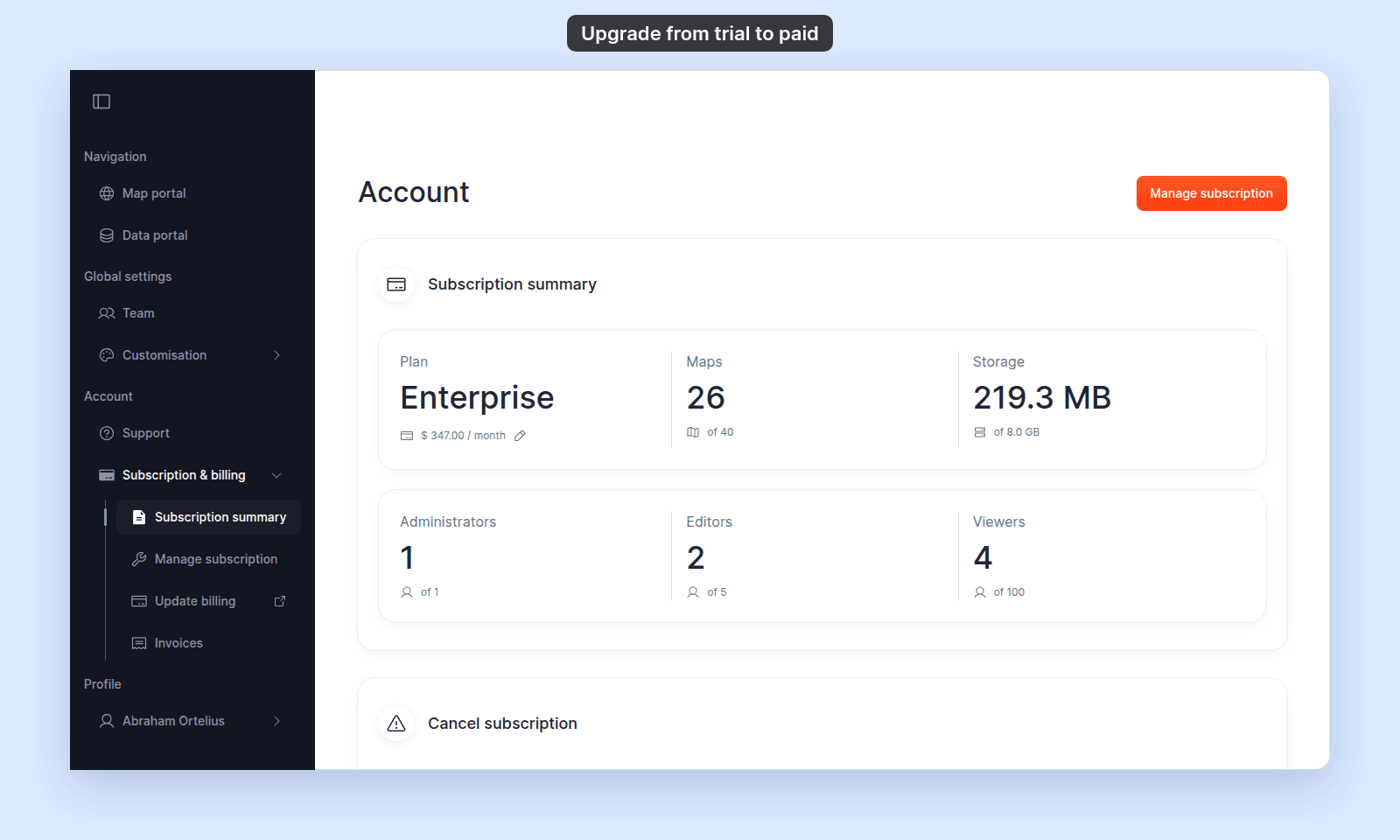 The summary shows these usage tiles:
| Tile | Shows |
| --- | --- |
| `Plan` | `Business`, `Enterprise`, or `Agency`, with the billing cycle and current price. A pencil link opens the billing portal in a new tab. |
| `Maps` | Current maps used and the account limit. |
| `Storage` | Current storage used and the account limit. |
| `Administrators` | Current administrator seats used and the account limit. |
| `Editors` | Current editor seats used and the account limit. |
| `Viewers` | Current viewers used and the account limit, or `unlimited` for `Agency`. |
A `Cancel subscription` card appears below the summary for non-trial accounts.
### Trial accounts
The summary includes a trial card with:
| Field | Value |
| --- | --- |
| Heading | `Welcome to your trial` |
| Action | `Upgrade to paid` |
| Status | Trial expiry date and remaining days |
Trial accounts use `Enterprise` base limits with no add-ons. The cancellation card is not shown during a trial.
## Plans and allowances
| Plan | Base maps | Base storage | Viewers | Add-ons |
| --- | ---: | ---: | ---: | --- |
| `Business` | 20 | 4 GB | 0 | Not available |
| `Enterprise` | 40 | 8 GB | 100 | Available |
| `Agency` | 100 | 16 GB | Unlimited | Available |
### Add-on quantities
| Add-on | Choices |
| --- | --- |
| `Admins` | 0, 1, 2, 3, 4, 5 |
| `Editors` | 0, 5, 10, 15, 20, 25 |
| `Maps` | 0, 5, 10, 15, 20, 25 |
| `Storage` | 0, 50, 100, 150, 200, 250 GB |
Add-ons are disabled when `Business` is selected. Map and storage limits equal the plan allowance plus active add-ons.
## Manage subscription
| Field | Value |
| --- | --- |
| Default page title | `Manage subscription` |
| Expired-trial title | `Your trial has expired - subscribe to continue` |
| Closed-account title | `Your account is closed - subscribe to reactivate` |
| Expired/closed action | `Contact sales` link in the page header |
The summary shows these usage tiles:
| Tile | Shows |
| --- | --- |
| `Plan` | `Business`, `Enterprise`, or `Agency`, with the billing cycle and current price. A pencil link opens the billing portal in a new tab. |
| `Maps` | Current maps used and the account limit. |
| `Storage` | Current storage used and the account limit. |
| `Administrators` | Current administrator seats used and the account limit. |
| `Editors` | Current editor seats used and the account limit. |
| `Viewers` | Current viewers used and the account limit, or `unlimited` for `Agency`. |
A `Cancel subscription` card appears below the summary for non-trial accounts.
### Trial accounts
The summary includes a trial card with:
| Field | Value |
| --- | --- |
| Heading | `Welcome to your trial` |
| Action | `Upgrade to paid` |
| Status | Trial expiry date and remaining days |
Trial accounts use `Enterprise` base limits with no add-ons. The cancellation card is not shown during a trial.
## Plans and allowances
| Plan | Base maps | Base storage | Viewers | Add-ons |
| --- | ---: | ---: | ---: | --- |
| `Business` | 20 | 4 GB | 0 | Not available |
| `Enterprise` | 40 | 8 GB | 100 | Available |
| `Agency` | 100 | 16 GB | Unlimited | Available |
### Add-on quantities
| Add-on | Choices |
| --- | --- |
| `Admins` | 0, 1, 2, 3, 4, 5 |
| `Editors` | 0, 5, 10, 15, 20, 25 |
| `Maps` | 0, 5, 10, 15, 20, 25 |
| `Storage` | 0, 50, 100, 150, 200, 250 GB |
Add-ons are disabled when `Business` is selected. Map and storage limits equal the plan allowance plus active add-ons.
## Manage subscription
| Field | Value |
| --- | --- |
| Default page title | `Manage subscription` |
| Expired-trial title | `Your trial has expired - subscribe to continue` |
| Closed-account title | `Your account is closed - subscribe to reactivate` |
| Expired/closed action | `Contact sales` link in the page header |
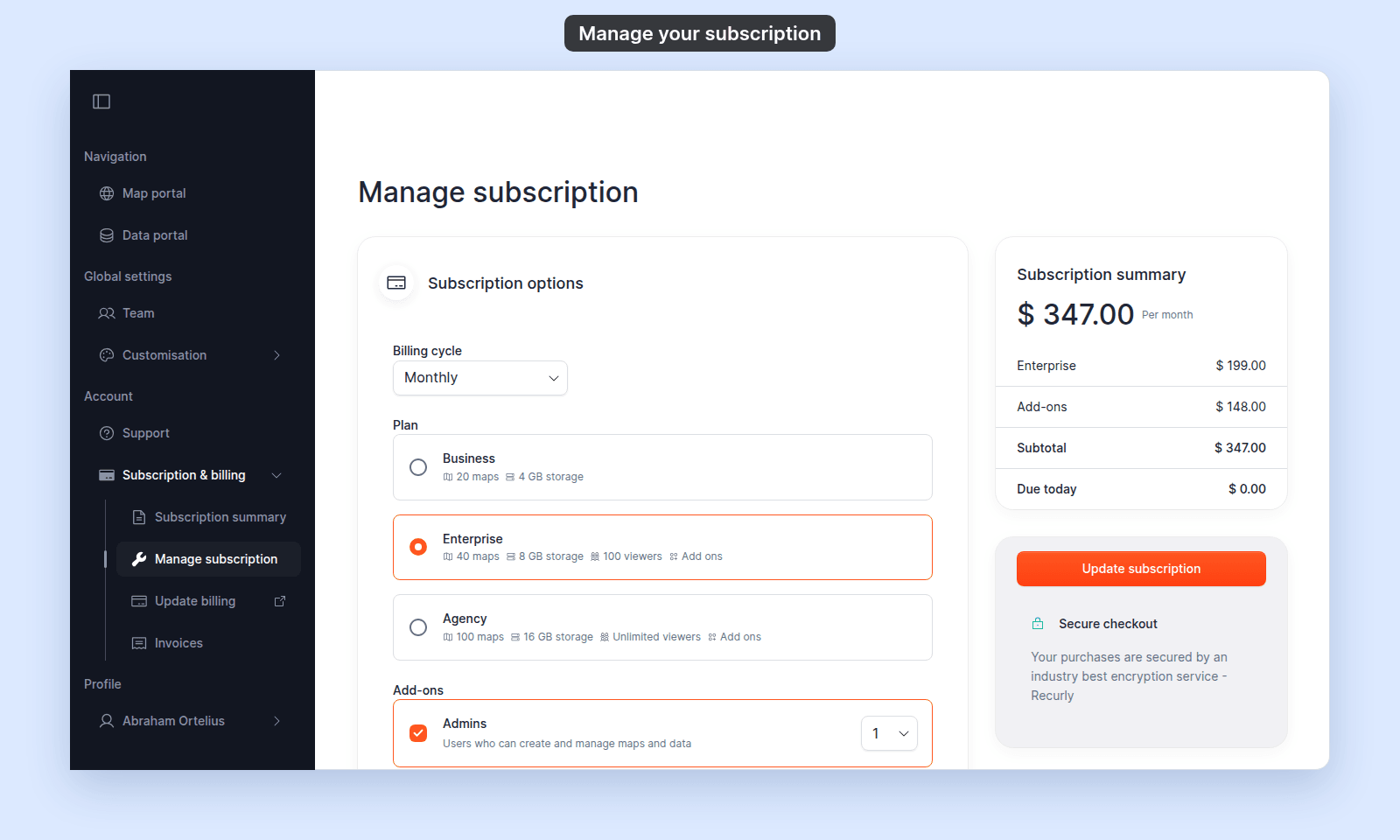 ### Subscription options
| Control | Type | Choices |
| --- | --- | --- |
| `Billing cycle` | Dropdown | `Monthly`, `Annual` (`Save 20%`), `2 years` / `3 years` / `4 years` / `5 years` (`Save 30%`) |
| `Plan` | Radio group | `Business`, `Enterprise`, `Agency` |
### Add-ons
Each add-on has a checkbox and, when enabled, a quantity dropdown. The available quantities are listed in [Plans and allowances](#plans-and-allowances).
### Subscription summary card
The pricing summary shows:
| Row | Condition |
| --- | --- |
| Plan and price | Always |
| `Add-ons` | Always; zero when no add-ons are selected |
| `Subtotal` | Always; UK accounts may show `Subtotal (ex-VAT)` |
| `Taxes` | Trial checkout before the final tax calculation |
| `VAT [rate]%` | UK billing addresses when the rate is returned |
| `Due today` | Always |
| `Credit to account` | Paid accounts when a change refunds unused time |
### Actions by account state
| State | Actions |
| --- | --- |
| Paid | `Update subscription` |
| Active trial | `Continue trial` and `Checkout with Recurly` |
| Expired trial or closed | `Checkout with Recurly` |
When a paid change requires extra verification, MangoMap can open a `3D Secure Verification` dialog.
### Payment method
Paid accounts can show either:
- A saved card with its brand, last four digits, and expiry date, plus a pencil link to the billing portal.
- A manual or invoice payment method with an invoice description.
## Update billing
| Field | Value |
| --- | --- |
| Sidebar item | `Update billing` |
| Destination | Recurly-hosted billing portal |
| Opens | New tab |
| Required role | `Owner` |
Use the portal to update card details and billing address. The pencil links on `Subscription summary` and `Manage subscription` open the same portal.
## Invoices
| Field | Value |
| --- | --- |
| Page title | `Invoice` |
| Card heading | `Invoice history` |
| Rows per page | 5, 10, or 20; default 5 |
### Invoice history table
| Column | Format or behavior |
| --- | --- |
| `Created At` | `MMM D, YYYY` |
| Action (no heading) | `Pay now` for `past_due` and `pending`; `Invoice` for all other states |
| `Invoice` | `#[number]` |
| `Status` | `Paid`, `Past due`, or another state from the list below |
| `Amount` | Currency-formatted invoice total |
Both actions open a Recurly invoice page in a new tab. Use `Pay now` to pay; use `Invoice` to view or download the invoice.
### Invoice states
| Visible status |
| --- |
| `Paid` |
| `Past due` |
| `pending` |
| `open` |
| `processing` |
| `closed` |
| `failed` |
| `voided` |
## Cancel subscription
| Field | Value |
| --- | --- |
| Page title | `Cancel subscription` |
| Card heading | `Cancellation details` |
| Required role | `Owner` |
### Subscription options
| Control | Type | Choices |
| --- | --- | --- |
| `Billing cycle` | Dropdown | `Monthly`, `Annual` (`Save 20%`), `2 years` / `3 years` / `4 years` / `5 years` (`Save 30%`) |
| `Plan` | Radio group | `Business`, `Enterprise`, `Agency` |
### Add-ons
Each add-on has a checkbox and, when enabled, a quantity dropdown. The available quantities are listed in [Plans and allowances](#plans-and-allowances).
### Subscription summary card
The pricing summary shows:
| Row | Condition |
| --- | --- |
| Plan and price | Always |
| `Add-ons` | Always; zero when no add-ons are selected |
| `Subtotal` | Always; UK accounts may show `Subtotal (ex-VAT)` |
| `Taxes` | Trial checkout before the final tax calculation |
| `VAT [rate]%` | UK billing addresses when the rate is returned |
| `Due today` | Always |
| `Credit to account` | Paid accounts when a change refunds unused time |
### Actions by account state
| State | Actions |
| --- | --- |
| Paid | `Update subscription` |
| Active trial | `Continue trial` and `Checkout with Recurly` |
| Expired trial or closed | `Checkout with Recurly` |
When a paid change requires extra verification, MangoMap can open a `3D Secure Verification` dialog.
### Payment method
Paid accounts can show either:
- A saved card with its brand, last four digits, and expiry date, plus a pencil link to the billing portal.
- A manual or invoice payment method with an invoice description.
## Update billing
| Field | Value |
| --- | --- |
| Sidebar item | `Update billing` |
| Destination | Recurly-hosted billing portal |
| Opens | New tab |
| Required role | `Owner` |
Use the portal to update card details and billing address. The pencil links on `Subscription summary` and `Manage subscription` open the same portal.
## Invoices
| Field | Value |
| --- | --- |
| Page title | `Invoice` |
| Card heading | `Invoice history` |
| Rows per page | 5, 10, or 20; default 5 |
### Invoice history table
| Column | Format or behavior |
| --- | --- |
| `Created At` | `MMM D, YYYY` |
| Action (no heading) | `Pay now` for `past_due` and `pending`; `Invoice` for all other states |
| `Invoice` | `#[number]` |
| `Status` | `Paid`, `Past due`, or another state from the list below |
| `Amount` | Currency-formatted invoice total |
Both actions open a Recurly invoice page in a new tab. Use `Pay now` to pay; use `Invoice` to view or download the invoice.
### Invoice states
| Visible status |
| --- |
| `Paid` |
| `Past due` |
| `pending` |
| `open` |
| `processing` |
| `closed` |
| `failed` |
| `voided` |
## Cancel subscription
| Field | Value |
| --- | --- |
| Page title | `Cancel subscription` |
| Card heading | `Cancellation details` |
| Required role | `Owner` |
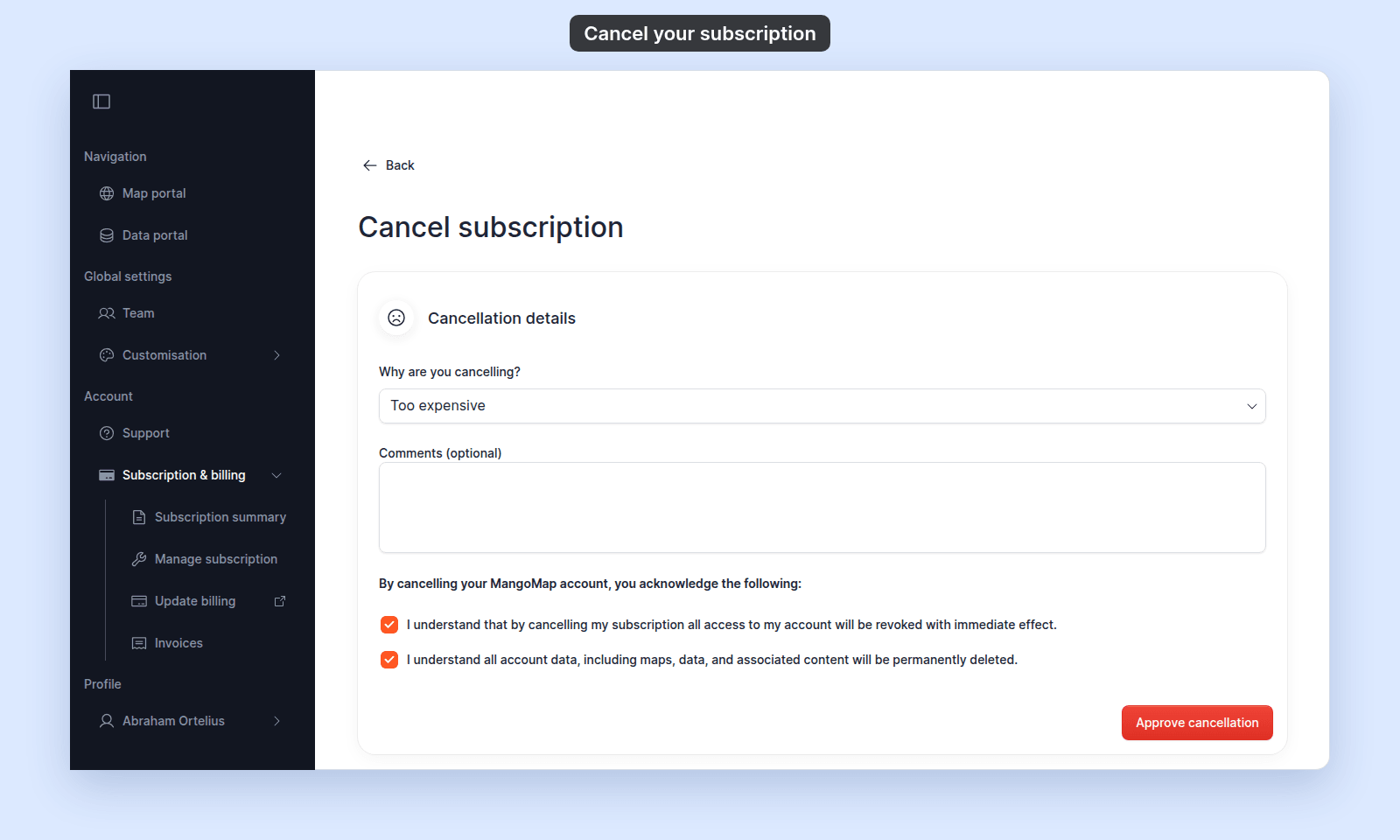 ### Cancellation controls
| Control | Type | Choices |
| --- | --- | --- |
| `Why are you cancelling?` | Dropdown | `Too expensive`, `Too complicated`, `Not enough time`, `Missing features`, `Performance issues`, `Change in key account stakeholder`, `Changes to business (e.g., business no longer in operation)`, `Poor support experience`, `Poor sales experience`, `Other` |
| `Comments (optional)` | Multiline text | Optional free text |
`Approve cancellation` does not submit the form until a reason is selected and both acknowledgement checkboxes are ticked. Submitting changes the account to `CLOSED`, revokes access, and signs users out.
## Checkout
| Field | Value |
| --- | --- |
| Page title | `Checkout` |
| Opens from | `Checkout with Recurly` on `Manage subscription` |
| Required role | `Owner` |
### Billing card
Card details are entered in a Recurly-hosted card field. MangoMap can display `Invalid card details` when the card field is invalid.
### Billing address
| Field | Required |
| --- | --- |
| `First Name` | Yes |
| `Last Name` | Yes |
| `Street line 1` | Yes |
| `Street line 2 (optional)` | No |
| `City` | Yes |
| `State / Province` | Yes |
| `Zip / Postal code` | Yes |
| `Country` | Yes |
| `Company Name (optional)` | No |
| `VAT number` | Only when `Country` is `GB` |
### Submit and confirmation
The order summary shows plan, add-ons, subtotal, taxes, and total. The submit button is `Pay [currency] [amount] and subscribe`.
When payment succeeds, a confirmation page opens.
## Subscription confirmation
| Field | Value |
| --- | --- |
| Heading | `Thank You for Subscribing` |
| Action | `Go to my account` |
The confirmation page confirms the change. Return to `Subscription summary` to review the active plan and cycle.
## Related
- [How subscription and billing work in MangoMap](/docs/subscription-and-billing/concepts-subscription-and-billing)
- [How to upgrade from trial to paid](/docs/subscription-and-billing/upgrade-from-trial-to-paid)
- [How to manage your subscription](/docs/subscription-and-billing/manage-your-subscription)
- [How to view and pay invoices](/docs/subscription-and-billing/view-and-pay-invoices)
- [How to cancel your subscription](/docs/subscription-and-billing/cancel-your-subscription)
- [Account roles reference](/docs/account-roles/account-roles-reference)
### Cancellation controls
| Control | Type | Choices |
| --- | --- | --- |
| `Why are you cancelling?` | Dropdown | `Too expensive`, `Too complicated`, `Not enough time`, `Missing features`, `Performance issues`, `Change in key account stakeholder`, `Changes to business (e.g., business no longer in operation)`, `Poor support experience`, `Poor sales experience`, `Other` |
| `Comments (optional)` | Multiline text | Optional free text |
`Approve cancellation` does not submit the form until a reason is selected and both acknowledgement checkboxes are ticked. Submitting changes the account to `CLOSED`, revokes access, and signs users out.
## Checkout
| Field | Value |
| --- | --- |
| Page title | `Checkout` |
| Opens from | `Checkout with Recurly` on `Manage subscription` |
| Required role | `Owner` |
### Billing card
Card details are entered in a Recurly-hosted card field. MangoMap can display `Invalid card details` when the card field is invalid.
### Billing address
| Field | Required |
| --- | --- |
| `First Name` | Yes |
| `Last Name` | Yes |
| `Street line 1` | Yes |
| `Street line 2 (optional)` | No |
| `City` | Yes |
| `State / Province` | Yes |
| `Zip / Postal code` | Yes |
| `Country` | Yes |
| `Company Name (optional)` | No |
| `VAT number` | Only when `Country` is `GB` |
### Submit and confirmation
The order summary shows plan, add-ons, subtotal, taxes, and total. The submit button is `Pay [currency] [amount] and subscribe`.
When payment succeeds, a confirmation page opens.
## Subscription confirmation
| Field | Value |
| --- | --- |
| Heading | `Thank You for Subscribing` |
| Action | `Go to my account` |
The confirmation page confirms the change. Return to `Subscription summary` to review the active plan and cycle.
## Related
- [How subscription and billing work in MangoMap](/docs/subscription-and-billing/concepts-subscription-and-billing)
- [How to upgrade from trial to paid](/docs/subscription-and-billing/upgrade-from-trial-to-paid)
- [How to manage your subscription](/docs/subscription-and-billing/manage-your-subscription)
- [How to view and pay invoices](/docs/subscription-and-billing/view-and-pay-invoices)
- [How to cancel your subscription](/docs/subscription-and-billing/cancel-your-subscription)
- [Account roles reference](/docs/account-roles/account-roles-reference)