---
title: "How to manage your subscription"
description: "Change your plan, billing cycle, or add-ons in Manage subscription. MangoMap shows the charge or credit before you submit. Only the owner can do this."
sidebar:
label: "Manage your subscription"
---
Change the plan, billing cycle, or add-ons in `Manage subscription`. MangoMap shows the charge or credit before you submit; only the account owner can make the change.
## Before you start
- You need to be the account owner, and the account must not be partner-managed.
- Decide whether you are changing the plan, cycle, add-ons, or more than one of them.
- Check current usage before reducing limits.
- If the account is a trial or has expired, use [How to upgrade from trial to paid](/docs/subscription-and-billing/upgrade-from-trial-to-paid) instead.
## Open Manage subscription
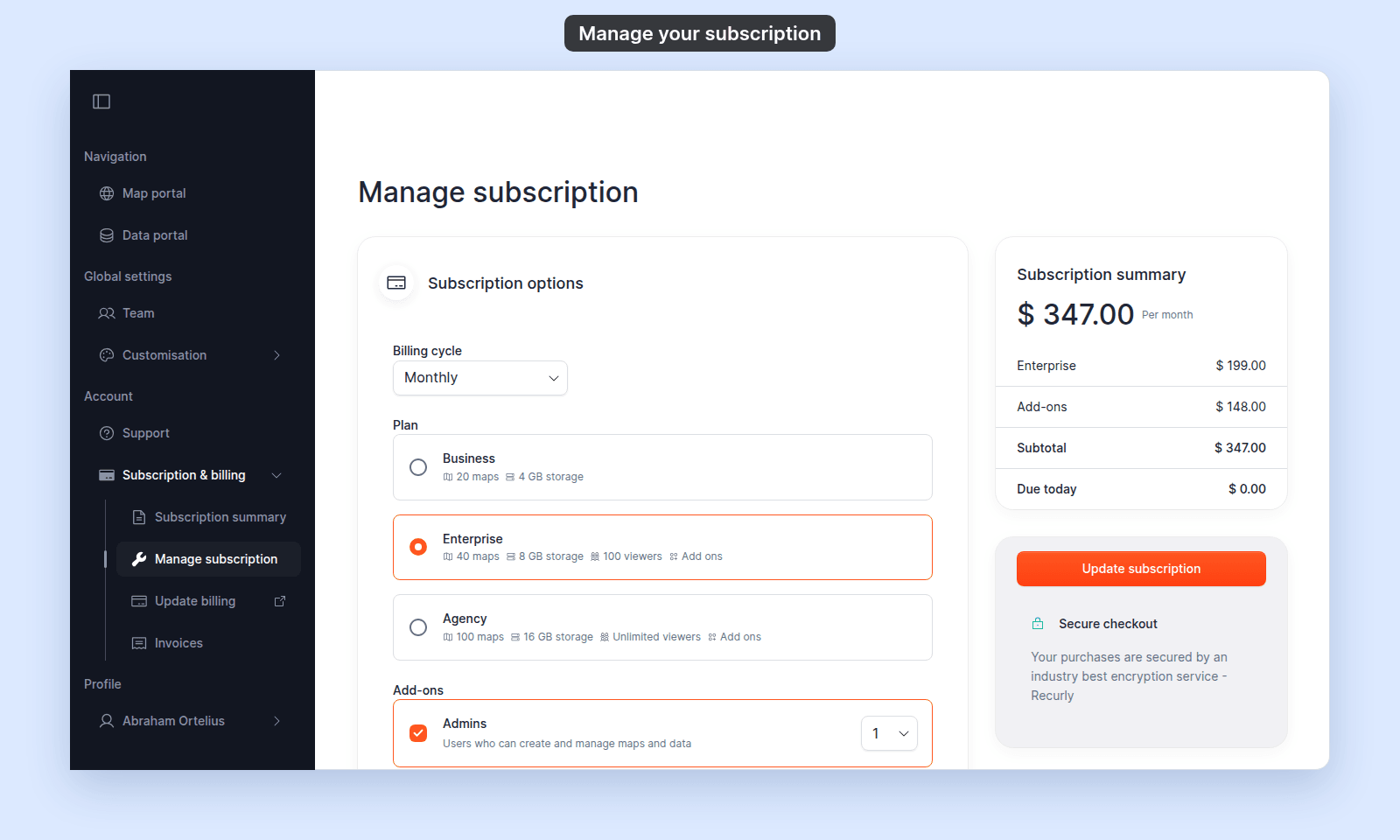
Open `Account` > `Subscription & billing` > `Manage subscription`, or click `Manage subscription` on `Subscription summary`. The form opens with your current plan, billing cycle, and add-ons selected.
 ## Change the billing cycle
In `Subscription options`, open `Billing cycle` and choose a cycle. `Annual` saves 20%, and each multi-year cycle saves 30%.
## Change the billing cycle
In `Subscription options`, open `Billing cycle` and choose a cycle. `Annual` saves 20%, and each multi-year cycle saves 30%.
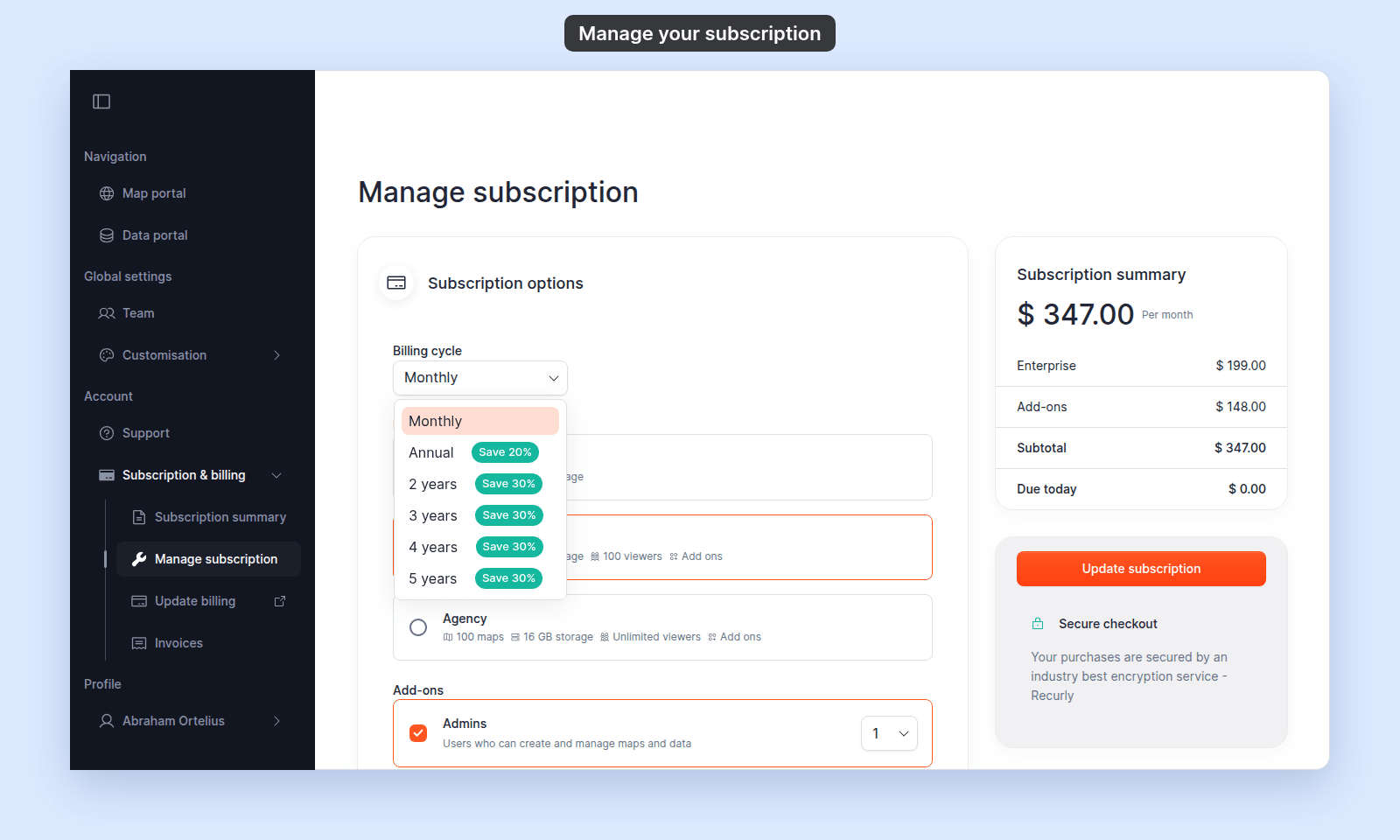 The `Subscription summary` card updates as you change the cycle.
## Change the plan
In `Subscription options` > `Plan`, choose `Business`, `Enterprise`, or `Agency`. Each option lists what the plan includes. `Business` does not support add-ons.
The `Subscription summary` card updates as you change the cycle.
## Change the plan
In `Subscription options` > `Plan`, choose `Business`, `Enterprise`, or `Agency`. Each option lists what the plan includes. `Business` does not support add-ons.
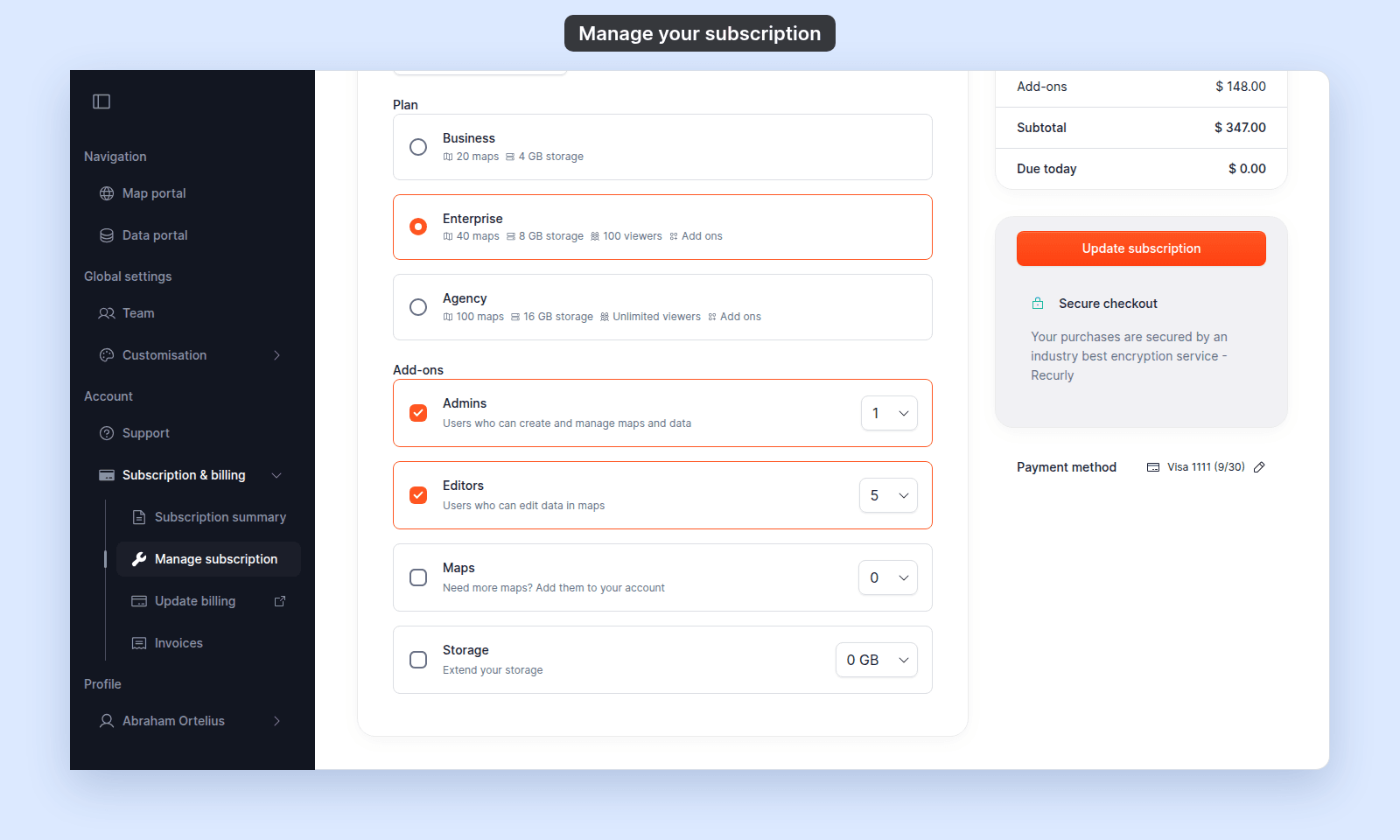 Changing the plan clears all add-ons, so choose the plan first and then set the add-ons again. Check your usage before submitting a downgrade.
## Change add-ons
For `Enterprise` and `Agency`:
1. Tick `Admins`, `Editors`, `Maps`, or `Storage`. Ticking one sets its smallest quantity above 0.
2. Choose a quantity from the add-on's list.
3. Untick the add-on if you want to remove it.
Changing the plan clears all add-ons, so choose the plan first and then set the add-ons again. Check your usage before submitting a downgrade.
## Change add-ons
For `Enterprise` and `Agency`:
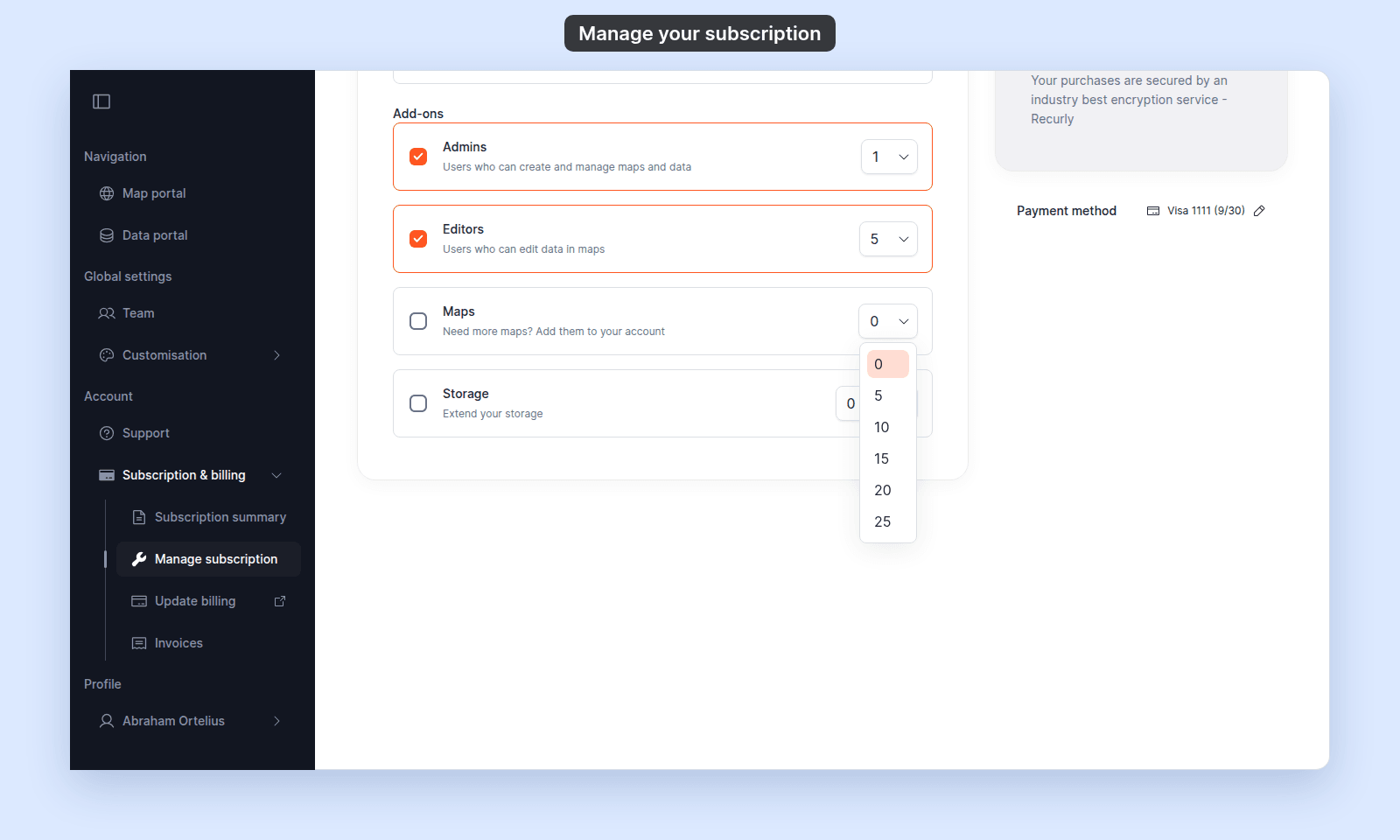
1. Tick `Admins`, `Editors`, `Maps`, or `Storage`. Ticking one sets its smallest quantity above 0.
2. Choose a quantity from the add-on's list.
3. Untick the add-on if you want to remove it.
 | Add-on | Choices |
| --- | --- |
| `Admins` | 0, 1, 2, 3, 4, or 5 |
| `Editors` | 0, 5, 10, 15, 20, or 25 |
| `Maps` | 0, 5, 10, 15, 20, or 25 |
| `Storage` | 0, 50, 100, 150, 200, or 250 GB |
MangoMap blocks a change that would put current maps, storage, administrators, or editors above the new limit. Remove or downgrade users, maps, or data first, then try again.
## Review the price
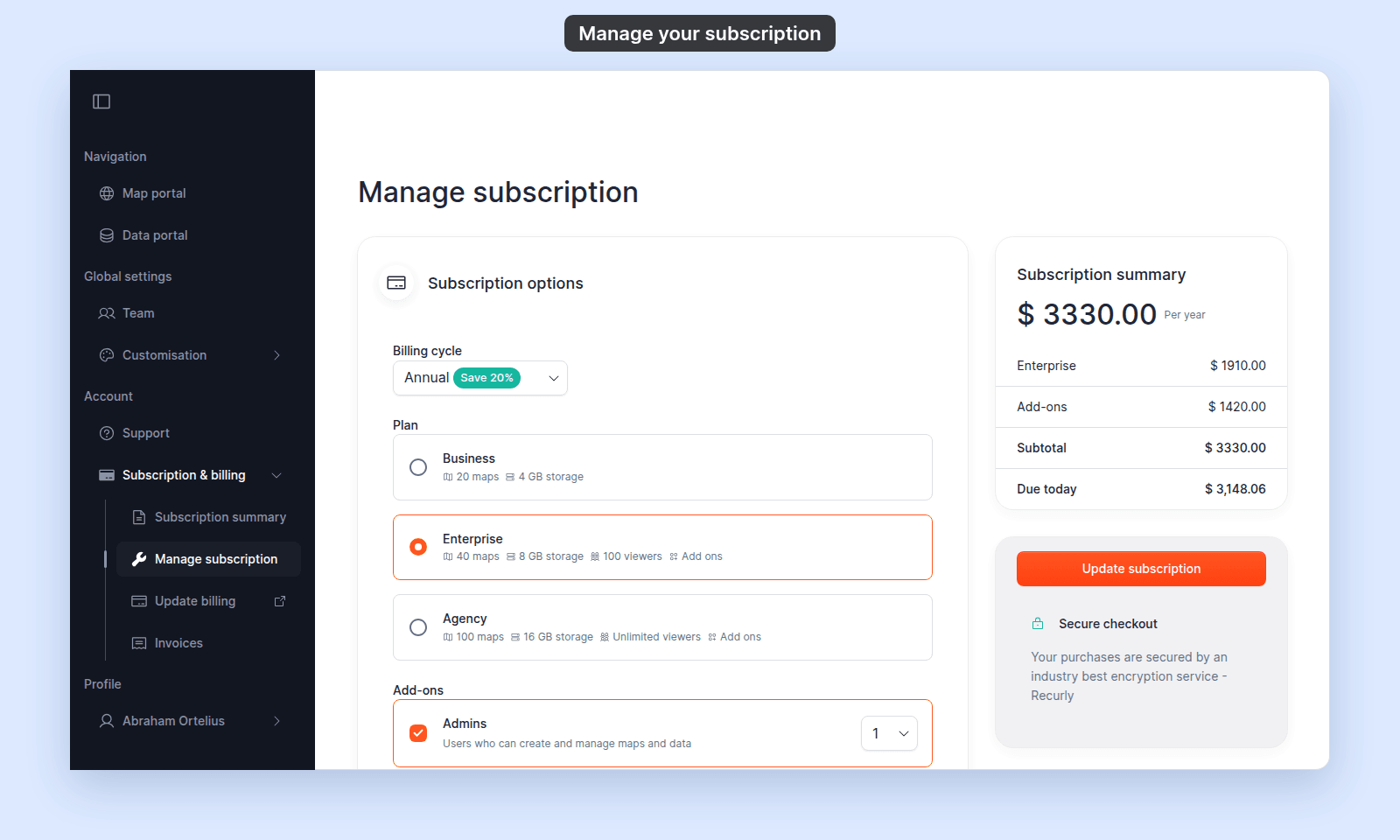
Before you save, check the `Subscription summary` card. It updates after each change. `Due today` is what MangoMap charges now. When a downgrade refunds unused time, the card also shows `Credit to account`.
In this example, the billing cycle changed from `Monthly` to `Annual`:
| Add-on | Choices |
| --- | --- |
| `Admins` | 0, 1, 2, 3, 4, or 5 |
| `Editors` | 0, 5, 10, 15, 20, or 25 |
| `Maps` | 0, 5, 10, 15, 20, or 25 |
| `Storage` | 0, 50, 100, 150, 200, or 250 GB |
MangoMap blocks a change that would put current maps, storage, administrators, or editors above the new limit. Remove or downgrade users, maps, or data first, then try again.
## Review the price
Before you save, check the `Subscription summary` card. It updates after each change. `Due today` is what MangoMap charges now. When a downgrade refunds unused time, the card also shows `Credit to account`.
In this example, the billing cycle changed from `Monthly` to `Annual`:
 On a paid account, an increase charges a prorated amount for the current cycle. A decrease can create account credit for a future renewal.
## Save the change
- On a paid account, click `Update subscription`.
- On an active trial, click `Continue trial` to leave the subscription unchanged, or use `Checkout with Recurly` to convert it to paid.
- On an expired trial or closed account, use `Checkout with Recurly` to restore access.
After `Update subscription` succeeds, MangoMap returns to `Subscription summary`, which shows the new plan. The new limits apply straight away, so you don't need to reload the page. If your bank asks you to confirm the payment, complete the `3D Secure Verification` dialog first.
If the payment method is rejected, update it through `Update billing` and try again. See [A payment failed or an invoice is past due](/docs/subscription-and-billing/troubleshoot-payment-failed).
## Related
- [Subscription & billing reference](/docs/subscription-and-billing/subscription-and-billing-reference)
- [How to upgrade from trial to paid](/docs/subscription-and-billing/upgrade-from-trial-to-paid)
- [How to view and pay invoices](/docs/subscription-and-billing/view-and-pay-invoices)
- [How to cancel your subscription](/docs/subscription-and-billing/cancel-your-subscription)
- [How to invite a user](/docs/managing-team/invite-a-user) — if you need to reduce current seat usage.
On a paid account, an increase charges a prorated amount for the current cycle. A decrease can create account credit for a future renewal.
## Save the change
- On a paid account, click `Update subscription`.
- On an active trial, click `Continue trial` to leave the subscription unchanged, or use `Checkout with Recurly` to convert it to paid.
- On an expired trial or closed account, use `Checkout with Recurly` to restore access.
After `Update subscription` succeeds, MangoMap returns to `Subscription summary`, which shows the new plan. The new limits apply straight away, so you don't need to reload the page. If your bank asks you to confirm the payment, complete the `3D Secure Verification` dialog first.
If the payment method is rejected, update it through `Update billing` and try again. See [A payment failed or an invoice is past due](/docs/subscription-and-billing/troubleshoot-payment-failed).
## Related
- [Subscription & billing reference](/docs/subscription-and-billing/subscription-and-billing-reference)
- [How to upgrade from trial to paid](/docs/subscription-and-billing/upgrade-from-trial-to-paid)
- [How to view and pay invoices](/docs/subscription-and-billing/view-and-pay-invoices)
- [How to cancel your subscription](/docs/subscription-and-billing/cancel-your-subscription)
- [How to invite a user](/docs/managing-team/invite-a-user) — if you need to reduce current seat usage.