---
title: "How to cancel your subscription"
description: "Cancel a paid MangoMap subscription as the account owner. Cancellation closes the account and removes team access straight away, so export your data first."
sidebar:
label: "Cancel your subscription"
search:
keywords: [delete account, close account, stop billing]
boost: 2
---
Cancel a paid MangoMap subscription from the `Cancel subscription` form. Cancellation closes the account and revokes team access, so export needed data first.
## Before you start
- You need to be the account owner, and the account must not be partner-managed.
- Trial accounts do not have a cancellation form. They expire unless the owner upgrades.
- Cancellation takes effect immediately. The form asks you to acknowledge access revocation and permanent data deletion before it can be submitted.
- If you only need a cheaper plan or fewer seats, use [Manage subscription](/docs/subscription-and-billing/manage-your-subscription) instead.
## Export anything you want to keep
Before cancelling:
- Export datasets from the data library.
- Record any map settings you need to keep; MangoMap has no general map export.
- Open `Invoices` and download any invoice PDFs needed for accounting.
## Open the cancel form
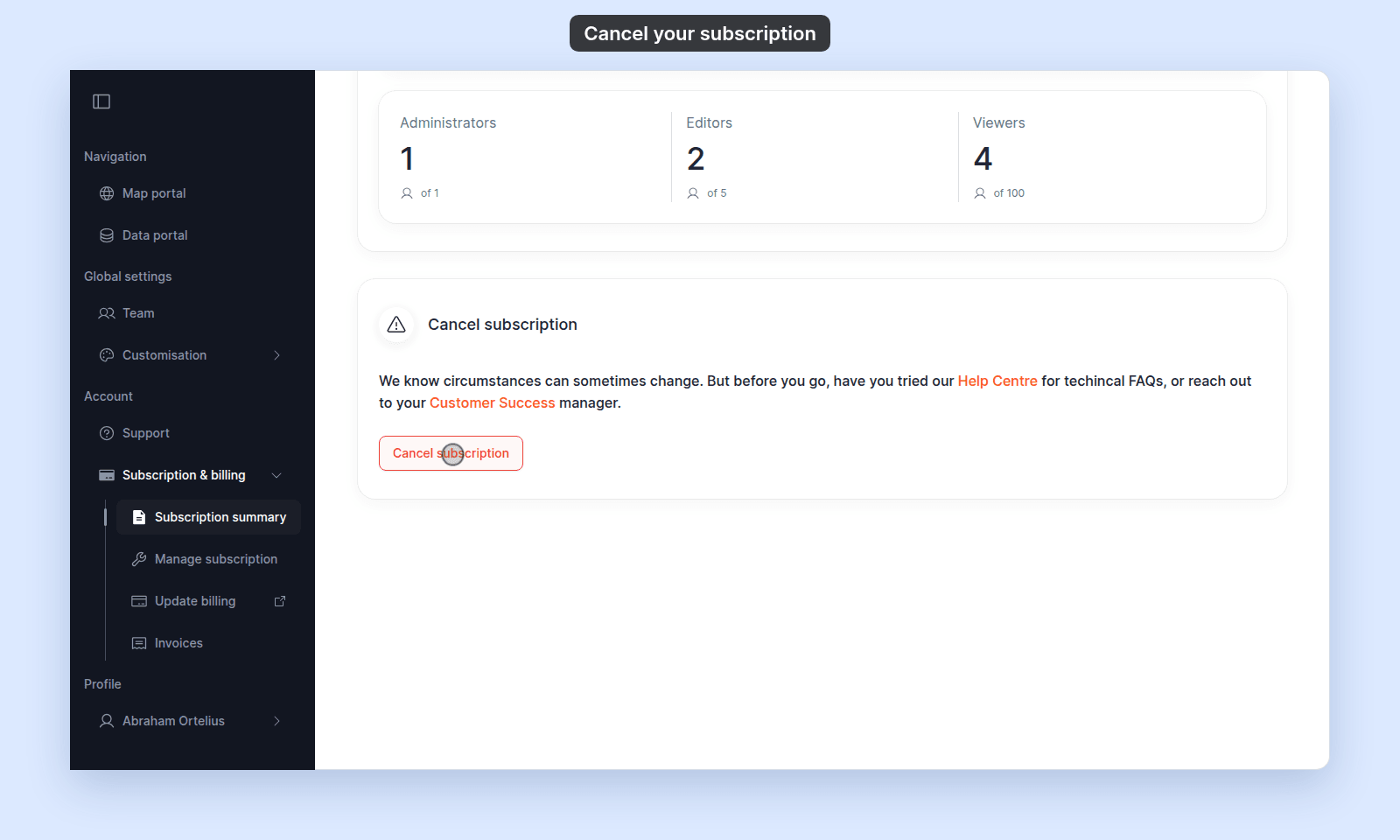
From `Subscription summary`, scroll to the `Cancel subscription` card at the bottom of the page and click `Cancel subscription`. If you want help before you cancel, use the card's `Help Centre` or `Customer Success` link.
 ## Choose a reason
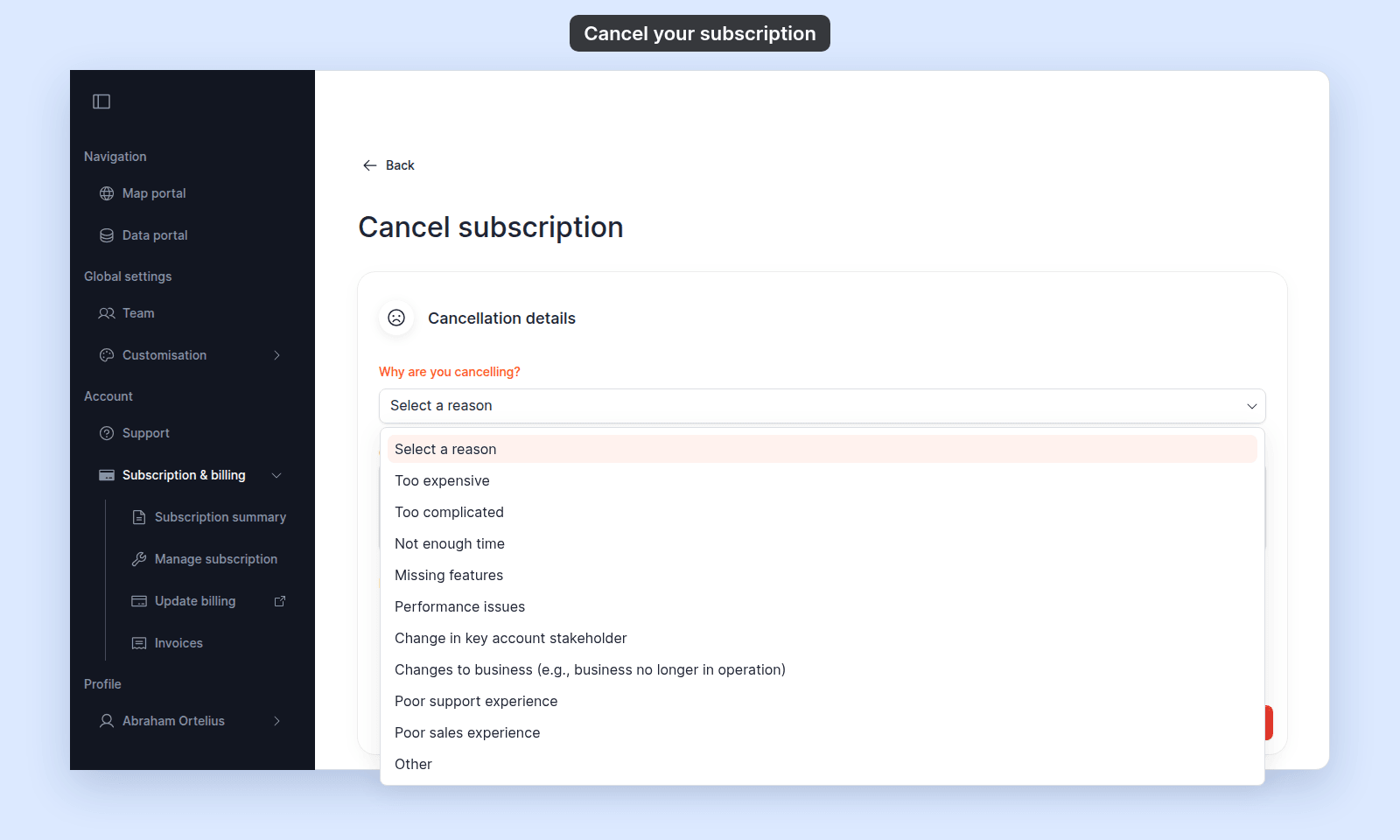
In `Cancellation details`, open `Why are you cancelling?` and select a reason. The reason is required.
## Choose a reason
In `Cancellation details`, open `Why are you cancelling?` and select a reason. The reason is required.
 You can add a comment for the MangoMap team in `Comments (optional)`.
## Acknowledge the consequences
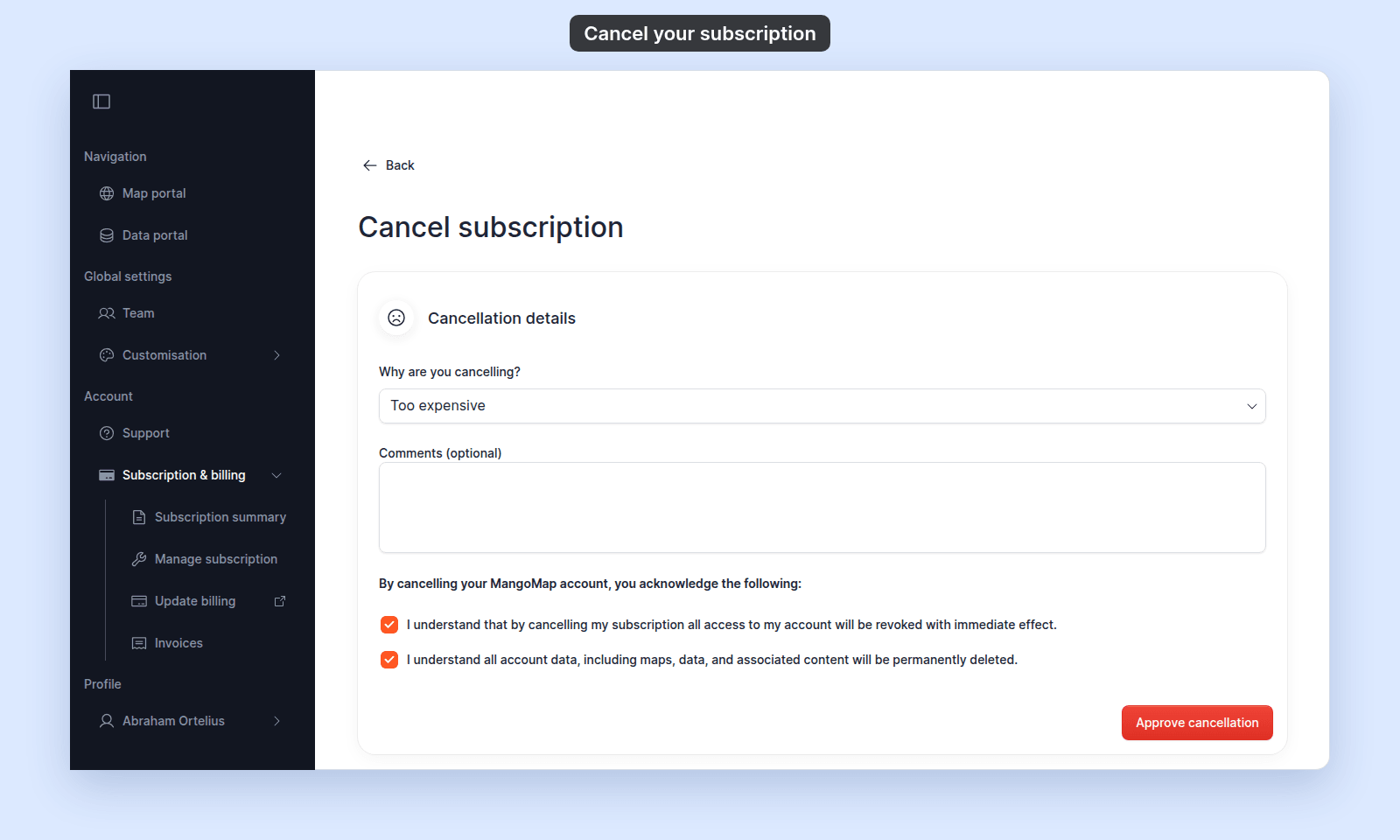
Tick both checkboxes. They confirm that account access is revoked immediately and that all account data is permanently deleted. The form does not submit until a reason is selected and both boxes are ticked.
You can add a comment for the MangoMap team in `Comments (optional)`.
## Acknowledge the consequences
Tick both checkboxes. They confirm that account access is revoked immediately and that all account data is permanently deleted. The form does not submit until a reason is selected and both boxes are ticked.
 ## Submit
> [!WARNING]
> Access to the account ends at once for you and your team. MangoMap can then delete all account data permanently, so export what you need first.
Click `Approve cancellation`.
MangoMap closes the subscription, signs users out, and returns you to the MangoMap home page. The product has no undo button.
## If you need to return later
The owner can open `Manage subscription` for the closed account and start checkout again. See [The trial expired or account is closed](/docs/subscription-and-billing/troubleshoot-trial-expired).
## Related
- [Subscription & billing reference](/docs/subscription-and-billing/subscription-and-billing-reference)
- [How to manage your subscription](/docs/subscription-and-billing/manage-your-subscription) — downgrade instead of cancel.
- [How to view and pay invoices](/docs/subscription-and-billing/view-and-pay-invoices) — download invoices before cancelling.
- [How to get help or send feedback](/docs/getting-started/get-help-or-send-feedback)
## Submit
> [!WARNING]
> Access to the account ends at once for you and your team. MangoMap can then delete all account data permanently, so export what you need first.
Click `Approve cancellation`.
MangoMap closes the subscription, signs users out, and returns you to the MangoMap home page. The product has no undo button.
## If you need to return later
The owner can open `Manage subscription` for the closed account and start checkout again. See [The trial expired or account is closed](/docs/subscription-and-billing/troubleshoot-trial-expired).
## Related
- [Subscription & billing reference](/docs/subscription-and-billing/subscription-and-billing-reference)
- [How to manage your subscription](/docs/subscription-and-billing/manage-your-subscription) — downgrade instead of cancel.
- [How to view and pay invoices](/docs/subscription-and-billing/view-and-pay-invoices) — download invoices before cancelling.
- [How to get help or send feedback](/docs/getting-started/get-help-or-send-feedback)