---
title: "How to style polygon fill patterns"
description: "Draw polygons with a hatch, grid, dot, or arrow pattern in the fill colour, so overlapping layers stay distinct and black-and-white prints stay readable."
sidebar:
label: "Style polygon fill patterns"
---
Pick a fill pattern, such as `Slash`, `Grid`, or `Dots`, and the polygon layer draws as a pattern in its fill colour instead of a solid fill. The gaps in a pattern are transparent, so the basemap shows through them.
**[See it on an example map](https://mangomap-staging.com/examples-staging/maps/1gayxa7f/world-classification-lab)**
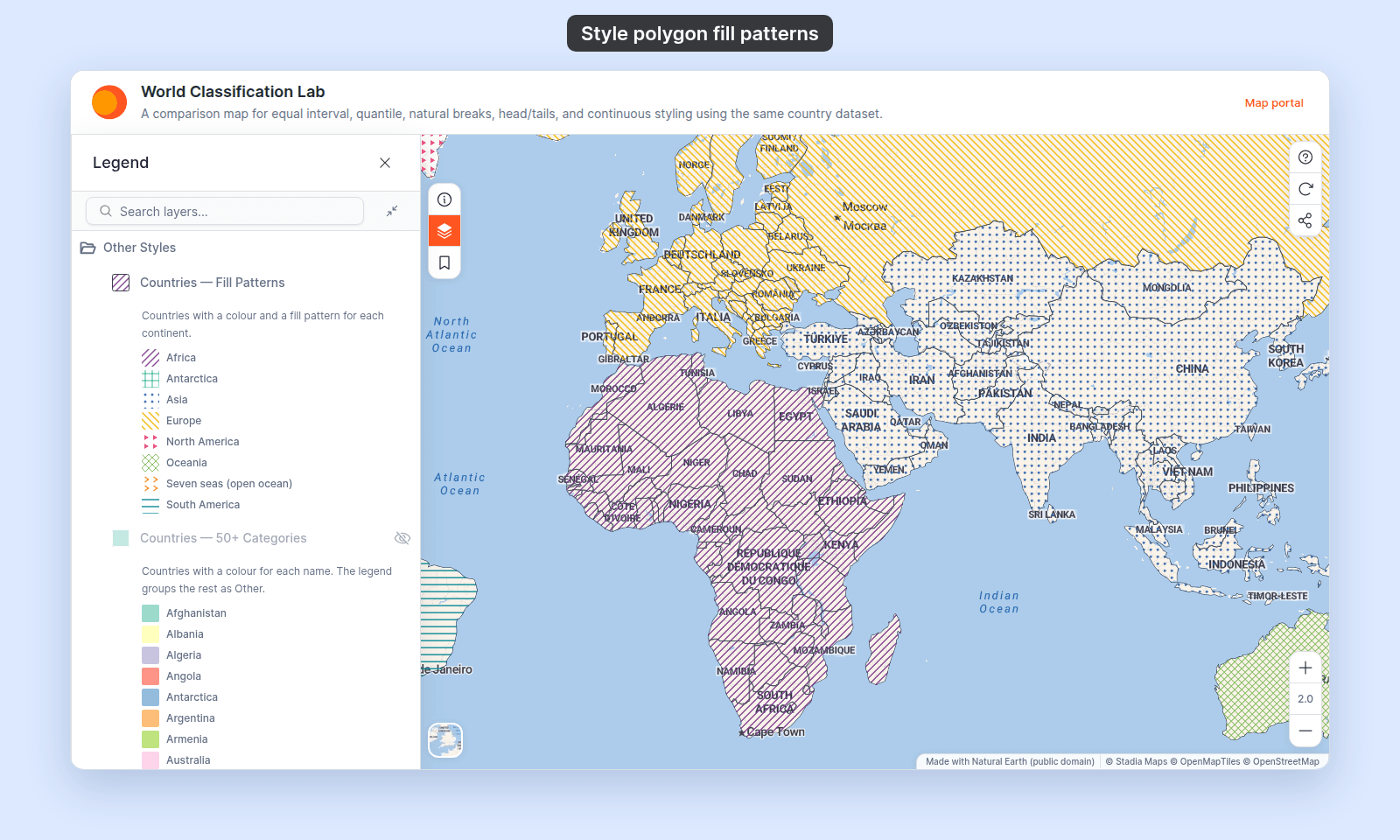
Open the World Classification Lab. In the legend, open the `Other Styles` folder and turn on only `Countries — Fill Patterns`. Turn off `Population — Equal Interval`. Each continent shows its own colour and fill pattern.
Patterns work with `Uniform colour` and with a field in `Fill polygons by`. With a field, you can also give each category or class its own pattern.
## Before you start
- You need edit access to the map.
- The layer must be a polygon layer.
- A fill colour that differs from the basemap, or the pattern won't show.
- A reason to use a pattern. Use patterns for:
- Distinguishing overlapping polygon layers without colour conflicts.
- Black-and-white printing where colour-based distinction won't survive the print.
- Editorial maps where hatching reads as cartographic shorthand for a category (e.g. cross-hatch for "restricted area").
## Open the Style tab
Click the polygon layer in the layer panel to open its settings, then switch to the `Style` tab.
## Find the fill pattern dropdown
Where the fill pattern dropdown is depends on `Fill polygons by`:
- **`Uniform colour`**: the dropdown is next to the fill colour, after a brush icon. Point to the icon to see the tooltip `Fill pattern style`.
- **A text or numeric field**: the dropdown is below the colour scheme controls.
## Pick a pattern
The dropdown shows a small preview of each pattern next to its name. Here it is open on a layer that gives each continent its own pattern:
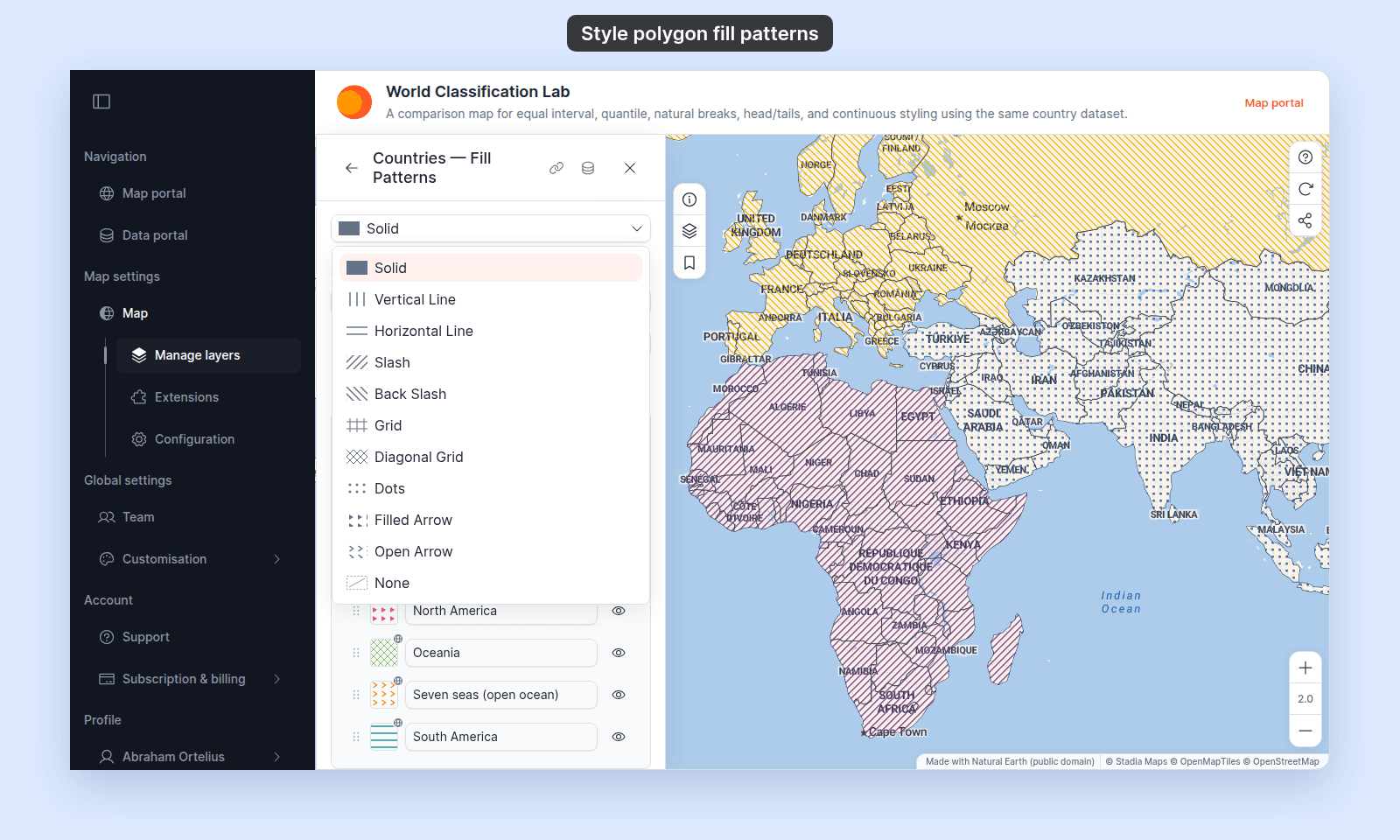 The 11 choices, with cartographic notes:
| Pattern | What it draws | Common use |
| ------- | ------------- | ---------- |
| `Solid` | Continuous fill | Default. Use when polygons don't need pattern differentiation. |
| `Vertical Line` | Evenly spaced vertical strokes | Distinguishing one of two stacked layers. |
| `Horizontal Line` | Evenly spaced horizontal strokes | Pairs with `Vertical Line` for layered comparison. |
| `Slash` | Forward-slash hatching (`/`) | Restricted areas, "no-go" zones in editorial maps. |
| `Back Slash` | Back-slash hatching (`\`) | Pairs with `Slash` for visual contrast. |
| `Grid` | Square grid | Designation areas (parks, surveys) where rectangular structure reads as "managed". |
| `Diagonal Grid` | Crossed diagonal hatching | Higher visual weight than `Grid`; reads as denser. |
| `Dots` | Evenly spaced small dots | A lighter texture than line hatching, for areas that need less emphasis. |
| `Filled Arrow` | Rows of small solid arrowheads that point right | A direction cue, such as flow or movement across an area. |
| `Open Arrow` | Rows of small open arrowheads (`>`) that point right | A lighter direction cue than `Filled Arrow`. |
| `None` | No fill at all (outline only). | Boundary-only polygons; combine with a stroke for an outline-only look. |
Patterns draw at a fixed size on the screen. The line spacing and line width stay the same at every zoom level.
## Save
Click `Save` at the bottom of the panel.
If you close the layer settings or switch tabs without clicking `Save`, your changes are lost.
## Verify the result
The legend swatch shows the same pattern as the map.
The 11 choices, with cartographic notes:
| Pattern | What it draws | Common use |
| ------- | ------------- | ---------- |
| `Solid` | Continuous fill | Default. Use when polygons don't need pattern differentiation. |
| `Vertical Line` | Evenly spaced vertical strokes | Distinguishing one of two stacked layers. |
| `Horizontal Line` | Evenly spaced horizontal strokes | Pairs with `Vertical Line` for layered comparison. |
| `Slash` | Forward-slash hatching (`/`) | Restricted areas, "no-go" zones in editorial maps. |
| `Back Slash` | Back-slash hatching (`\`) | Pairs with `Slash` for visual contrast. |
| `Grid` | Square grid | Designation areas (parks, surveys) where rectangular structure reads as "managed". |
| `Diagonal Grid` | Crossed diagonal hatching | Higher visual weight than `Grid`; reads as denser. |
| `Dots` | Evenly spaced small dots | A lighter texture than line hatching, for areas that need less emphasis. |
| `Filled Arrow` | Rows of small solid arrowheads that point right | A direction cue, such as flow or movement across an area. |
| `Open Arrow` | Rows of small open arrowheads (`>`) that point right | A lighter direction cue than `Filled Arrow`. |
| `None` | No fill at all (outline only). | Boundary-only polygons; combine with a stroke for an outline-only look. |
Patterns draw at a fixed size on the screen. The line spacing and line width stay the same at every zoom level.
## Save
Click `Save` at the bottom of the panel.
If you close the layer settings or switch tabs without clicking `Save`, your changes are lost.
## Verify the result
The legend swatch shows the same pattern as the map.
 ## Customising patterns per-category or per-break
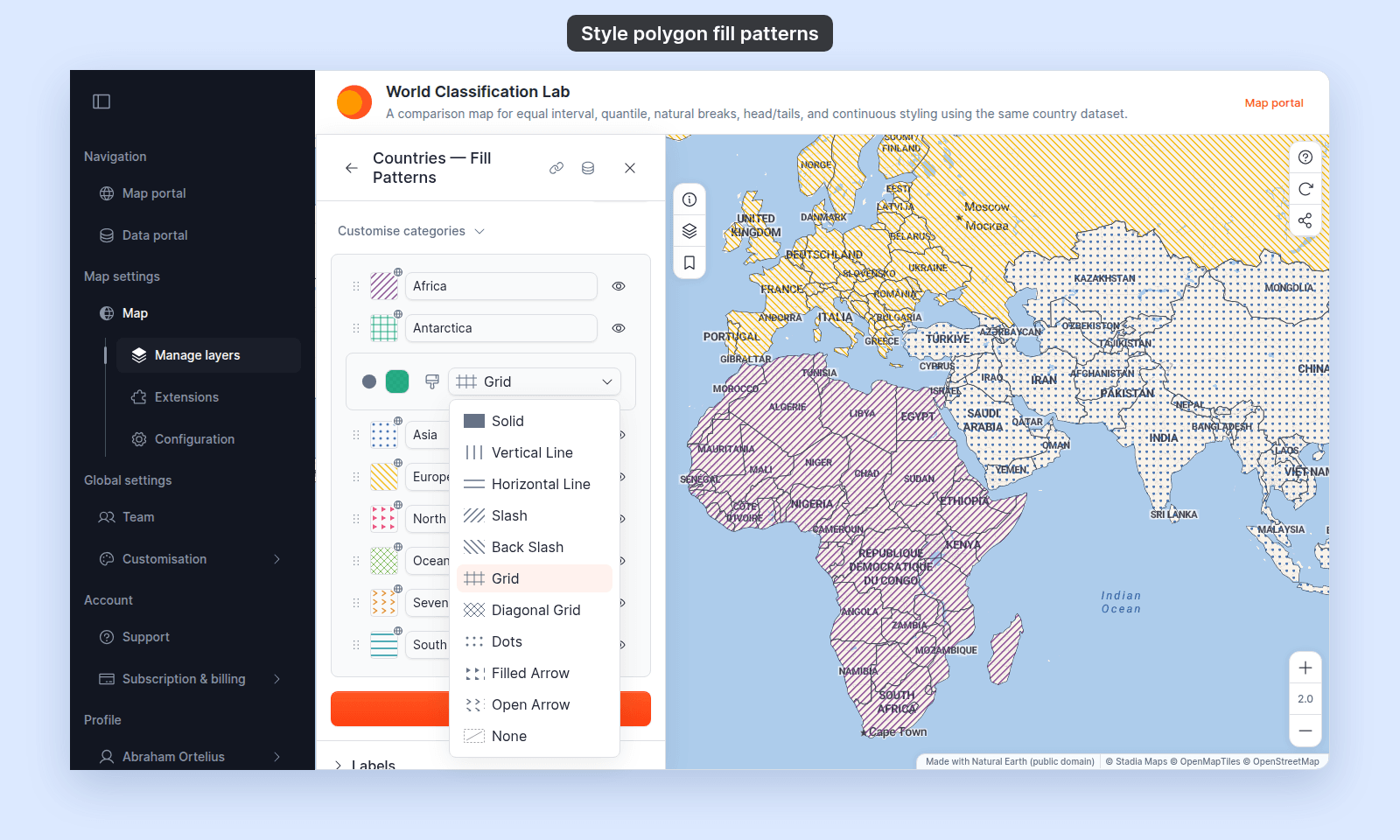
With a field in `Fill polygons by`, the layer-level pattern is the starting default for every category / break. Changing the layer-level pattern later sets every row to the new pattern. To set different patterns for different rows (for example: solid for the lowest class, hatched for the highest):
1. Pick the layer-level pattern as the default.
2. Expand the per-category or per-break customisation collapsible.
3. Click a row's pattern swatch. The row's own fill colour and pattern controls open below it.
4. Pick a pattern from the row's dropdown.
## Customising patterns per-category or per-break
With a field in `Fill polygons by`, the layer-level pattern is the starting default for every category / break. Changing the layer-level pattern later sets every row to the new pattern. To set different patterns for different rows (for example: solid for the lowest class, hatched for the highest):
1. Pick the layer-level pattern as the default.
2. Expand the per-category or per-break customisation collapsible.
3. Click a row's pattern swatch. The row's own fill colour and pattern controls open below it.
4. Pick a pattern from the row's dropdown.
 See [How to customise category and class break symbology](/docs/styling-layers/customise-category-and-class-break-symbology) for the full per-row customisation flow.
## When patterns don't render
A few cases where patterns don't appear as expected:
- **Pattern is `None`** — the polygon shows the outline only. If you want a fill, change the pattern.
- **Fill opacity is 0** — patterns inherit the fill colour and opacity. Bring the fill opacity above 0.
- **Stroke is wider than the polygon** — for very small polygons, a thick stroke can swallow the fill. Reduce the stroke width or zoom in.
- **Zoom level outside the layer's visibility range** — the layer renders nothing if the map zoom is outside the layer's `Visibility` range. See [How to set the zoom range a layer is visible at](/docs/styling-layers/set-layer-zoom-visibility).
For broader style-not-applying causes, see [Troubleshooting: my style change isn't appearing on the map](/docs/styling-layers/troubleshoot-style-not-applying).
## What this doesn't cover
- **Dashed or dotted lines** — see [How to style line patterns and casing](/docs/styling-layers/style-line-patterns).
- **Dashed or dotted polygon outlines** — see [How to style polygon outlines](/docs/styling-layers/style-polygon-outlines).
- **Per-row customisation in detail** — see [How to customise category and class break symbology](/docs/styling-layers/customise-category-and-class-break-symbology).
See [How to customise category and class break symbology](/docs/styling-layers/customise-category-and-class-break-symbology) for the full per-row customisation flow.
## When patterns don't render
A few cases where patterns don't appear as expected:
- **Pattern is `None`** — the polygon shows the outline only. If you want a fill, change the pattern.
- **Fill opacity is 0** — patterns inherit the fill colour and opacity. Bring the fill opacity above 0.
- **Stroke is wider than the polygon** — for very small polygons, a thick stroke can swallow the fill. Reduce the stroke width or zoom in.
- **Zoom level outside the layer's visibility range** — the layer renders nothing if the map zoom is outside the layer's `Visibility` range. See [How to set the zoom range a layer is visible at](/docs/styling-layers/set-layer-zoom-visibility).
For broader style-not-applying causes, see [Troubleshooting: my style change isn't appearing on the map](/docs/styling-layers/troubleshoot-style-not-applying).
## What this doesn't cover
- **Dashed or dotted lines** — see [How to style line patterns and casing](/docs/styling-layers/style-line-patterns).
- **Dashed or dotted polygon outlines** — see [How to style polygon outlines](/docs/styling-layers/style-polygon-outlines).
- **Per-row customisation in detail** — see [How to customise category and class break symbology](/docs/styling-layers/customise-category-and-class-break-symbology).