---
title: "How to style line patterns and casing"
description: "Set a line layer's pattern, cap, join, and casing under More line settings on the Style tab, for example a dashed boundary or a cased route."
sidebar:
label: "Style line patterns"
---
Line patterns (`Solid`, `Dashed`, `Dotted`) and a casing (a wider line drawn behind the main line) make a line layer readable on a busy basemap — pair a dark casing with a lighter line for a route style, or switch to `Dashed` for a boundary you want to suggest rather than assert. Open the layer's `Style` tab, expand `More line settings`, and set `Line pattern`, `Line cap`, `Line join`, and the casing controls. Dashes, dots, and the gaps between them grow with the line width.
**[See it on an example map](https://mangomap-staging.com/examples-staging/maps/zlnhacsa/singapore-style-lab)**
Open the Singapore Style Lab. In the `Road Styles` folder, turn on `Roads — Dashed Casing`. Turn off `Roads — Uniform`. The roads show as yellow dashes, and each dash has a dark edge.
## Before you start
- The layer must be a line layer.
- You need edit access to the map.
- Line pattern, cap, join, and casing controls live in the collapsible `More line settings` section — they apply globally to the layer (not per-feature), regardless of whether the colour driver is `Uniform colour` or a field.
- On a layer coloured by categories, each category can also have its own pattern. Picking a `Line pattern` in `More line settings` sets every category to that pattern. To give one category its own pattern, see [How to customise category and class break symbology](/docs/styling-layers/customise-category-and-class-break-symbology).
## Open the Style tab and expand More line settings
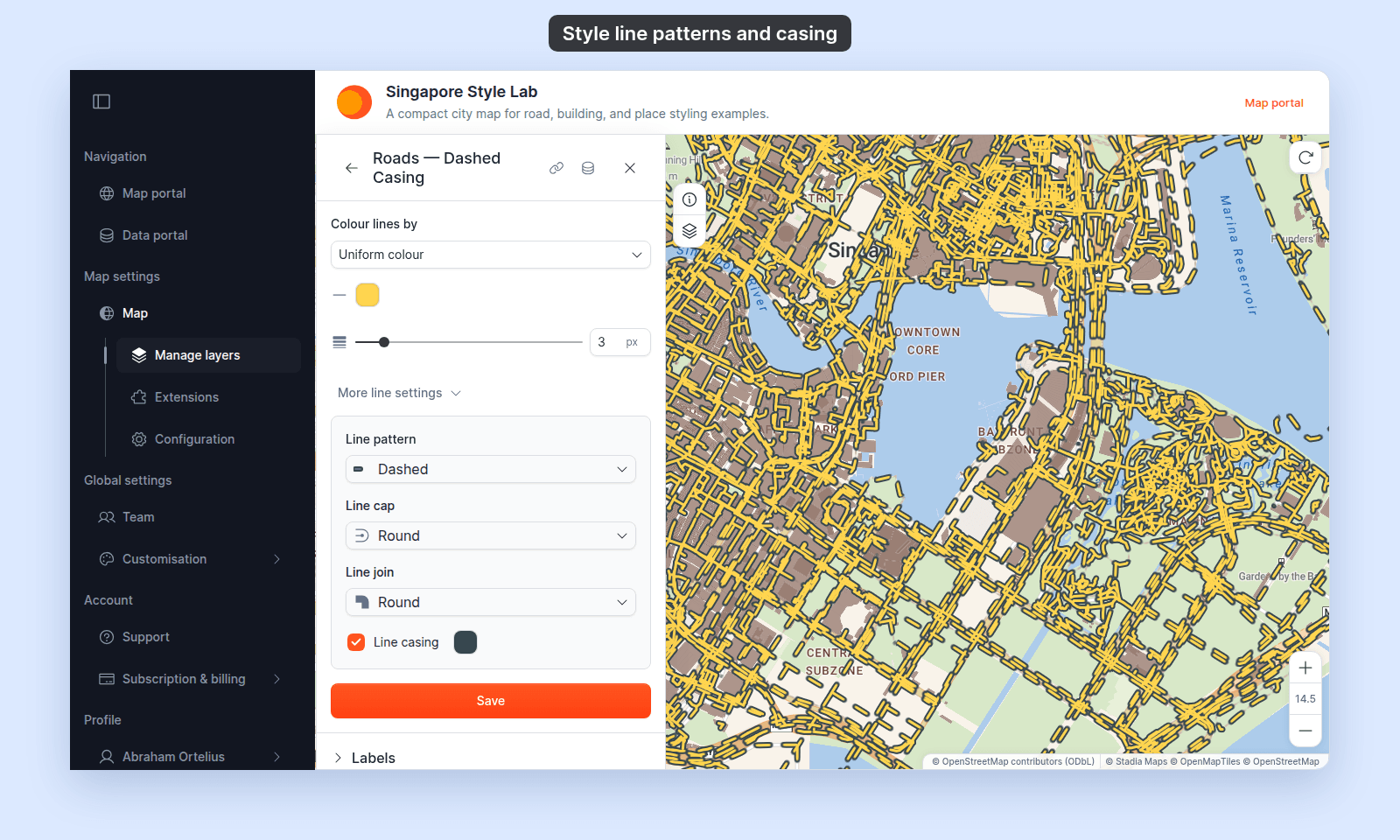
In the layer panel, select the line layer. Click the `Style` tab. Click `More line settings` to show the pattern, cap, join, and casing controls. Here they are on a dashed yellow road layer with a dark casing:
 ## Set the line pattern
`Line pattern` controls the dash pattern of the main line. Pick from:
- `Solid` — continuous line. Default.
- `Dashed` — dashed pattern.
- `Dotted` — dotted pattern.
Each choice in the list shows a preview of the pattern with your line cap and casing.
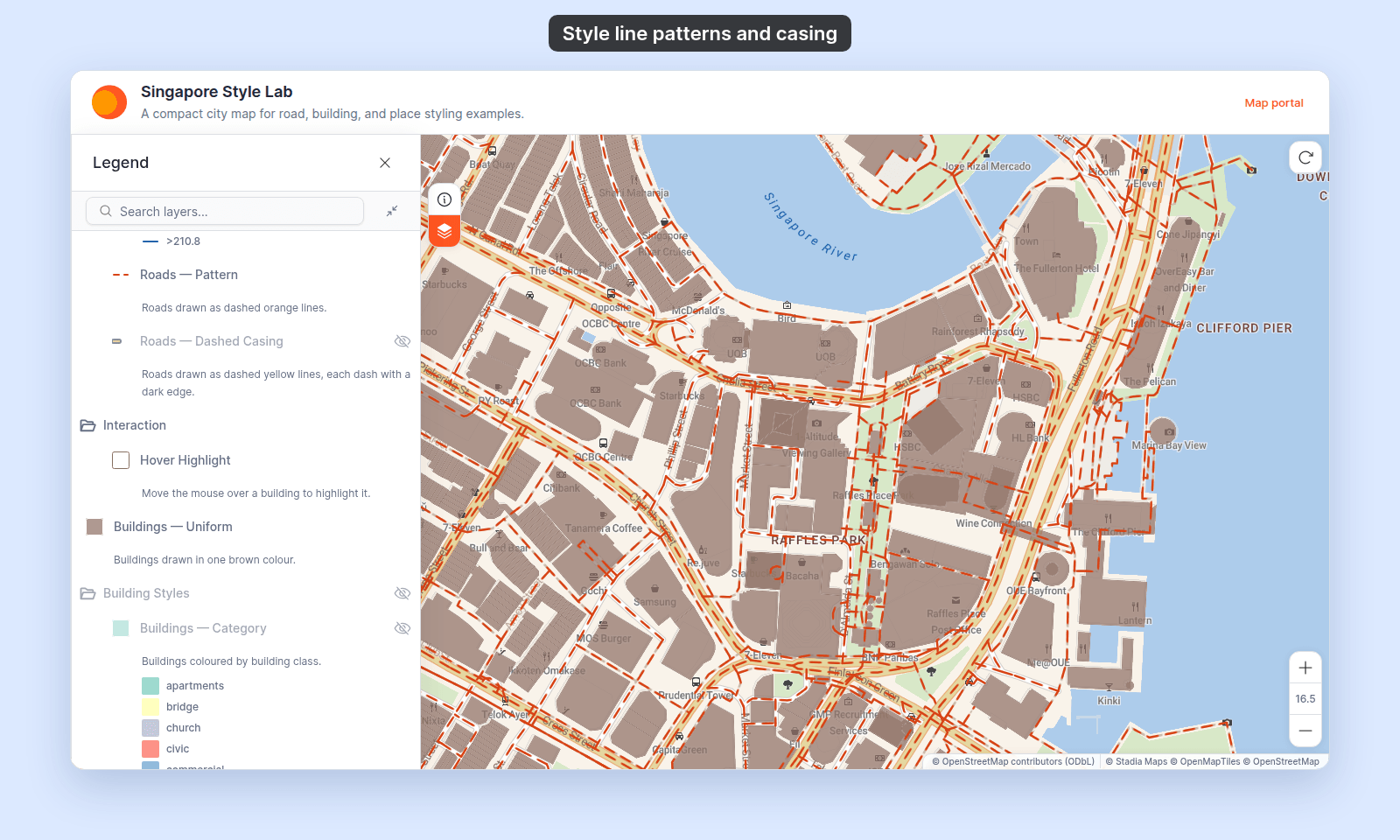
The pattern grows with the line width. Here is a `Dashed` road layer at 2.5 px:
## Set the line pattern
`Line pattern` controls the dash pattern of the main line. Pick from:
- `Solid` — continuous line. Default.
- `Dashed` — dashed pattern.
- `Dotted` — dotted pattern.
Each choice in the list shows a preview of the pattern with your line cap and casing.
The pattern grows with the line width. Here is a `Dashed` road layer at 2.5 px:
 ## Set the line cap and join
Two more dropdowns control how line endpoints and corners are drawn:
- **`Line cap`** — `Butt` (squared at the endpoint), `Round` (rounded), `Square` (squared, extending past the endpoint by half the line width).
- **`Line join`** — `Bevel` (squared), `Round` (rounded), `Miter` (pointed).
The defaults work for most maps; change them when you want a specific aesthetic (`Round` cap + `Round` join for a softer feel; `Square` + `Miter` for a technical look).
On a `Dashed` or `Dotted` line, the cap shapes each dash or dot:
- `Round` gives dashes with rounded ends, and round dots.
- `Butt` gives dashes with square ends, and square dots.
- `Square` looks the same as `Butt` on a pattern. It extends the line ends only on a `Solid` line.
## (Optional) Add a casing
The casing is a coloured outline drawn _behind_ the main line, creating a contrast edge. The `More line settings` section has two controls:
- **`Line casing`** — checkbox. Turns the casing on or off. Default: off.
- **Casing colour** — picker, shown when casing is on. Typically the contrast colour: white on a dark line, dark on a light line. Default: black.
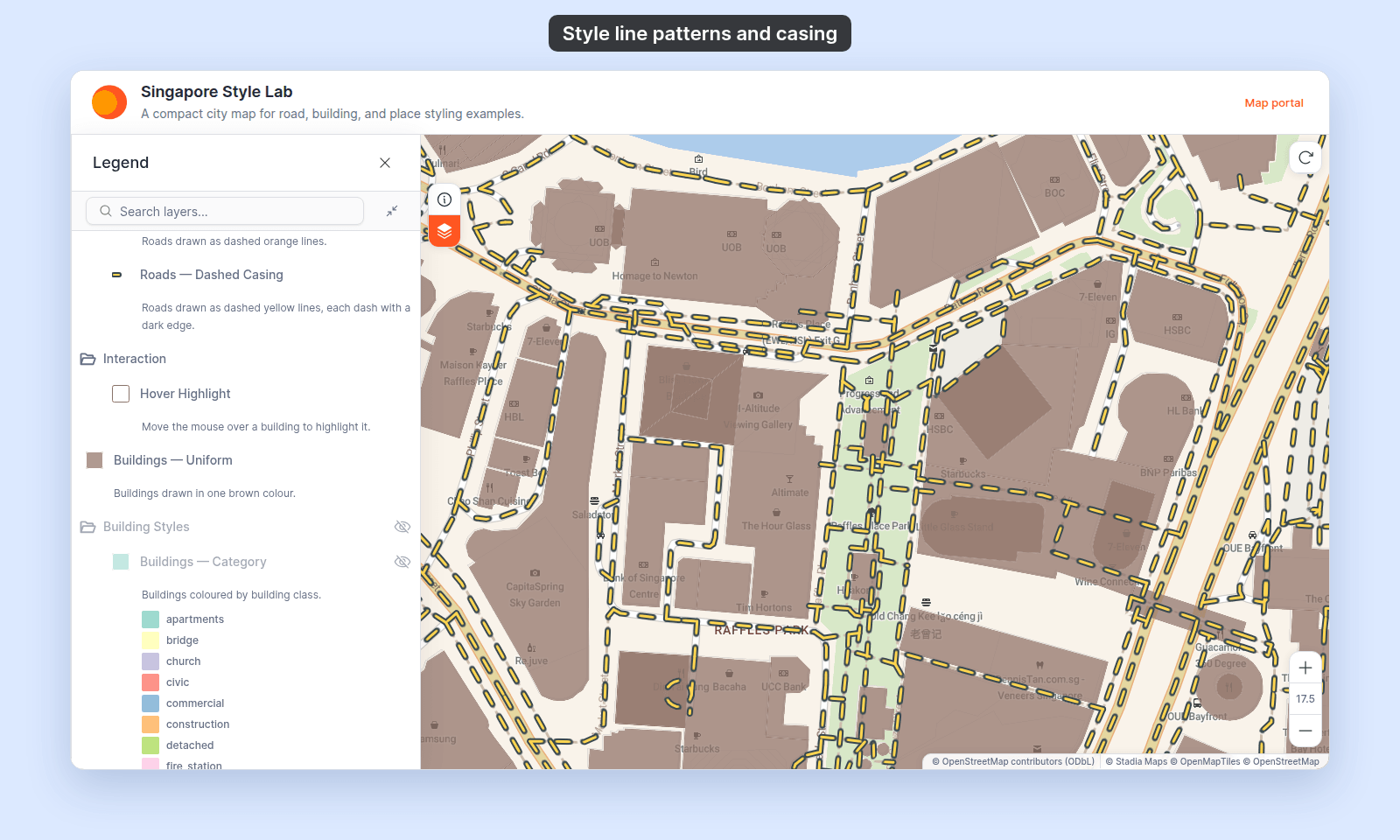
On a `Dashed` or `Dotted` line, the casing outlines each dash or dot, and the gaps stay open so the basemap shows through. Here is a 3 px `Dashed` yellow road layer with a dark casing:
## Set the line cap and join
Two more dropdowns control how line endpoints and corners are drawn:
- **`Line cap`** — `Butt` (squared at the endpoint), `Round` (rounded), `Square` (squared, extending past the endpoint by half the line width).
- **`Line join`** — `Bevel` (squared), `Round` (rounded), `Miter` (pointed).
The defaults work for most maps; change them when you want a specific aesthetic (`Round` cap + `Round` join for a softer feel; `Square` + `Miter` for a technical look).
On a `Dashed` or `Dotted` line, the cap shapes each dash or dot:
- `Round` gives dashes with rounded ends, and round dots.
- `Butt` gives dashes with square ends, and square dots.
- `Square` looks the same as `Butt` on a pattern. It extends the line ends only on a `Solid` line.
## (Optional) Add a casing
The casing is a coloured outline drawn _behind_ the main line, creating a contrast edge. The `More line settings` section has two controls:
- **`Line casing`** — checkbox. Turns the casing on or off. Default: off.
- **Casing colour** — picker, shown when casing is on. Typically the contrast colour: white on a dark line, dark on a light line. Default: black.
On a `Dashed` or `Dotted` line, the casing outlines each dash or dot, and the gaps stay open so the basemap shows through. Here is a 3 px `Dashed` yellow road layer with a dark casing:
 A common route-style recipe:
- `Line colour` `#FFFFFF`, `Line width` `3`, `Line pattern` `Solid`.
- `Line casing` on, casing colour `#000000`.
That draws a white line with a black halo. Reads clearly on light, dark, or busy basemaps.
The casing is a fixed 2 px band on each side of the line, whatever the `Line width` — a wider line doesn't get a proportionally thicker halo.
## Save
Click `Save` at the bottom of the panel. The map redraws with the new pattern and casing.
## Verify the result
Zoom in on the map and check the dashes or dots, their ends, and the casing. Open the legend: the layer's swatch shows the same pattern, cap, and casing as the map. A printed map's legend shows the pattern in the same way.
## Related
- [How to set line width and opacity](/docs/styling-layers/set-line-width-and-opacity)
- [Line layer style controls](/docs/styling-layers/line-style-reference)
- [How to set a uniform style on a line layer](/docs/styling-layers/set-a-uniform-line-style)
- [How to style features by category](/docs/styling-layers/style-by-category)
- [How to style features by quantity](/docs/styling-layers/style-by-quantity)
- [How layer styling works in MangoMap](/docs/styling-layers/concepts-layer-styling)
A common route-style recipe:
- `Line colour` `#FFFFFF`, `Line width` `3`, `Line pattern` `Solid`.
- `Line casing` on, casing colour `#000000`.
That draws a white line with a black halo. Reads clearly on light, dark, or busy basemaps.
The casing is a fixed 2 px band on each side of the line, whatever the `Line width` — a wider line doesn't get a proportionally thicker halo.
## Save
Click `Save` at the bottom of the panel. The map redraws with the new pattern and casing.
## Verify the result
Zoom in on the map and check the dashes or dots, their ends, and the casing. Open the legend: the layer's swatch shows the same pattern, cap, and casing as the map. A printed map's legend shows the pattern in the same way.
## Related
- [How to set line width and opacity](/docs/styling-layers/set-line-width-and-opacity)
- [Line layer style controls](/docs/styling-layers/line-style-reference)
- [How to set a uniform style on a line layer](/docs/styling-layers/set-a-uniform-line-style)
- [How to style features by category](/docs/styling-layers/style-by-category)
- [How to style features by quantity](/docs/styling-layers/style-by-quantity)
- [How layer styling works in MangoMap](/docs/styling-layers/concepts-layer-styling)