---
title: "How to style features by quantity"
description: "Colour points, lines, or polygons by a number, such as population or road length. Use classes or a smooth gradient, with a legend that names each class."
sidebar:
label: "Style by quantity"
search:
keywords: [color, graduated, color ramp]
---
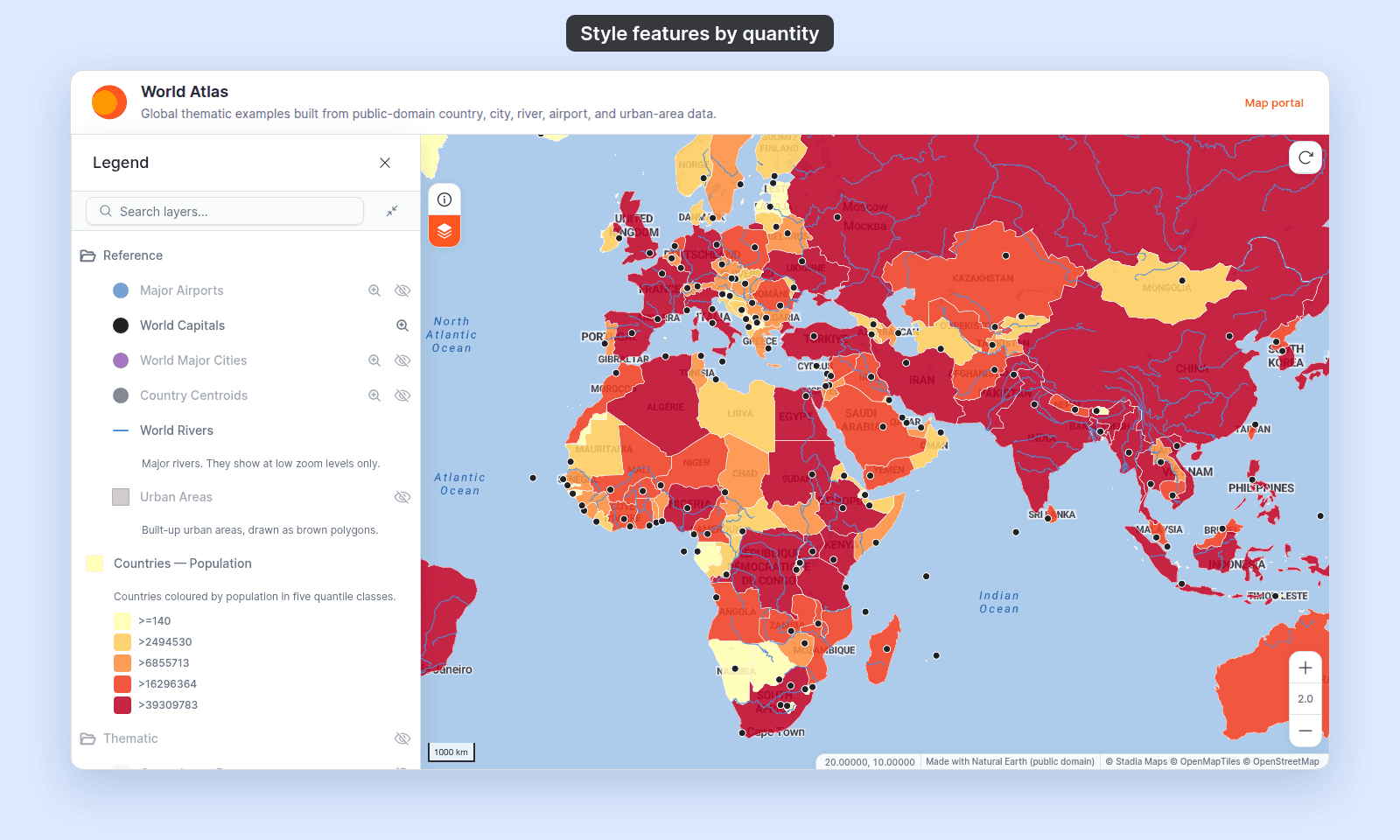
Pick a numeric field in the layer's colour driver, and each point, line, or polygon gets a colour from its value, with the legend naming each class. Changing the field, the class count, or the method rebuilds the classes, so finish those choices before you customise the rows.
**[See it on an example map](https://mangomap-staging.com/examples-staging/maps/vi0nznxp/world-atlas)**
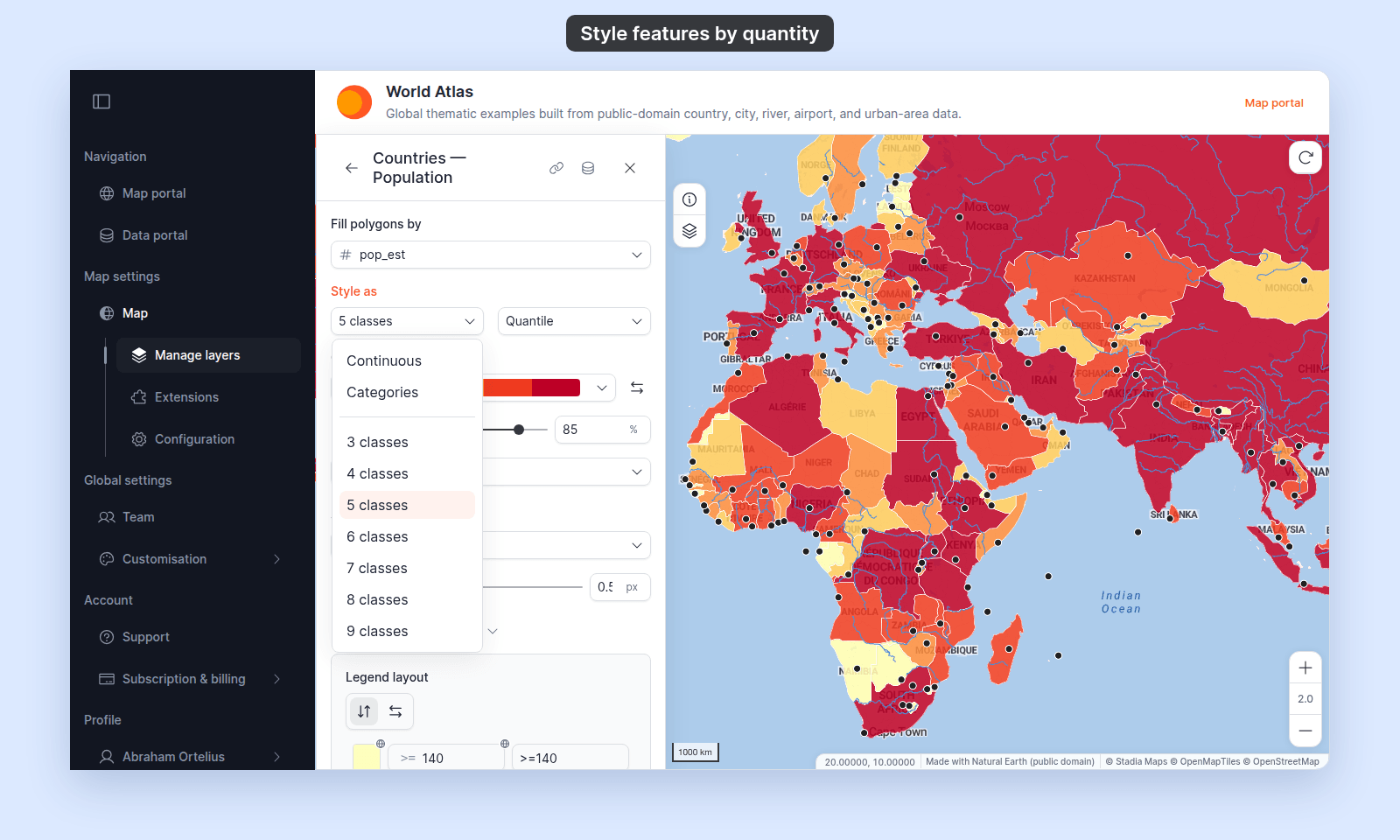
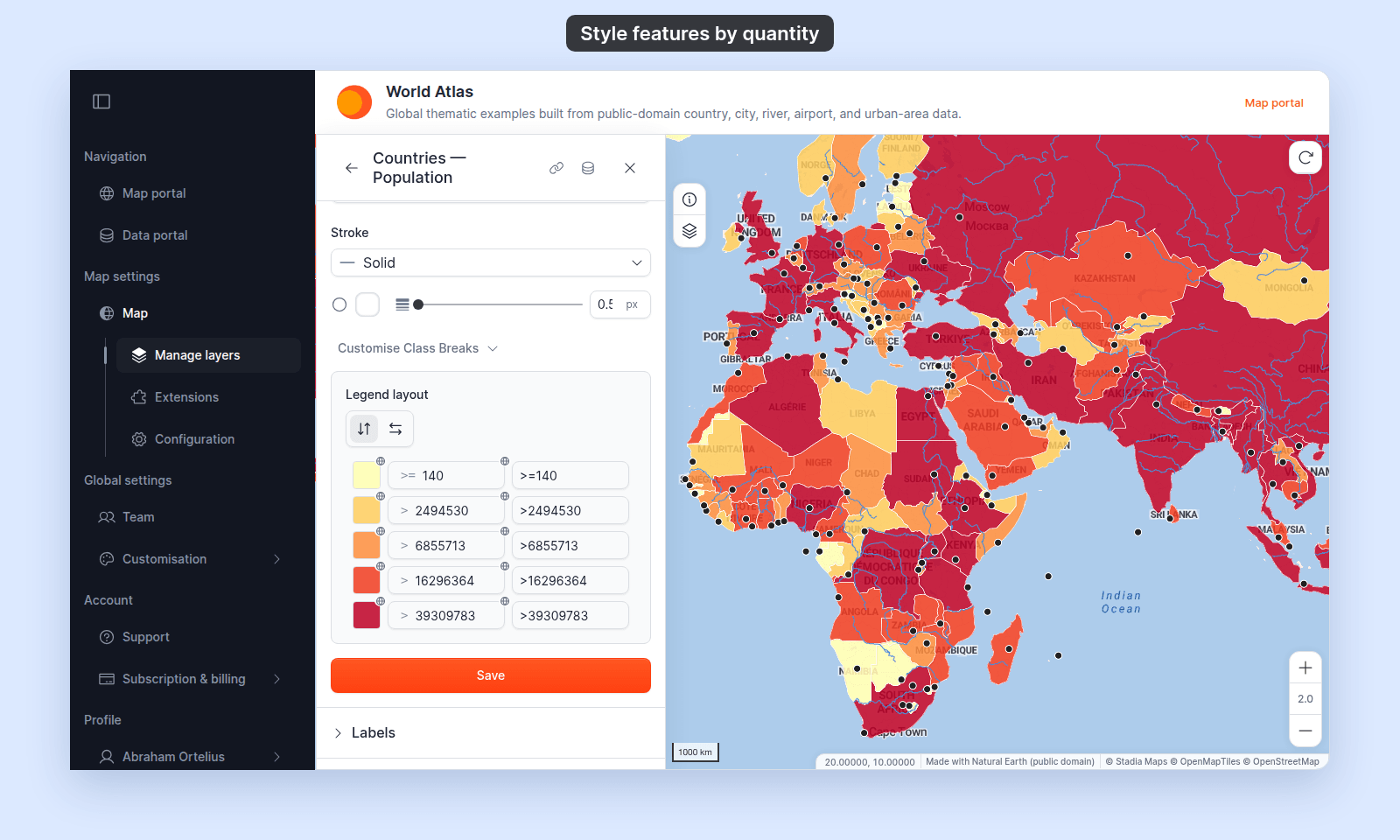
Open the World Atlas. `Countries — Population` is on when the map opens. It colours each country by its population class. The legend shows the start value of each class.
**[See it on points](https://mangomap-staging.com/examples-staging/maps/042tb3tl/world-point-styling-lab)**
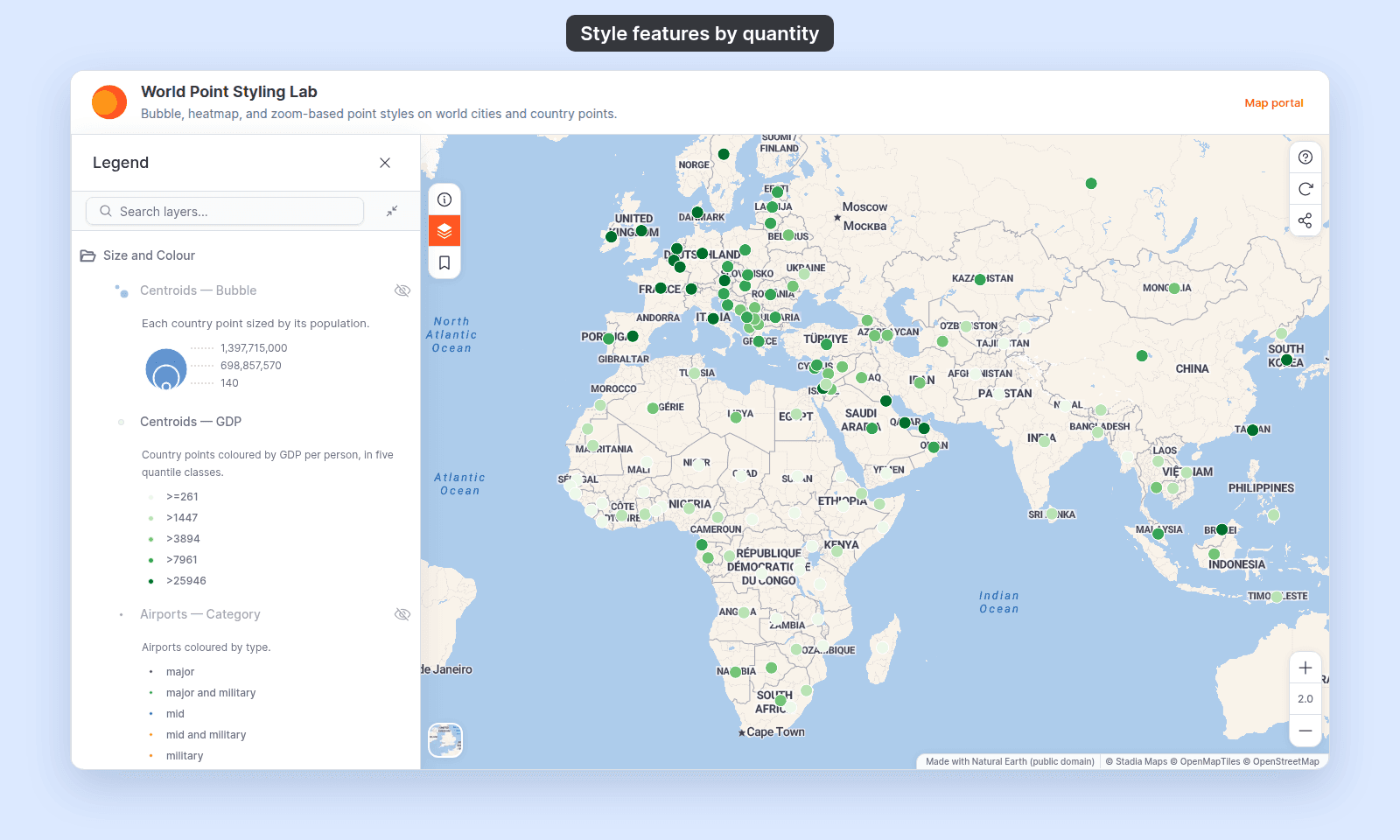
Open the World Point Styling Lab. The `Classes and Gradients` folder shows `Continuous`, three Head/Tails classes with the ramp reversed, and round class breaks with a horizontal legend.
## Before you start
- The layer must have at least one numeric attribute. If every attribute is text, see [How to style features by category](/docs/styling-layers/style-by-category) instead.
- You need edit access to the map.
- On a point layer, set `Marker type` to `Circle` or `Icon`. `Custom Icon` and `Heatmap` markers have no field colour.
- Decide which numeric field drives the colour, such as population for countries, length for roads, or height for buildings. Switching the field rebuilds the breaks from scratch.
- Is the number a code, such as a zone number or a year? Then you want one colour per value. See [How to style features by category](/docs/styling-layers/style-by-category).
The steps are the same for points, lines, and polygons. Some control names, and what each class break can change, depend on the geometry:
| | Point | Line | Polygon |
| --- | --- | --- | --- |
| Colour driver | `Colour markers by` | `Colour lines by` | `Fill polygons by` |
| No-field option | `Single colour` | `Uniform colour` | `Uniform colour` |
| Palette dropdown | `Colour palette` | `Colour scheme` | `Colour scheme` |
| Head/tail method name | `Head/Tails` | `Head/Tail Breaks` | `Head/Tail Breaks` |
| Each class break can set | Colour and transparency (or opacity for a custom icon), marker type, outline (`Circle`), marker size, icon rotation (`Icon`) | Colour and transparency, line pattern | Fill colour and transparency, fill pattern |
| Same for the whole layer | Size from a second numeric field, if you set one | [Line width](/docs/styling-layers/set-line-width-and-opacity), [casing, cap, and join](/docs/styling-layers/style-line-patterns) | [Outline](/docs/styling-layers/style-polygon-outlines): `Stroke` (`None`, `Solid`, `Dashed`, or `Dotted`), stroke colour, and stroke width |
On a point layer, size does not come from the colour field. Leave it uniform, or size markers by a _second_ numeric field to pair a colour ramp with proportional sizes. The legend then pairs the colour breaks with a size key. See [How to size points by a number](/docs/styling-layers/size-points-by-a-number). Line width by a field is not available.
## Open the Style tab
In the layer panel, select your layer. Click the `Style` tab.
## Pick the numeric field in the colour driver
Open the colour driver. The table above gives its name for each geometry. The list starts with the no-field option, then shows every field on the dataset. Pick the numeric field whose values drive the colour. The panel shows the colour-by-number controls.
## Choose how to split the values in Style as
The `Style as` dropdown sets how the numbers become colours:
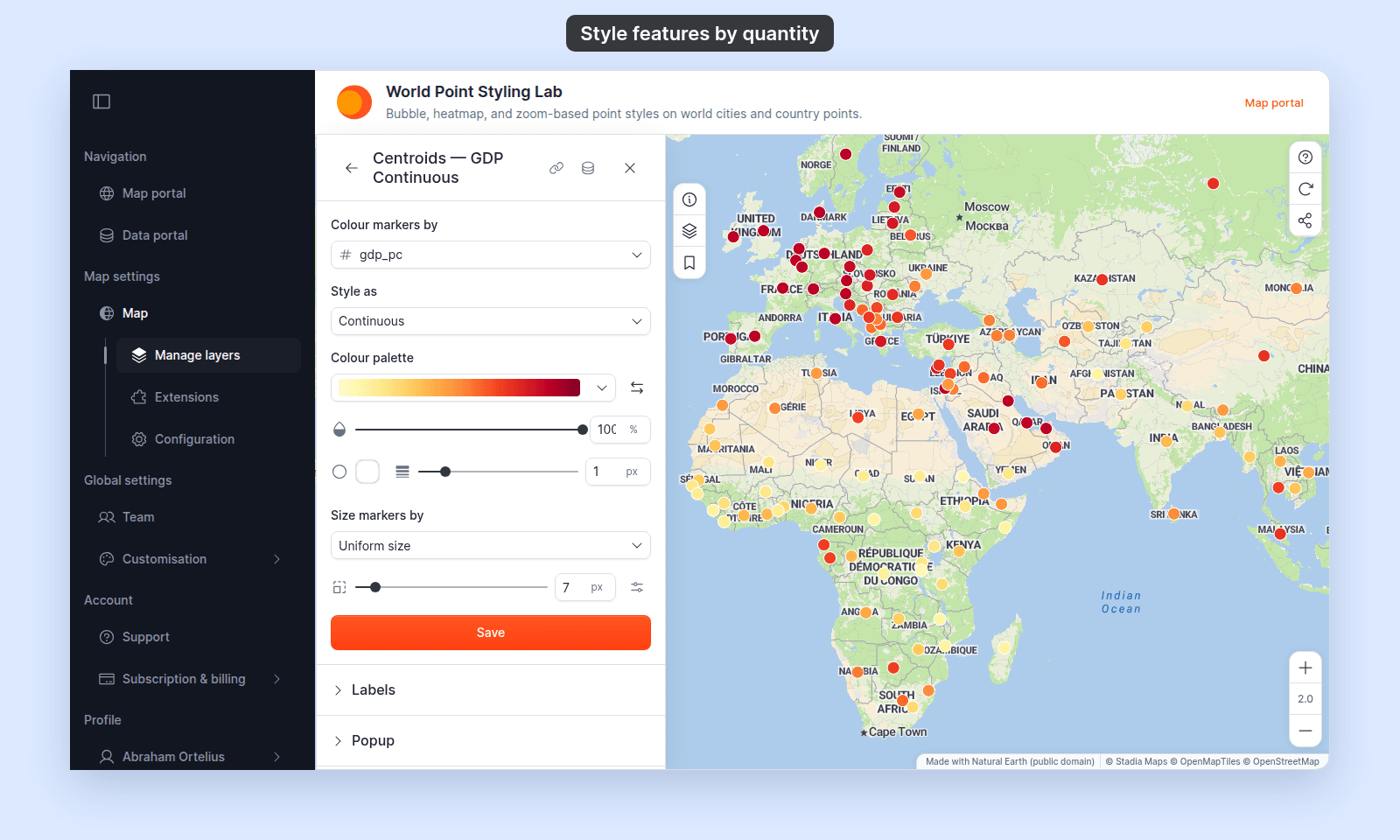
- **`Continuous`**: every value maps to a point on the colour ramp, and the legend shows a smooth gradient. Use it for fine variation across many values.
- **`Categories`**: one colour per distinct value, for numbers that are codes. See [How to style features by category](/docs/styling-layers/style-by-category).
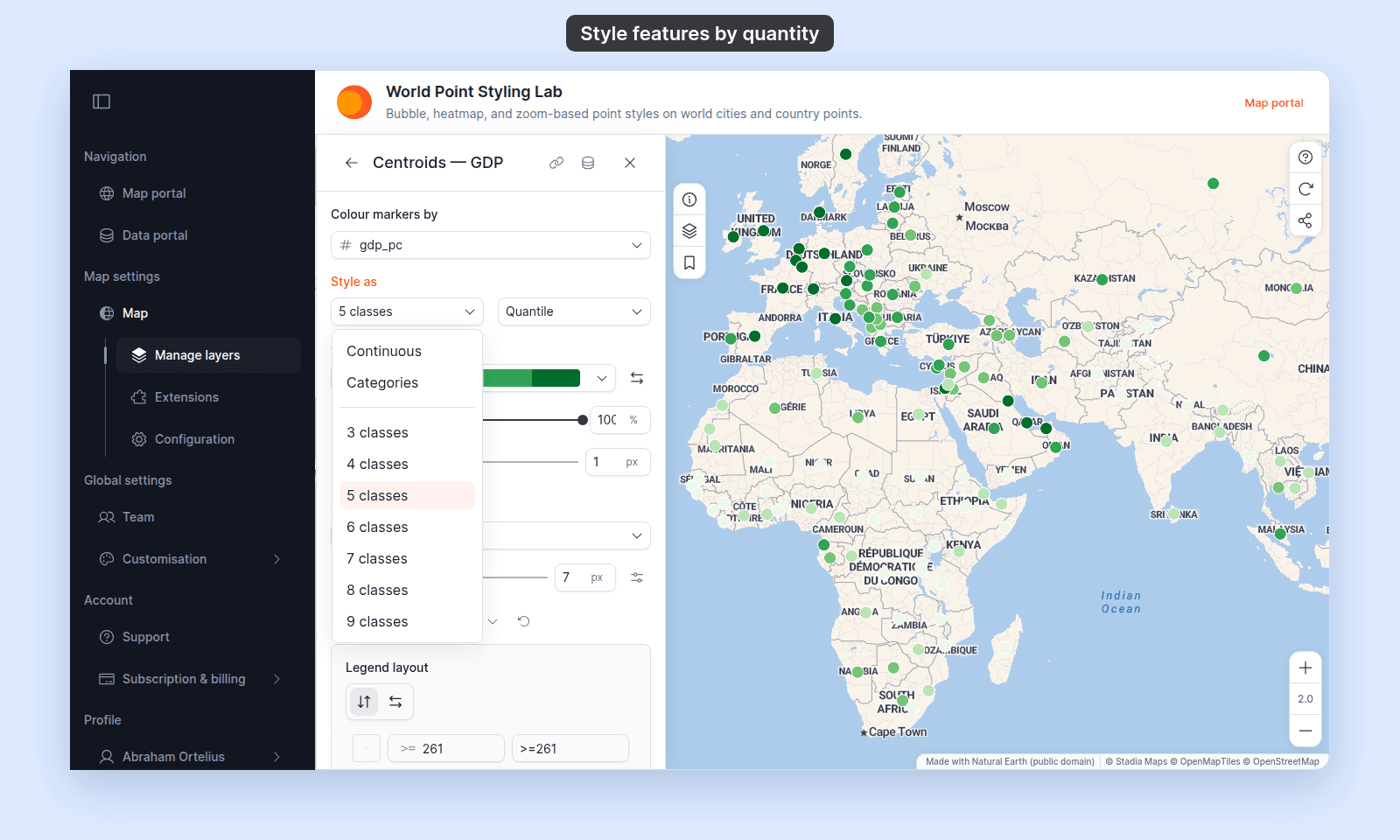
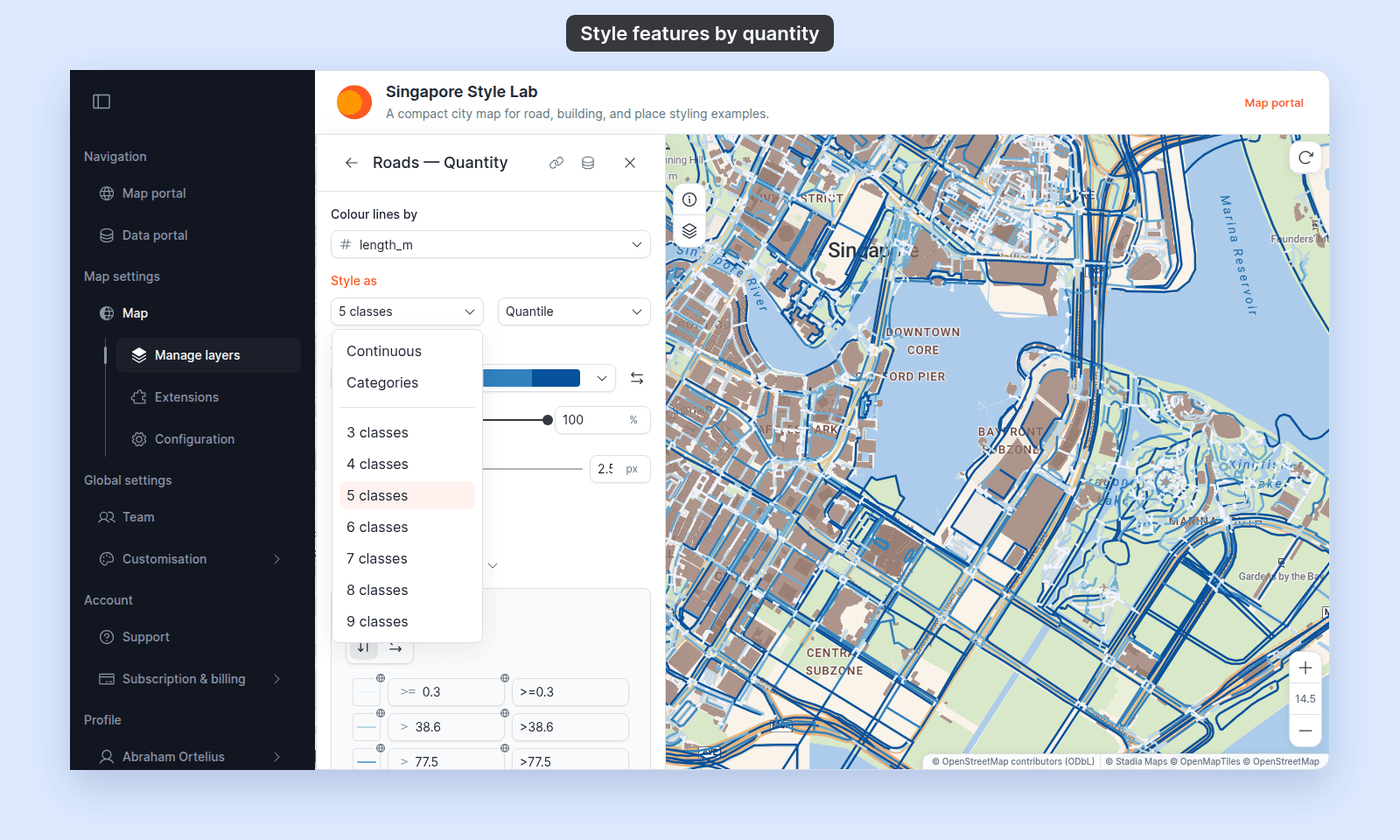
- **`3 classes`** through **`9 classes`**: discrete classes. Every feature draws in the colour of its class, and the legend shows one swatch per class.
A numeric field starts at `5 classes`. Use more classes for finer detail and fewer for overview maps.
**Point**
**Line**
**Polygon**
With `Continuous`, the class count and classification method go away. A `Colour scheme` picker and a gradient take their place:
## (Discrete only) Pick a classification method
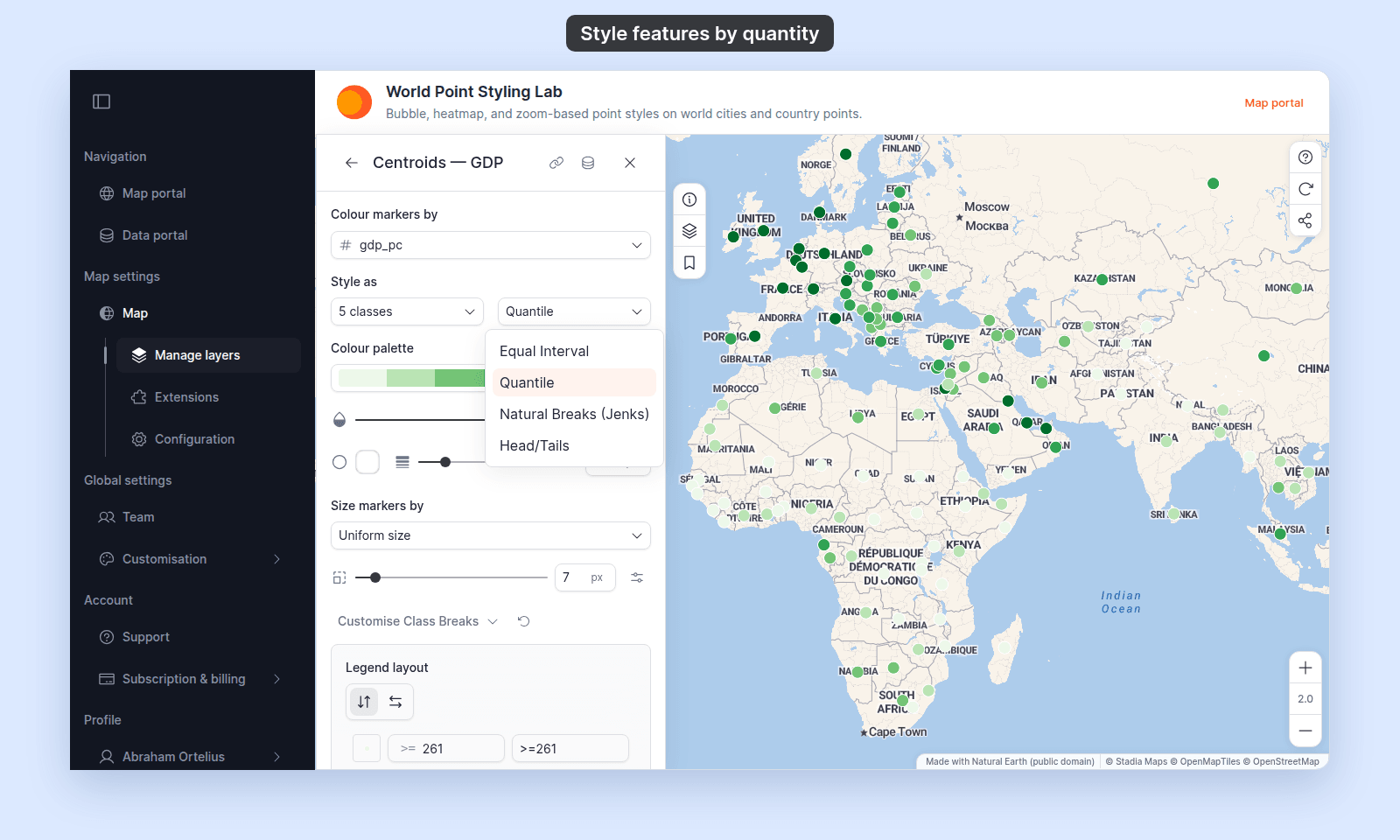
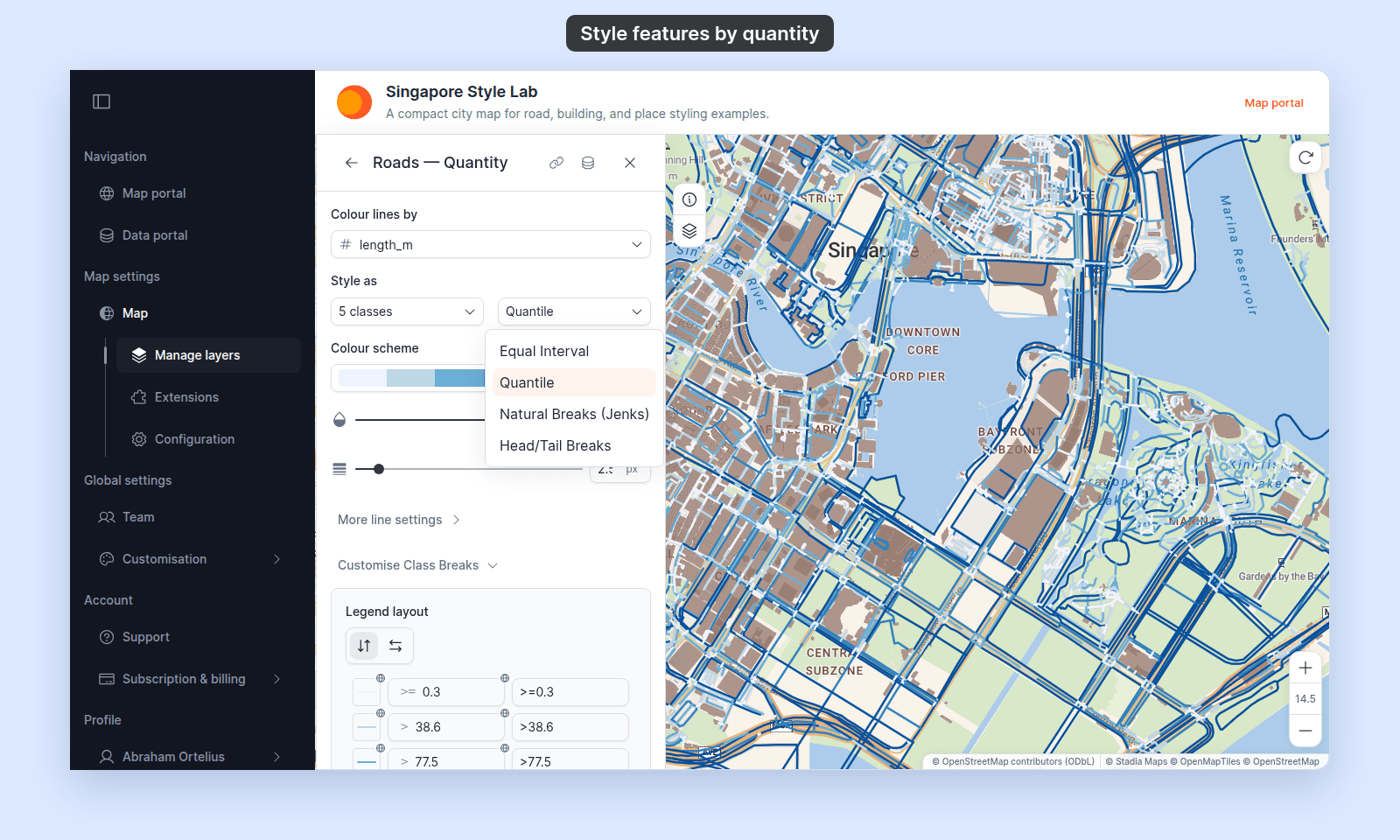
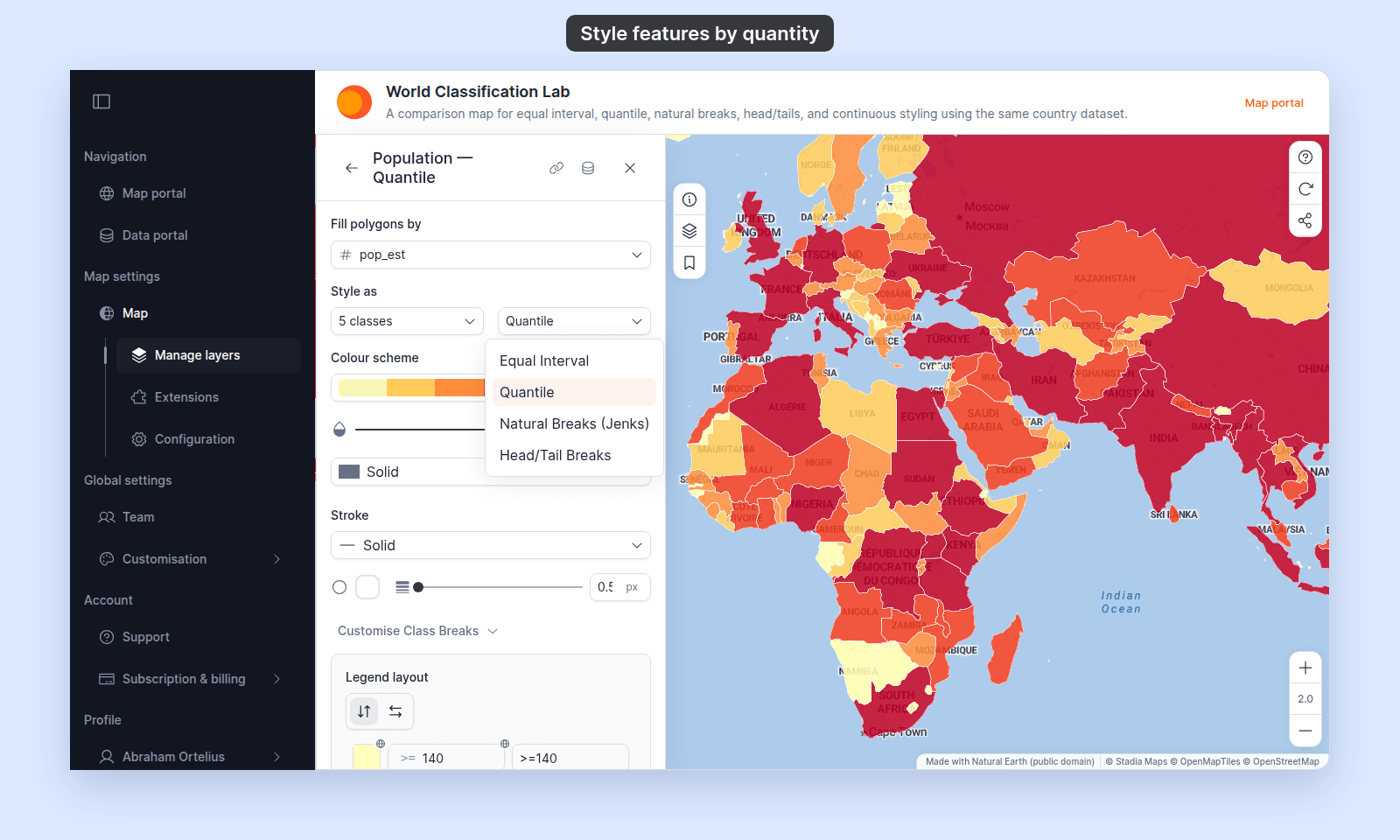
When you pick a class count (not `Continuous`), a method dropdown appears with four options:
- **`Equal Interval`**: equal-width classes across the data range.
- **`Quantile`**: each class holds about the same number of distinct values.
- **`Natural Breaks (Jenks)`**: break points fall at gaps in the distribution. This is the default.
- **`Head/Tails`**: classes that widen step by step, in exactly the class count you chose. Line and polygon layers call it `Head/Tail Breaks`.
The choice changes which features fall into which class. See [Choosing a classification method for choropleth maps](/docs/styling-layers/concepts-choosing-classification-method) to pick one, and [Classification methods for by-quantity styling](/docs/styling-layers/classification-methods-reference) for what each method does.
**Point**
**Line**
**Polygon**
## Pick a colour palette
Open the palette dropdown. The table above gives its name for each geometry. The preview shows the gradient across the classes.
If the ramp runs the wrong way for your data (low values dark, high values light, or the reverse), click the `Reverse colour ramp` button (arrows pointing left and right) next to the palette dropdown. See [Troubleshooting: my colour ramp is the wrong way round](/docs/styling-layers/troubleshoot-colour-ramp-reversed).
## (Optional) Customise class break colours, values, and labels
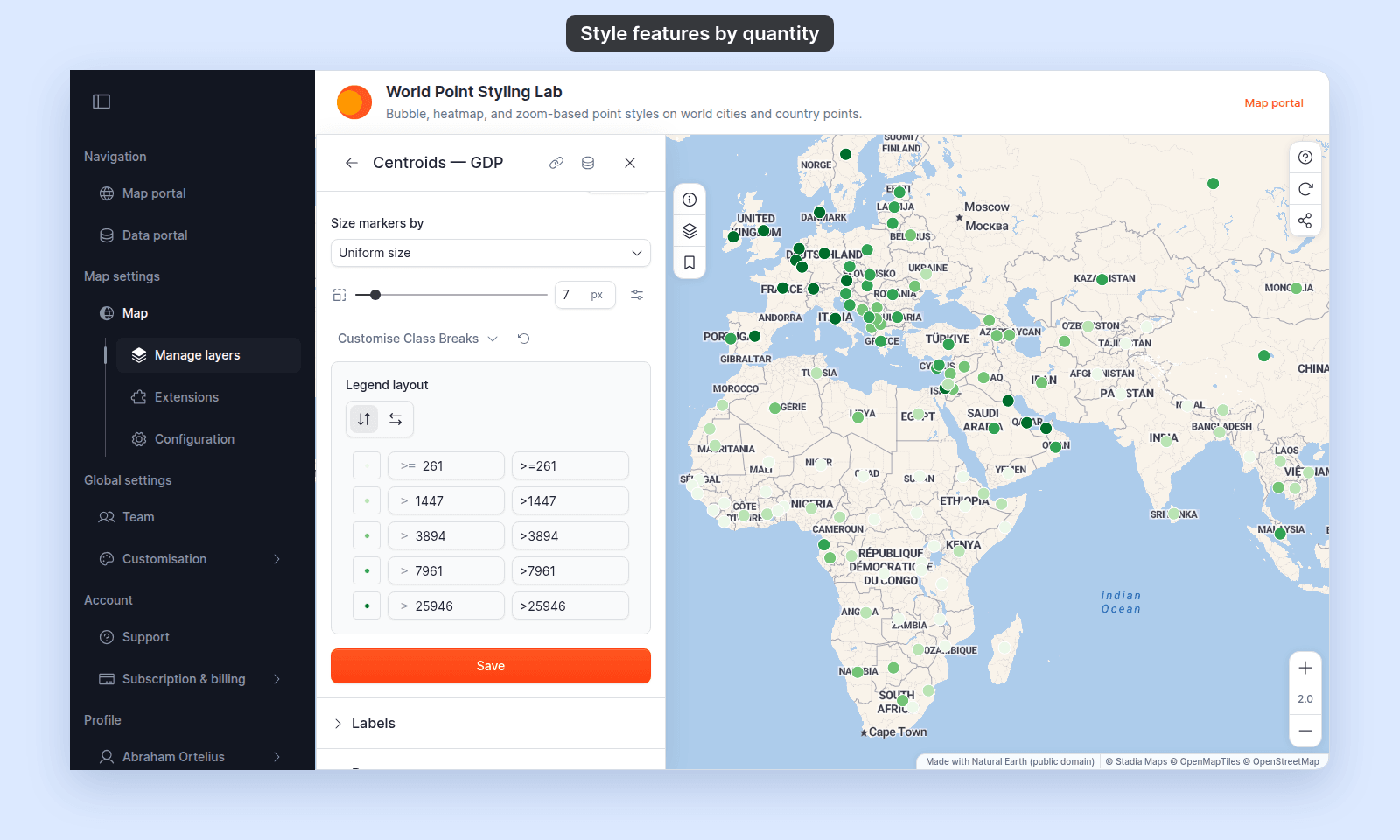
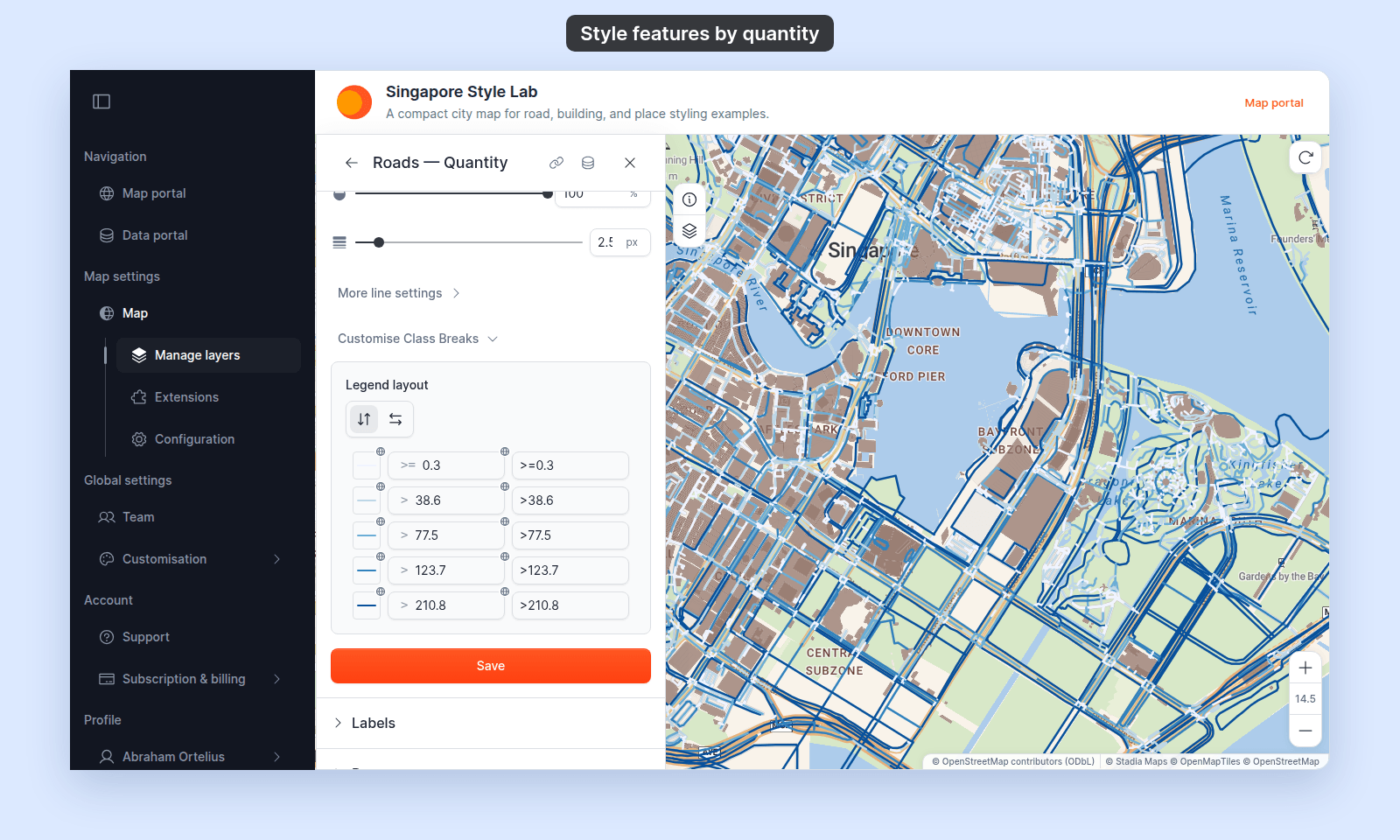
Expand `Customise Class Breaks` below the palette controls. Each class has a row:
- **Swatch**: click it to change how this class looks. The table at the top of this page lists the settings for each geometry.
- **Value**: the lower bound of the class. Type a round number to replace a value such as `17.342`.
- **Label**: the text the legend shows.
Set the values before the labels. Changing a value resets that row's label to the default.
**Point**
**Line**
**Polygon**
For the customisation flow in detail, see [How to customise category and class break symbology](/docs/styling-layers/customise-category-and-class-break-symbology).
## Save
Click `Save` at the bottom of the panel. The map redraws with the chosen field, method, and palette, and the legend shows one swatch for each class.
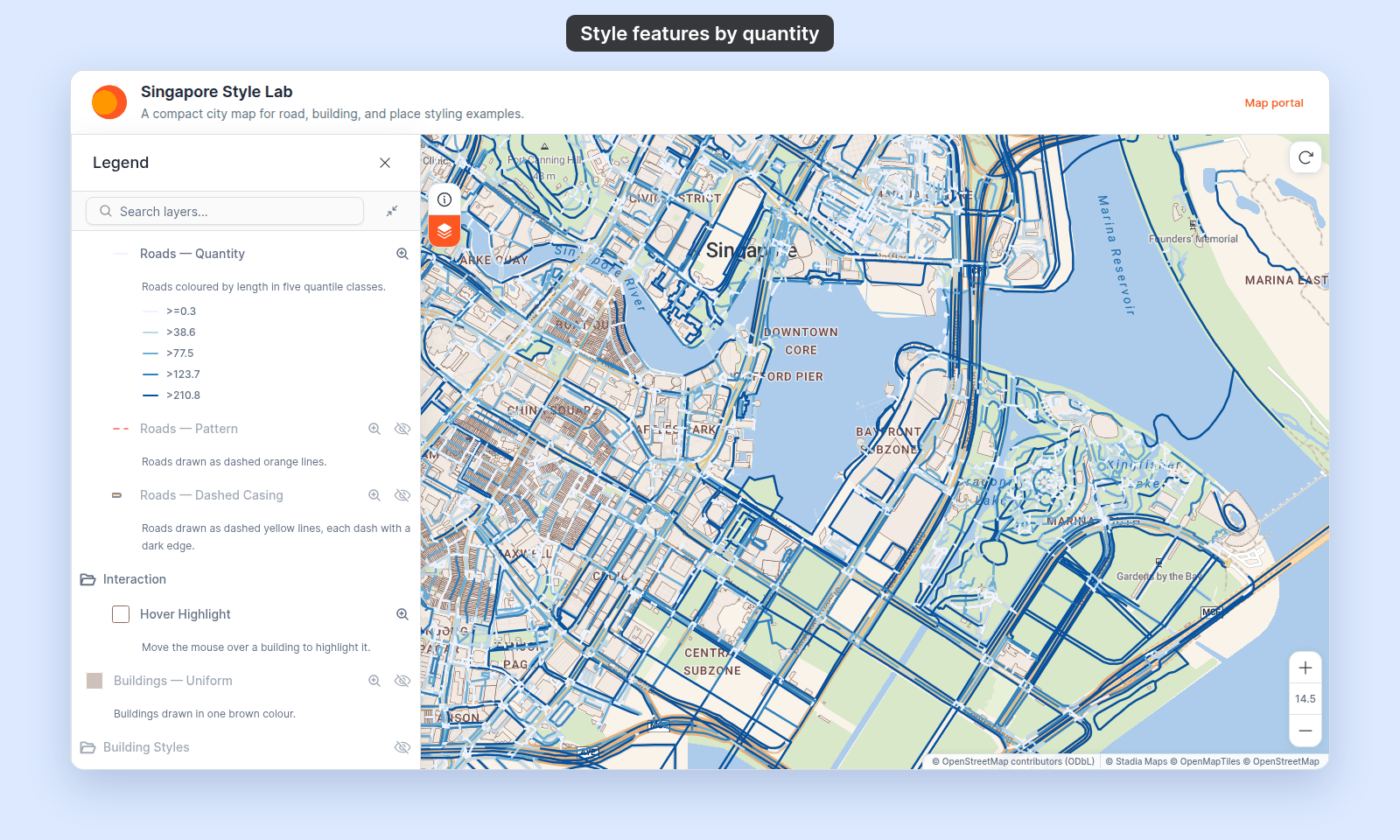
Each class runs from its value up to and including the next class's value. A value equal to a class's value belongs to the class below it, so the legend shows `>=` for the first class and `>` for the others. The top class has no upper end: every value above its value takes its colour. Features with no value, or a value below the first class, do not draw.
Here is where each value goes, with the population classes of the World Atlas countries:
{/* diagram:class-break-ranges */}
{/* /diagram:class-break-ranges */}
**Point**
**Line**
**Polygon**
## If the breaks fall in awkward numbers
`Quantile`, `Natural Breaks (Jenks)`, and the head/tail method put class boundaries at values from the data, such as `17.342`, not `20`. You have two options:
- Switch to `Equal Interval` for round-number boundaries. Outliers can then put most features into the lowest class.
- Keep the method and round each value in `Customise Class Breaks`.
## If you switch Style as between Categories and classes
Each switch builds new rows and removes the customisations of the mode you left. Switching back does not restore them.
Moving from `Categories` to a class count also resets two settings:
- The classification method goes back to `Natural Breaks (Jenks)`.
- The palette goes back to the default ramp.
## Troubleshooting
For the most common problems:
- [Troubleshooting: my classification produced empty buckets or weird breaks](/docs/styling-layers/troubleshoot-classification-empty-buckets): washed-out maps, maps with one class, and methods that do not suit the data.
- [Troubleshooting: my colour ramp is the wrong way round](/docs/styling-layers/troubleshoot-colour-ramp-reversed): flip the ramp without switching palettes.
- [Troubleshooting: my style change isn't appearing on the map](/docs/styling-layers/troubleshoot-style-not-applying): the most common cause is a missed `Save`.
**The dropdown shows no numeric fields.** The layer has no numeric attributes. Import the data again with numeric columns, or use [Category styling](/docs/styling-layers/style-by-category).
**Every value has its own colour, not a class.** `Style as` is set to `Categories`. Pick a class count or `Continuous` instead.
**I want thicker lines for bigger values.** Line width by a field is not available. Colour the lines by the field, and set one width for the whole layer.
## Related
- [How to style features by category](/docs/styling-layers/style-by-category)
- [How to size points by a number](/docs/styling-layers/size-points-by-a-number): size, not colour, from a numeric field; points only.
- [How to customise category and class break symbology](/docs/styling-layers/customise-category-and-class-break-symbology)
- [How to style line patterns and casing](/docs/styling-layers/style-line-patterns): line patterns, cap, join, and casing.
- [How to style polygon fill patterns](/docs/styling-layers/style-polygon-fill-patterns): a fill pattern for each class.
- [Classification methods for by-quantity styling](/docs/styling-layers/classification-methods-reference)
- [Choosing a classification method for choropleth maps](/docs/styling-layers/concepts-choosing-classification-method)
- [Point layer style controls](/docs/styling-layers/point-style-reference)
- [Line layer style controls](/docs/styling-layers/line-style-reference)
- [Polygon layer style controls](/docs/styling-layers/polygon-style-reference)
- [Planning a thematic map in MangoMap](/docs/styling-layers/concepts-planning-a-thematic-map)
- [How layer styling works in MangoMap](/docs/styling-layers/concepts-layer-styling)
 **Line**
 **Polygon**
 With `Continuous`, the class count and classification method go away. A `Colour scheme` picker and a gradient take their place:
 ## (Discrete only) Pick a classification method
When you pick a class count (not `Continuous`), a method dropdown appears with four options:
- **`Equal Interval`**: equal-width classes across the data range.
- **`Quantile`**: each class holds about the same number of distinct values.
- **`Natural Breaks (Jenks)`**: break points fall at gaps in the distribution. This is the default.
- **`Head/Tails`**: classes that widen step by step, in exactly the class count you chose. Line and polygon layers call it `Head/Tail Breaks`.
The choice changes which features fall into which class. See [Choosing a classification method for choropleth maps](/docs/styling-layers/concepts-choosing-classification-method) to pick one, and [Classification methods for by-quantity styling](/docs/styling-layers/classification-methods-reference) for what each method does.
**Point**
## (Discrete only) Pick a classification method
When you pick a class count (not `Continuous`), a method dropdown appears with four options:
- **`Equal Interval`**: equal-width classes across the data range.
- **`Quantile`**: each class holds about the same number of distinct values.
- **`Natural Breaks (Jenks)`**: break points fall at gaps in the distribution. This is the default.
- **`Head/Tails`**: classes that widen step by step, in exactly the class count you chose. Line and polygon layers call it `Head/Tail Breaks`.
The choice changes which features fall into which class. See [Choosing a classification method for choropleth maps](/docs/styling-layers/concepts-choosing-classification-method) to pick one, and [Classification methods for by-quantity styling](/docs/styling-layers/classification-methods-reference) for what each method does.
**Point**
 **Line**
 **Polygon**
 ## Pick a colour palette
Open the palette dropdown. The table above gives its name for each geometry. The preview shows the gradient across the classes.
If the ramp runs the wrong way for your data (low values dark, high values light, or the reverse), click the `Reverse colour ramp` button (arrows pointing left and right) next to the palette dropdown. See [Troubleshooting: my colour ramp is the wrong way round](/docs/styling-layers/troubleshoot-colour-ramp-reversed).
## (Optional) Customise class break colours, values, and labels
Expand `Customise Class Breaks` below the palette controls. Each class has a row:
- **Swatch**: click it to change how this class looks. The table at the top of this page lists the settings for each geometry.
- **Value**: the lower bound of the class. Type a round number to replace a value such as `17.342`.
- **Label**: the text the legend shows.
Set the values before the labels. Changing a value resets that row's label to the default.
**Point**
## Pick a colour palette
Open the palette dropdown. The table above gives its name for each geometry. The preview shows the gradient across the classes.
If the ramp runs the wrong way for your data (low values dark, high values light, or the reverse), click the `Reverse colour ramp` button (arrows pointing left and right) next to the palette dropdown. See [Troubleshooting: my colour ramp is the wrong way round](/docs/styling-layers/troubleshoot-colour-ramp-reversed).
## (Optional) Customise class break colours, values, and labels
Expand `Customise Class Breaks` below the palette controls. Each class has a row:
- **Swatch**: click it to change how this class looks. The table at the top of this page lists the settings for each geometry.
- **Value**: the lower bound of the class. Type a round number to replace a value such as `17.342`.
- **Label**: the text the legend shows.
Set the values before the labels. Changing a value resets that row's label to the default.
**Point**
 **Line**
 **Polygon**
 For the customisation flow in detail, see [How to customise category and class break symbology](/docs/styling-layers/customise-category-and-class-break-symbology).
## Save
Click `Save` at the bottom of the panel. The map redraws with the chosen field, method, and palette, and the legend shows one swatch for each class.
Each class runs from its value up to and including the next class's value. A value equal to a class's value belongs to the class below it, so the legend shows `>=` for the first class and `>` for the others. The top class has no upper end: every value above its value takes its colour. Features with no value, or a value below the first class, do not draw.
Here is where each value goes, with the population classes of the World Atlas countries:
{/* diagram:class-break-ranges */}
{/* /diagram:class-break-ranges */}
**Point**
For the customisation flow in detail, see [How to customise category and class break symbology](/docs/styling-layers/customise-category-and-class-break-symbology).
## Save
Click `Save` at the bottom of the panel. The map redraws with the chosen field, method, and palette, and the legend shows one swatch for each class.
Each class runs from its value up to and including the next class's value. A value equal to a class's value belongs to the class below it, so the legend shows `>=` for the first class and `>` for the others. The top class has no upper end: every value above its value takes its colour. Features with no value, or a value below the first class, do not draw.
Here is where each value goes, with the population classes of the World Atlas countries:
{/* diagram:class-break-ranges */}
{/* /diagram:class-break-ranges */}
**Point**
 **Line**
 **Polygon**
 ## If the breaks fall in awkward numbers
`Quantile`, `Natural Breaks (Jenks)`, and the head/tail method put class boundaries at values from the data, such as `17.342`, not `20`. You have two options:
- Switch to `Equal Interval` for round-number boundaries. Outliers can then put most features into the lowest class.
- Keep the method and round each value in `Customise Class Breaks`.
## If you switch Style as between Categories and classes
Each switch builds new rows and removes the customisations of the mode you left. Switching back does not restore them.
Moving from `Categories` to a class count also resets two settings:
- The classification method goes back to `Natural Breaks (Jenks)`.
- The palette goes back to the default ramp.
## Troubleshooting
For the most common problems:
- [Troubleshooting: my classification produced empty buckets or weird breaks](/docs/styling-layers/troubleshoot-classification-empty-buckets): washed-out maps, maps with one class, and methods that do not suit the data.
- [Troubleshooting: my colour ramp is the wrong way round](/docs/styling-layers/troubleshoot-colour-ramp-reversed): flip the ramp without switching palettes.
- [Troubleshooting: my style change isn't appearing on the map](/docs/styling-layers/troubleshoot-style-not-applying): the most common cause is a missed `Save`.
**The dropdown shows no numeric fields.** The layer has no numeric attributes. Import the data again with numeric columns, or use [Category styling](/docs/styling-layers/style-by-category).
**Every value has its own colour, not a class.** `Style as` is set to `Categories`. Pick a class count or `Continuous` instead.
**I want thicker lines for bigger values.** Line width by a field is not available. Colour the lines by the field, and set one width for the whole layer.
## Related
- [How to style features by category](/docs/styling-layers/style-by-category)
- [How to size points by a number](/docs/styling-layers/size-points-by-a-number): size, not colour, from a numeric field; points only.
- [How to customise category and class break symbology](/docs/styling-layers/customise-category-and-class-break-symbology)
- [How to style line patterns and casing](/docs/styling-layers/style-line-patterns): line patterns, cap, join, and casing.
- [How to style polygon fill patterns](/docs/styling-layers/style-polygon-fill-patterns): a fill pattern for each class.
- [Classification methods for by-quantity styling](/docs/styling-layers/classification-methods-reference)
- [Choosing a classification method for choropleth maps](/docs/styling-layers/concepts-choosing-classification-method)
- [Point layer style controls](/docs/styling-layers/point-style-reference)
- [Line layer style controls](/docs/styling-layers/line-style-reference)
- [Polygon layer style controls](/docs/styling-layers/polygon-style-reference)
- [Planning a thematic map in MangoMap](/docs/styling-layers/concepts-planning-a-thematic-map)
- [How layer styling works in MangoMap](/docs/styling-layers/concepts-layer-styling)
## If the breaks fall in awkward numbers
`Quantile`, `Natural Breaks (Jenks)`, and the head/tail method put class boundaries at values from the data, such as `17.342`, not `20`. You have two options:
- Switch to `Equal Interval` for round-number boundaries. Outliers can then put most features into the lowest class.
- Keep the method and round each value in `Customise Class Breaks`.
## If you switch Style as between Categories and classes
Each switch builds new rows and removes the customisations of the mode you left. Switching back does not restore them.
Moving from `Categories` to a class count also resets two settings:
- The classification method goes back to `Natural Breaks (Jenks)`.
- The palette goes back to the default ramp.
## Troubleshooting
For the most common problems:
- [Troubleshooting: my classification produced empty buckets or weird breaks](/docs/styling-layers/troubleshoot-classification-empty-buckets): washed-out maps, maps with one class, and methods that do not suit the data.
- [Troubleshooting: my colour ramp is the wrong way round](/docs/styling-layers/troubleshoot-colour-ramp-reversed): flip the ramp without switching palettes.
- [Troubleshooting: my style change isn't appearing on the map](/docs/styling-layers/troubleshoot-style-not-applying): the most common cause is a missed `Save`.
**The dropdown shows no numeric fields.** The layer has no numeric attributes. Import the data again with numeric columns, or use [Category styling](/docs/styling-layers/style-by-category).
**Every value has its own colour, not a class.** `Style as` is set to `Categories`. Pick a class count or `Continuous` instead.
**I want thicker lines for bigger values.** Line width by a field is not available. Colour the lines by the field, and set one width for the whole layer.
## Related
- [How to style features by category](/docs/styling-layers/style-by-category)
- [How to size points by a number](/docs/styling-layers/size-points-by-a-number): size, not colour, from a numeric field; points only.
- [How to customise category and class break symbology](/docs/styling-layers/customise-category-and-class-break-symbology)
- [How to style line patterns and casing](/docs/styling-layers/style-line-patterns): line patterns, cap, join, and casing.
- [How to style polygon fill patterns](/docs/styling-layers/style-polygon-fill-patterns): a fill pattern for each class.
- [Classification methods for by-quantity styling](/docs/styling-layers/classification-methods-reference)
- [Choosing a classification method for choropleth maps](/docs/styling-layers/concepts-choosing-classification-method)
- [Point layer style controls](/docs/styling-layers/point-style-reference)
- [Line layer style controls](/docs/styling-layers/line-style-reference)
- [Polygon layer style controls](/docs/styling-layers/polygon-style-reference)
- [Planning a thematic map in MangoMap](/docs/styling-layers/concepts-planning-a-thematic-map)
- [How layer styling works in MangoMap](/docs/styling-layers/concepts-layer-styling)