---
title: "How to style features by category"
description: "Give every point, line, or polygon with the same value the same colour, from a text field or from numeric codes such as zone numbers or years."
sidebar:
label: "Style by category"
search:
keywords: [color, color by category, unique values, categorized]
---
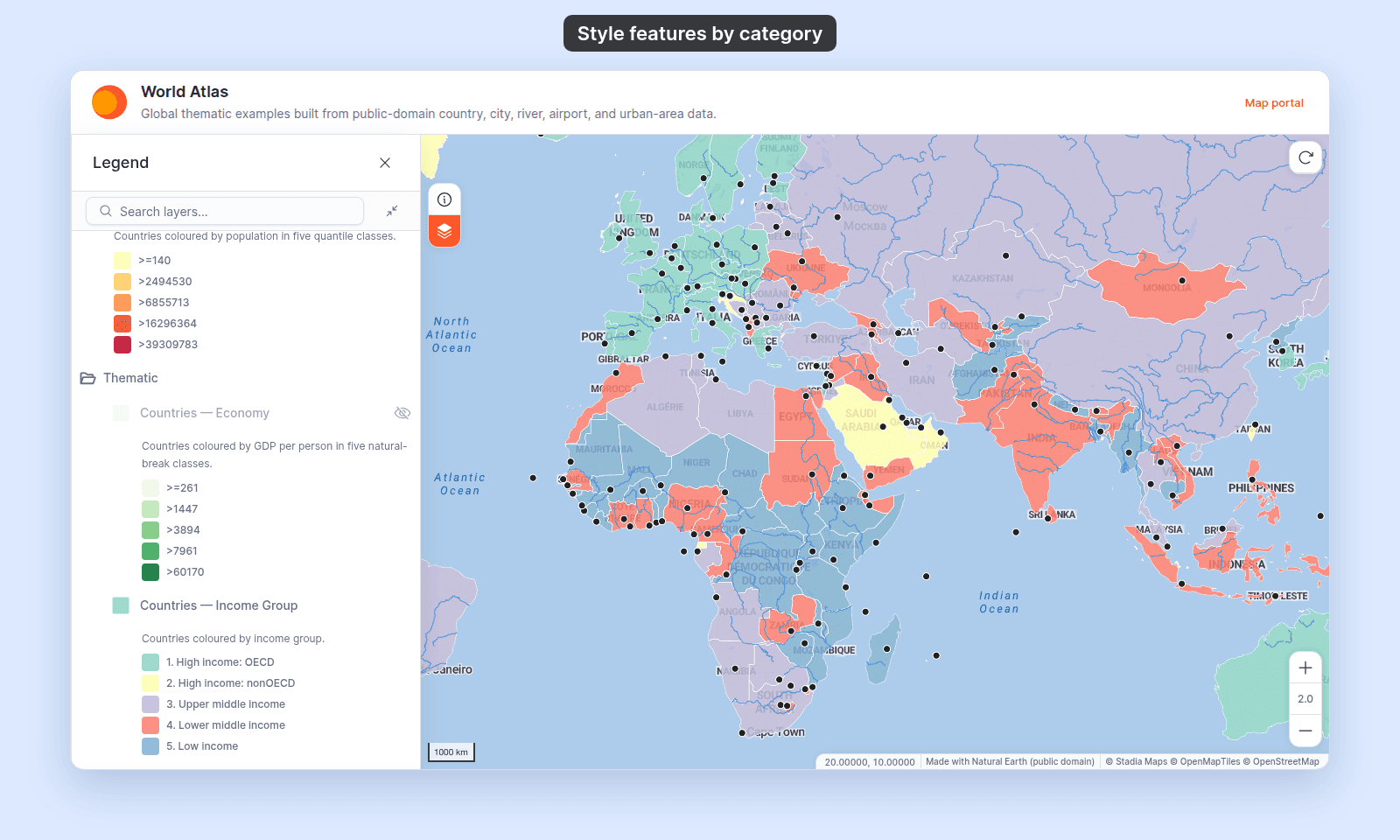
Pick a field in the layer's colour driver, and every point, line, or polygon with the same value gets the same colour and its own legend entry. A text field gives categories at once; a numeric field starts as classes, so set `Style as` to `Categories`.
**[See it on an example map](https://mangomap-staging.com/examples-staging/maps/vi0nznxp/world-atlas)**
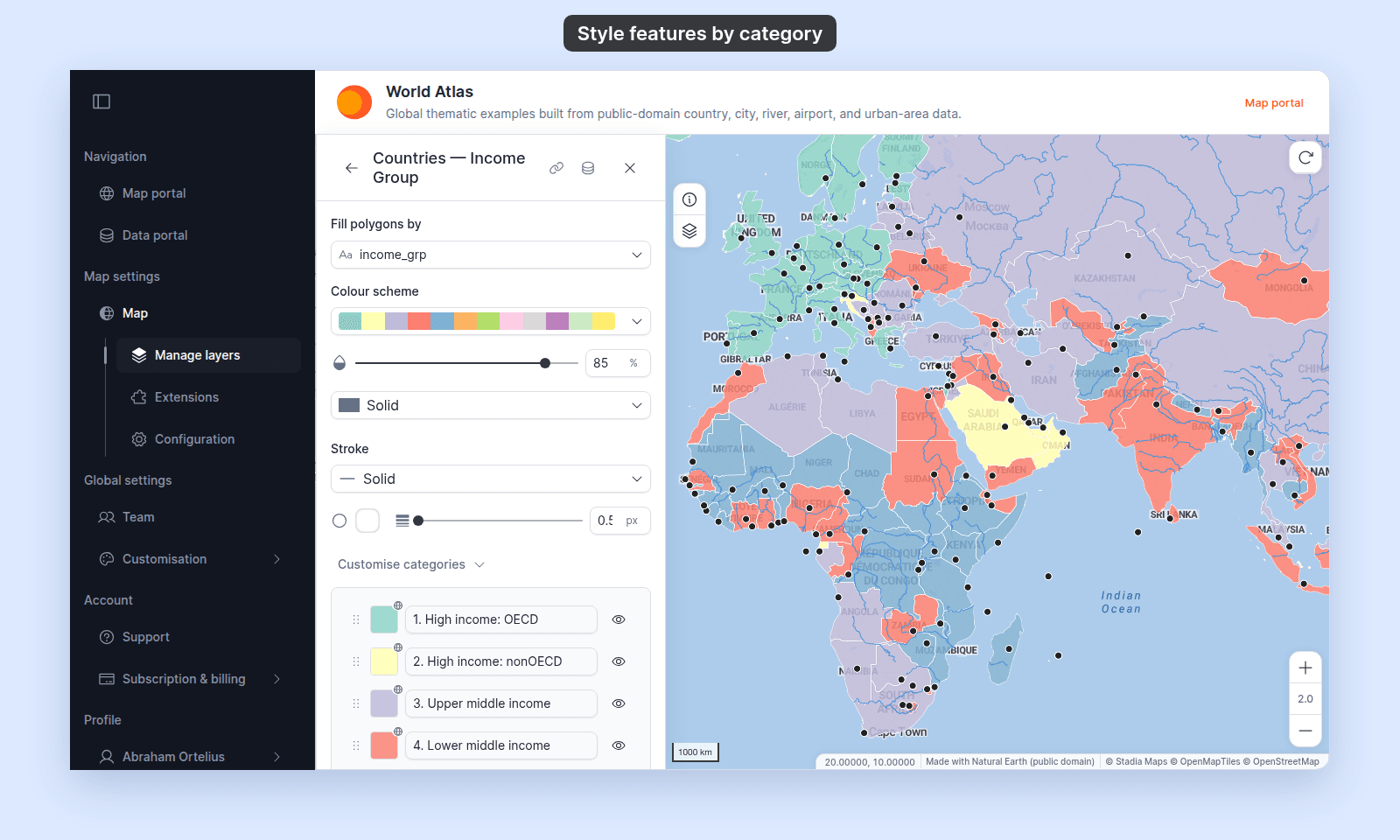
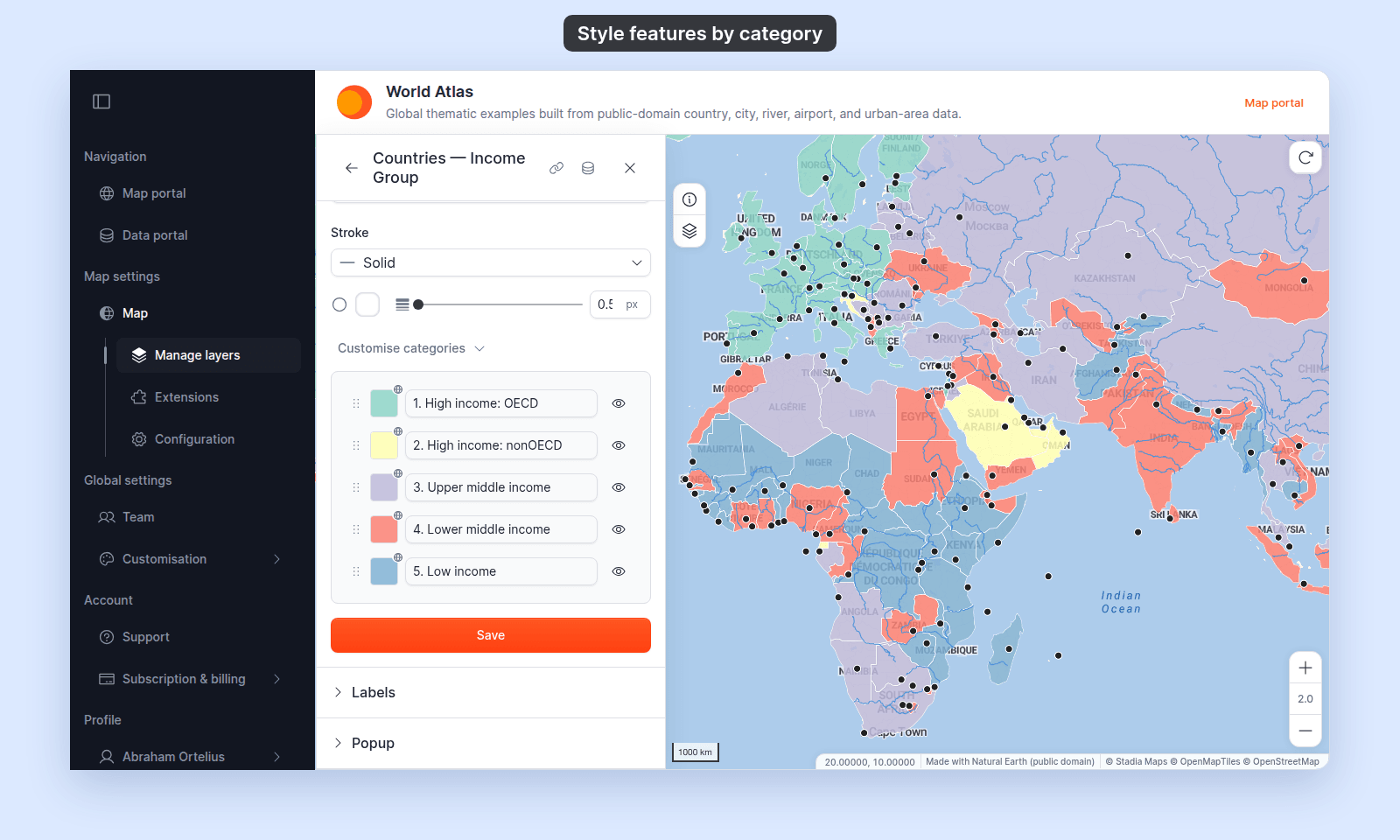
Open the World Atlas. In the legend, open the `Thematic` folder and turn on only `Countries — Income Group`. Turn off `Countries — Population`. Each income group has its own colour and legend entry.
**[See it on points](https://mangomap-staging.com/examples-staging/maps/cfxgj3l4/singapore-point-styling-lab)**
Open the Singapore Point Styling Lab. See `Emergency — Icons by Type` in the legend.
**[See a 0/1 field as categories](https://mangomap-staging.com/examples-staging/maps/042tb3tl/world-point-styling-lab)**
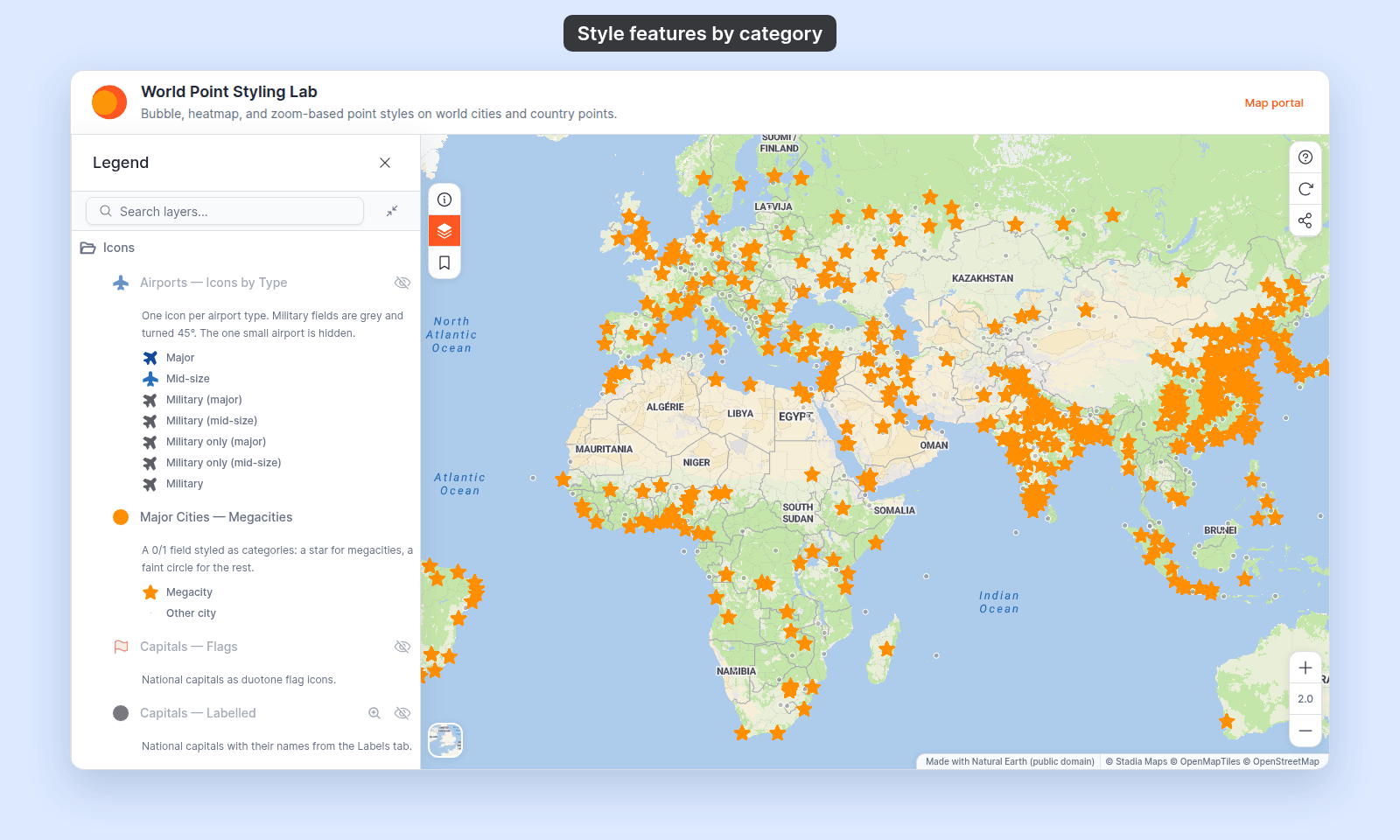
Open the World Point Styling Lab. See `Major Cities — Megacities` in the `Icons` folder of the legend.
## Before you start
- You need edit access to the map.
- Choose the field. A text field works, such as a road class, a building type, or an income group. A numeric field that holds codes also works: zone numbers, years, ratings, or the number of lanes on a road. For a measured amount, such as population or rainfall, use [How to style features by quantity](/docs/styling-layers/style-by-quantity) instead.
- On a point layer, set `Marker type` to `Circle` or `Icon`. `Custom Icon` and `Heatmap` markers have no field colour.
- Pick the field before you customise anything. Changing the field rebuilds the categories from scratch.
The steps are the same for points, lines, and polygons. Some control names, and what each category can change, depend on the geometry:
| | Point | Line | Polygon |
| --- | --- | --- | --- |
| Colour driver | `Colour markers by` | `Colour lines by` | `Fill polygons by` |
| No-field option | `Single colour` | `Uniform colour` | `Uniform colour` |
| Palette dropdown | `Colour palette` | `Colour scheme` | `Colour scheme` |
| Each category can set | Colour and transparency (or opacity for a custom icon), marker type, outline (`Circle`), marker size, icon rotation (`Icon`) | Colour and transparency, line pattern | Fill colour and transparency, fill pattern |
| Same for the whole layer | Size from a numeric field, if you set one | [Line width](/docs/styling-layers/set-line-width-and-opacity), [casing, cap, and join](/docs/styling-layers/style-line-patterns) | [Outline](/docs/styling-layers/style-polygon-outlines): `Stroke` (`None`, `Solid`, `Dashed`, or `Dotted`), stroke colour, and stroke width |
On a point layer, colour comes from the category, but size does not. Give each category a fixed marker size in `Customise categories`, or size markers by a numeric field. With a size field, the legend shows the category swatches with a size key below them. See [How to size points by a number](/docs/styling-layers/size-points-by-a-number).
## Open the Style tab
In the layer panel, select your layer. Click the `Style` tab.
## Pick the field in the colour driver
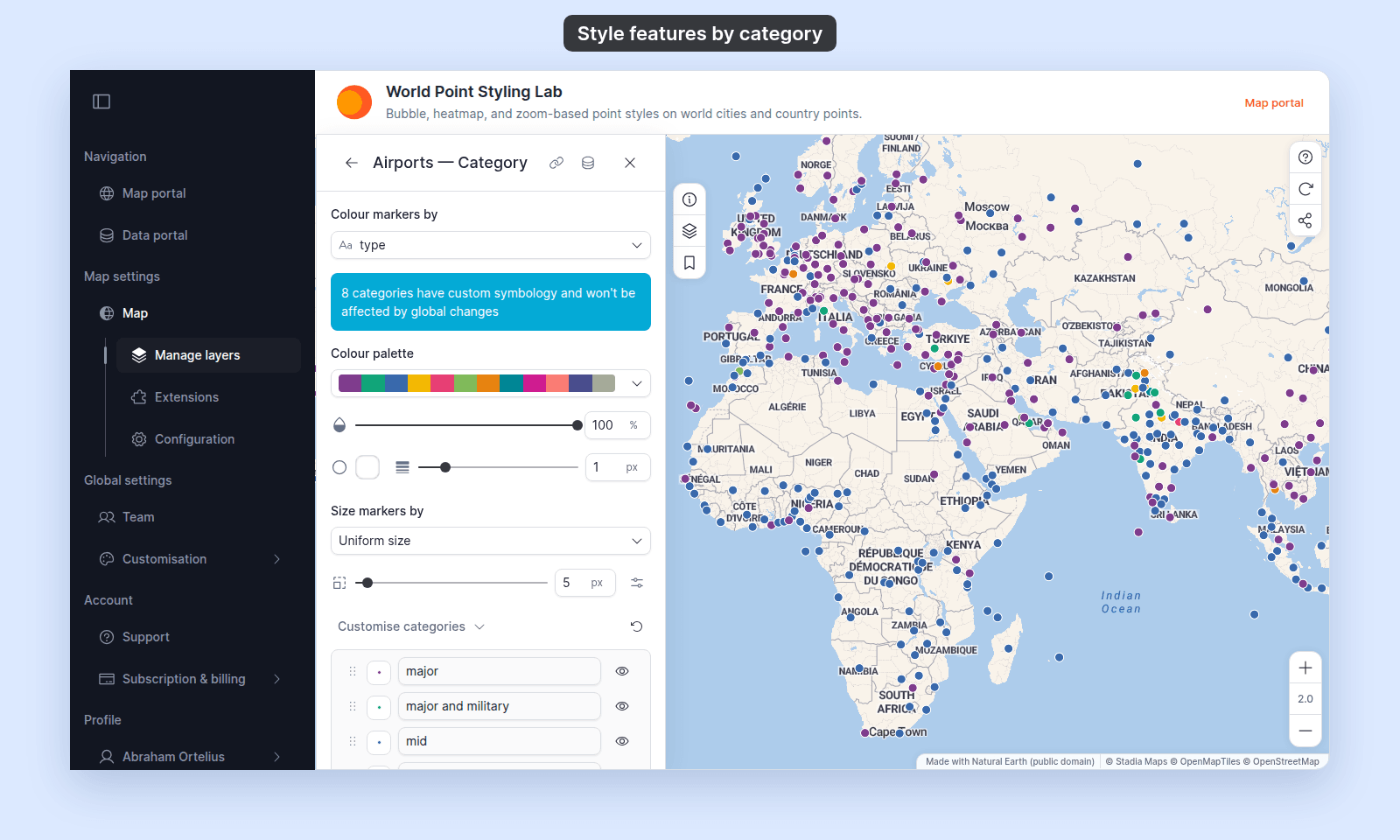
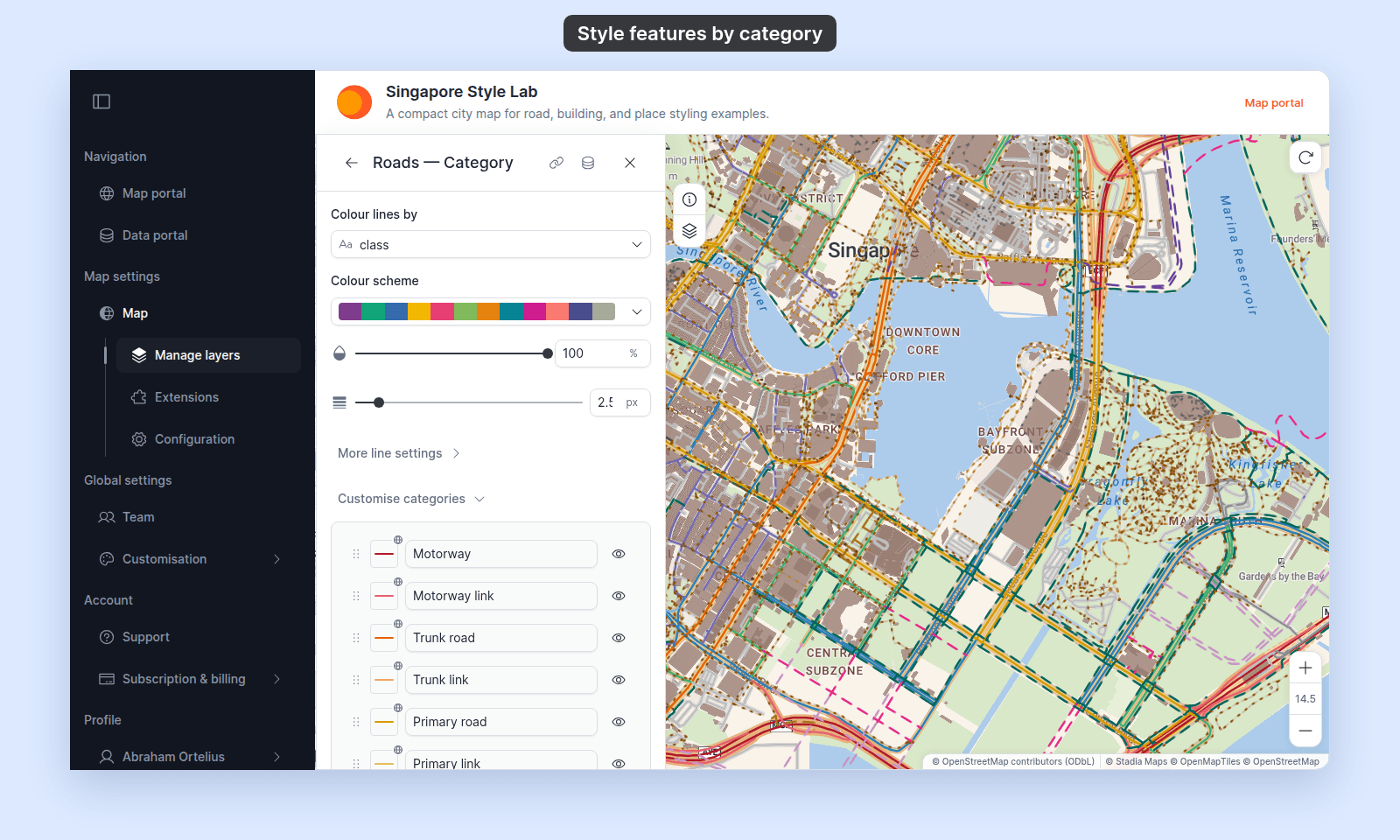
Open the colour driver. The table above gives its name for each geometry. The list starts with the no-field option, then shows every field on the dataset. Point layers with `Circle` markers also list `Colour by zoom`; see [How to change marker colour by zoom level](/docs/styling-layers/colour-markers-by-zoom).
Pick your field. A text field shows the category controls straight away. A numeric field needs one more step.
**Point**
 **Line**
 **Polygon**
 ## Set Style as to Categories (numeric fields only)
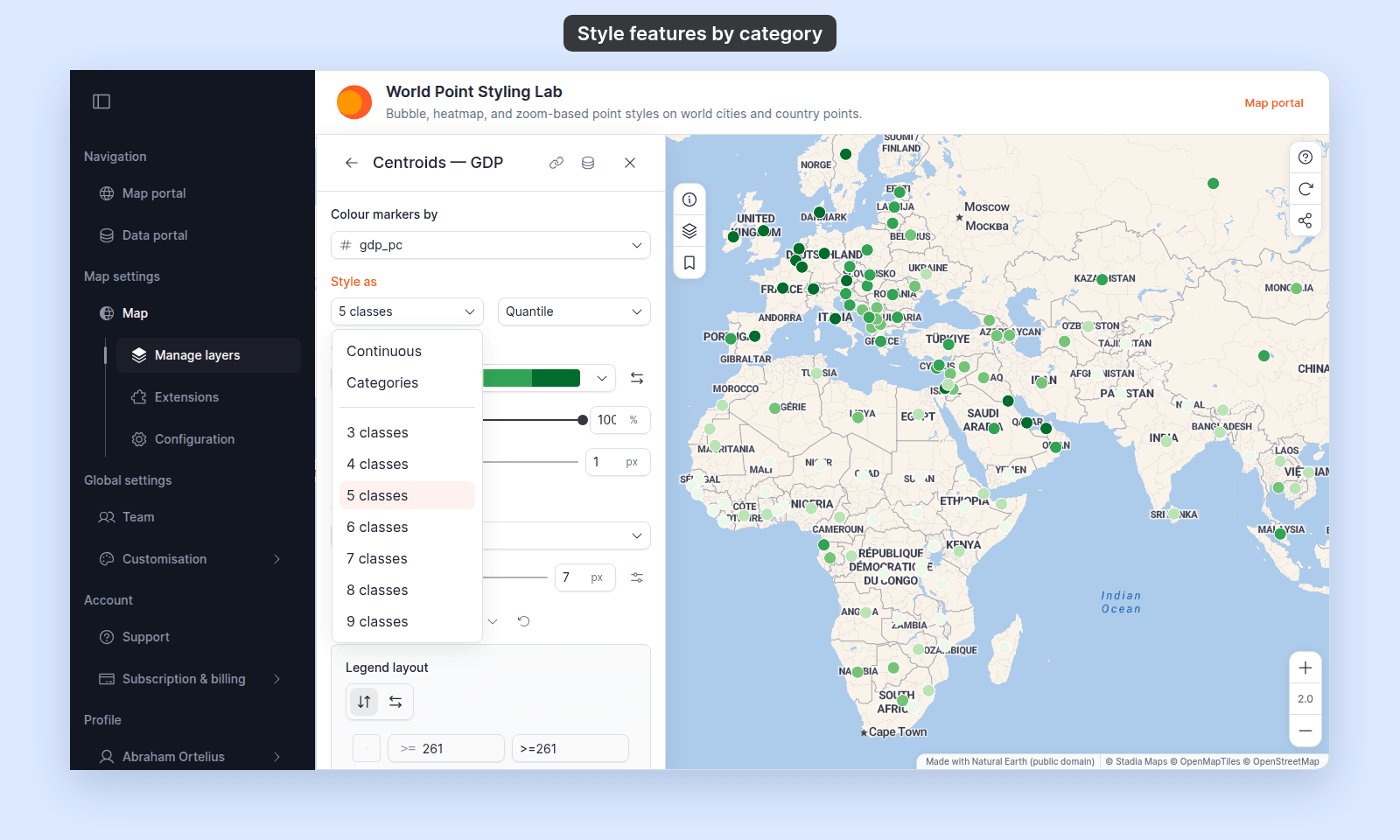
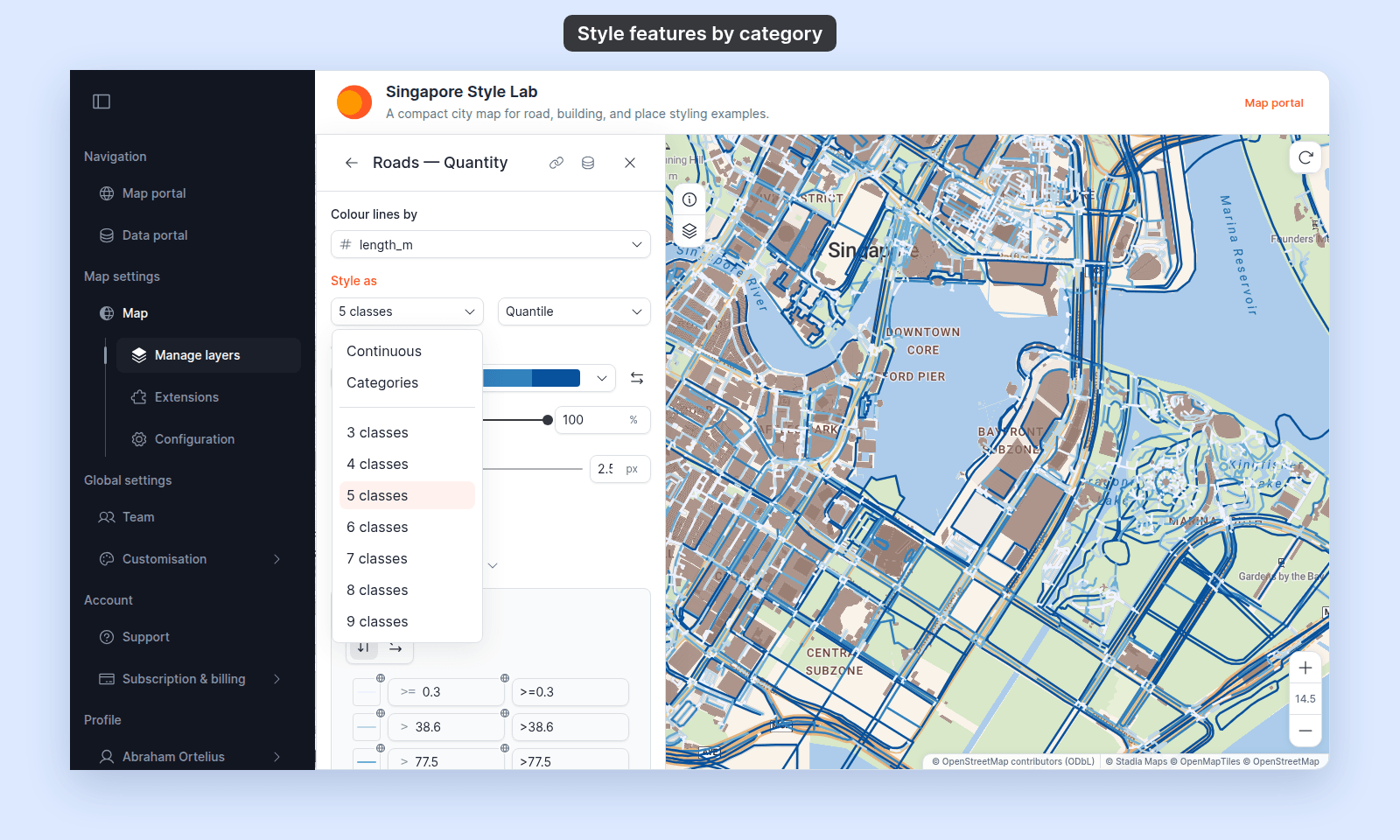
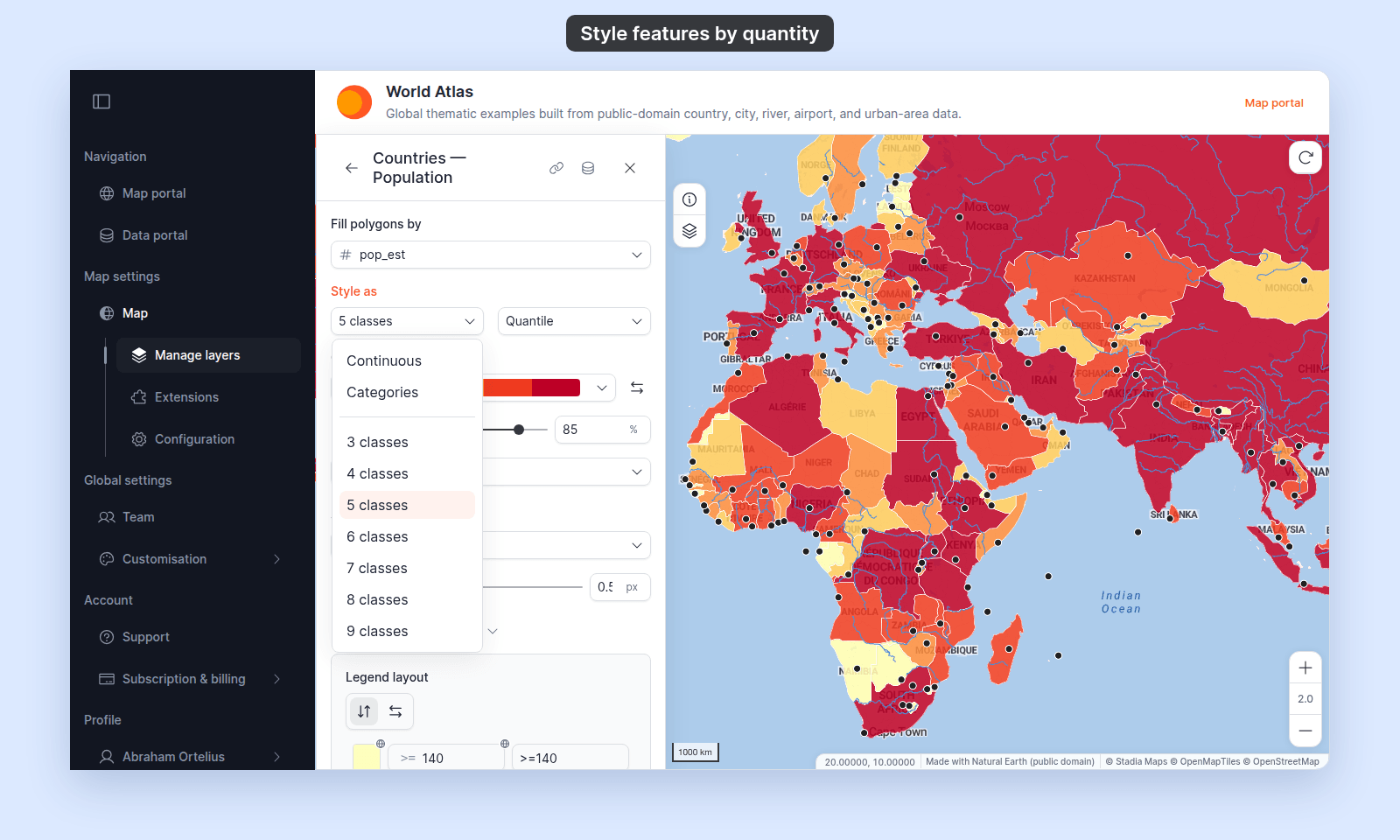
A numeric field starts as `5 classes`. Open the `Style as` dropdown and pick `Categories`.
**Point**
## Set Style as to Categories (numeric fields only)
A numeric field starts as `5 classes`. Open the `Style as` dropdown and pick `Categories`.
**Point**
 **Line**
 **Polygon**
 A 0/1 field styled this way, with a different marker on each row:
 Each distinct number becomes its own category. MangoMap does not round or group the values, so `1.5` and `2` are two categories.
Text fields have no `Style as` dropdown. They are always styled as categories.
## Pick a colour palette
Open the palette dropdown. MangoMap gives the palette's colours to the categories in list order. When there are more categories than colours, the colours repeat.
The opacity slider below the palette sets the opacity for the whole layer. On point and line layers, a category you customised keeps its own opacity. This includes a point category with a `Custom Icon` marker. Set its opacity in that row's `Opacity` control.
## Customise categories (optional)
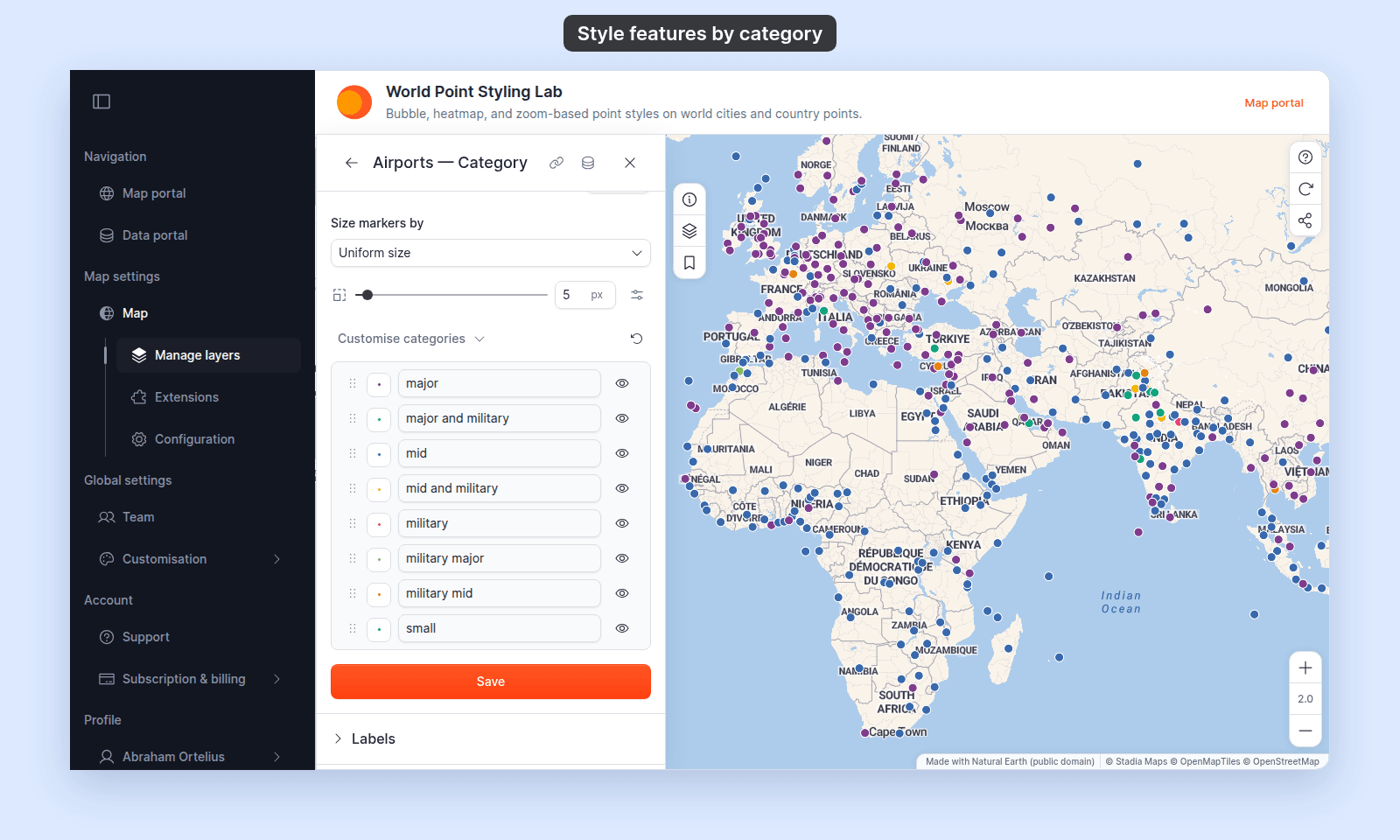
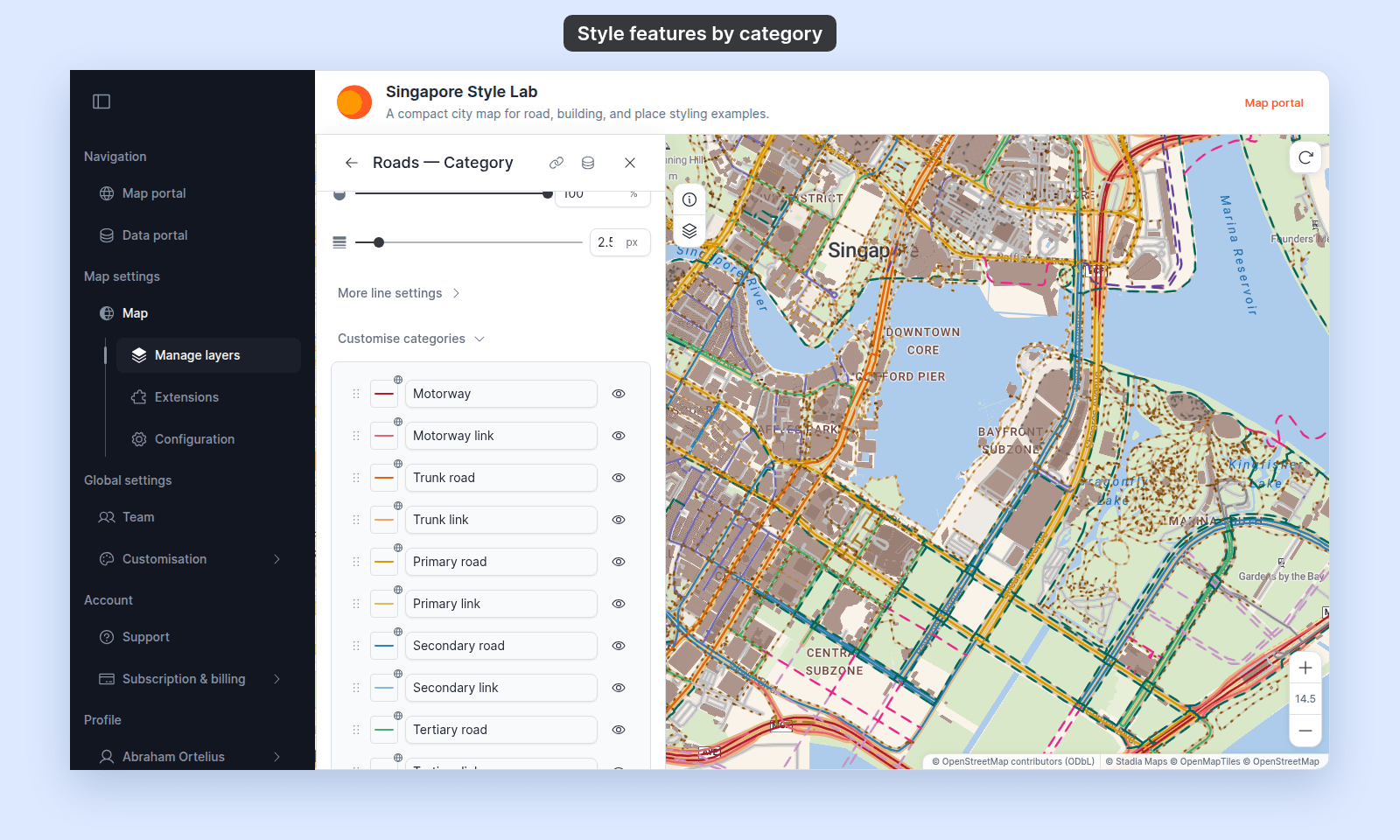
Expand `Customise categories`. Each category has a row:
- **Swatch**: click it to change how this category looks. The table at the top of this page lists the settings for each geometry.
- **Label**: the text the legend shows. The data stays the same.
- **Eye icon**: hide the category. Hidden categories do not draw on the map or show in the legend.
- **Drag handle**: drag the row to change the legend order.
**Point**
Each distinct number becomes its own category. MangoMap does not round or group the values, so `1.5` and `2` are two categories.
Text fields have no `Style as` dropdown. They are always styled as categories.
## Pick a colour palette
Open the palette dropdown. MangoMap gives the palette's colours to the categories in list order. When there are more categories than colours, the colours repeat.
The opacity slider below the palette sets the opacity for the whole layer. On point and line layers, a category you customised keeps its own opacity. This includes a point category with a `Custom Icon` marker. Set its opacity in that row's `Opacity` control.
## Customise categories (optional)
Expand `Customise categories`. Each category has a row:
- **Swatch**: click it to change how this category looks. The table at the top of this page lists the settings for each geometry.
- **Label**: the text the legend shows. The data stays the same.
- **Eye icon**: hide the category. Hidden categories do not draw on the map or show in the legend.
- **Drag handle**: drag the row to change the legend order.
**Point**
 **Line**
 **Polygon**
 You cannot add or remove categories, because the list comes from the data. Hide the ones you do not want. See [How to customise category and class break symbology](/docs/styling-layers/customise-category-and-class-break-symbology) for the full flow.
## Save
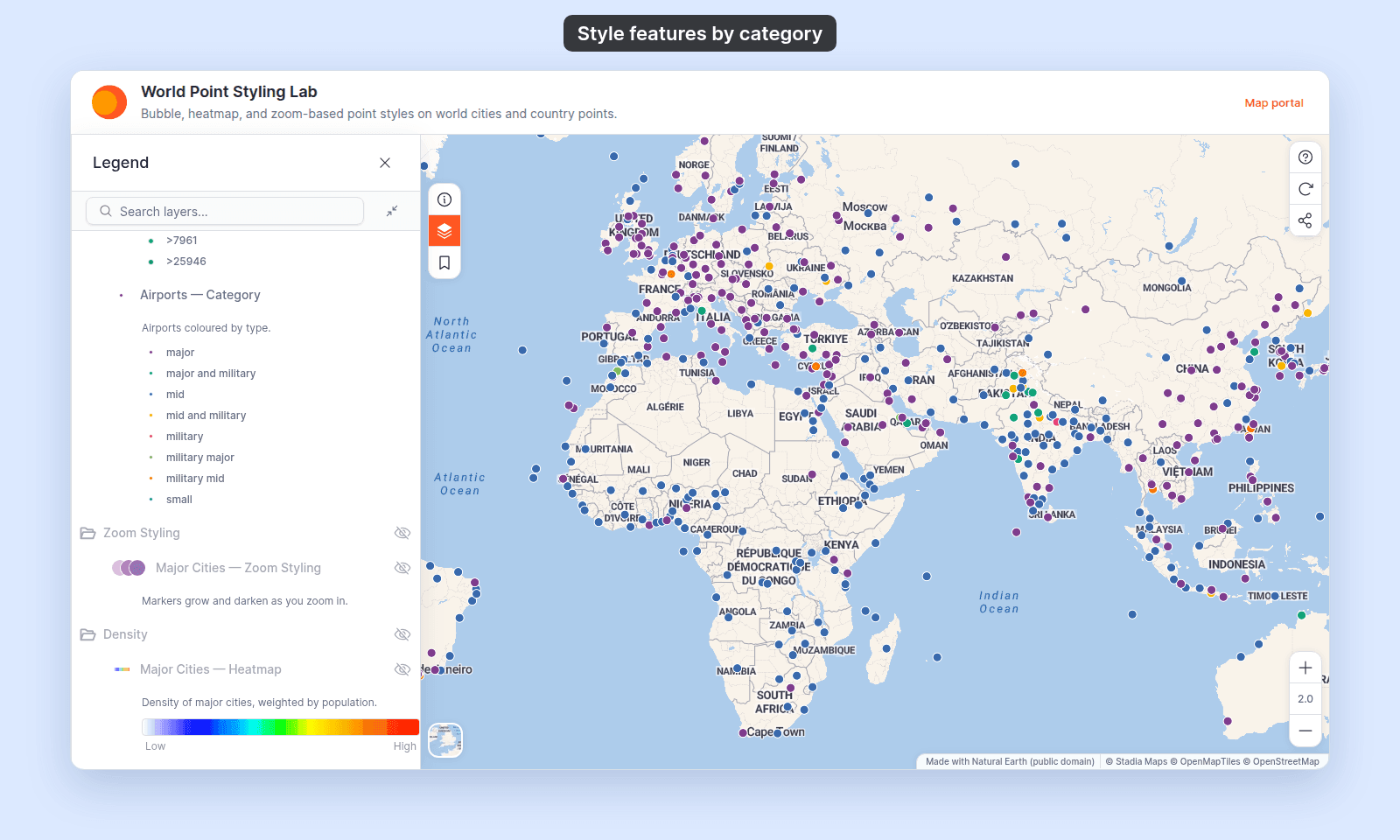
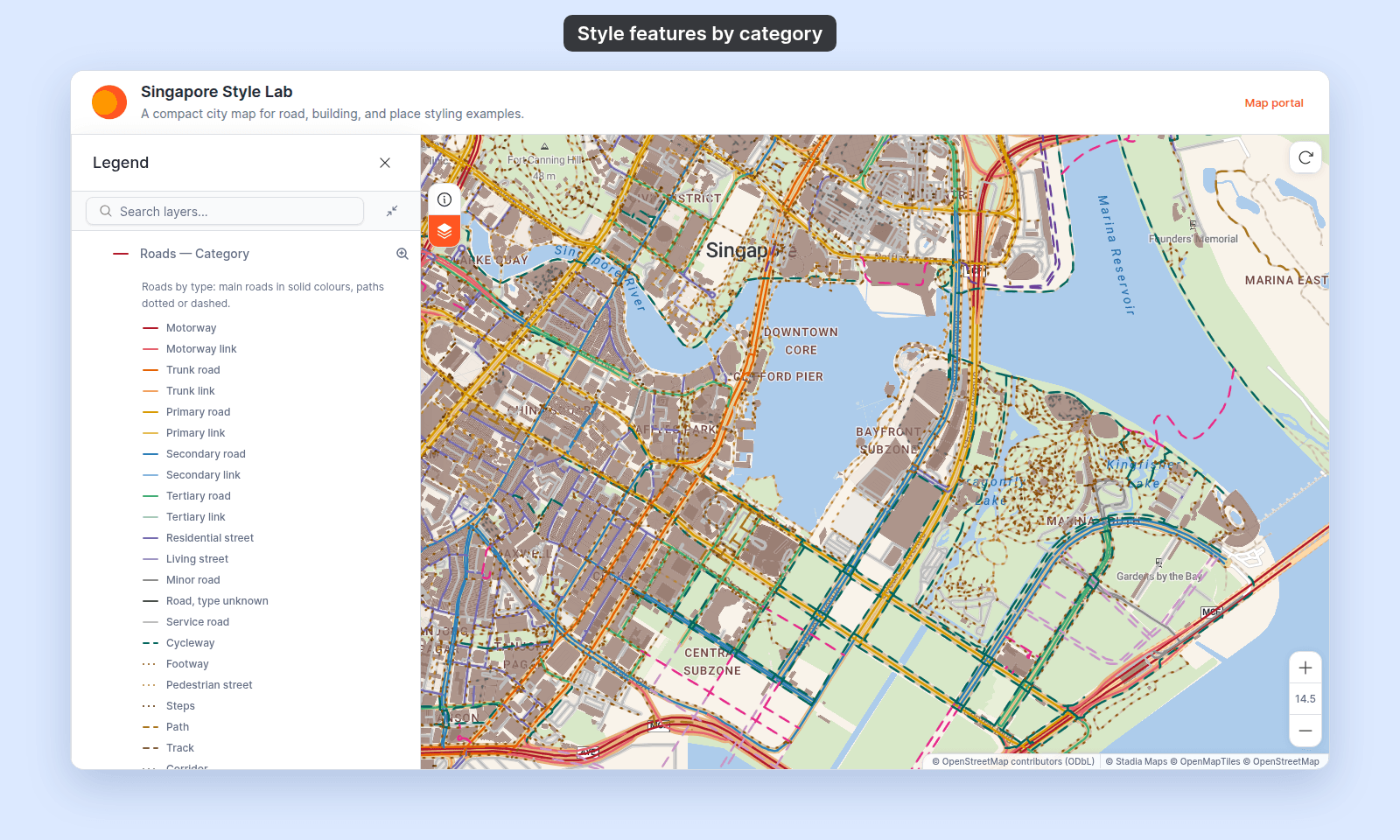
Click `Save` at the bottom of the panel. The map redraws with the chosen field and colours, and the legend shows one entry for each category.
**Point**
You cannot add or remove categories, because the list comes from the data. Hide the ones you do not want. See [How to customise category and class break symbology](/docs/styling-layers/customise-category-and-class-break-symbology) for the full flow.
## Save
Click `Save` at the bottom of the panel. The map redraws with the chosen field and colours, and the legend shows one entry for each category.
**Point**
 **Line**
 **Polygon**
 ## If the legend shows a Null category
Features with no value in the field draw as one `Null` category. Rename it in `Customise categories`, or hide it to remove those features from the map and the legend.
## If a category matches no features
A category draws only the features whose value matches it exactly, including upper and lower case. `Residential` and `residential` are two different values. A category that matches no feature stays in the list but draws nothing.
If the categories look out of date, to build them again from the data, set the colour driver to the no-field option (`Single colour` or `Uniform colour`), then pick the field again. This removes your category customisations, so note them first.
## If the field has more than 50 values
A category style lists up to 50 values, in order: numbers from lowest to highest, text from A to Z. Any value past the first 50 draws as one `Other` category.
The palette repeats long before 50 values, so many categories become hard to tell apart. To keep the map readable:
- Group the values into fewer codes in the source data, then [update the dataset](/docs/data-updates/update-a-dataset-from-a-file).
- Hide the rare values in `Customise categories`.
- For a numeric field that measures an amount, use classes instead. See [How to style features by quantity](/docs/styling-layers/style-by-quantity).
## If you switch Style as away from Categories
Picking `Continuous` or a class count in `Style as` removes every category customisation: labels, colours, hidden categories, and per-category symbols. If you switch back to `Categories`, MangoMap builds a new list. The old customisations do not come back.
Settle on `Categories` before you customise the rows.
## Troubleshooting
**The map didn't redraw after I changed the field.** Click `Save`. The map changes only when you save.
**Some features aren't drawing.** A category may be hidden. Expand `Customise categories` and check the eye icons, including on `Null` and `Other`.
**My numeric field shows classes, not one colour per value.** Numeric fields start as `5 classes`. Set `Style as` to `Categories`.
**I can't find the `Style as` dropdown.** It shows only for numeric fields. A text field is always styled as categories.
**My point layer has no `Colour markers by` dropdown.** The marker type is `Custom Icon` or `Heatmap`. Switch `Marker type` to `Circle` or `Icon`.
**Two categories have the same colour.** The layer has more categories than the palette has colours. Change one category's colour in `Customise categories`.
**The legend shows `1500`, not `1,500`.** Category labels show the raw value. Attribute number formatting does not apply to them. Type the label you want in `Customise categories`.
## Related
- [How to style features by quantity](/docs/styling-layers/style-by-quantity)
- [How to customise category and class break symbology](/docs/styling-layers/customise-category-and-class-break-symbology)
- [How to size points by a number](/docs/styling-layers/size-points-by-a-number): size points by a numeric field, independent of category colour.
- [How to style line patterns and casing](/docs/styling-layers/style-line-patterns): line patterns, cap, join, and casing.
- [How to style polygon fill patterns](/docs/styling-layers/style-polygon-fill-patterns): a fill pattern for each category.
- [Point layer style controls](/docs/styling-layers/point-style-reference)
- [Line layer style controls](/docs/styling-layers/line-style-reference)
- [Polygon layer style controls](/docs/styling-layers/polygon-style-reference)
- [Planning a thematic map in MangoMap](/docs/styling-layers/concepts-planning-a-thematic-map)
- [How layer styling works in MangoMap](/docs/styling-layers/concepts-layer-styling)
## If the legend shows a Null category
Features with no value in the field draw as one `Null` category. Rename it in `Customise categories`, or hide it to remove those features from the map and the legend.
## If a category matches no features
A category draws only the features whose value matches it exactly, including upper and lower case. `Residential` and `residential` are two different values. A category that matches no feature stays in the list but draws nothing.
If the categories look out of date, to build them again from the data, set the colour driver to the no-field option (`Single colour` or `Uniform colour`), then pick the field again. This removes your category customisations, so note them first.
## If the field has more than 50 values
A category style lists up to 50 values, in order: numbers from lowest to highest, text from A to Z. Any value past the first 50 draws as one `Other` category.
The palette repeats long before 50 values, so many categories become hard to tell apart. To keep the map readable:
- Group the values into fewer codes in the source data, then [update the dataset](/docs/data-updates/update-a-dataset-from-a-file).
- Hide the rare values in `Customise categories`.
- For a numeric field that measures an amount, use classes instead. See [How to style features by quantity](/docs/styling-layers/style-by-quantity).
## If you switch Style as away from Categories
Picking `Continuous` or a class count in `Style as` removes every category customisation: labels, colours, hidden categories, and per-category symbols. If you switch back to `Categories`, MangoMap builds a new list. The old customisations do not come back.
Settle on `Categories` before you customise the rows.
## Troubleshooting
**The map didn't redraw after I changed the field.** Click `Save`. The map changes only when you save.
**Some features aren't drawing.** A category may be hidden. Expand `Customise categories` and check the eye icons, including on `Null` and `Other`.
**My numeric field shows classes, not one colour per value.** Numeric fields start as `5 classes`. Set `Style as` to `Categories`.
**I can't find the `Style as` dropdown.** It shows only for numeric fields. A text field is always styled as categories.
**My point layer has no `Colour markers by` dropdown.** The marker type is `Custom Icon` or `Heatmap`. Switch `Marker type` to `Circle` or `Icon`.
**Two categories have the same colour.** The layer has more categories than the palette has colours. Change one category's colour in `Customise categories`.
**The legend shows `1500`, not `1,500`.** Category labels show the raw value. Attribute number formatting does not apply to them. Type the label you want in `Customise categories`.
## Related
- [How to style features by quantity](/docs/styling-layers/style-by-quantity)
- [How to customise category and class break symbology](/docs/styling-layers/customise-category-and-class-break-symbology)
- [How to size points by a number](/docs/styling-layers/size-points-by-a-number): size points by a numeric field, independent of category colour.
- [How to style line patterns and casing](/docs/styling-layers/style-line-patterns): line patterns, cap, join, and casing.
- [How to style polygon fill patterns](/docs/styling-layers/style-polygon-fill-patterns): a fill pattern for each category.
- [Point layer style controls](/docs/styling-layers/point-style-reference)
- [Line layer style controls](/docs/styling-layers/line-style-reference)
- [Polygon layer style controls](/docs/styling-layers/polygon-style-reference)
- [Planning a thematic map in MangoMap](/docs/styling-layers/concepts-planning-a-thematic-map)
- [How layer styling works in MangoMap](/docs/styling-layers/concepts-layer-styling)