---
title: "How to set line width and opacity"
description: "Make every line on a layer thicker or thinner, and more or less transparent. Works with one colour, categories, and class breaks."
sidebar:
label: "Set line width and opacity"
search:
keywords: [line thickness, stroke width, transparency, line transparency, thick lines, thin lines]
---
Line width and opacity apply to every line on the layer, whatever colours the lines get. Use a thick line for main routes and a thin line for dense networks, and lower the opacity so the basemap shows through. Open the layer's `Style` tab, drag the line width slider, and set the opacity. Where you set the opacity depends on the colour driver: the colour picker for one colour, or the `Line opacity` slider for a field.
## Before you start
- The layer must be a line layer. For polygon outlines, see [How to style polygon outlines](/docs/styling-layers/style-polygon-outlines). For marker size, see [How to set a uniform point style](/docs/styling-layers/set-a-uniform-point-style).
- You need edit access to the map.
- Line width is one value for the whole layer. You cannot make a line's width depend on a field.
## Open the Style tab
In the layer panel, select your line layer. Click the `Style` tab.
## Set the line width
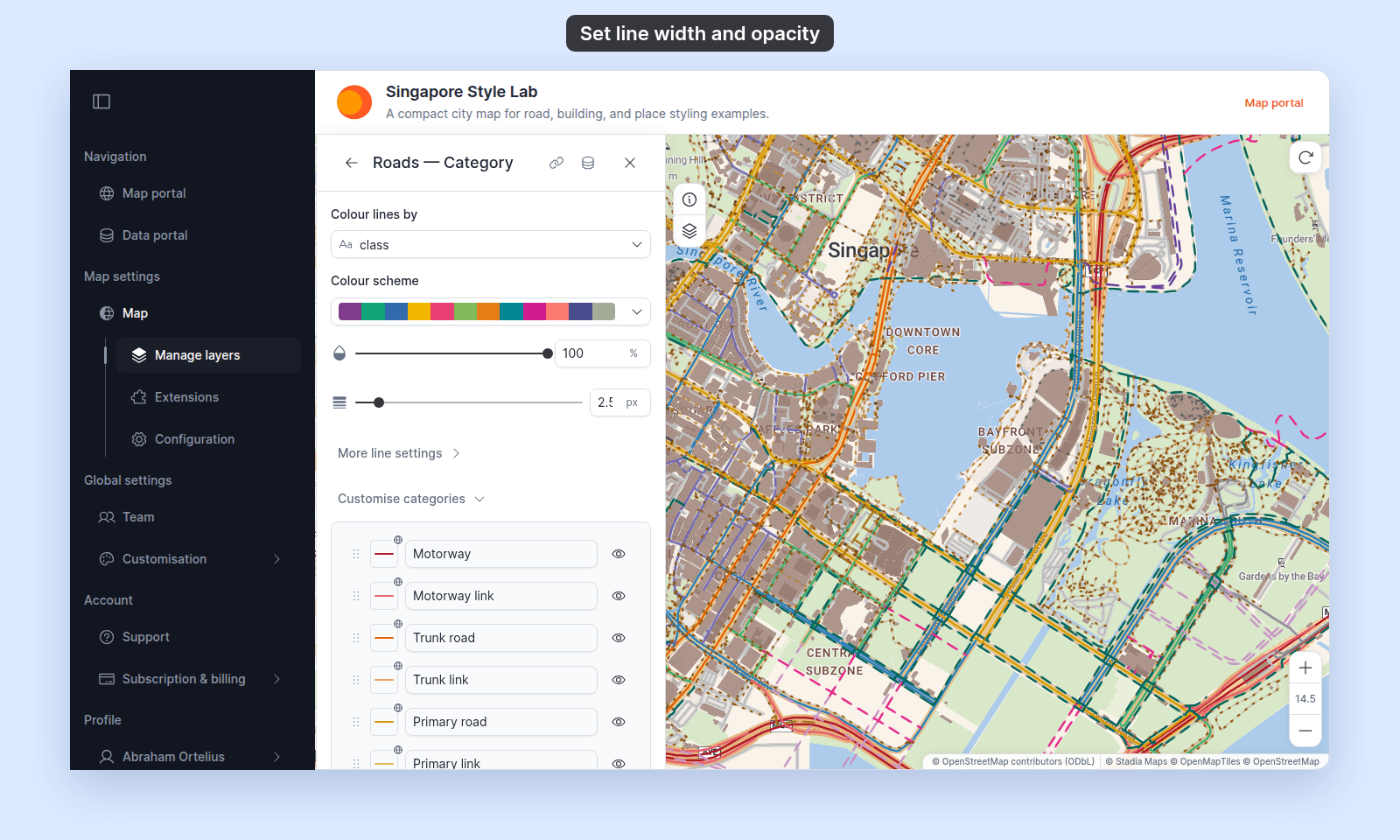
The line width slider is below the colour controls. It is in the same place with `Uniform colour` and with a field in `Colour lines by`.
Drag the slider, or type a value in the box. The range is 0.5 to 20 px, in steps of 0.5 px. A new line layer is 2 px wide.
Here both sliders are on a layer coloured by category:
 A few starting points:
- **Dense networks** (streets, streams): 0.5–1.5 px.
- **Main routes** (highways, rail): 3–6 px.
- **A single route** on a quiet basemap (a trail, a delivery run): 6–10 px.
A wide `Dashed` or `Dotted` line also gets longer dashes, bigger dots, and wider gaps, because the pattern grows with the width. See [How to style line patterns and casing](/docs/styling-layers/style-line-patterns).
## Set the opacity
How you set the opacity depends on `Colour lines by`:
| `Colour lines by` | Where to set it |
| --- | --- |
| `Uniform colour` | In the colour picker. Click the line colour swatch and lower the transparency. There is no opacity slider. |
| A field (categories or class breaks) | The opacity slider below the `Colour scheme` dropdown. The range is 0 to 100%. |
With a field, the `Line opacity` slider changes every category or class break, except the ones you gave a custom colour in `Customise categories` or `Customise Class Breaks`. Those keep their own opacity. To change one, open its swatch and set the transparency in the colour picker.
## Save
Click `Save` at the bottom of the panel.
## Verify the result
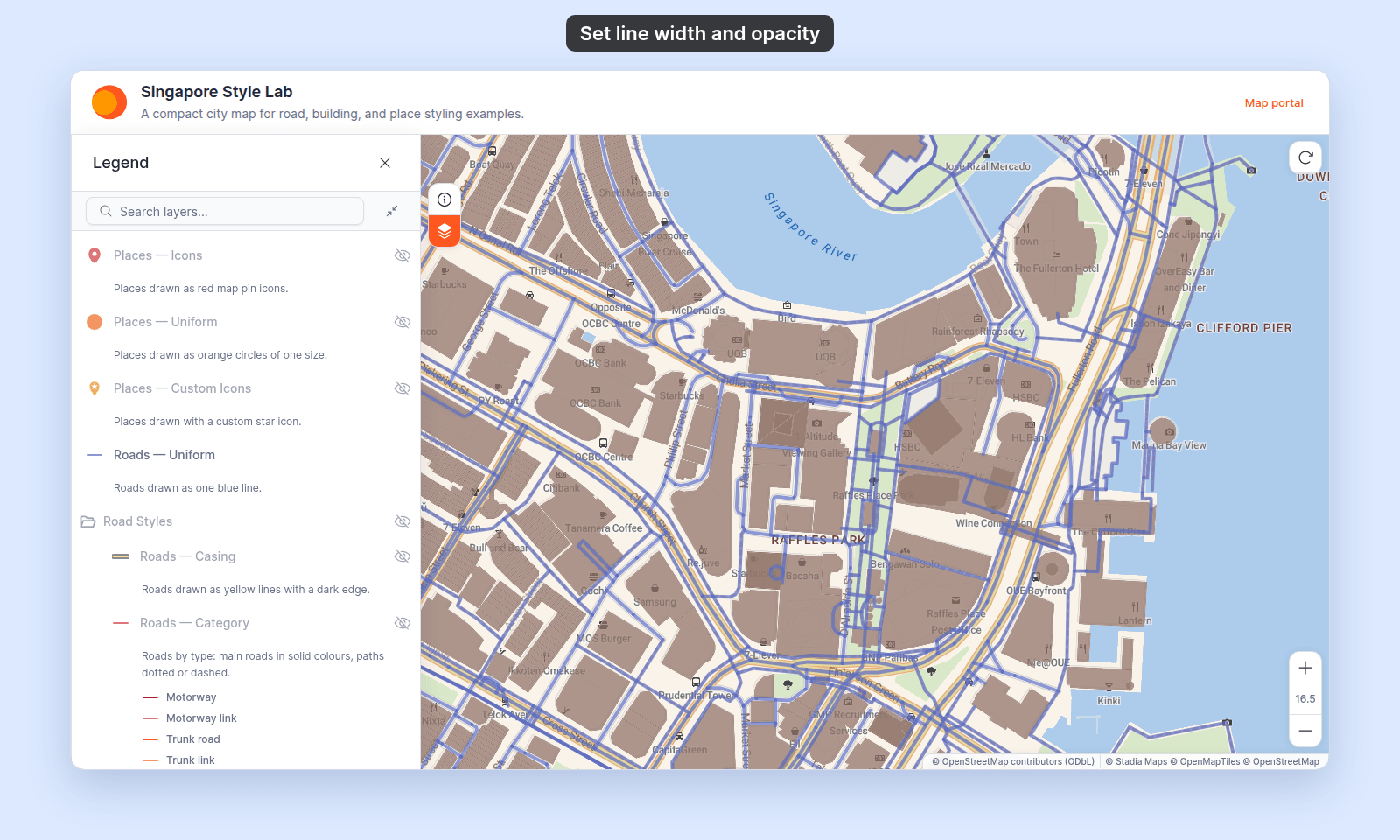
The map redraws with the new width and opacity. Zoom in and out: the width stays the same number of pixels on screen at every zoom.
A few starting points:
- **Dense networks** (streets, streams): 0.5–1.5 px.
- **Main routes** (highways, rail): 3–6 px.
- **A single route** on a quiet basemap (a trail, a delivery run): 6–10 px.
A wide `Dashed` or `Dotted` line also gets longer dashes, bigger dots, and wider gaps, because the pattern grows with the width. See [How to style line patterns and casing](/docs/styling-layers/style-line-patterns).
## Set the opacity
How you set the opacity depends on `Colour lines by`:
| `Colour lines by` | Where to set it |
| --- | --- |
| `Uniform colour` | In the colour picker. Click the line colour swatch and lower the transparency. There is no opacity slider. |
| A field (categories or class breaks) | The opacity slider below the `Colour scheme` dropdown. The range is 0 to 100%. |
With a field, the `Line opacity` slider changes every category or class break, except the ones you gave a custom colour in `Customise categories` or `Customise Class Breaks`. Those keep their own opacity. To change one, open its swatch and set the transparency in the colour picker.
## Save
Click `Save` at the bottom of the panel.
## Verify the result
The map redraws with the new width and opacity. Zoom in and out: the width stays the same number of pixels on screen at every zoom.
 ## Common problems
**Lines look darker where they cross.** With an opacity below 100%, two lines on top of each other add up. Use 100% opacity for even colour at crossings.
**Lines are too thick when zoomed out.** The width does not change with zoom. Use a thinner line, or show a thinner copy of the layer at low zoom: duplicate the layer and give each copy its own zoom range. See [How to set the zoom range a layer is visible at](/docs/styling-layers/set-layer-zoom-visibility).
## What this doesn't cover
- **Line pattern, cap, join, and casing.** See [How to style line patterns and casing](/docs/styling-layers/style-line-patterns).
- **Line colour from a field.** See [How to style features by category](/docs/styling-layers/style-by-category) and [How to style features by quantity](/docs/styling-layers/style-by-quantity).
## Related
- [How to set a uniform line style](/docs/styling-layers/set-a-uniform-line-style)
- [How to style line patterns and casing](/docs/styling-layers/style-line-patterns)
- [How to customise category and class break symbology](/docs/styling-layers/customise-category-and-class-break-symbology)
- [Line layer style controls](/docs/styling-layers/line-style-reference)
## Common problems
**Lines look darker where they cross.** With an opacity below 100%, two lines on top of each other add up. Use 100% opacity for even colour at crossings.
**Lines are too thick when zoomed out.** The width does not change with zoom. Use a thinner line, or show a thinner copy of the layer at low zoom: duplicate the layer and give each copy its own zoom range. See [How to set the zoom range a layer is visible at](/docs/styling-layers/set-layer-zoom-visibility).
## What this doesn't cover
- **Line pattern, cap, join, and casing.** See [How to style line patterns and casing](/docs/styling-layers/style-line-patterns).
- **Line colour from a field.** See [How to style features by category](/docs/styling-layers/style-by-category) and [How to style features by quantity](/docs/styling-layers/style-by-quantity).
## Related
- [How to set a uniform line style](/docs/styling-layers/set-a-uniform-line-style)
- [How to style line patterns and casing](/docs/styling-layers/style-line-patterns)
- [How to customise category and class break symbology](/docs/styling-layers/customise-category-and-class-break-symbology)
- [Line layer style controls](/docs/styling-layers/line-style-reference)