---
title: "How to set a uniform point style"
description: "Draw every point on a layer with the same marker, colour, outline, and size. Pick a marker type, set its controls, and click Save."
sidebar:
label: "Set a uniform point style"
---
A uniform point style draws every feature on a point layer the same way, regardless of attributes. Open the layer's `Style` tab, choose a marker type, configure the controls available for that marker, and click `Save`.
**[See it on an example map](https://mangomap-staging.com/examples-staging/maps/zlnhacsa/singapore-style-lab)**
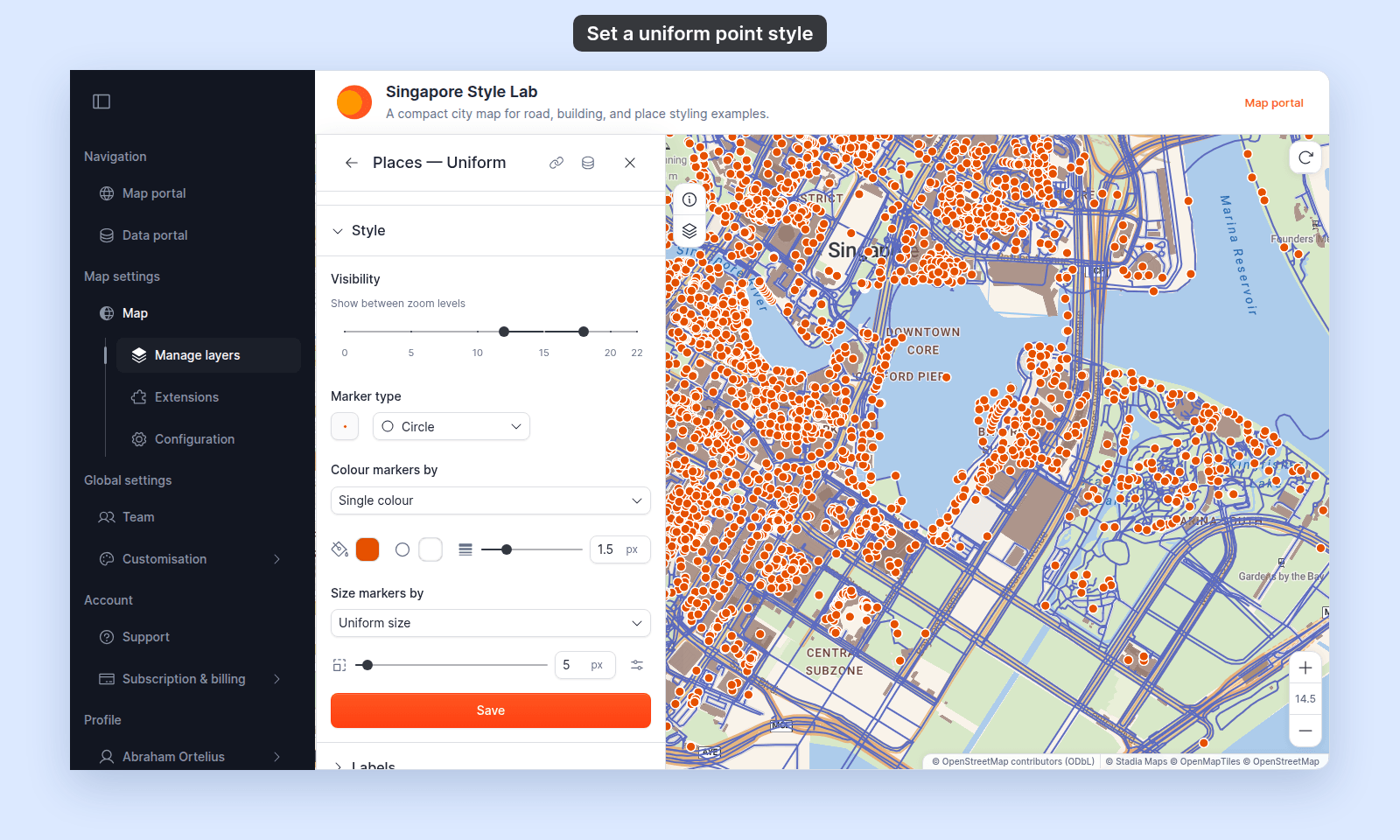
Open the Singapore Style Lab. In the legend, turn on `Places — Uniform`. Turn off `Places — Icons`. Every place is an orange circle of one size.
## Before you start
- The layer must be a point layer. For lines and polygons, see [How to set a uniform style on a line layer](/docs/styling-layers/set-a-uniform-line-style) and [How to set a uniform style on a polygon layer](/docs/styling-layers/set-a-uniform-polygon-style).
- You need edit access to the map.
- Decide on a marker type:
- **`Circle`** — a filled circle. Supports fill colour, outline (stroke), and size.
- **`Icon`** — a built-in pin / symbol picked from the icon library. Supports fill colour, size, and rotation.
- **`Custom Icon`** — an uploaded image you select via the `Select icon` button. See [How to upload a custom point icon](/docs/styling-layers/upload-a-custom-point-icon).
- **`Heatmap`** — a density gradient instead of individual points. Not a uniform style; see [How to make a heatmap from a point layer](/docs/styling-layers/make-a-heatmap).
## Open the Style tab
In the layer panel, select your point layer. Click the `Style` tab.
## Pick the marker type
`Marker type` is the first dropdown in the Style tab. Pick `Circle`, `Icon`, or `Custom Icon`. Here it is on `Circle`, with the controls for a single colour below it:
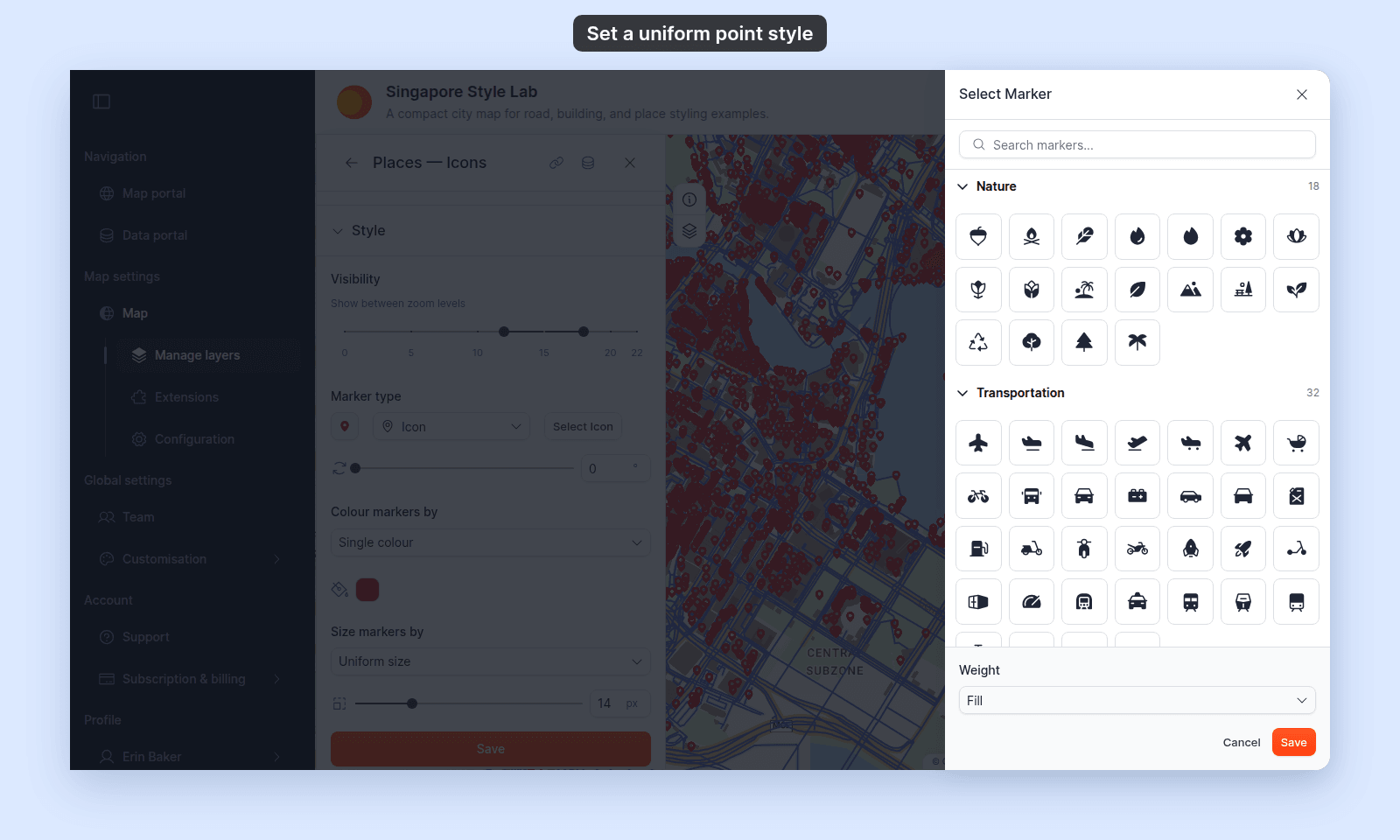
 For `Icon`, click `Select Icon` next to the dropdown. The `Select Marker` drawer opens. Search or browse by category, pick an icon, and click `Save` in the drawer.
 For `Custom Icon`, a `Select icon` button appears in the same place — click it to open the custom-icon drawer (with upload, replace, and delete affordances). See [How to upload a custom point icon](/docs/styling-layers/upload-a-custom-point-icon).
The marker preview to the left of the dropdown updates when you change a value.
## Leave the colour driver on Single colour
The next control is `Colour markers by`. Default is `Single colour` — leave it there for a uniform style.
Picking a field instead turns the layer into a category- or quantity-driven style — see [How to style features by category](/docs/styling-layers/style-by-category) or [How to style features by quantity](/docs/styling-layers/style-by-quantity). On `Circle` markers, `Colour by zoom` changes the colour as viewers zoom — see [How to change marker colour by zoom level](/docs/styling-layers/colour-markers-by-zoom).
## Pick a fill colour
Click the `Fill colour` swatch. Pick a hex value or a preset chip. The colour applies to every feature on the layer.
For `Circle`, the colour fills the circle. For `Icon`, it tints the built-in glyph. An uploaded `Custom Icon` uses the colours in the image itself.
## Set opacity
For `Circle` and `Icon`, set the transparency in the `Fill colour` picker. These markers have no separate opacity slider for a single colour. Use lower opacity when markers overlap.
For `Custom Icon`, the picker is hidden. Use the `Opacity` slider or number box below `Marker type` instead, from 0 to 100%. Switching to `Custom Icon` sets the opacity to 100%. If you switch back to `Circle` or `Icon`, set the transparency again.
## (Circle only) Configure the outline
When `Marker type` is `Circle`, an `Outline colour` picker and an `Outline width` slider (0–6 px) appear next to `Fill colour`. A thin dark outline helps light-coloured markers stand out on a bright basemap. Set the width to `0` for a pure-fill look.
The outline section is hidden for `Icon` and `Custom Icon` marker types — those don't have a separate stroke.
## (Icon only) Set rotation
For `Icon` marker type, a degree input lets you rotate the icon (range 0–360°, step 5°). Useful when the icon has a directional component (an arrow, a compass marker, a wind indicator). Rotation isn't available for `Custom Icon` — the uploaded image is rendered as-is.
## Set the size
For `Circle` and `Icon`, the size slider controls the marker diameter from 2–50 px. Leave `Size markers by` on `Uniform size` to use one size for every marker. You can instead choose a numeric field to make a proportional-symbol map; see [How to size points by a number](/docs/styling-layers/size-points-by-a-number).
For `Circle` markers, the `Vary size by zoom level` button next to the slider makes markers grow or shrink as viewers zoom. See [How to vary marker size by zoom level](/docs/styling-layers/vary-marker-size-by-zoom).
Size controls are hidden for `Custom Icon`. To change its global size or size-by field, configure the setting while `Circle` or `Icon` is selected, then switch back to `Custom Icon`. The setting remains applied.
## Save
Click `Save` at the bottom of the panel. The map redraws with the new style.
If you switch tabs or close the panel before clicking `Save`, your changes are discarded. See [Troubleshooting: my style change isn't appearing on the map](/docs/styling-layers/troubleshoot-style-not-applying) if the map doesn't update.
## Related
- [Point layer style controls](/docs/styling-layers/point-style-reference) — the canonical list of every point control by marker type.
- [How to upload a custom point icon](/docs/styling-layers/upload-a-custom-point-icon) — for the `Custom Icon` marker type.
- [How to make a heatmap from a point layer](/docs/styling-layers/make-a-heatmap) — for the `Heatmap` marker type.
- [How to size points by a number](/docs/styling-layers/size-points-by-a-number) — size markers by a numeric field (proportional / bubble map).
- [How to vary marker size by zoom level](/docs/styling-layers/vary-marker-size-by-zoom) — circle markers that grow or shrink as viewers zoom.
- [How to change marker colour by zoom level](/docs/styling-layers/colour-markers-by-zoom) — circle markers that change colour as viewers zoom.
- [How to style features by category](/docs/styling-layers/style-by-category) — for one colour per text value or numeric code.
- [How to style features by quantity](/docs/styling-layers/style-by-quantity) — for graduated colour by numeric field.
- [How to set the zoom range a layer is visible at](/docs/styling-layers/set-layer-zoom-visibility)
- [How layer styling works in MangoMap](/docs/styling-layers/concepts-layer-styling)
For `Custom Icon`, a `Select icon` button appears in the same place — click it to open the custom-icon drawer (with upload, replace, and delete affordances). See [How to upload a custom point icon](/docs/styling-layers/upload-a-custom-point-icon).
The marker preview to the left of the dropdown updates when you change a value.
## Leave the colour driver on Single colour
The next control is `Colour markers by`. Default is `Single colour` — leave it there for a uniform style.
Picking a field instead turns the layer into a category- or quantity-driven style — see [How to style features by category](/docs/styling-layers/style-by-category) or [How to style features by quantity](/docs/styling-layers/style-by-quantity). On `Circle` markers, `Colour by zoom` changes the colour as viewers zoom — see [How to change marker colour by zoom level](/docs/styling-layers/colour-markers-by-zoom).
## Pick a fill colour
Click the `Fill colour` swatch. Pick a hex value or a preset chip. The colour applies to every feature on the layer.
For `Circle`, the colour fills the circle. For `Icon`, it tints the built-in glyph. An uploaded `Custom Icon` uses the colours in the image itself.
## Set opacity
For `Circle` and `Icon`, set the transparency in the `Fill colour` picker. These markers have no separate opacity slider for a single colour. Use lower opacity when markers overlap.
For `Custom Icon`, the picker is hidden. Use the `Opacity` slider or number box below `Marker type` instead, from 0 to 100%. Switching to `Custom Icon` sets the opacity to 100%. If you switch back to `Circle` or `Icon`, set the transparency again.
## (Circle only) Configure the outline
When `Marker type` is `Circle`, an `Outline colour` picker and an `Outline width` slider (0–6 px) appear next to `Fill colour`. A thin dark outline helps light-coloured markers stand out on a bright basemap. Set the width to `0` for a pure-fill look.
The outline section is hidden for `Icon` and `Custom Icon` marker types — those don't have a separate stroke.
## (Icon only) Set rotation
For `Icon` marker type, a degree input lets you rotate the icon (range 0–360°, step 5°). Useful when the icon has a directional component (an arrow, a compass marker, a wind indicator). Rotation isn't available for `Custom Icon` — the uploaded image is rendered as-is.
## Set the size
For `Circle` and `Icon`, the size slider controls the marker diameter from 2–50 px. Leave `Size markers by` on `Uniform size` to use one size for every marker. You can instead choose a numeric field to make a proportional-symbol map; see [How to size points by a number](/docs/styling-layers/size-points-by-a-number).
For `Circle` markers, the `Vary size by zoom level` button next to the slider makes markers grow or shrink as viewers zoom. See [How to vary marker size by zoom level](/docs/styling-layers/vary-marker-size-by-zoom).
Size controls are hidden for `Custom Icon`. To change its global size or size-by field, configure the setting while `Circle` or `Icon` is selected, then switch back to `Custom Icon`. The setting remains applied.
## Save
Click `Save` at the bottom of the panel. The map redraws with the new style.
If you switch tabs or close the panel before clicking `Save`, your changes are discarded. See [Troubleshooting: my style change isn't appearing on the map](/docs/styling-layers/troubleshoot-style-not-applying) if the map doesn't update.
## Related
- [Point layer style controls](/docs/styling-layers/point-style-reference) — the canonical list of every point control by marker type.
- [How to upload a custom point icon](/docs/styling-layers/upload-a-custom-point-icon) — for the `Custom Icon` marker type.
- [How to make a heatmap from a point layer](/docs/styling-layers/make-a-heatmap) — for the `Heatmap` marker type.
- [How to size points by a number](/docs/styling-layers/size-points-by-a-number) — size markers by a numeric field (proportional / bubble map).
- [How to vary marker size by zoom level](/docs/styling-layers/vary-marker-size-by-zoom) — circle markers that grow or shrink as viewers zoom.
- [How to change marker colour by zoom level](/docs/styling-layers/colour-markers-by-zoom) — circle markers that change colour as viewers zoom.
- [How to style features by category](/docs/styling-layers/style-by-category) — for one colour per text value or numeric code.
- [How to style features by quantity](/docs/styling-layers/style-by-quantity) — for graduated colour by numeric field.
- [How to set the zoom range a layer is visible at](/docs/styling-layers/set-layer-zoom-visibility)
- [How layer styling works in MangoMap](/docs/styling-layers/concepts-layer-styling)