---
title: "Polygon layer style controls"
description: "Look up every control on a polygon layer's Style tab, with its choices, defaults, and ranges: fill colour, fill pattern, opacity, and outline."
sidebar:
label: "Polygon style controls"
---
The `Style` tab for a polygon layer has a `Fill polygons by` dropdown (`Uniform colour` plus any field), fill colour and fill pattern controls, and stroke controls. This page lists every visible control with its defaults and value ranges.
For the conceptual overview, see [How layer styling works in MangoMap](/docs/styling-layers/concepts-layer-styling).
## Fill polygons by
| | |
| --- | --- |
| Default | `Uniform colour` |
| Choices | `Uniform colour`, plus any text or numeric field on the dataset |
| Where | First control in the `Style` tab |
`Uniform colour` paints every polygon the same. A text field gives one colour per category. A numeric field gives classes or a gradient; its `Style as` dropdown can switch it to one colour per value.
## Controls when colour driver = Uniform colour
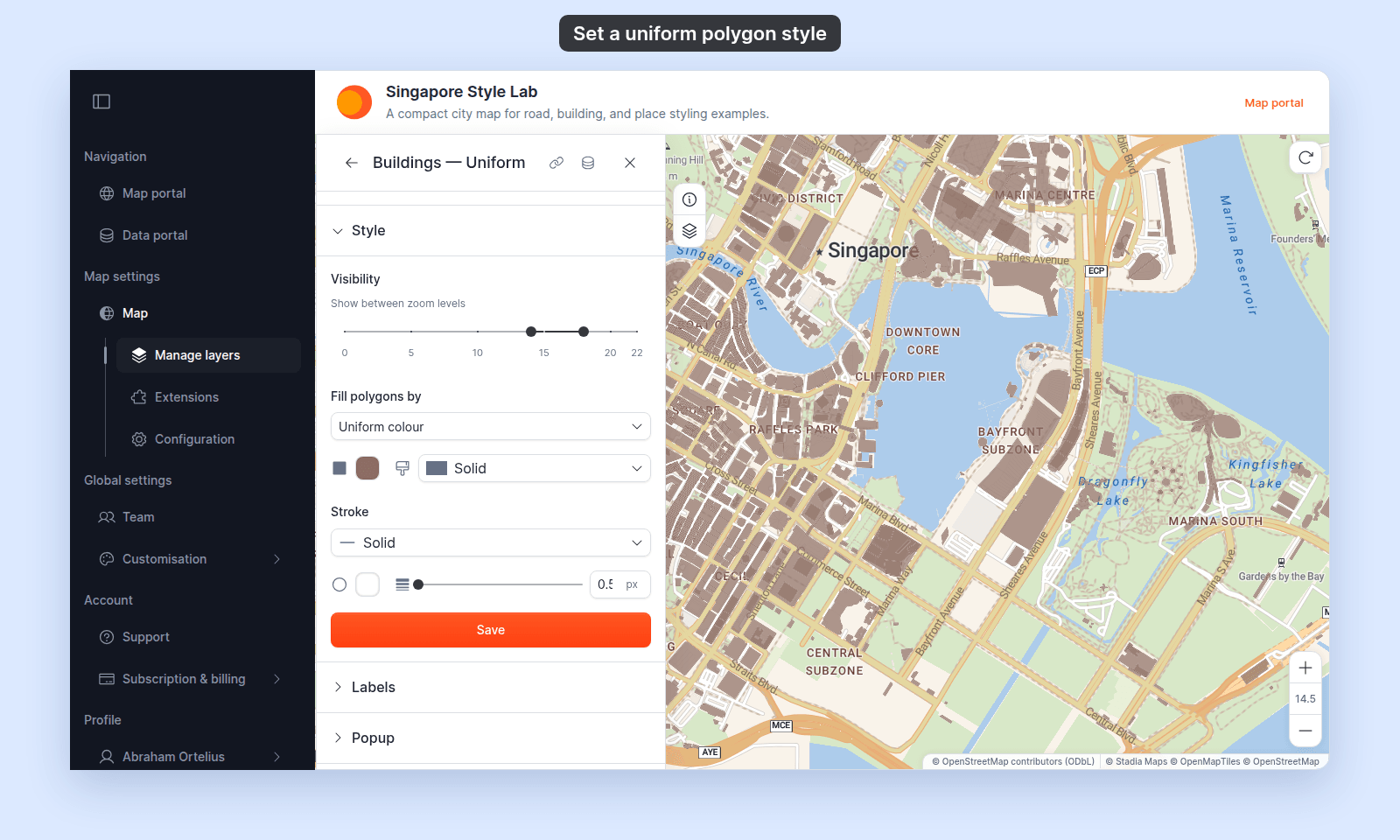 ### Fill colour
Default: `#2196F3` (blue) with 50% alpha. Supports alpha — Uniform mode has no separate opacity slider; the colour picker's transparency channel is how you set fill transparency.
### Fill pattern
| | |
| --- | --- |
| Default | `Solid` |
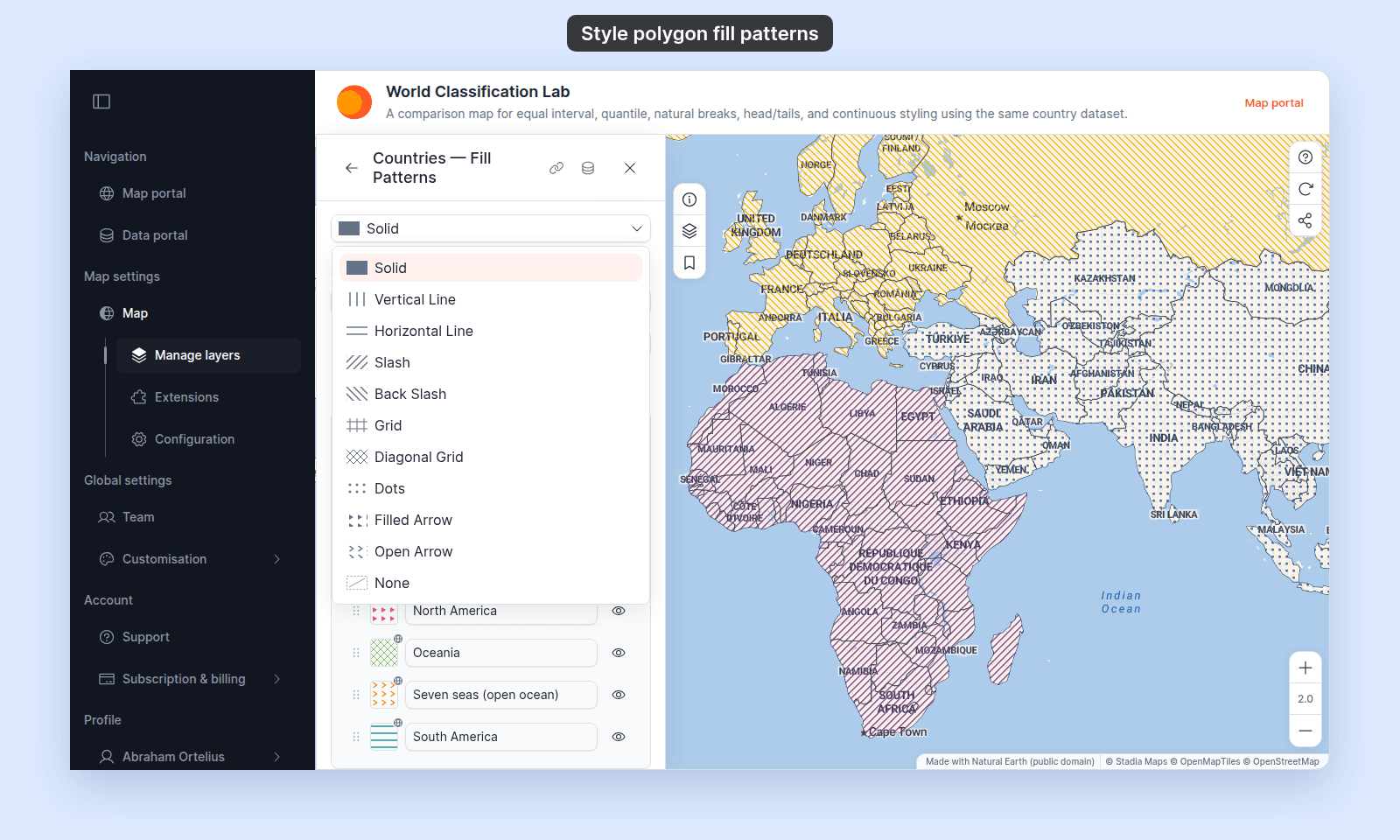
| Choices | `Solid`, `Vertical Line`, `Horizontal Line`, `Slash`, `Back Slash`, `Grid`, `Diagonal Grid`, `Dots`, `Filled Arrow`, `Open Arrow`, `None` |
| Where | Next to the fill colour, after a brush icon with the tooltip `Fill pattern style` |
The pattern draws in the fill colour, at a fixed size on the screen. `None` draws no fill, so only the outline shows. With `None` and no stroke, the polygons don't show. In the legend and the printed legend, a `None` swatch has no fill.
### Fill colour
Default: `#2196F3` (blue) with 50% alpha. Supports alpha — Uniform mode has no separate opacity slider; the colour picker's transparency channel is how you set fill transparency.
### Fill pattern
| | |
| --- | --- |
| Default | `Solid` |
| Choices | `Solid`, `Vertical Line`, `Horizontal Line`, `Slash`, `Back Slash`, `Grid`, `Diagonal Grid`, `Dots`, `Filled Arrow`, `Open Arrow`, `None` |
| Where | Next to the fill colour, after a brush icon with the tooltip `Fill pattern style` |
The pattern draws in the fill colour, at a fixed size on the screen. `None` draws no fill, so only the outline shows. With `None` and no stroke, the polygons don't show. In the legend and the printed legend, a `None` swatch has no fill.
 ### Stroke
Stroke (outline) controls:
- `Stroke` — the stroke-style dropdown. Options: `None`, `Solid`, `Dashed`, `Dotted`. Default: `None` (no outline drawn).
- `Stroke colour` — shown when stroke style is not `None`. Default: `#1976D2` (darker blue).
- `Stroke width` — shown when stroke style is not `None`. Slider in pixels: range 0.5–10, step 0.5, default 1.
Picking `None` from the `Stroke` dropdown hides the outline entirely.
## Controls when colour driver = a field styled as categories
A text field always uses these controls. A numeric field uses them when `Style as` is `Categories`.
### Style as
Numeric fields only. Shown at the top of the category controls, set to `Categories`. Pick another choice to go back to classes or `Continuous`; the choices are listed in the numeric-field section below.
### Colour scheme
Palette selector applied across unique values, in list order. The picker lists qualitative palettes suited to categories. Colours repeat when there are more categories than palette colours.
### Fill pattern
| | |
| --- | --- |
| Default | `Solid` |
| Choices | `Solid`, `Vertical Line`, `Horizontal Line`, `Slash`, `Back Slash`, `Grid`, `Diagonal Grid`, `Dots`, `Filled Arrow`, `Open Arrow`, `None` |
| Where | Below the colour scheme controls |
The fill texture rendered in the fill colour. Changing it sets every category to the new pattern, including categories with their own pattern.
### Fill opacity
Slider, 0–100%.
### Stroke style + colour + width
Same as Uniform mode — apply globally to every polygon.
### Customise categories
Per-category fill colour, label, visibility, drag-to-reorder, and fill-pattern override.
### Category list
| | |
| --- | --- |
| Values | One category per distinct value. Numbers are not rounded or grouped. |
| Order | Numbers from lowest to highest; text from A to Z |
| Limit | 50 values. Values past the first 50 draw as one `Other` category. |
| Empty values | Features with no value draw as one `Null` category |
| Add or remove | Not available. Hide a category instead. |
## Controls when colour driver = a numeric field styled as classes or Continuous
### Style as
| | |
| --- | --- |
| Default | `5 classes` |
| Choices | `Continuous`, `Categories`, `3 classes`, `4 classes`, `5 classes`, `6 classes`, `7 classes`, `8 classes`, `9 classes` |
| Where | Numeric fields only. Beside the classification method dropdown (no label; tooltip "How to divide values into classes") when a class count is picked. |
`Continuous` draws a smooth gradient. A class count draws one colour per class. `Categories` switches to the category controls above. Switching between `Categories` and the other choices removes the customisations of the mode you leave.
### Classification method
| | |
| --- | --- |
| Choices | `Equal Interval`, `Quantile`, `Natural Breaks (Jenks)`, `Head/Tail Breaks` |
| Where | Shown only in discrete mode |
See [Classification methods for by-quantity styling](/docs/styling-layers/classification-methods-reference).
### Colour scheme + Reverse colour ramp
Palette selector with a reverse-ramp icon button. The picker lists sequential and diverging palettes suited to numeric values.
### Fill pattern, Fill opacity, Stroke
Same controls as category style.
### Customise Class Breaks
Per-break colour, range, label, visibility, and fill-pattern override.
## Save button
| | |
| --- | --- |
| Label | `Save` |
| Where | Bottom of the `Style` tab |
The Style tab doesn't auto-save. Your changes apply only when you click `Save`. Closing the panel or switching tabs discards every unsaved change. See [Troubleshooting: my style change isn't appearing on the map](/docs/styling-layers/troubleshoot-style-not-applying).
## Related
- [How to set a uniform style on a polygon layer](/docs/styling-layers/set-a-uniform-polygon-style)
- [How to style features by category](/docs/styling-layers/style-by-category)
- [How to style features by quantity](/docs/styling-layers/style-by-quantity)
- [How to style polygon outlines](/docs/styling-layers/style-polygon-outlines)
- [How to style polygon fill patterns](/docs/styling-layers/style-polygon-fill-patterns)
- [Category and class break symbology reference](/docs/styling-layers/category-and-class-break-symbology-reference)
- [Classification methods for by-quantity styling](/docs/styling-layers/classification-methods-reference)
- [How layer styling works in MangoMap](/docs/styling-layers/concepts-layer-styling)
### Stroke
Stroke (outline) controls:
- `Stroke` — the stroke-style dropdown. Options: `None`, `Solid`, `Dashed`, `Dotted`. Default: `None` (no outline drawn).
- `Stroke colour` — shown when stroke style is not `None`. Default: `#1976D2` (darker blue).
- `Stroke width` — shown when stroke style is not `None`. Slider in pixels: range 0.5–10, step 0.5, default 1.
Picking `None` from the `Stroke` dropdown hides the outline entirely.
## Controls when colour driver = a field styled as categories
A text field always uses these controls. A numeric field uses them when `Style as` is `Categories`.
### Style as
Numeric fields only. Shown at the top of the category controls, set to `Categories`. Pick another choice to go back to classes or `Continuous`; the choices are listed in the numeric-field section below.
### Colour scheme
Palette selector applied across unique values, in list order. The picker lists qualitative palettes suited to categories. Colours repeat when there are more categories than palette colours.
### Fill pattern
| | |
| --- | --- |
| Default | `Solid` |
| Choices | `Solid`, `Vertical Line`, `Horizontal Line`, `Slash`, `Back Slash`, `Grid`, `Diagonal Grid`, `Dots`, `Filled Arrow`, `Open Arrow`, `None` |
| Where | Below the colour scheme controls |
The fill texture rendered in the fill colour. Changing it sets every category to the new pattern, including categories with their own pattern.
### Fill opacity
Slider, 0–100%.
### Stroke style + colour + width
Same as Uniform mode — apply globally to every polygon.
### Customise categories
Per-category fill colour, label, visibility, drag-to-reorder, and fill-pattern override.
### Category list
| | |
| --- | --- |
| Values | One category per distinct value. Numbers are not rounded or grouped. |
| Order | Numbers from lowest to highest; text from A to Z |
| Limit | 50 values. Values past the first 50 draw as one `Other` category. |
| Empty values | Features with no value draw as one `Null` category |
| Add or remove | Not available. Hide a category instead. |
## Controls when colour driver = a numeric field styled as classes or Continuous
### Style as
| | |
| --- | --- |
| Default | `5 classes` |
| Choices | `Continuous`, `Categories`, `3 classes`, `4 classes`, `5 classes`, `6 classes`, `7 classes`, `8 classes`, `9 classes` |
| Where | Numeric fields only. Beside the classification method dropdown (no label; tooltip "How to divide values into classes") when a class count is picked. |
`Continuous` draws a smooth gradient. A class count draws one colour per class. `Categories` switches to the category controls above. Switching between `Categories` and the other choices removes the customisations of the mode you leave.
### Classification method
| | |
| --- | --- |
| Choices | `Equal Interval`, `Quantile`, `Natural Breaks (Jenks)`, `Head/Tail Breaks` |
| Where | Shown only in discrete mode |
See [Classification methods for by-quantity styling](/docs/styling-layers/classification-methods-reference).
### Colour scheme + Reverse colour ramp
Palette selector with a reverse-ramp icon button. The picker lists sequential and diverging palettes suited to numeric values.
### Fill pattern, Fill opacity, Stroke
Same controls as category style.
### Customise Class Breaks
Per-break colour, range, label, visibility, and fill-pattern override.
## Save button
| | |
| --- | --- |
| Label | `Save` |
| Where | Bottom of the `Style` tab |
The Style tab doesn't auto-save. Your changes apply only when you click `Save`. Closing the panel or switching tabs discards every unsaved change. See [Troubleshooting: my style change isn't appearing on the map](/docs/styling-layers/troubleshoot-style-not-applying).
## Related
- [How to set a uniform style on a polygon layer](/docs/styling-layers/set-a-uniform-polygon-style)
- [How to style features by category](/docs/styling-layers/style-by-category)
- [How to style features by quantity](/docs/styling-layers/style-by-quantity)
- [How to style polygon outlines](/docs/styling-layers/style-polygon-outlines)
- [How to style polygon fill patterns](/docs/styling-layers/style-polygon-fill-patterns)
- [Category and class break symbology reference](/docs/styling-layers/category-and-class-break-symbology-reference)
- [Classification methods for by-quantity styling](/docs/styling-layers/classification-methods-reference)
- [How layer styling works in MangoMap](/docs/styling-layers/concepts-layer-styling)