---
title: "Label settings"
description: "Every setting in a layer's Labels tab: the field to show, text colour and size, halo, anchor, and overlap, with choices and defaults."
---
The `Labels` tab in a vector layer's settings controls the text shown on each feature. Every change saves at once; the tab has no `Save` button.
For the task, see [How to show labels on map features](/docs/styling-layers/show-feature-labels).
## Source attribute
| | |
| --- | --- |
| Default | `No labels` |
| Choices | `No labels`, plus every field on the dataset |
| Where | Top of the `Labels` tab |
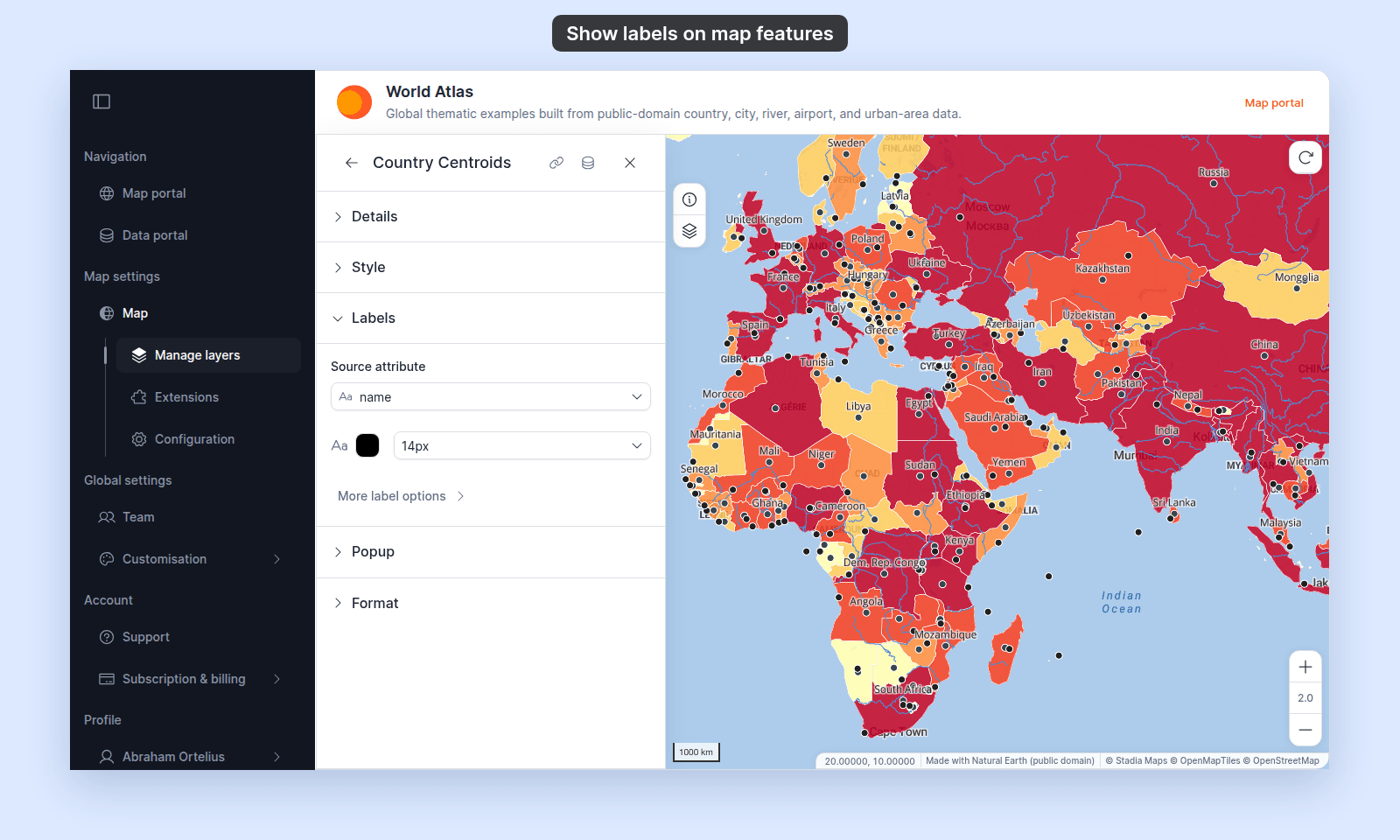
Sets the field whose value each feature shows. The list shows the dataset's field names, not the aliases from the `Format` tab. The other label settings appear only after you pick a field.
Picking `No labels` removes the labels from the map.
## Text colour
| | |
| --- | --- |
| Default | `#000000` (black) |
| Where | Swatch at the start of the row below `Source attribute`. Tooltip: `Label text colour`. |
The colour of the label text. The picker supports transparency.
## Font size
| | |
| --- | --- |
| Choices | `10px`, `12px`, `14px`, `16px`, `18px`, `20px`, `24px`, `28px`, `32px` |
| Where | Dropdown next to the text colour swatch |
The size of the label text.
## More label options
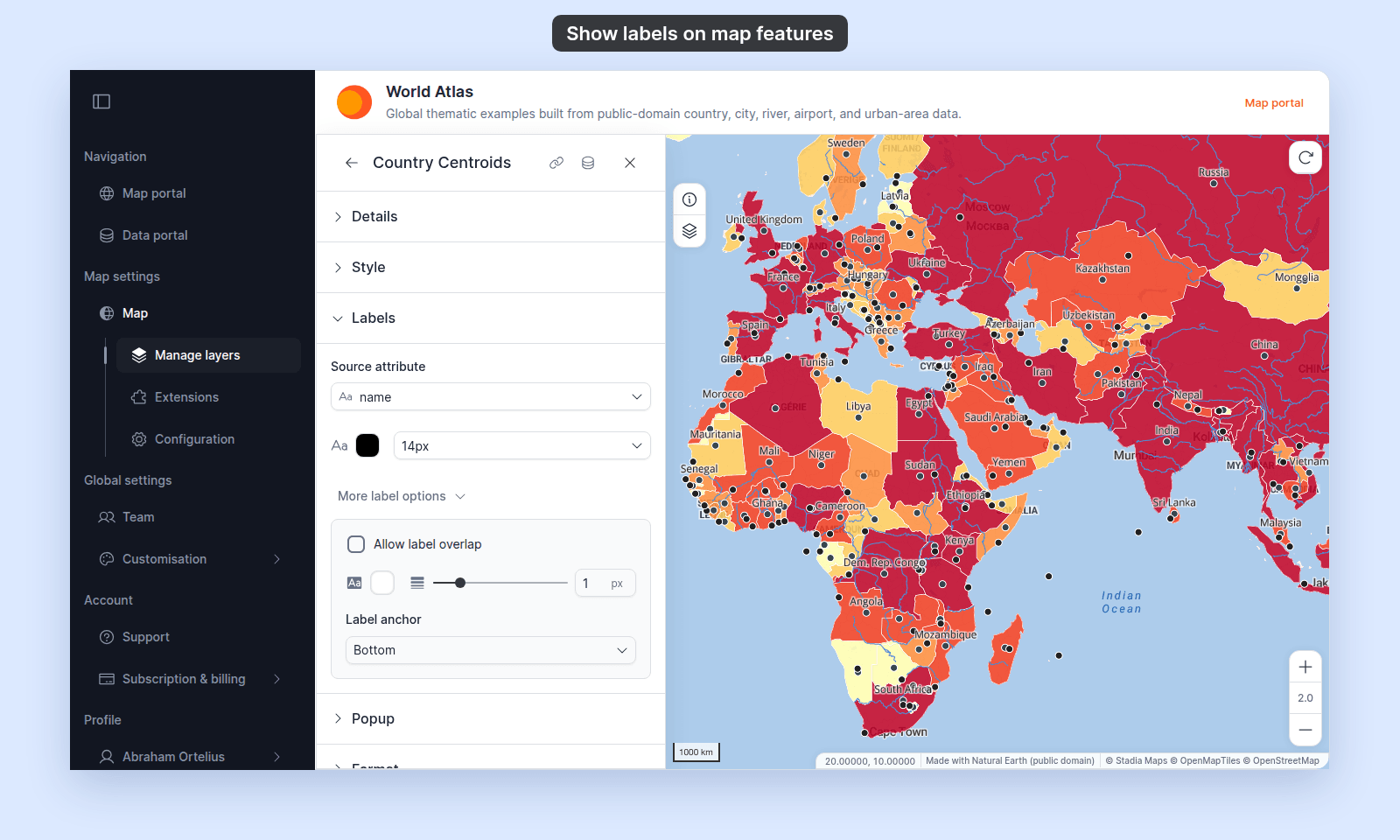
A collapsed group below the text settings. Click `More label options` to show it. It holds the four settings below.
 ### Allow label overlap
| | |
| --- | --- |
| Default | Off |
| Choices | On, Off |
While off, MangoMap hides labels that would collide with other labels. Which labels show changes as the map zooms. While on, every label draws, even where labels overlap.
### Halo colour
| | |
| --- | --- |
| Default | `#FFFFFF` (white) |
| Where | Swatch at the start of the halo row. Tooltip: `Label halo colour`. |
The colour of the outline drawn around the label text. The picker supports transparency.
### Halo width
| | |
| --- | --- |
| Default | `1` |
| Range | 0–5, step 1 |
| Unit | Pixels |
| Where | Slider and number box next to the halo colour. Tooltip: `Halo width`. |
The width of the outline around the text. `0` removes the halo.
### Label anchor
| | |
| --- | --- |
| Default | `Bottom` |
| Choices | `Center`, `Left`, `Right`, `Top`, `Bottom`, `Top Left`, `Top Right`, `Bottom Left`, `Bottom Right` |
| Applies to | Point and polygon layers |
The part of the label that sits on the feature's label point. With `Bottom`, the label sits above that point. With `Top`, it sits below. With `Center`, it sits on the point.
- **Point layers** — the label point is the point itself.
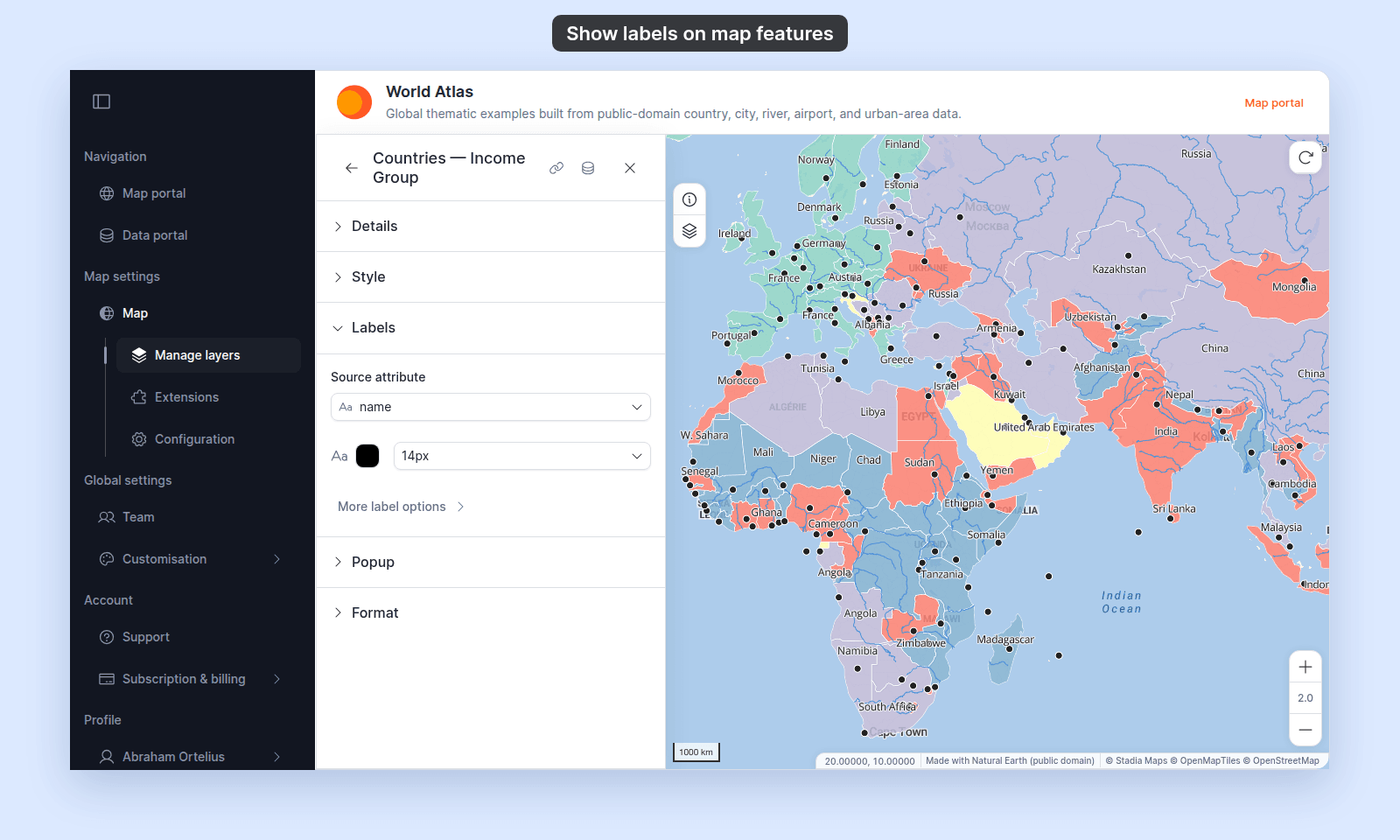
- **Polygon layers** — the label point is the spot inside the polygon that is farthest from its edges. Pick `Center` to centre the label in the polygon.
- **Line layers** — the setting is shown but has no effect.
## Label placement by geometry
| Geometry | Where the label goes | How often |
| --- | --- | --- |
| Point | At the point, placed by `Label anchor` | Once per point |
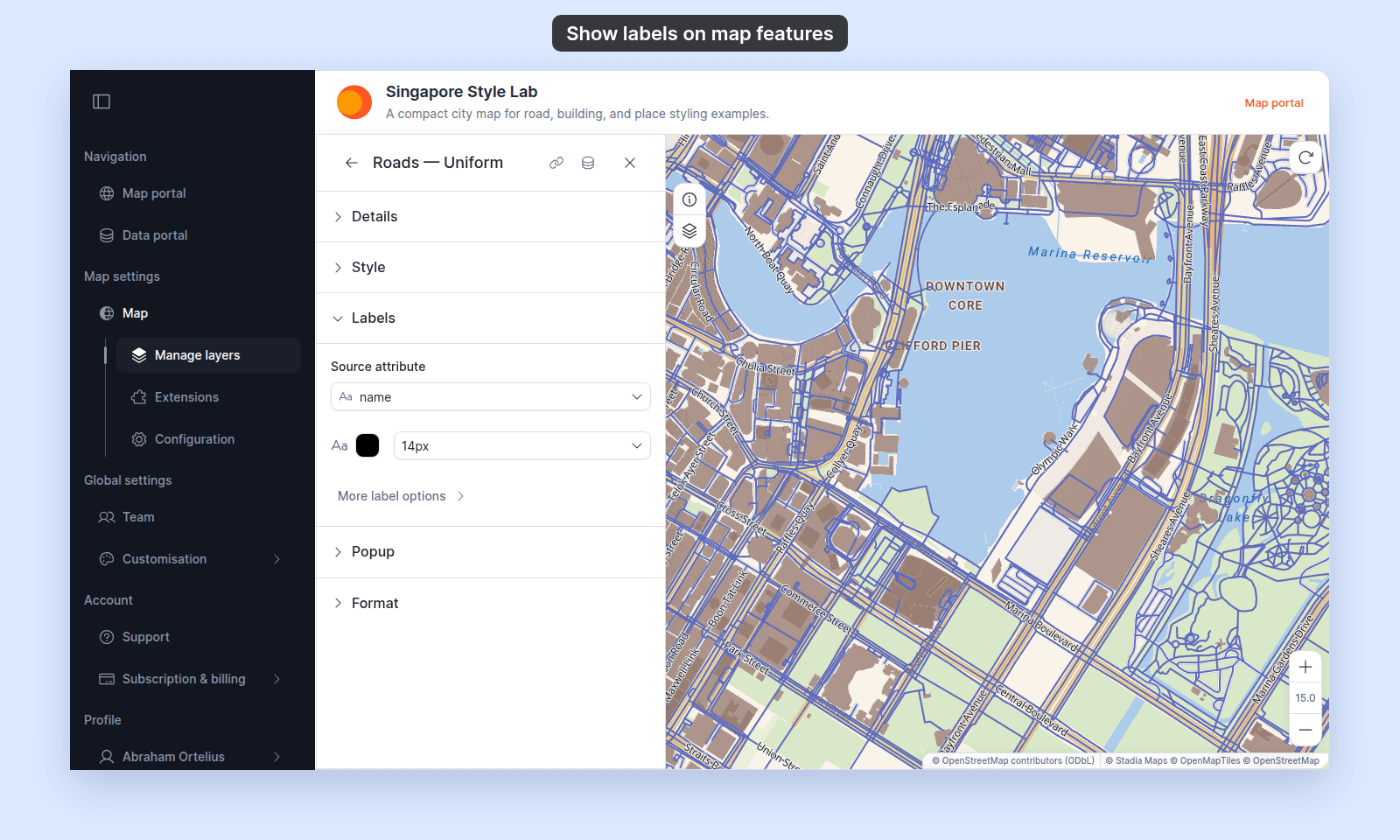
| Line | Along the line, following its bends | Repeats along a long line. A line shorter than the text, or with a sharp bend under it, has no label. |
| Polygon | At the spot inside the polygon that is farthest from its edges, placed by `Label anchor` | Once per polygon. Each part of a polygon with several parts, such as a country with islands, can get its own label. |
**Point**
### Allow label overlap
| | |
| --- | --- |
| Default | Off |
| Choices | On, Off |
While off, MangoMap hides labels that would collide with other labels. Which labels show changes as the map zooms. While on, every label draws, even where labels overlap.
### Halo colour
| | |
| --- | --- |
| Default | `#FFFFFF` (white) |
| Where | Swatch at the start of the halo row. Tooltip: `Label halo colour`. |
The colour of the outline drawn around the label text. The picker supports transparency.
### Halo width
| | |
| --- | --- |
| Default | `1` |
| Range | 0–5, step 1 |
| Unit | Pixels |
| Where | Slider and number box next to the halo colour. Tooltip: `Halo width`. |
The width of the outline around the text. `0` removes the halo.
### Label anchor
| | |
| --- | --- |
| Default | `Bottom` |
| Choices | `Center`, `Left`, `Right`, `Top`, `Bottom`, `Top Left`, `Top Right`, `Bottom Left`, `Bottom Right` |
| Applies to | Point and polygon layers |
The part of the label that sits on the feature's label point. With `Bottom`, the label sits above that point. With `Top`, it sits below. With `Center`, it sits on the point.
- **Point layers** — the label point is the point itself.
- **Polygon layers** — the label point is the spot inside the polygon that is farthest from its edges. Pick `Center` to centre the label in the polygon.
- **Line layers** — the setting is shown but has no effect.
## Label placement by geometry
| Geometry | Where the label goes | How often |
| --- | --- | --- |
| Point | At the point, placed by `Label anchor` | Once per point |
| Line | Along the line, following its bends | Repeats along a long line. A line shorter than the text, or with a sharp bend under it, has no label. |
| Polygon | At the spot inside the polygon that is farthest from its edges, placed by `Label anchor` | Once per polygon. Each part of a polygon with several parts, such as a country with islands, can get its own label. |
**Point**
 **Line**
 **Polygon**
 ## Which features get a label
A feature shows a label only when all of these are true:
- The feature has a value in the `Source attribute` field. Empty values get no label.
- The layer's style draws the feature. Features in a hidden category get no label. With a quantity or size style, features with no value in the styled field get no label either.
- The map zoom is inside the layer's `Visibility` range, ends included. See [How to set the zoom range a layer is visible at](/docs/styling-layers/set-layer-zoom-visibility).
- With `Allow label overlap` off, the label doesn't collide with another label.
- On a line layer, the line is longer than the text.
## Label text
A label shows the field's raw value. Settings on the `Format` tab, such as number formats and aliases, don't apply to labels.
## Who can change labels
People who can edit the map. Others see a message that they don't have permission to edit layers.
## Related
- [How to show labels on map features](/docs/styling-layers/show-feature-labels)
- [How to set the zoom range a layer is visible at](/docs/styling-layers/set-layer-zoom-visibility)
- [Layer panel controls](/docs/managing-layers/layer-panel-reference) — the `Edit Labels` action opens this tab.
- [How attribute formatting works in MangoMap](/docs/formatting-attributes/concepts-attribute-formatting)
## Which features get a label
A feature shows a label only when all of these are true:
- The feature has a value in the `Source attribute` field. Empty values get no label.
- The layer's style draws the feature. Features in a hidden category get no label. With a quantity or size style, features with no value in the styled field get no label either.
- The map zoom is inside the layer's `Visibility` range, ends included. See [How to set the zoom range a layer is visible at](/docs/styling-layers/set-layer-zoom-visibility).
- With `Allow label overlap` off, the label doesn't collide with another label.
- On a line layer, the line is longer than the text.
## Label text
A label shows the field's raw value. Settings on the `Format` tab, such as number formats and aliases, don't apply to labels.
## Who can change labels
People who can edit the map. Others see a message that they don't have permission to edit layers.
## Related
- [How to show labels on map features](/docs/styling-layers/show-feature-labels)
- [How to set the zoom range a layer is visible at](/docs/styling-layers/set-layer-zoom-visibility)
- [Layer panel controls](/docs/managing-layers/layer-panel-reference) — the `Edit Labels` action opens this tab.
- [How attribute formatting works in MangoMap](/docs/formatting-attributes/concepts-attribute-formatting)