---
title: "Heatmap style controls"
description: "Every Heatmap control on a point layer's Style tab, with defaults and value ranges: colour gradient, weight, radius, intensity, and opacity."
---
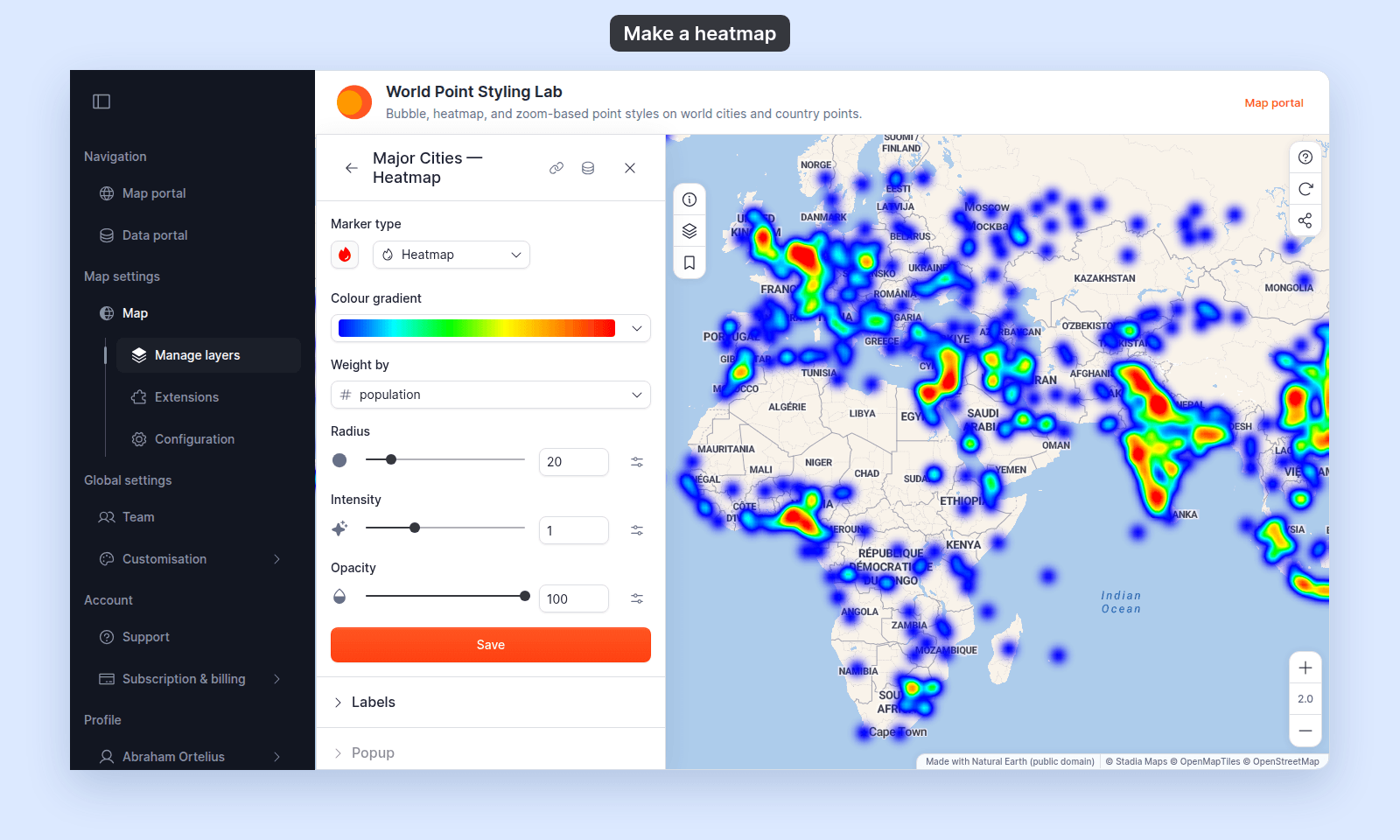
Setting `Marker type` to `Heatmap` on a point layer replaces individual points with a smoothed density gradient — denser areas appear hotter, sparse areas fade. This page lists every control in the Heatmap controls with defaults and value ranges. Heatmap is point-only — line and polygon layers don't have a marker-type picker.
 For when to use Heatmap vs. uniform circles vs. colour-by-numeric on points, see [Planning a thematic map in MangoMap](/docs/styling-layers/concepts-planning-a-thematic-map).
## Colour gradient
| | |
| --- | --- |
| Default | `Hot` |
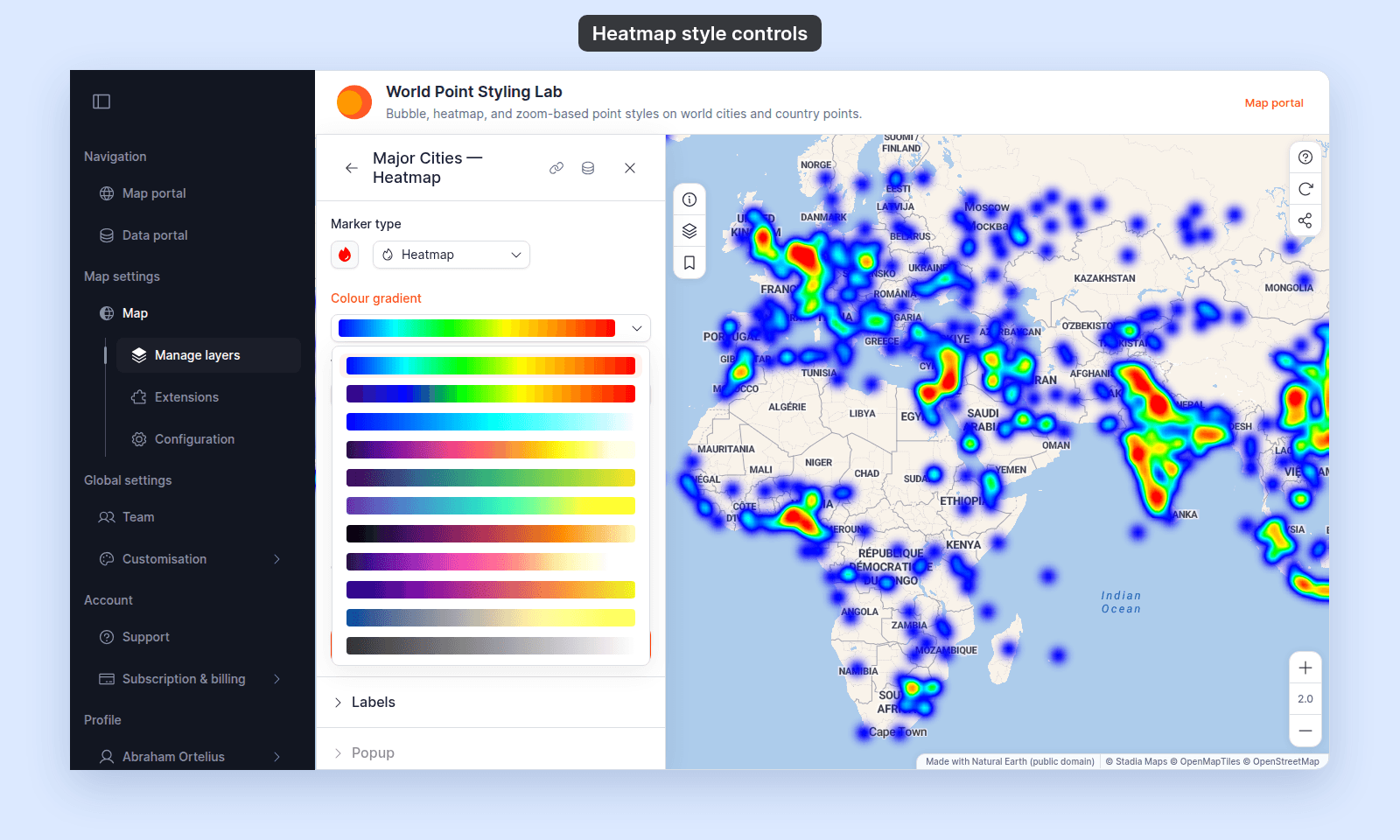
| Choices | `Hot`, `Rainbow`, `Cool`, `Inferno`, `Viridis`, `Viridis (Esri)`, `Magma`, `Magma (Esri)`, `Plasma`, `Plasma (Esri)`, `Cividis`, `Grayscale`, `Hot to Cold`, `Pink to Magenta`, `Blue to Yellow`, `Deep Blue to White`, `Brown to Yellow`, `Teal to Lime`, `Purple to Yellow`, `Magenta Glow`, `Ocean Blue`, `Periwinkle`, `Gold`, `Copper`, `Warm Copper`, `Slate to Lime`, `Lavender to Yellow`, `Rose to Yellow`, `Sky Blue`, `Soft Periwinkle`, `Olive to White`, `Sand to Cream` |
The colour ramp from low density (left) to high density (right). Click a preset to apply it. The list shows each gradient as a swatch, without its name, in the order of the table above.
For when to use Heatmap vs. uniform circles vs. colour-by-numeric on points, see [Planning a thematic map in MangoMap](/docs/styling-layers/concepts-planning-a-thematic-map).
## Colour gradient
| | |
| --- | --- |
| Default | `Hot` |
| Choices | `Hot`, `Rainbow`, `Cool`, `Inferno`, `Viridis`, `Viridis (Esri)`, `Magma`, `Magma (Esri)`, `Plasma`, `Plasma (Esri)`, `Cividis`, `Grayscale`, `Hot to Cold`, `Pink to Magenta`, `Blue to Yellow`, `Deep Blue to White`, `Brown to Yellow`, `Teal to Lime`, `Purple to Yellow`, `Magenta Glow`, `Ocean Blue`, `Periwinkle`, `Gold`, `Copper`, `Warm Copper`, `Slate to Lime`, `Lavender to Yellow`, `Rose to Yellow`, `Sky Blue`, `Soft Periwinkle`, `Olive to White`, `Sand to Cream` |
The colour ramp from low density (left) to high density (right). Click a preset to apply it. The list shows each gradient as a swatch, without its name, in the order of the table above.
 ## Weight by
| | |
| --- | --- |
| Default | `Equal weight` |
| Choices | `Equal weight`, plus any numeric attribute on the layer |
Drives the contribution of each point to the density gradient. With `Equal weight`, every point contributes the same — density depends only on how many points fall in an area. With a numeric field selected, points with larger values contribute more, so a sparse area of high-value points can appear hotter than a dense area of low-value ones.
If the layer has no numeric fields, only `Equal weight` is available.
## Radius
| | |
| --- | --- |
| Default | `20 px` |
| Range | `5–100`, step 0.5 |
| Unit | Pixels |
The radius around each point that contributes to the heat at that location. Larger radius makes the gradient smoother and broader; smaller radius keeps individual points more distinct.
## Intensity
| | |
| --- | --- |
| Default | `1` |
| Range | `0.1–3`, step 0.1 |
| Unit | Multiplier |
Multiplies the heat contribution of every point. Increase to make dense areas brighter; decrease to fade them.
## Opacity
| | |
| --- | --- |
| Default | `100%` |
| Range | `0–100%`, step 1% |
The opacity of the entire heatmap layer. Useful when overlaying on a busy basemap.
## Vary by zoom level
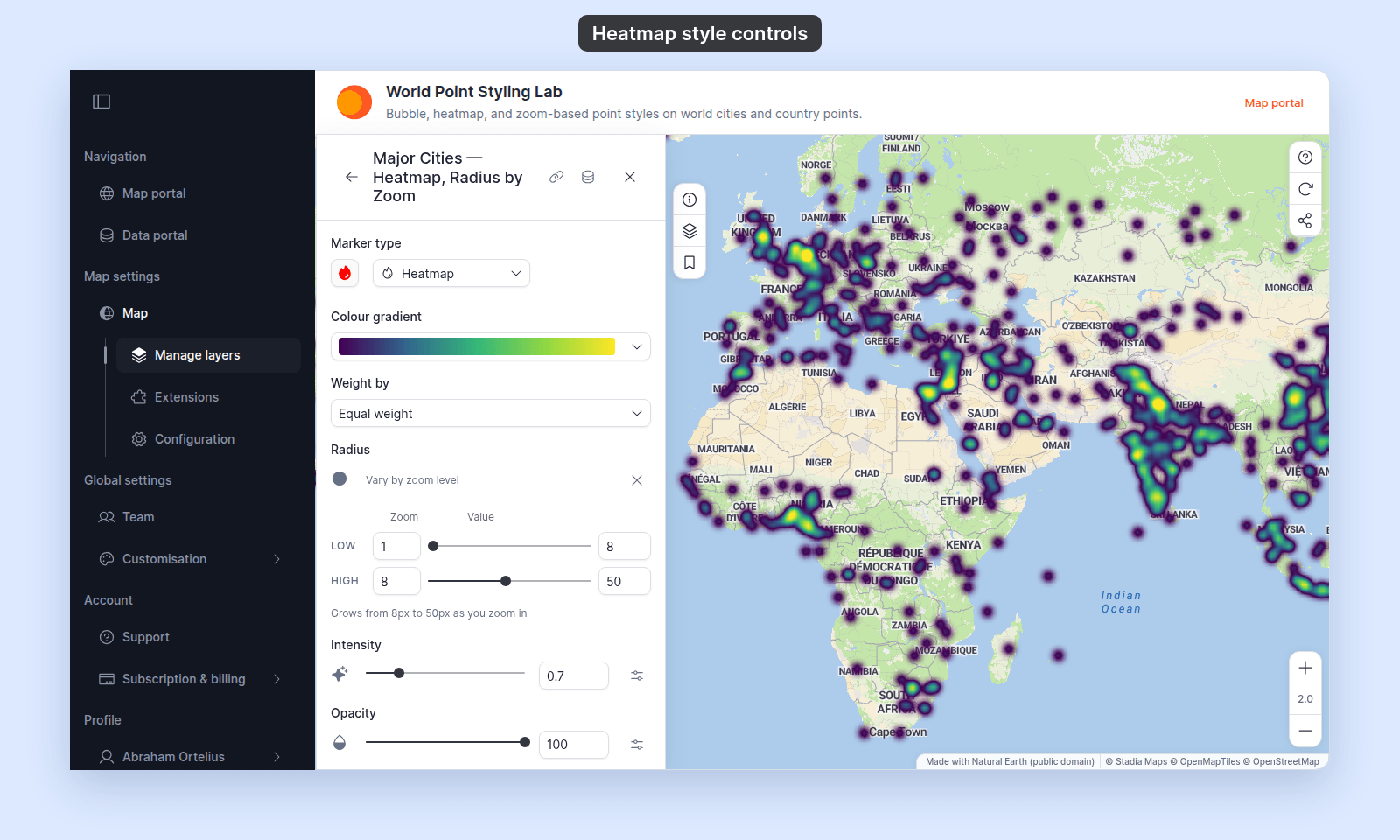
`Radius`, `Intensity`, and `Opacity` each have a `Vary by zoom level` button at the end of their row. Click it to set a value at a low zoom and a value at a high zoom. The heatmap changes smoothly between them as viewers zoom. Click the button again (its tooltip is now `Reset to fixed value`) to go back to one value, which keeps the high-zoom value.
Edit the `Zoom` and `Value` boxes to change them. The low zoom stays below the high zoom.
## Weight by
| | |
| --- | --- |
| Default | `Equal weight` |
| Choices | `Equal weight`, plus any numeric attribute on the layer |
Drives the contribution of each point to the density gradient. With `Equal weight`, every point contributes the same — density depends only on how many points fall in an area. With a numeric field selected, points with larger values contribute more, so a sparse area of high-value points can appear hotter than a dense area of low-value ones.
If the layer has no numeric fields, only `Equal weight` is available.
## Radius
| | |
| --- | --- |
| Default | `20 px` |
| Range | `5–100`, step 0.5 |
| Unit | Pixels |
The radius around each point that contributes to the heat at that location. Larger radius makes the gradient smoother and broader; smaller radius keeps individual points more distinct.
## Intensity
| | |
| --- | --- |
| Default | `1` |
| Range | `0.1–3`, step 0.1 |
| Unit | Multiplier |
Multiplies the heat contribution of every point. Increase to make dense areas brighter; decrease to fade them.
## Opacity
| | |
| --- | --- |
| Default | `100%` |
| Range | `0–100%`, step 1% |
The opacity of the entire heatmap layer. Useful when overlaying on a busy basemap.
## Vary by zoom level
`Radius`, `Intensity`, and `Opacity` each have a `Vary by zoom level` button at the end of their row. Click it to set a value at a low zoom and a value at a high zoom. The heatmap changes smoothly between them as viewers zoom. Click the button again (its tooltip is now `Reset to fixed value`) to go back to one value, which keeps the high-zoom value.
Edit the `Zoom` and `Value` boxes to change them. The low zoom stays below the high zoom.
 ## Save button
| | |
| --- | --- |
| Label | `Save` |
| Where | Bottom of the `Style` tab |
The Style tab doesn't auto-save. Your changes apply only when you click `Save`. Closing the panel or switching tabs discards every unsaved change. See [Troubleshooting: my style change isn't appearing on the map](/docs/styling-layers/troubleshoot-style-not-applying).
## Tuning notes
A few practical patterns:
- **Sparse data, narrow zoom range**: increase `Radius` so the heatmap reads as a continuous gradient rather than dots with halos.
- **Dense data**: decrease `Intensity` so dense areas don't saturate to the maximum gradient colour.
- **Comparing categories on the same map**: a heatmap doesn't show categories. If you need to compare two categories' densities, use two heatmap layers with different gradients (one warm, one cool). The `Density` folder of the [Singapore Point Styling Lab](https://mangomap-staging.com/examples-staging/maps/cfxgj3l4/singapore-point-styling-lab) does this with police stations in `Hot` and hospitals in `Cool`.
## Related
- [How to make a heatmap from a point layer](/docs/styling-layers/make-a-heatmap)
- [Point layer style controls](/docs/styling-layers/point-style-reference)
- [Planning a thematic map in MangoMap](/docs/styling-layers/concepts-planning-a-thematic-map)
- [How layer styling works in MangoMap](/docs/styling-layers/concepts-layer-styling)
## Save button
| | |
| --- | --- |
| Label | `Save` |
| Where | Bottom of the `Style` tab |
The Style tab doesn't auto-save. Your changes apply only when you click `Save`. Closing the panel or switching tabs discards every unsaved change. See [Troubleshooting: my style change isn't appearing on the map](/docs/styling-layers/troubleshoot-style-not-applying).
## Tuning notes
A few practical patterns:
- **Sparse data, narrow zoom range**: increase `Radius` so the heatmap reads as a continuous gradient rather than dots with halos.
- **Dense data**: decrease `Intensity` so dense areas don't saturate to the maximum gradient colour.
- **Comparing categories on the same map**: a heatmap doesn't show categories. If you need to compare two categories' densities, use two heatmap layers with different gradients (one warm, one cool). The `Density` folder of the [Singapore Point Styling Lab](https://mangomap-staging.com/examples-staging/maps/cfxgj3l4/singapore-point-styling-lab) does this with police stations in `Hot` and hospitals in `Cool`.
## Related
- [How to make a heatmap from a point layer](/docs/styling-layers/make-a-heatmap)
- [Point layer style controls](/docs/styling-layers/point-style-reference)
- [Planning a thematic map in MangoMap](/docs/styling-layers/concepts-planning-a-thematic-map)
- [How layer styling works in MangoMap](/docs/styling-layers/concepts-layer-styling)