---
title: "How to customise category and class break symbology"
description: "Change the symbol, label, or value of one category or class break. Rename legend labels, round break values, recolour or hide a category, or change a marker."
seo:
title: "Customise category and class breaks"
sidebar:
label: "Customise category and class break symbology"
---
When you style a layer by a field, MangoMap makes the symbology for you: one symbol for each category, or one for each class break. You can change each category or class break by itself. Round awkward break values (`17.342` to `20`), give code-style labels readable names, or give one road class, one building type, or one airport type its own colour so it stands out. The legend shows your changes. On a point, line, or polygon layer with its colour driver set to a field, expand `Customise categories` or `Customise Class Breaks` and edit each row in place.
**[See it on an example map](https://mangomap-staging.com/examples-staging/maps/042tb3tl/world-point-styling-lab)**
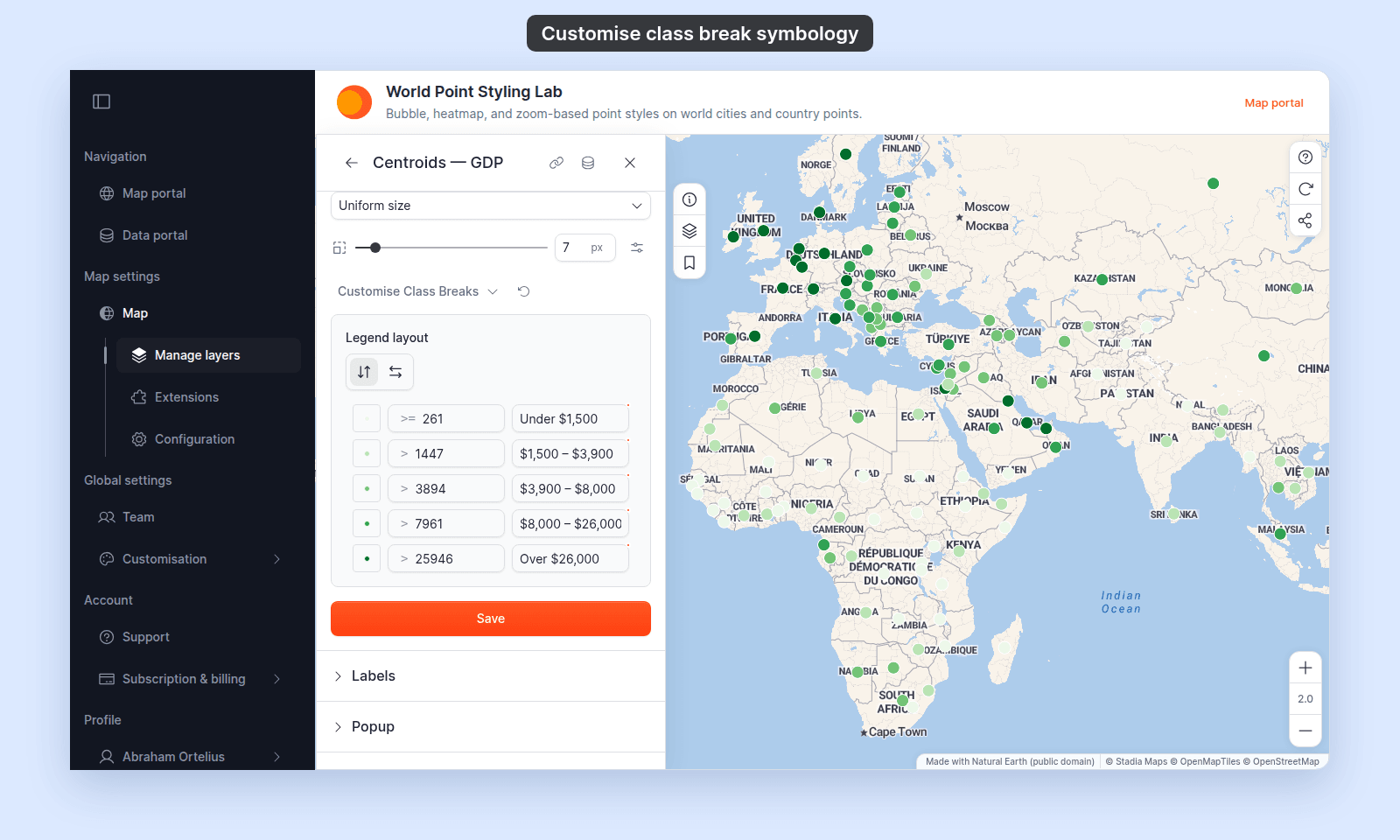
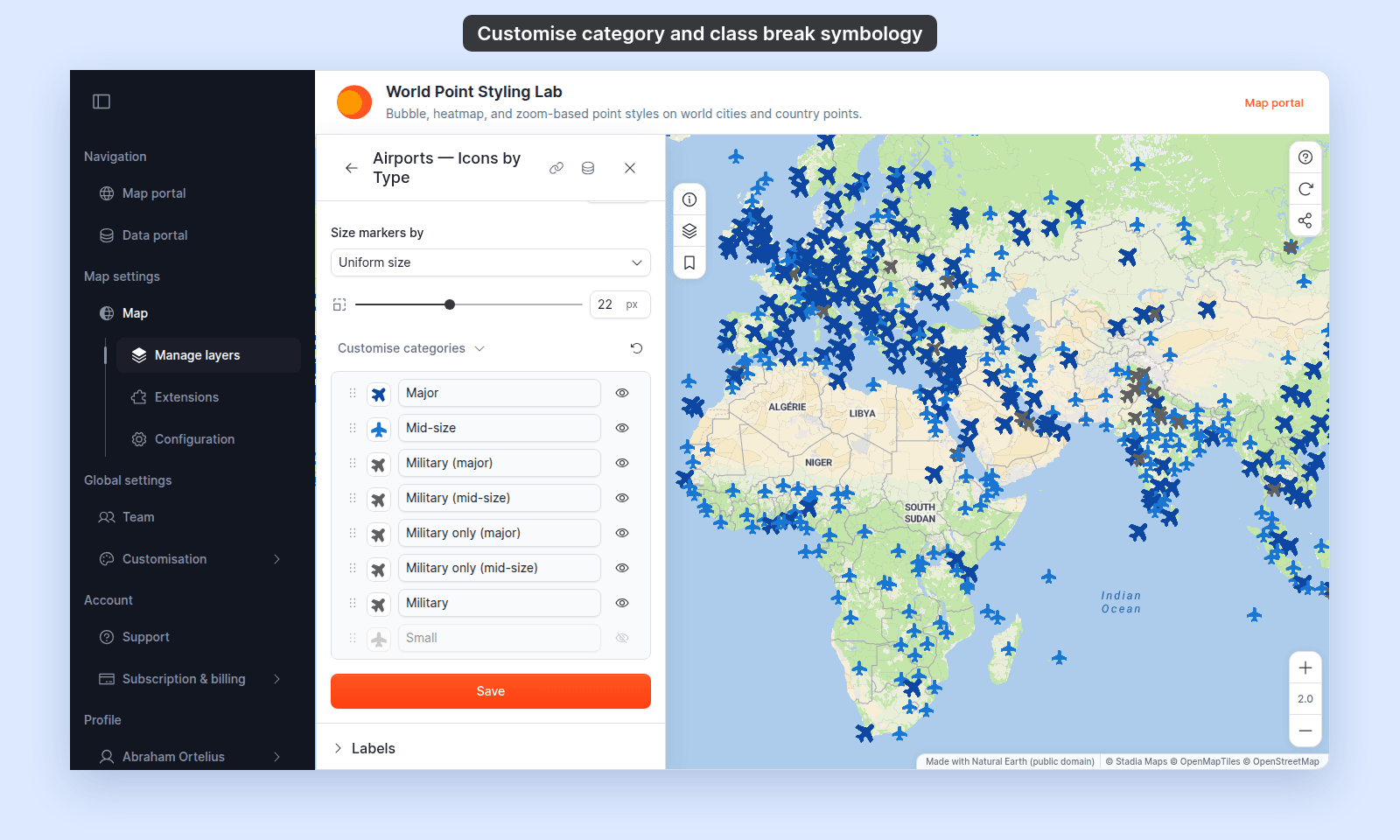
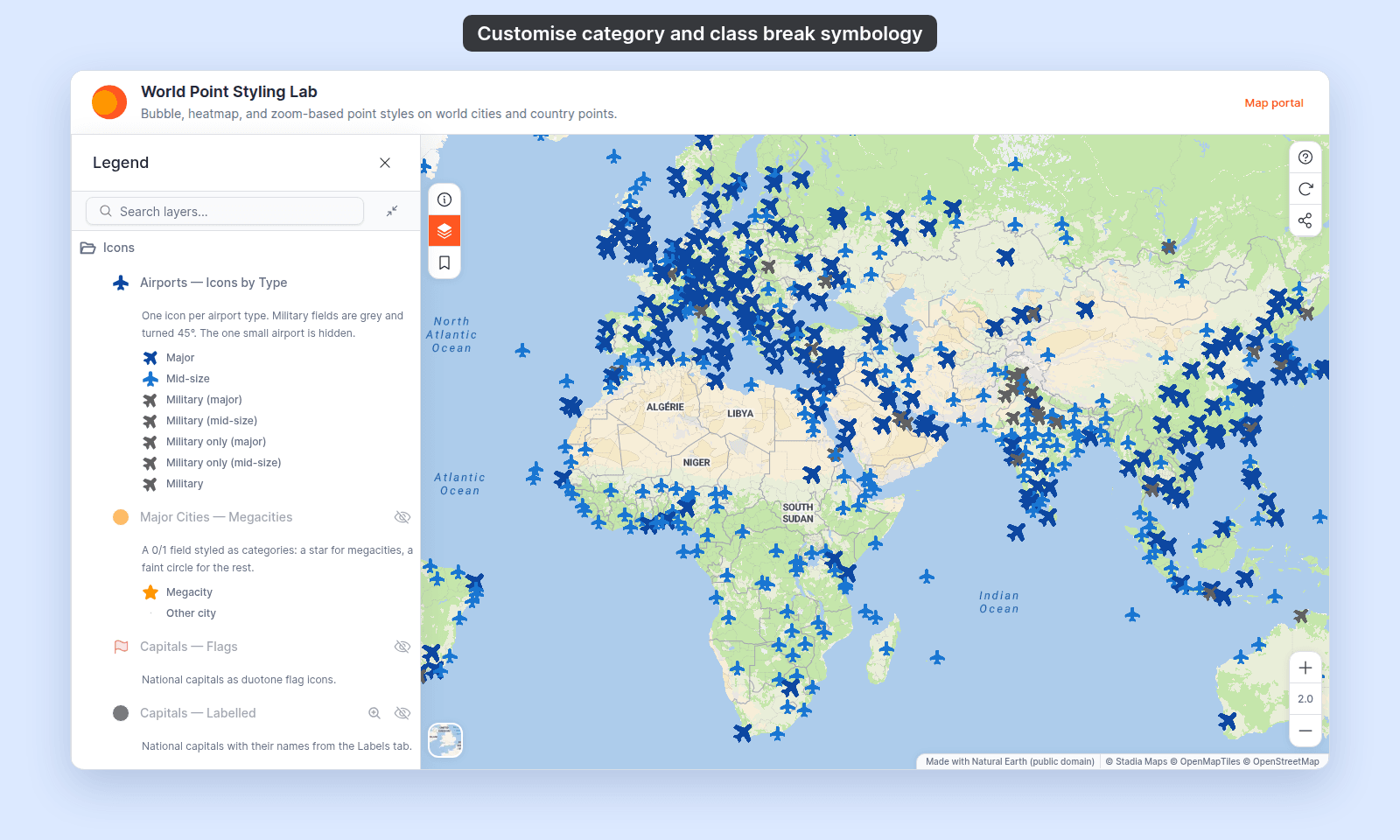
Open the World Point Styling Lab. Turn on the `Icons` folder and turn off `Size and Colour`. `Airports — Icons by Type` gives each airport type its own icon, size, and label, turns the military rows 45°, and hides the one small airport. In `Classes and Gradients`, `Centroids — GDP, Round Breaks` has break values and labels set by hand.
## Before you start
- You need edit access to the map.
- The layer's colour driver is set to a text field or a numeric field. Customisation isn't available with the no-field option (`Single colour` or `Uniform colour`), `Colour by zoom`, or the `Heatmap` marker type. None of them has categories or class breaks.
- Plan your changes first. For each category or class break, you can:
- Change its colour without touching the layer's colour scheme.
- Rename its legend label (`primary` to `Main road`).
- Move its value, for class breaks (`17.342` to `20`).
- Hide it, so it doesn't appear in the legend or on the map, for categories.
- Change its marker (points), line pattern (lines), or fill pattern (polygons) to make it stand out.
The steps are the same for points, lines, and polygons. The control names, and what each row can change, depend on the geometry:
| | Point | Line | Polygon |
| --- | --- | --- | --- |
| Colour driver | `Colour markers by` | `Colour lines by` | `Fill polygons by` |
| Each category or class break can set | Colour and transparency (or opacity for a custom icon), marker type, outline (`Circle`), marker size, icon rotation (`Icon`) | Colour and transparency, line pattern | Fill colour and transparency, fill pattern |
| Same for the whole layer | Size from a numeric field, if you set one | [Line width](/docs/styling-layers/set-line-width-and-opacity), [casing, cap, and join](/docs/styling-layers/style-line-patterns) | [Outline](/docs/styling-layers/style-polygon-outlines): `Stroke`, stroke colour, and stroke width |
| Category reset menu | `Reset all labels`, `Reset all symbology` | `Reset colours`, `Reset labels` | `Reset colours`, `Reset labels` |
## Open the Style tab and pick the colour driver
Open the layer's settings, then the `Style` tab. Set the colour driver (`Colour markers by`, `Colour lines by`, or `Fill polygons by`) to the text or numeric field you want. MangoMap makes the default categories or class breaks.
## Open Customise categories or Customise Class Breaks
Below the colour scheme controls, expand the customisation section. Its label depends on the style:
- For categories (a text field, or a numeric field with `Style as` set to `Categories`), it is `Customise categories`.
- For class breaks (a numeric field with `Style as` set to a class count), it is `Customise Class Breaks`.
There is one row for each category or class break. A category row has:
- **Swatch**: click it to change the row's symbol. Picking a colour overrides the colour scheme for that row only.
- **Label**: the text the legend shows.
- **Eye icon**: hide the row from the legend and the map.
- **Drag handle**: drag rows to reorder the legend.
A class break row has:
- **Swatch**: the same as on a category row.
- **Value**: the lower bound of the class.
- **Label**: the text the legend shows.
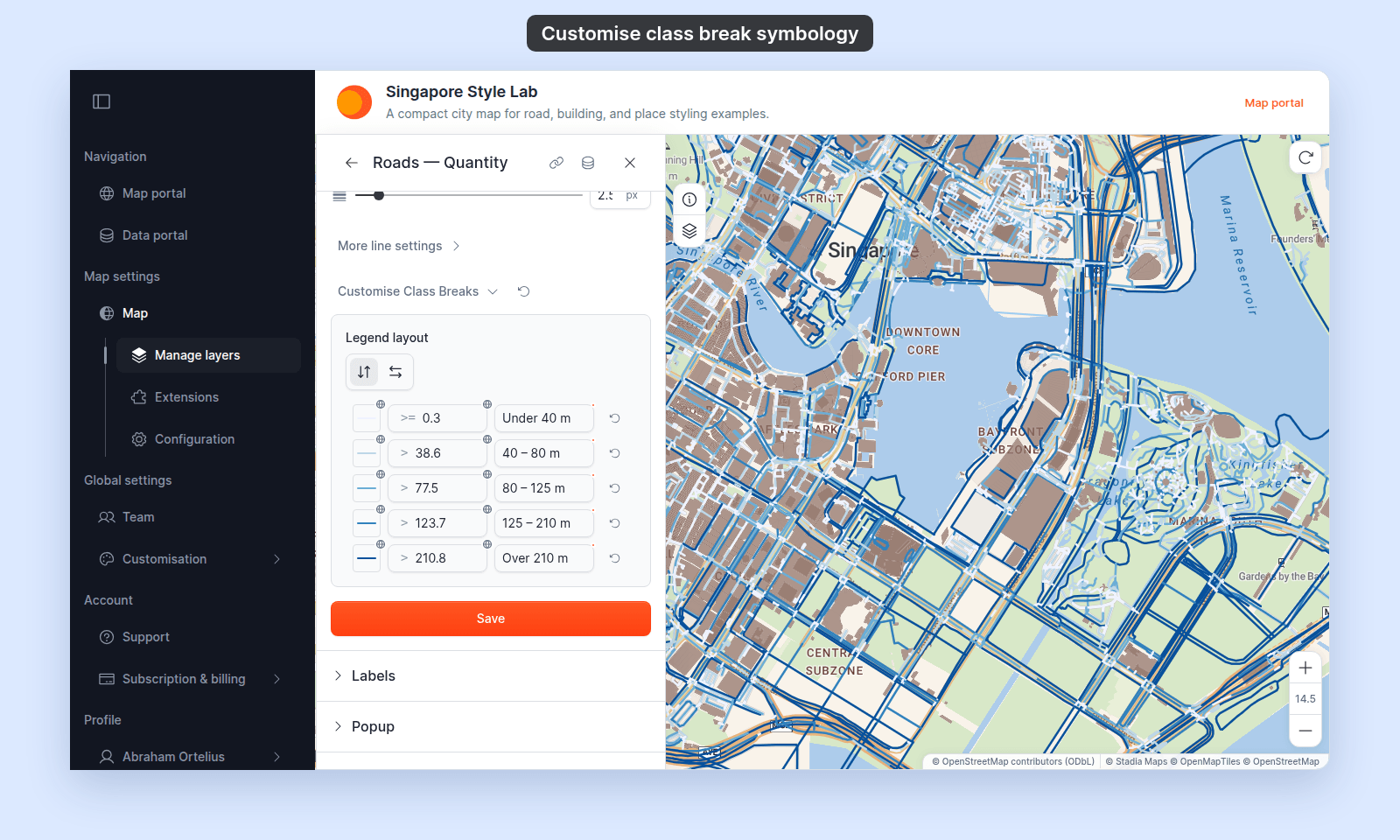
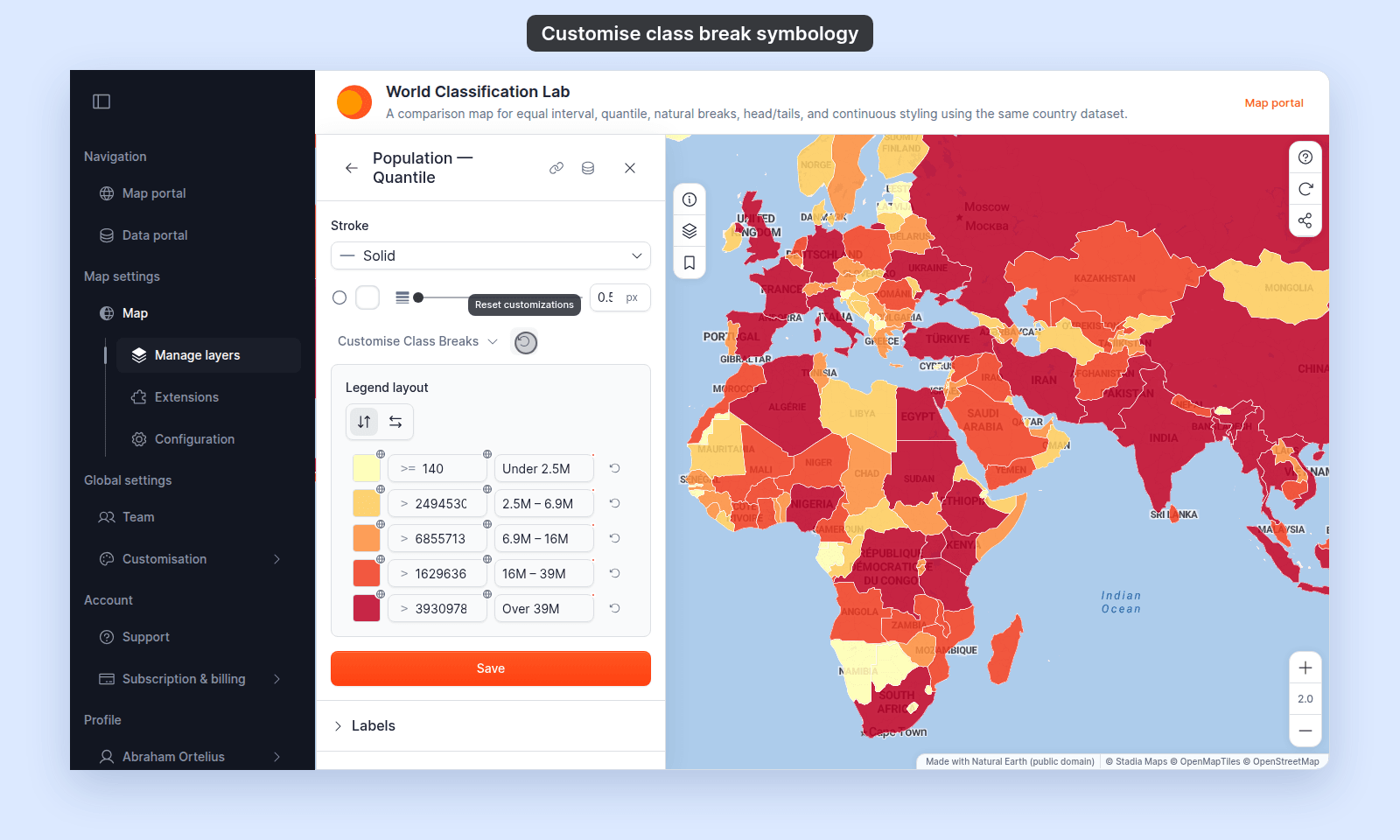
- **Reset icon**: returns the whole row to its default colour, value, label, and symbol. On line and polygon layers it appears once you change the row. On point layers it does not appear today; `Reset to global` in the row's swatch settings resets the symbol only.
**Point**
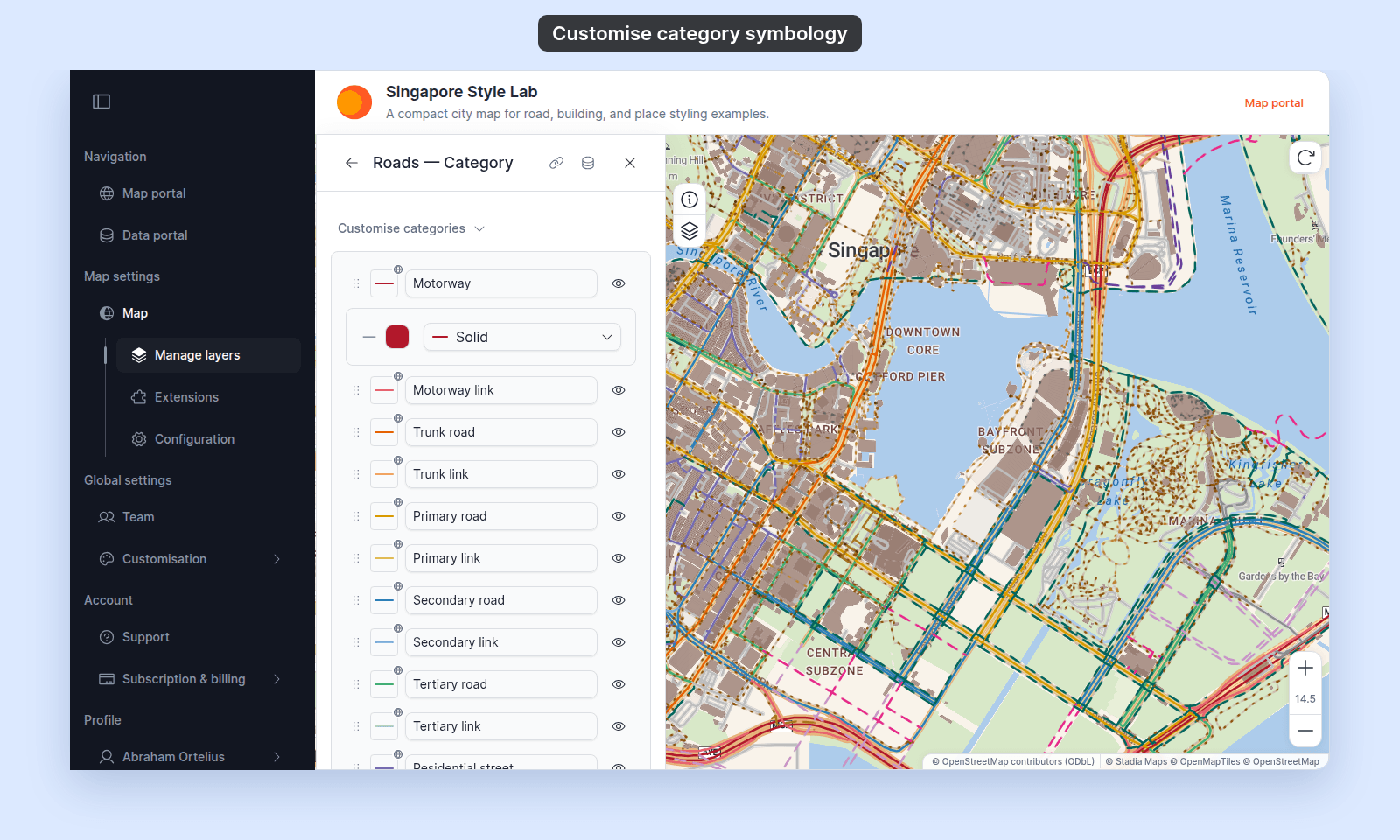
 **Line**
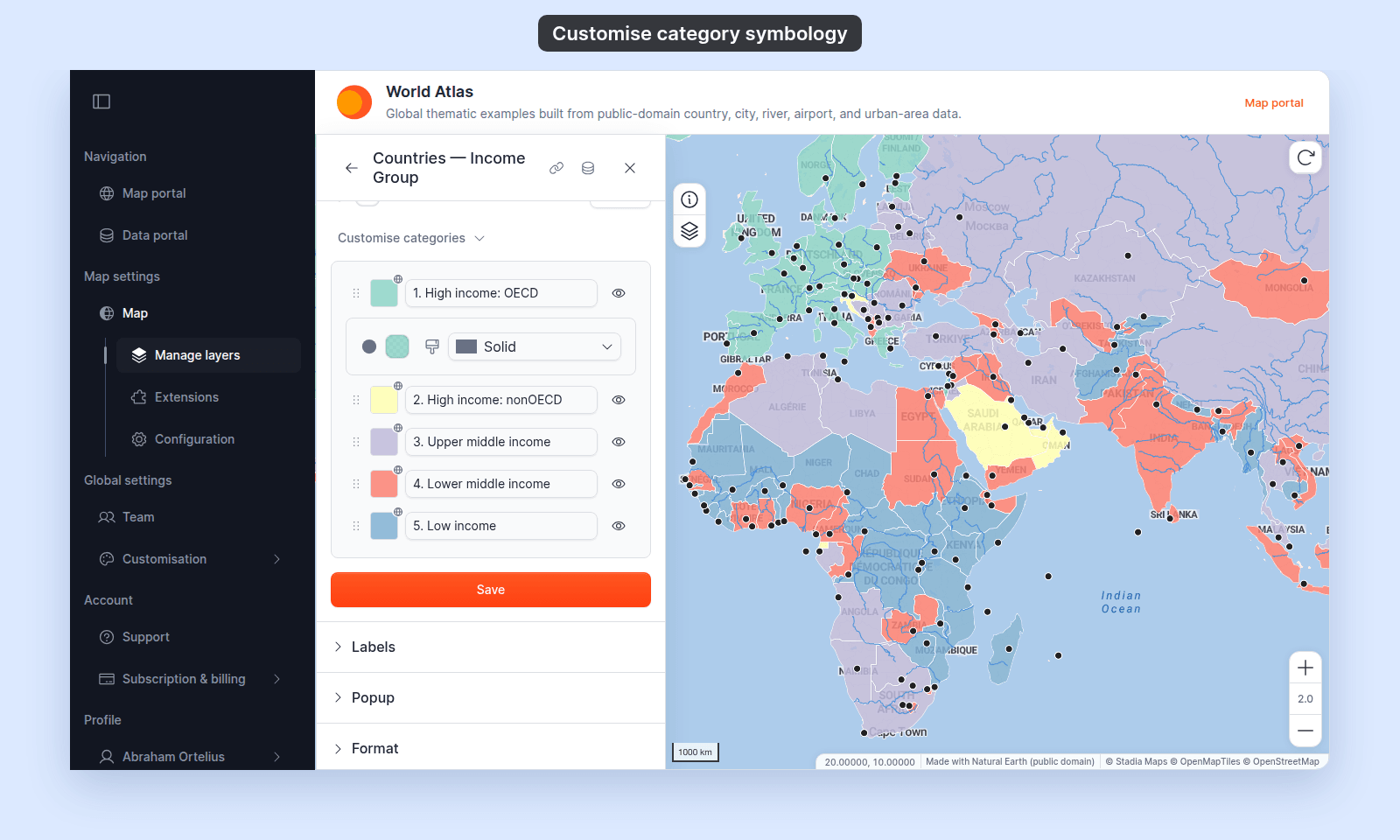
 **Polygon**
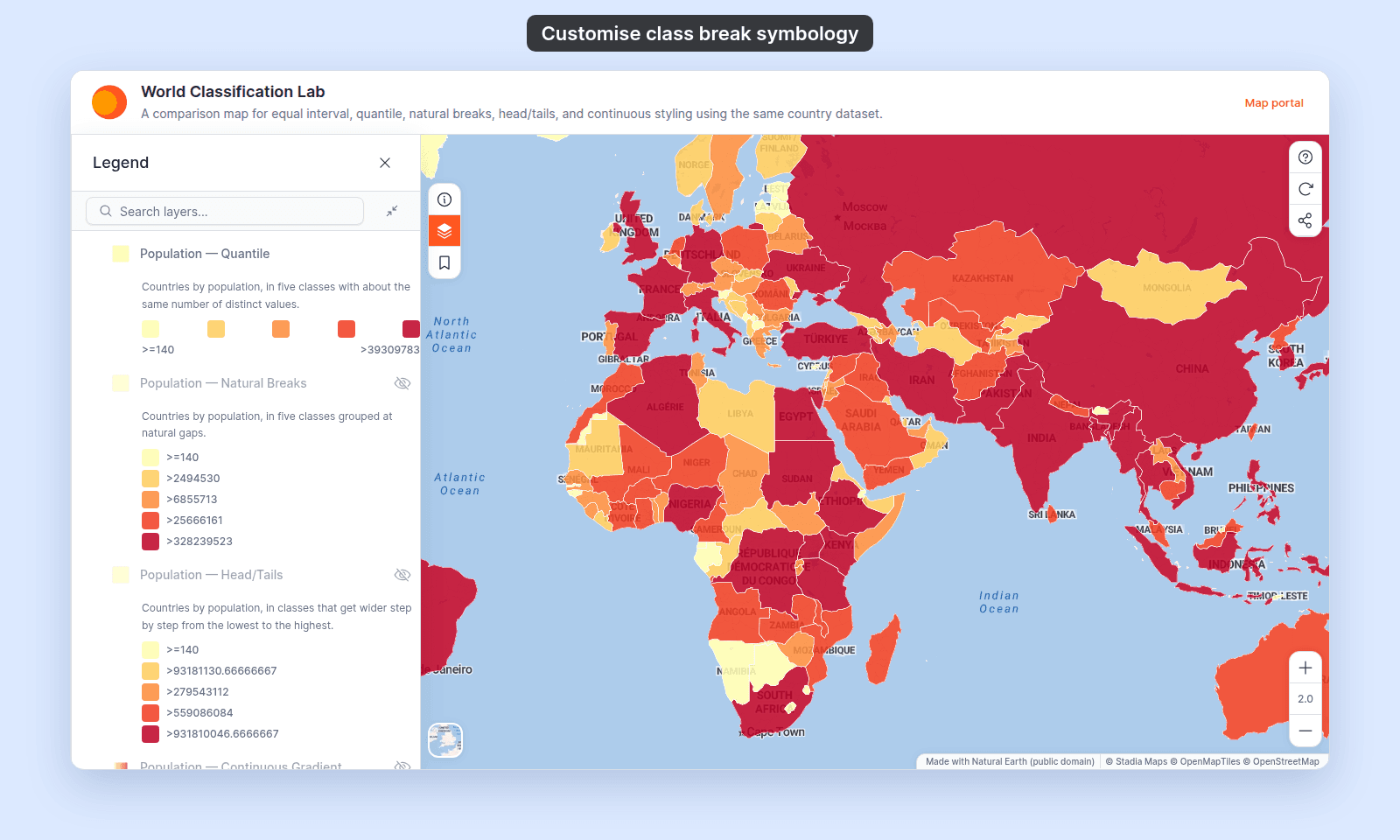
 On class break panels, a `Legend layout` toggle above the rows switches the legend between a vertical and a horizontal layout.
 ## Edit a row
Click the swatch to open the row's symbol settings. Click the value or the label to type a new one. Changes don't reach the map or the legend until you click `Save`.
## Controls for each geometry
The swatch opens the same settings for a category row and a class break row. What it shows depends on the geometry. The settings change only that row. Settings that are not in the swatch, such as line width or the polygon outline, are the same for every row (see the table at the top of this page).
### Point
The settings depend on the row's `Marker type`:
| Setting | `Circle` | `Icon` | `Custom Icon` | Range and notes |
| --- | --- | --- | --- | --- |
| `Marker type` | Yes | Yes | Yes | `Circle`, `Icon`, or `Custom Icon`. One row can use a different marker from the rest. |
| `Select Icon` | | Yes | Yes | Opens the icon library, or your uploaded icons for `Custom Icon`. See [How to upload a custom point icon](/docs/styling-layers/upload-a-custom-point-icon). |
| Fill colour | Yes | Yes | | Colour and transparency. On an `Icon`, it colours the icon. A custom icon keeps its own colours. |
| `Opacity` | | | Yes | 0 to 100%, with a slider and a number box. Starts at 100%. Replaces fill colour for a custom icon. The layer's opacity slider does not change it. |
| Outline colour | Yes | | | Colour and transparency. |
| Outline width | Yes | | | 0.5 to 5 px, in steps of 0.5 px. |
| Marker size | Yes | Yes | | 2 to 50 px. Greyed out while `Vary size by zoom level` is on: `Circle` rows then take their size from the zoom stops, and `Icon` rows keep the size they had. See [How to vary marker size by zoom level](/docs/styling-layers/vary-marker-size-by-zoom). |
| Icon rotation | | Yes | | 0 to 360 degrees, in steps of 5. |
## Edit a row
Click the swatch to open the row's symbol settings. Click the value or the label to type a new one. Changes don't reach the map or the legend until you click `Save`.
## Controls for each geometry
The swatch opens the same settings for a category row and a class break row. What it shows depends on the geometry. The settings change only that row. Settings that are not in the swatch, such as line width or the polygon outline, are the same for every row (see the table at the top of this page).
### Point
The settings depend on the row's `Marker type`:
| Setting | `Circle` | `Icon` | `Custom Icon` | Range and notes |
| --- | --- | --- | --- | --- |
| `Marker type` | Yes | Yes | Yes | `Circle`, `Icon`, or `Custom Icon`. One row can use a different marker from the rest. |
| `Select Icon` | | Yes | Yes | Opens the icon library, or your uploaded icons for `Custom Icon`. See [How to upload a custom point icon](/docs/styling-layers/upload-a-custom-point-icon). |
| Fill colour | Yes | Yes | | Colour and transparency. On an `Icon`, it colours the icon. A custom icon keeps its own colours. |
| `Opacity` | | | Yes | 0 to 100%, with a slider and a number box. Starts at 100%. Replaces fill colour for a custom icon. The layer's opacity slider does not change it. |
| Outline colour | Yes | | | Colour and transparency. |
| Outline width | Yes | | | 0.5 to 5 px, in steps of 0.5 px. |
| Marker size | Yes | Yes | | 2 to 50 px. Greyed out while `Vary size by zoom level` is on: `Circle` rows then take their size from the zoom stops, and `Icon` rows keep the size they had. See [How to vary marker size by zoom level](/docs/styling-layers/vary-marker-size-by-zoom). |
| Icon rotation | | Yes | | 0 to 360 degrees, in steps of 5. |
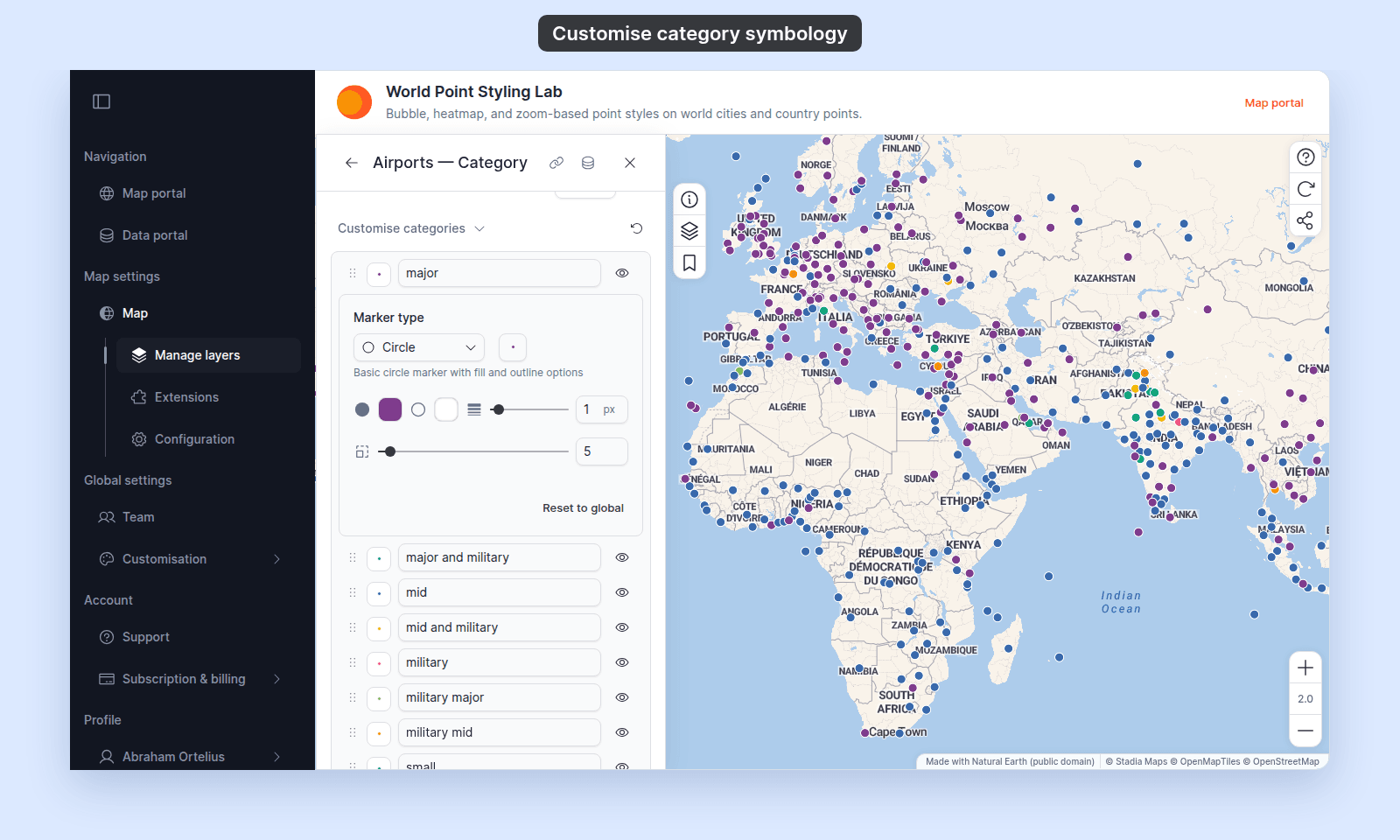 A saved layer with a marker, size, and label on each row, and one row hidden:
 ### Line
| Setting | Range and notes |
| --- | --- |
| Line colour | Colour and transparency. A row with its own colour keeps its own transparency when you move the layer's `Line opacity` slider. See [How to set line width and opacity](/docs/styling-layers/set-line-width-and-opacity). |
| Line pattern | `Solid`, `Dashed`, or `Dotted`. Use it to set one row apart, such as a dashed footpath among solid roads. See [How to style line patterns and casing](/docs/styling-layers/style-line-patterns). |
Line width, casing, cap, and join are the same for every row. Each row's swatch shows its colour and pattern with the layer's cap and casing, as the map draws it.
### Line
| Setting | Range and notes |
| --- | --- |
| Line colour | Colour and transparency. A row with its own colour keeps its own transparency when you move the layer's `Line opacity` slider. See [How to set line width and opacity](/docs/styling-layers/set-line-width-and-opacity). |
| Line pattern | `Solid`, `Dashed`, or `Dotted`. Use it to set one row apart, such as a dashed footpath among solid roads. See [How to style line patterns and casing](/docs/styling-layers/style-line-patterns). |
Line width, casing, cap, and join are the same for every row. Each row's swatch shows its colour and pattern with the layer's cap and casing, as the map draws it.
 ### Polygon
| Setting | Range and notes |
| --- | --- |
| Fill colour | Colour and transparency. |
| Fill pattern | Hover over the brush icon to see the tooltip `Fill pattern style`. The same patterns as for the whole layer, such as `Slash`, `Grid`, or `Dots`. See [How to style polygon fill patterns](/docs/styling-layers/style-polygon-fill-patterns). |
The outline is the same for every row. See [How to style polygon outlines](/docs/styling-layers/style-polygon-outlines).
### Polygon
| Setting | Range and notes |
| --- | --- |
| Fill colour | Colour and transparency. |
| Fill pattern | Hover over the brush icon to see the tooltip `Fill pattern style`. The same patterns as for the whole layer, such as `Slash`, `Grid`, or `Dots`. See [How to style polygon fill patterns](/docs/styling-layers/style-polygon-fill-patterns). |
The outline is the same for every row. See [How to style polygon outlines](/docs/styling-layers/style-polygon-outlines).
 ### Reset one row
Once you change a row's symbol, a `Reset to global` button appears at the end of its swatch settings. It returns the row's marker, size, and outline (points), line pattern (lines), or fill pattern (polygons) to the layer's settings. It keeps the colour you picked.
To get the colour scheme's colour back on a line or polygon class break row, use the reset icon at the end of the row. It also resets the row's value and label. On other rows, pick the colour again in the swatch.
## Set class break values
Set class break values before labels. Changing a value resets that row's label to the default, such as `> 20`.
Each class runs from its own value up to the next row's value, so the classes have no gaps. When you move a value, features near it can move to the next class. Features below the first row's value do not draw.
## Reset customisations
After you customise a row, a reset button appears to the right of the section's chevron. On line, polygon, and class break panels, its tooltip is `Reset customizations`. Click it to open a menu of reset actions:
- **Category panels**: the actions are in the table at the top of this page. Each one asks you to confirm before it runs. `Reset all symbology` resets every row's marker, size, outline, and transparency on a point layer at once. It keeps the colours you picked.
- **Class break panels** (every geometry): `Reset ranges` and `Reset labels`, each with the number of changed rows. Each one runs at once, with no confirmation. A colour that you pick in a row's swatch is not in this menu. To reset it on a line or polygon layer, use the row's reset icon.
### Reset one row
Once you change a row's symbol, a `Reset to global` button appears at the end of its swatch settings. It returns the row's marker, size, and outline (points), line pattern (lines), or fill pattern (polygons) to the layer's settings. It keeps the colour you picked.
To get the colour scheme's colour back on a line or polygon class break row, use the reset icon at the end of the row. It also resets the row's value and label. On other rows, pick the colour again in the swatch.
## Set class break values
Set class break values before labels. Changing a value resets that row's label to the default, such as `> 20`.
Each class runs from its own value up to the next row's value, so the classes have no gaps. When you move a value, features near it can move to the next class. Features below the first row's value do not draw.
## Reset customisations
After you customise a row, a reset button appears to the right of the section's chevron. On line, polygon, and class break panels, its tooltip is `Reset customizations`. Click it to open a menu of reset actions:
- **Category panels**: the actions are in the table at the top of this page. Each one asks you to confirm before it runs. `Reset all symbology` resets every row's marker, size, outline, and transparency on a point layer at once. It keeps the colours you picked.
- **Class break panels** (every geometry): `Reset ranges` and `Reset labels`, each with the number of changed rows. Each one runs at once, with no confirmation. A colour that you pick in a row's swatch is not in this menu. To reset it on a line or polygon layer, use the row's reset icon.
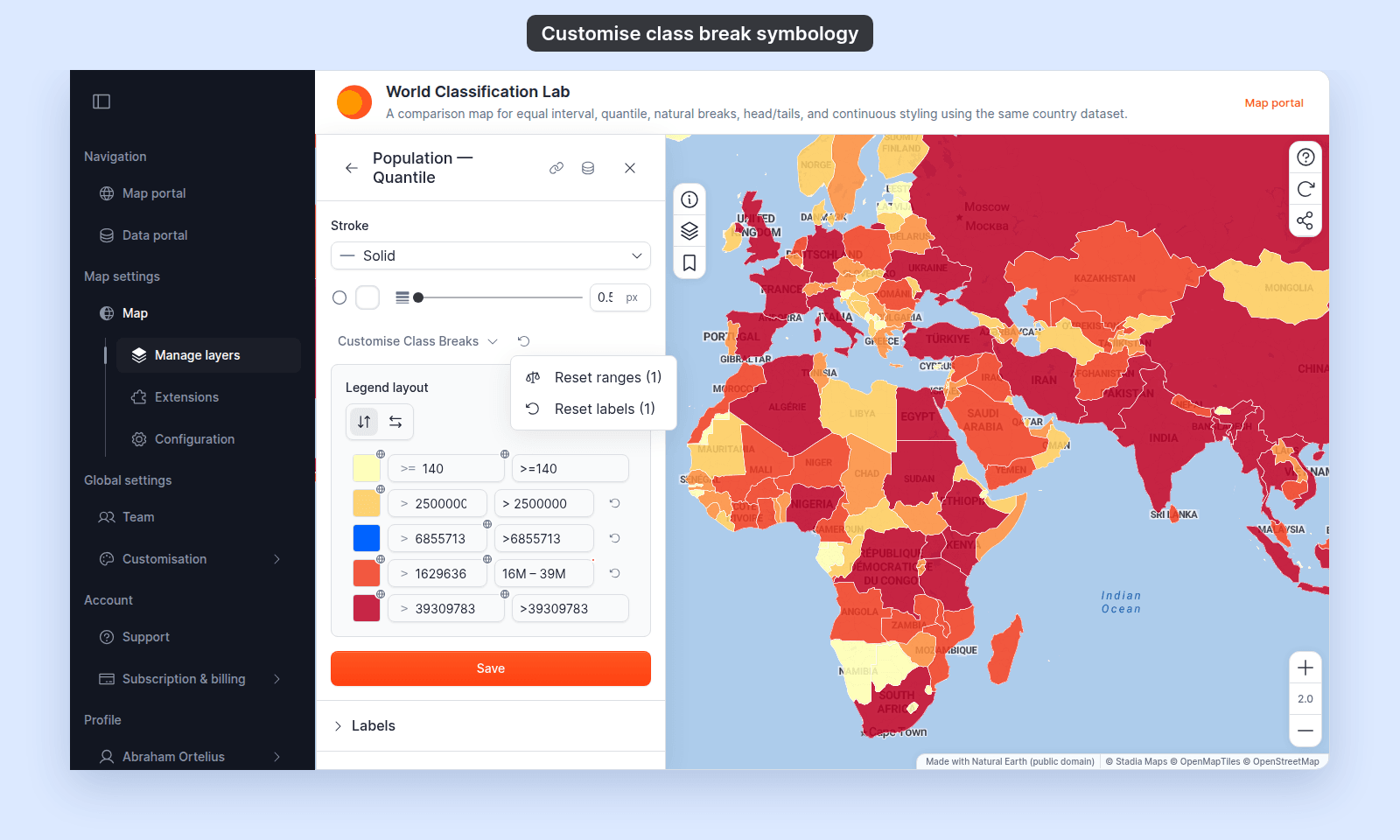 To reset one row, see [Reset one row](#reset-one-row).
## If you switch Style as
On a numeric field, switching `Style as` between `Categories` and a class count or `Continuous` builds a new list. Every customisation on the old list is lost, and switching back does not restore it. Choose the style before you customise rows.
## Save
Click `Save` at the bottom of the panel.
If you close the layer settings or switch tabs without clicking `Save`, every customisation since the last save is lost. See [Troubleshooting: my style change isn't appearing on the map](/docs/styling-layers/troubleshoot-style-not-applying).
## Verify the result
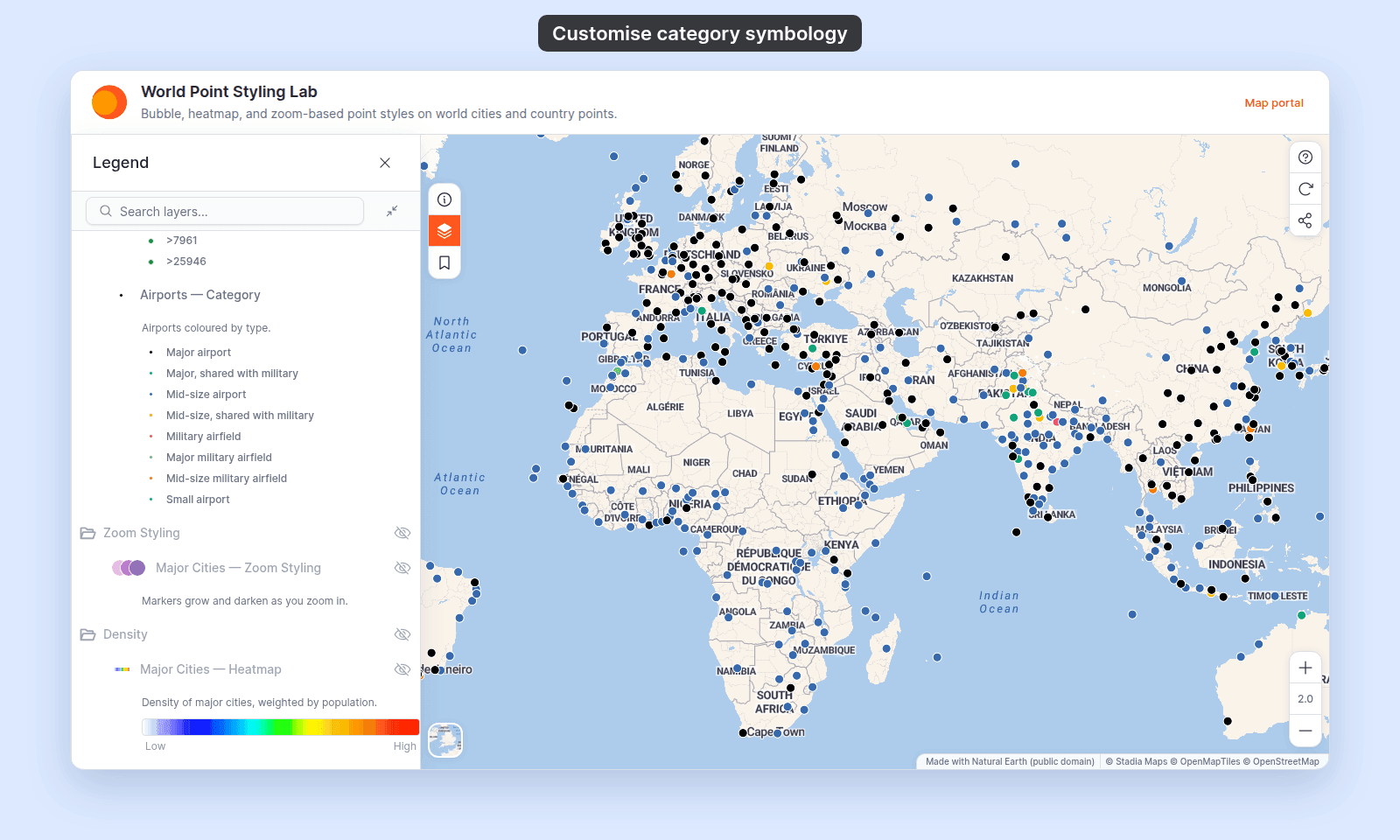
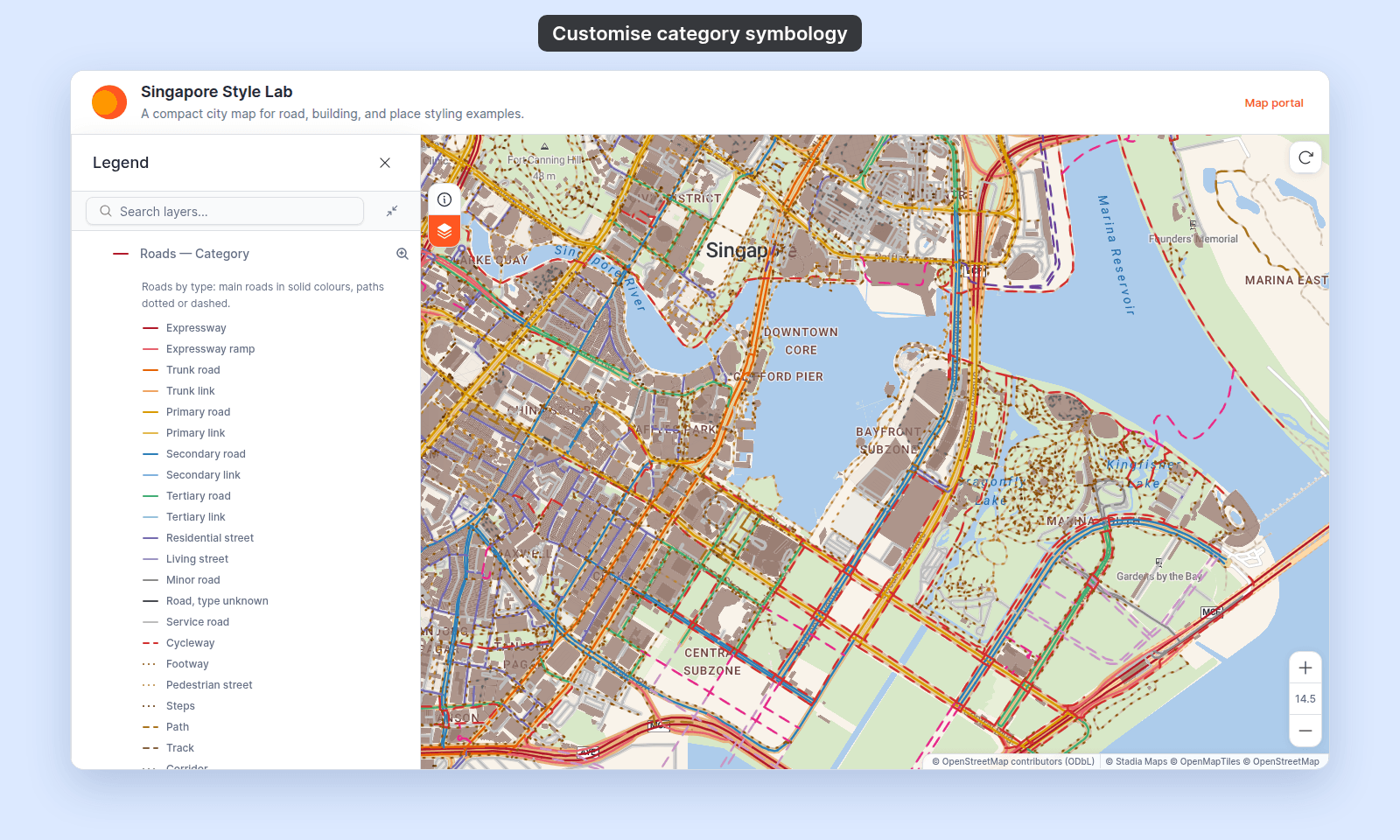
Each category or class break you changed shows its new symbol and label in the map and the legend. Hidden categories are gone from the map and the legend.
**Point**
To reset one row, see [Reset one row](#reset-one-row).
## If you switch Style as
On a numeric field, switching `Style as` between `Categories` and a class count or `Continuous` builds a new list. Every customisation on the old list is lost, and switching back does not restore it. Choose the style before you customise rows.
## Save
Click `Save` at the bottom of the panel.
If you close the layer settings or switch tabs without clicking `Save`, every customisation since the last save is lost. See [Troubleshooting: my style change isn't appearing on the map](/docs/styling-layers/troubleshoot-style-not-applying).
## Verify the result
Each category or class break you changed shows its new symbol and label in the map and the legend. Hidden categories are gone from the map and the legend.
**Point**
 **Line**
 **Polygon**
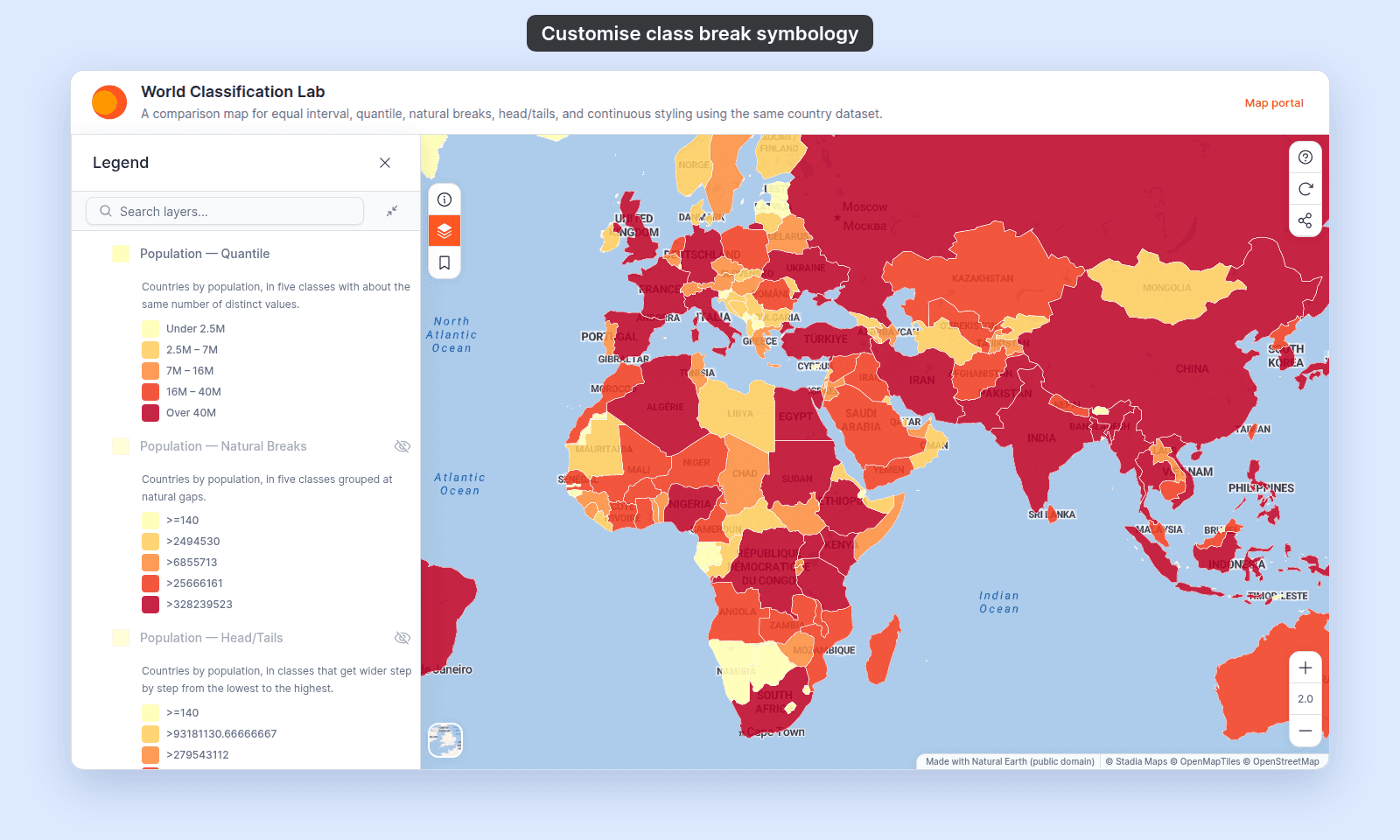 When rows have their own markers, the legend shows each row's icon:
 ## What this doesn't cover
- **Renaming the layer or the legend's title**: see [Managing layers](/docs/managing-layers). The legend title is the layer name; rename the layer to rename the legend group.
- **Hiding an entire layer from the legend**: see [How to hide a layer from the legend](/docs/managing-layers/hide-layer-from-legend). Hiding a row hides one category; this hides the whole layer.
- **Changing the colour scheme**: that's a layer control above `Customise categories` and `Customise Class Breaks`. See [How to style features by category](/docs/styling-layers/style-by-category) or [How to style features by quantity](/docs/styling-layers/style-by-quantity).
- **Settings for one geometry only**: see [How to style line patterns and casing](/docs/styling-layers/style-line-patterns), [How to style polygon fill patterns](/docs/styling-layers/style-polygon-fill-patterns), and [How to size points by a number](/docs/styling-layers/size-points-by-a-number).
## Reference
For every editable cell on a category or class break row, by geometry, see [Category and class break symbology reference](/docs/styling-layers/category-and-class-break-symbology-reference).
## What this doesn't cover
- **Renaming the layer or the legend's title**: see [Managing layers](/docs/managing-layers). The legend title is the layer name; rename the layer to rename the legend group.
- **Hiding an entire layer from the legend**: see [How to hide a layer from the legend](/docs/managing-layers/hide-layer-from-legend). Hiding a row hides one category; this hides the whole layer.
- **Changing the colour scheme**: that's a layer control above `Customise categories` and `Customise Class Breaks`. See [How to style features by category](/docs/styling-layers/style-by-category) or [How to style features by quantity](/docs/styling-layers/style-by-quantity).
- **Settings for one geometry only**: see [How to style line patterns and casing](/docs/styling-layers/style-line-patterns), [How to style polygon fill patterns](/docs/styling-layers/style-polygon-fill-patterns), and [How to size points by a number](/docs/styling-layers/size-points-by-a-number).
## Reference
For every editable cell on a category or class break row, by geometry, see [Category and class break symbology reference](/docs/styling-layers/category-and-class-break-symbology-reference).