---
title: "How to change marker colour by zoom level"
description: "Blend circle markers from one colour to another as viewers zoom the map, using up to six zoom stops. This is scale-dependent colour for point layers."
seo:
title: "Change marker colour by zoom"
sidebar:
label: "Colour markers by zoom"
---
Set `Colour markers by` to `Colour by zoom`, and circle markers blend between your chosen colours as viewers zoom in. Only `Circle` markers have the option, and a layer can colour by zoom or by a field, not both.
**[See it on an example map](https://mangomap-staging.com/examples-staging/maps/042tb3tl/world-point-styling-lab)**
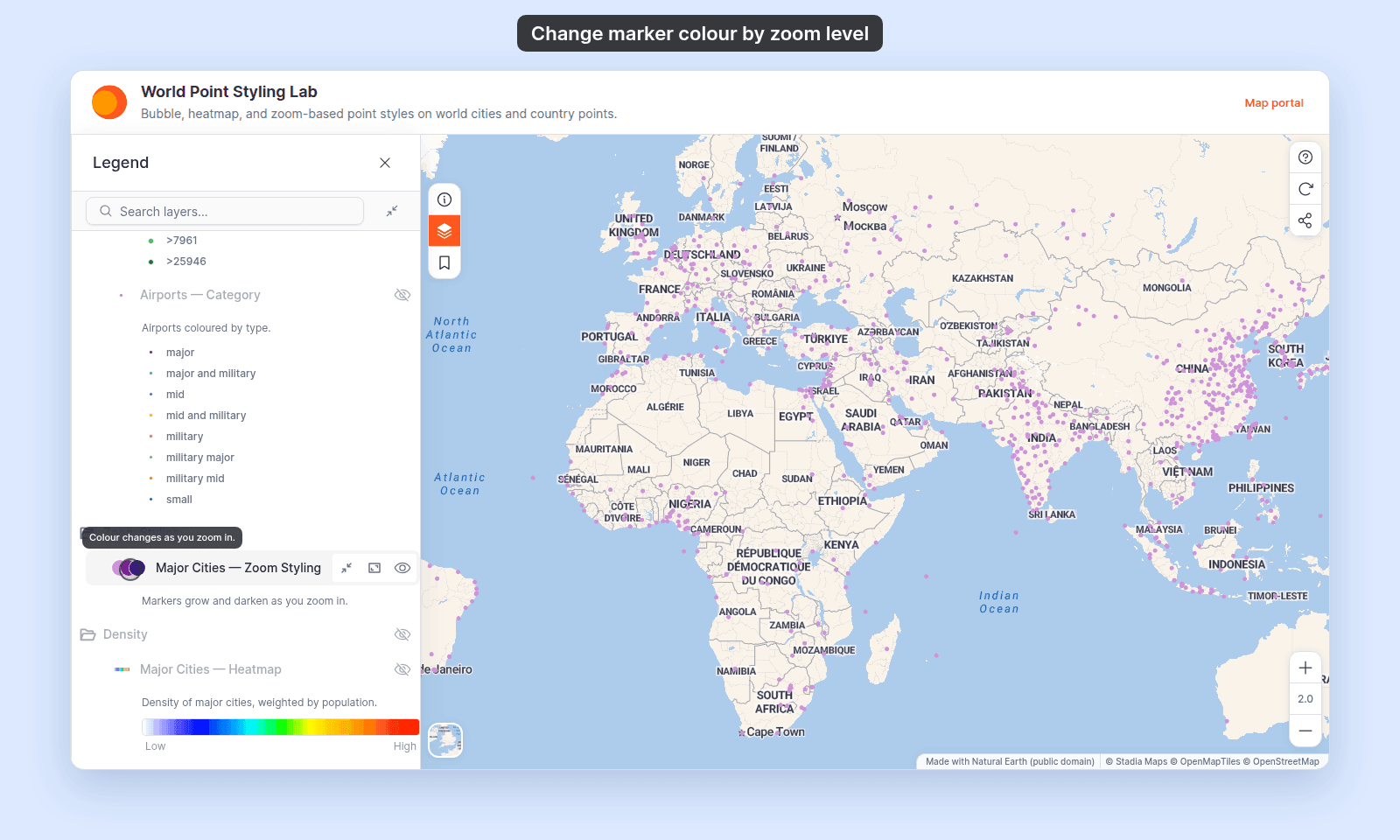
Open the World Point Styling Lab. In the legend, turn on the `Zoom Styling` folder. This also turns on `Major Cities — Zoom Styling`. Turn off the `Size and Colour` folder, then zoom in. The markers change from pale to dark purple. In the `Two Fields` folder, `Major Cities — Colour by Zoom and Size` adds an outline per stop and a size from a field.
{/* video-content: id=colour-markers-by-zoom
Start: A fully loaded map with the Style tab open for a point layer. Marker type
is Circle and Colour markers by is Single colour. The map shows the layer at
about zoom 3.
Show:
1. Open Colour markers by and pick Colour by zoom. Three zoom stops appear at
zoom 1, 12, and 22, coloured light to dark teal.
2. Click Save.
3. Zoom the map in with the map's zoom-in control until it reaches about
zoom 14. The markers darken as the map zooms in.
End: The map at about zoom 14, with dark teal markers.
Exclude: Authentication, loading screens, fixture setup, picking another Colour
gradient, editing stop colours or outlines, Add stop, Remove stop, and other
marker types. The spec must restore the layer's original style after capture,
outside the recording.
*/}
{/* walkthrough: id=colour-markers-by-zoom */}
{/* /walkthrough */}
## Before you start
- The layer must be a point layer with `Marker type` set to `Circle`. `Colour by zoom` isn't offered for `Icon`, `Custom Icon`, or `Heatmap` markers.
- You need edit access to the map.
- `Colour by zoom` replaces any field-based colour on the layer. To colour by category or quantity, see [How to style features by category](/docs/styling-layers/style-by-category) or [How to style features by quantity](/docs/styling-layers/style-by-quantity).
## Open the Style tab
In the layer panel, select your point layer. Click the `Style` tab.
## Choose Colour by zoom
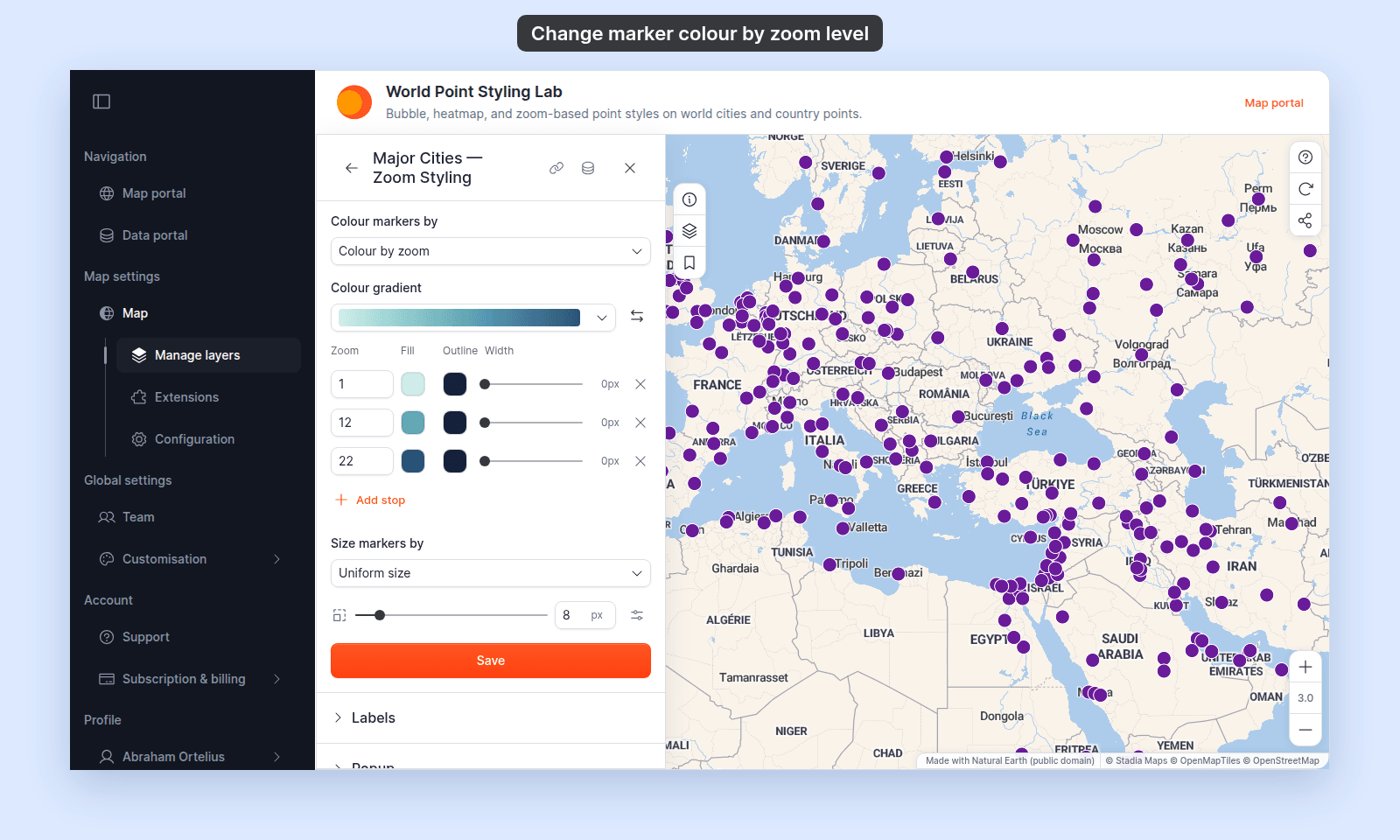
In `Colour markers by`, pick `Colour by zoom`.
A list of zoom stops appears. A zoom stop is a zoom level and the marker colour at that zoom. You start with three stops, at zoom 1, 12, and 22. Their colours come from the Teal gradient, so markers get darker as viewers zoom in.
 ## Pick a gradient
1. Open `Colour gradient` and pick a gradient.
2. To run the colours the other way, click `Reverse colour ramp`.
Picking a gradient recolours the stops and spreads them evenly between the first and last stop's zoom. Pick the gradient first, then adjust each stop.
## Set each stop
For each stop:
1. Type the zoom level in the `Zoom` box. Use a value from 1 to 22, in steps of 0.5.
2. Click the `Fill` swatch and pick the marker colour for that zoom.
The transparency you set in the `Fill` colour picker sets the marker opacity at that zoom. Use it to fade markers in or out.
To add a stop, click `Add stop`. To remove a stop, click its `Remove stop` button. A layer needs at least 2 stops and can have up to 6. Stops stay in zoom order, at least 0.5 zoom levels apart.
A new stop takes the colour already shown at its zoom.
Between two stops, the colour blends smoothly. Zoomed out past the first stop, markers keep the first stop's colour. Zoomed in past the last stop, markers keep the last stop's colour.
## (Optional) Set an outline for each stop
Each stop has its own `Outline` colour and outline `Width`, from 0 to 8 px. While `Colour by zoom` is on, the stops are the only outline control. The layer's own fill and outline controls are hidden.
A stop shows `0px` until you give it an outline, and markers have no outline at that zoom. To outline markers at every zoom, set a `Width` above 0 on every stop.
Between two stops, the outline colour and width blend in the same way as the fill.
## Save
Click `Save` at the bottom of the panel. Zoom the map in and out between your first and last stop to check the colours.
If the map doesn't update, you probably didn't click `Save`. See [Troubleshooting: my style change isn't appearing on the map](/docs/styling-layers/troubleshoot-style-not-applying).
## What viewers see in the legend
The legend shows one circle for each stop, in zoom order, with a tooltip for viewers who point to it. A circle has an outline only when its stop has one. The same symbol appears in the legend of a printed map.
## Pick a gradient
1. Open `Colour gradient` and pick a gradient.
2. To run the colours the other way, click `Reverse colour ramp`.
Picking a gradient recolours the stops and spreads them evenly between the first and last stop's zoom. Pick the gradient first, then adjust each stop.
## Set each stop
For each stop:
1. Type the zoom level in the `Zoom` box. Use a value from 1 to 22, in steps of 0.5.
2. Click the `Fill` swatch and pick the marker colour for that zoom.
The transparency you set in the `Fill` colour picker sets the marker opacity at that zoom. Use it to fade markers in or out.
To add a stop, click `Add stop`. To remove a stop, click its `Remove stop` button. A layer needs at least 2 stops and can have up to 6. Stops stay in zoom order, at least 0.5 zoom levels apart.
A new stop takes the colour already shown at its zoom.
Between two stops, the colour blends smoothly. Zoomed out past the first stop, markers keep the first stop's colour. Zoomed in past the last stop, markers keep the last stop's colour.
## (Optional) Set an outline for each stop
Each stop has its own `Outline` colour and outline `Width`, from 0 to 8 px. While `Colour by zoom` is on, the stops are the only outline control. The layer's own fill and outline controls are hidden.
A stop shows `0px` until you give it an outline, and markers have no outline at that zoom. To outline markers at every zoom, set a `Width` above 0 on every stop.
Between two stops, the outline colour and width blend in the same way as the fill.
## Save
Click `Save` at the bottom of the panel. Zoom the map in and out between your first and last stop to check the colours.
If the map doesn't update, you probably didn't click `Save`. See [Troubleshooting: my style change isn't appearing on the map](/docs/styling-layers/troubleshoot-style-not-applying).
## What viewers see in the legend
The legend shows one circle for each stop, in zoom order, with a tooltip for viewers who point to it. A circle has an outline only when its stop has one. The same symbol appears in the legend of a printed map.
 ## Combine colour by zoom with size
`Colour by zoom` works with every size setting on a circle layer:
- One fixed size, with `Size markers by` set to `Uniform size`.
- A size that changes with zoom. See [How to vary marker size by zoom level](/docs/styling-layers/vary-marker-size-by-zoom).
- A size from a numeric field. See [How to size points by a number](/docs/styling-layers/size-points-by-a-number).
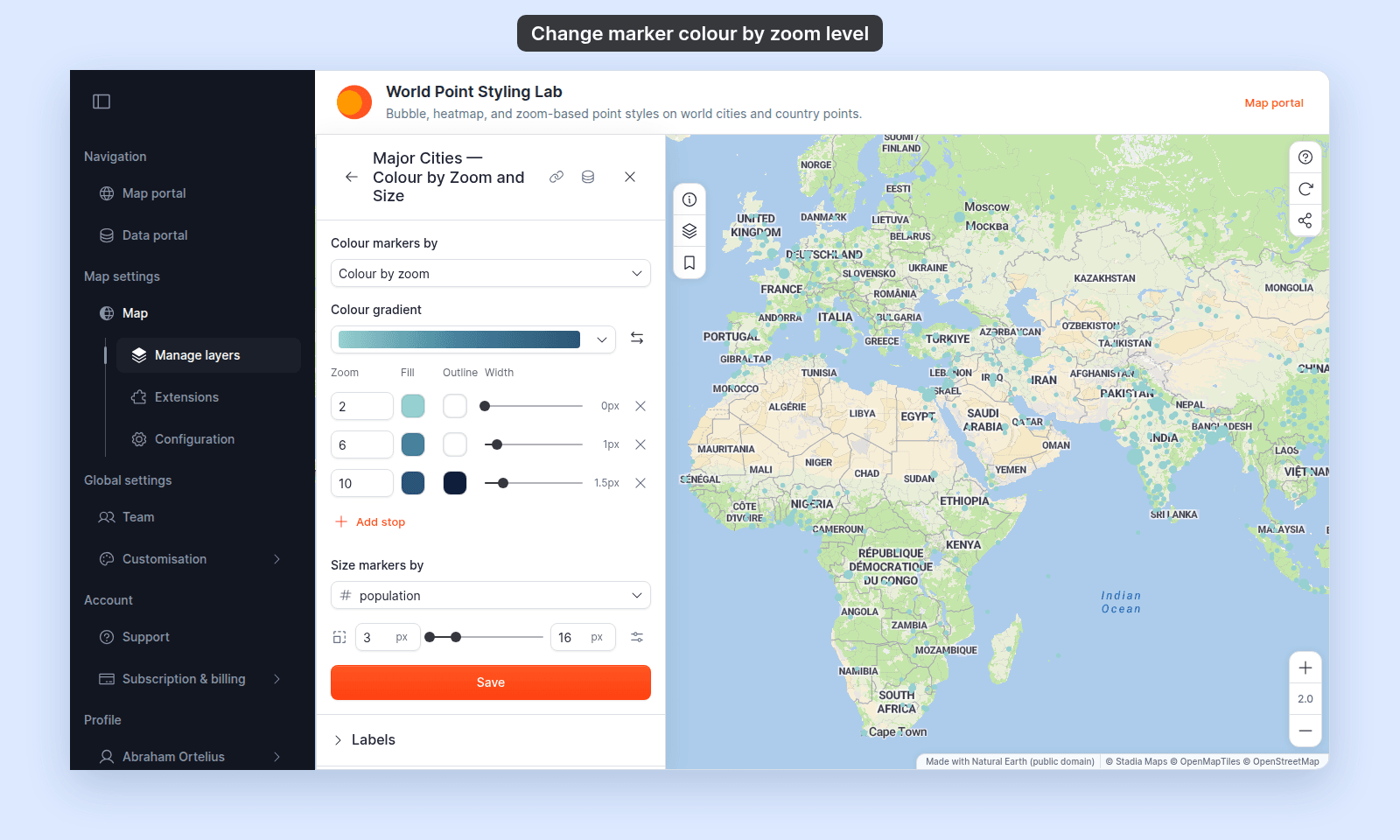
A layer with both: three colour stops, an outline that grows from 0 to 1.5 px, and markers sized by population.
## Combine colour by zoom with size
`Colour by zoom` works with every size setting on a circle layer:
- One fixed size, with `Size markers by` set to `Uniform size`.
- A size that changes with zoom. See [How to vary marker size by zoom level](/docs/styling-layers/vary-marker-size-by-zoom).
- A size from a numeric field. See [How to size points by a number](/docs/styling-layers/size-points-by-a-number).
A layer with both: three colour stops, an outline that grows from 0 to 1.5 px, and markers sized by population.
 ## If you switch to a single colour or a field
Picking `Single colour` or a field in `Colour markers by` deletes the zoom stops and their outlines. If you pick `Colour by zoom` again, you start from the three default stops.
With `Single colour`, the layer's `Fill colour`, `Outline colour`, and `Outline width` come back. They keep the values you set before you chose `Colour by zoom`.
## Troubleshooting
**`Colour by zoom` isn't in the list.** Set `Marker type` to `Circle`.
**Markers have no outline at some zoom levels.** Those stops have a `Width` of `0px`. The layer's own outline isn't used with `Colour by zoom`. Set an `Outline` colour and a `Width` above 0 on every stop.
**I changed the marker type and my colours are gone.** Switching away from `Circle` deletes every zoom stop on the layer. It also sets `Colour markers by` back to `Single colour`. If you haven't clicked `Save`, close the layer settings to discard the change.
## Related
- [How to vary marker size by zoom level](/docs/styling-layers/vary-marker-size-by-zoom)
- [How to set the zoom range a layer is visible at](/docs/styling-layers/set-layer-zoom-visibility) — hide a layer outside a zoom range instead of recolouring it.
- [How to set a uniform style on a point layer](/docs/styling-layers/set-a-uniform-point-style)
- [Point layer style controls](/docs/styling-layers/point-style-reference)
- [How layer styling works in MangoMap](/docs/styling-layers/concepts-layer-styling)
## If you switch to a single colour or a field
Picking `Single colour` or a field in `Colour markers by` deletes the zoom stops and their outlines. If you pick `Colour by zoom` again, you start from the three default stops.
With `Single colour`, the layer's `Fill colour`, `Outline colour`, and `Outline width` come back. They keep the values you set before you chose `Colour by zoom`.
## Troubleshooting
**`Colour by zoom` isn't in the list.** Set `Marker type` to `Circle`.
**Markers have no outline at some zoom levels.** Those stops have a `Width` of `0px`. The layer's own outline isn't used with `Colour by zoom`. Set an `Outline` colour and a `Width` above 0 on every stop.
**I changed the marker type and my colours are gone.** Switching away from `Circle` deletes every zoom stop on the layer. It also sets `Colour markers by` back to `Single colour`. If you haven't clicked `Save`, close the layer settings to discard the change.
## Related
- [How to vary marker size by zoom level](/docs/styling-layers/vary-marker-size-by-zoom)
- [How to set the zoom range a layer is visible at](/docs/styling-layers/set-layer-zoom-visibility) — hide a layer outside a zoom range instead of recolouring it.
- [How to set a uniform style on a point layer](/docs/styling-layers/set-a-uniform-point-style)
- [Point layer style controls](/docs/styling-layers/point-style-reference)
- [How layer styling works in MangoMap](/docs/styling-layers/concepts-layer-styling)