---
title: "Category and class break symbology reference"
description: "Every editable cell on a category or class break row, for point, line, and polygon layers: colour, pattern, marker, size, value, label, and visibility."
seo:
title: "Category and class break reference"
---
Every editable cell on a category or class break row, for point, line, and polygon layers. The rows are in the `Style` tab, under `Customise categories` or `Customise Class Breaks`. Each row sets the symbol for one category or class break, and the legend shows it. For a how-to walkthrough, see [How to customise category and class break symbology](/docs/styling-layers/customise-category-and-class-break-symbology).
Category and class break symbology is only available when the layer's colour driver is set to a text field or a numeric field. It's not available with the no-field option (`Single colour` or `Uniform colour`), `Colour by zoom`, or the `Heatmap` marker type.
| | Point | Line | Polygon |
| --- | --- | --- | --- |
| Colour driver | `Colour markers by` | `Colour lines by` | `Fill polygons by` |
| No-field option | `Single colour` | `Uniform colour` | `Uniform colour` |
| Row symbol settings | Marker type, fill colour, outline, marker size, rotation | Line colour, line pattern | Fill colour, fill pattern |
| Layer settings only | Size from a numeric field | Line width, casing, cap, join | `Stroke`, stroke colour, stroke width |
| Category reset menu | `Reset all labels`, `Reset all symbology` | `Reset colours`, `Reset labels` | `Reset colours`, `Reset labels` |
## Common controls
These appear above the rows for every geometry.
**Point**
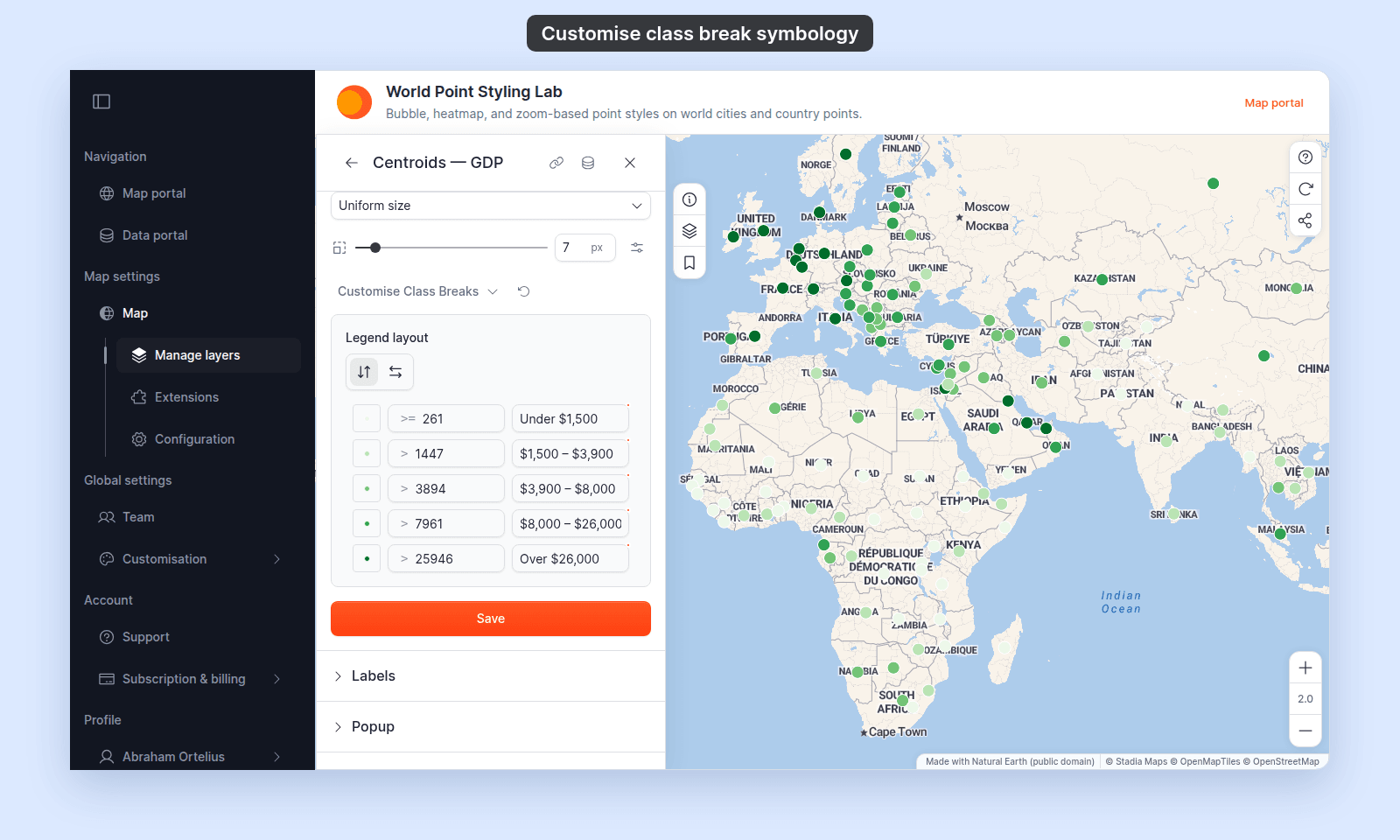 **Line**
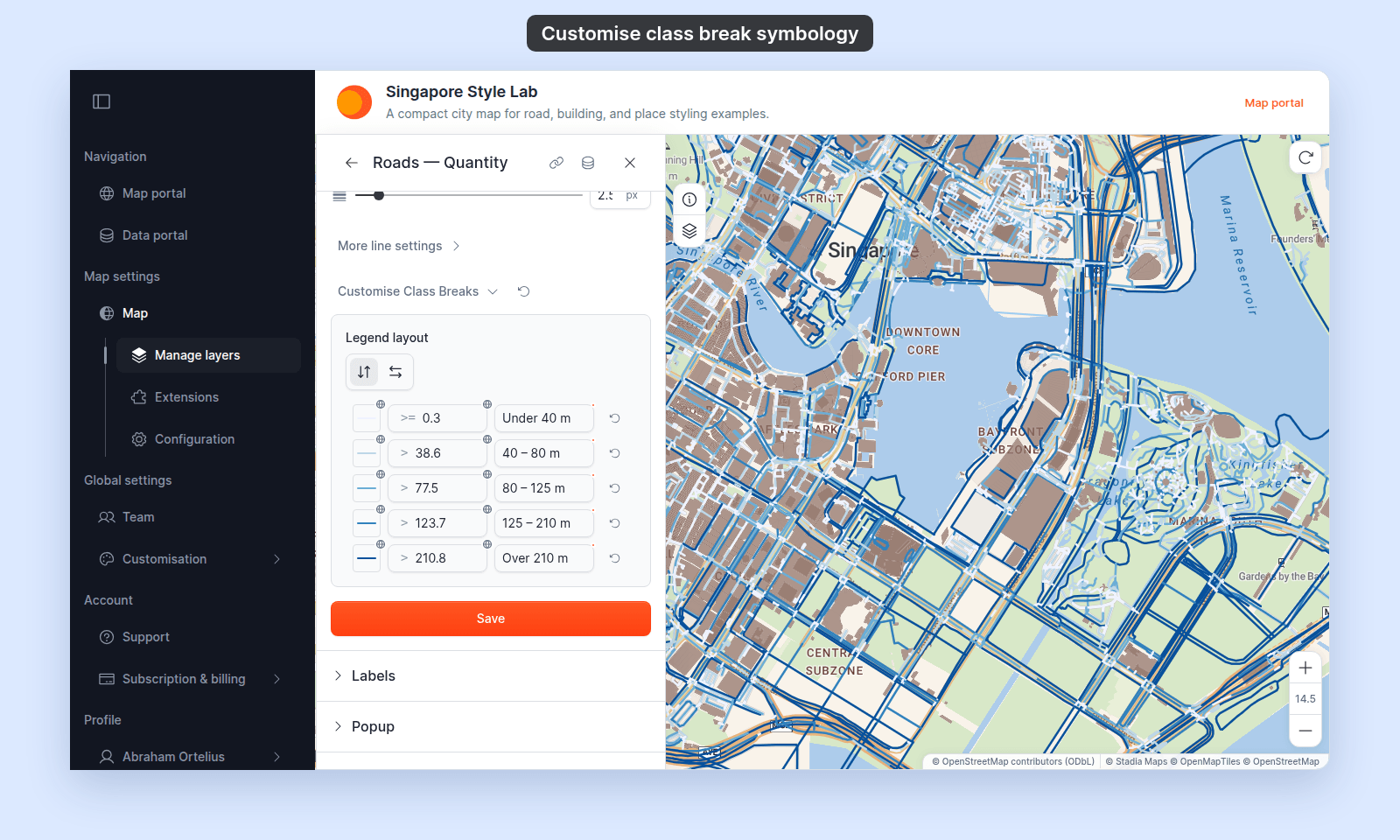 **Polygon**
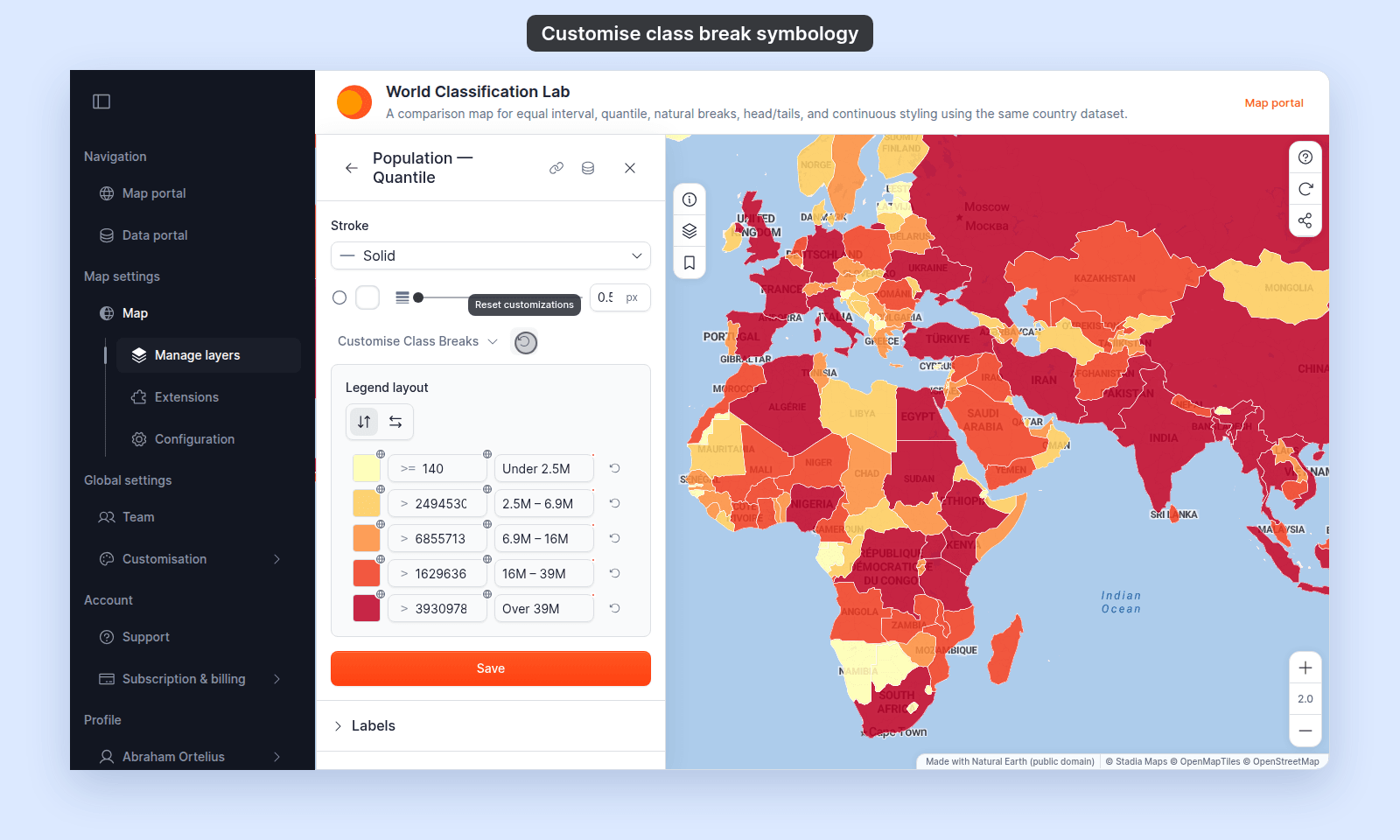 ### Customisation collapsible toggle
| | |
| --- | --- |
| Where | Below the colour scheme controls in the `Style` tab |
| Label (category style) | `Customise categories`: a text field, or a numeric field with `Style as` set to `Categories` |
| Label (class breaks) | `Customise Class Breaks`: a numeric field with `Style as` set to a class count |
| Toggle | Click to expand or collapse the rows |
### Reset customisations
| | |
| --- | --- |
| Where | Next to the collapsible toggle, to the right of the chevron |
| Visibility | Only appears once rows in the panel have been customised |
| Label | `Reset customizations` (tooltip) on line, polygon, and class break panels. |
| Effect | Opens a menu of reset actions |
The menu's actions depend on the panel and on which customisations are present:
- **Line and polygon category panels:** `Reset colours` and `Reset labels`. Each asks for confirmation first.
- **Point category panel:** `Reset all labels` and `Reset all symbology`. Each asks for confirmation first. `Reset all symbology` clears every per-row symbol change at once.
- **Class break panels (every geometry):** `Reset ranges` and `Reset labels`, each followed by the number of customised rows. Each runs at once, with no confirmation. A colour picked in a row's swatch doesn't count as a customised colour for this menu. Reset it with `Reset to global` in the swatch settings or with the row's reset icon.
Each action appears only when that kind of customisation exists. Each action changes only its own kind. For example, `Reset colours` doesn't touch labels, values, visibility, or marker changes.
### Customisation collapsible toggle
| | |
| --- | --- |
| Where | Below the colour scheme controls in the `Style` tab |
| Label (category style) | `Customise categories`: a text field, or a numeric field with `Style as` set to `Categories` |
| Label (class breaks) | `Customise Class Breaks`: a numeric field with `Style as` set to a class count |
| Toggle | Click to expand or collapse the rows |
### Reset customisations
| | |
| --- | --- |
| Where | Next to the collapsible toggle, to the right of the chevron |
| Visibility | Only appears once rows in the panel have been customised |
| Label | `Reset customizations` (tooltip) on line, polygon, and class break panels. |
| Effect | Opens a menu of reset actions |
The menu's actions depend on the panel and on which customisations are present:
- **Line and polygon category panels:** `Reset colours` and `Reset labels`. Each asks for confirmation first.
- **Point category panel:** `Reset all labels` and `Reset all symbology`. Each asks for confirmation first. `Reset all symbology` clears every per-row symbol change at once.
- **Class break panels (every geometry):** `Reset ranges` and `Reset labels`, each followed by the number of customised rows. Each runs at once, with no confirmation. A colour picked in a row's swatch doesn't count as a customised colour for this menu. Reset it with `Reset to global` in the swatch settings or with the row's reset icon.
Each action appears only when that kind of customisation exists. Each action changes only its own kind. For example, `Reset colours` doesn't touch labels, values, visibility, or marker changes.
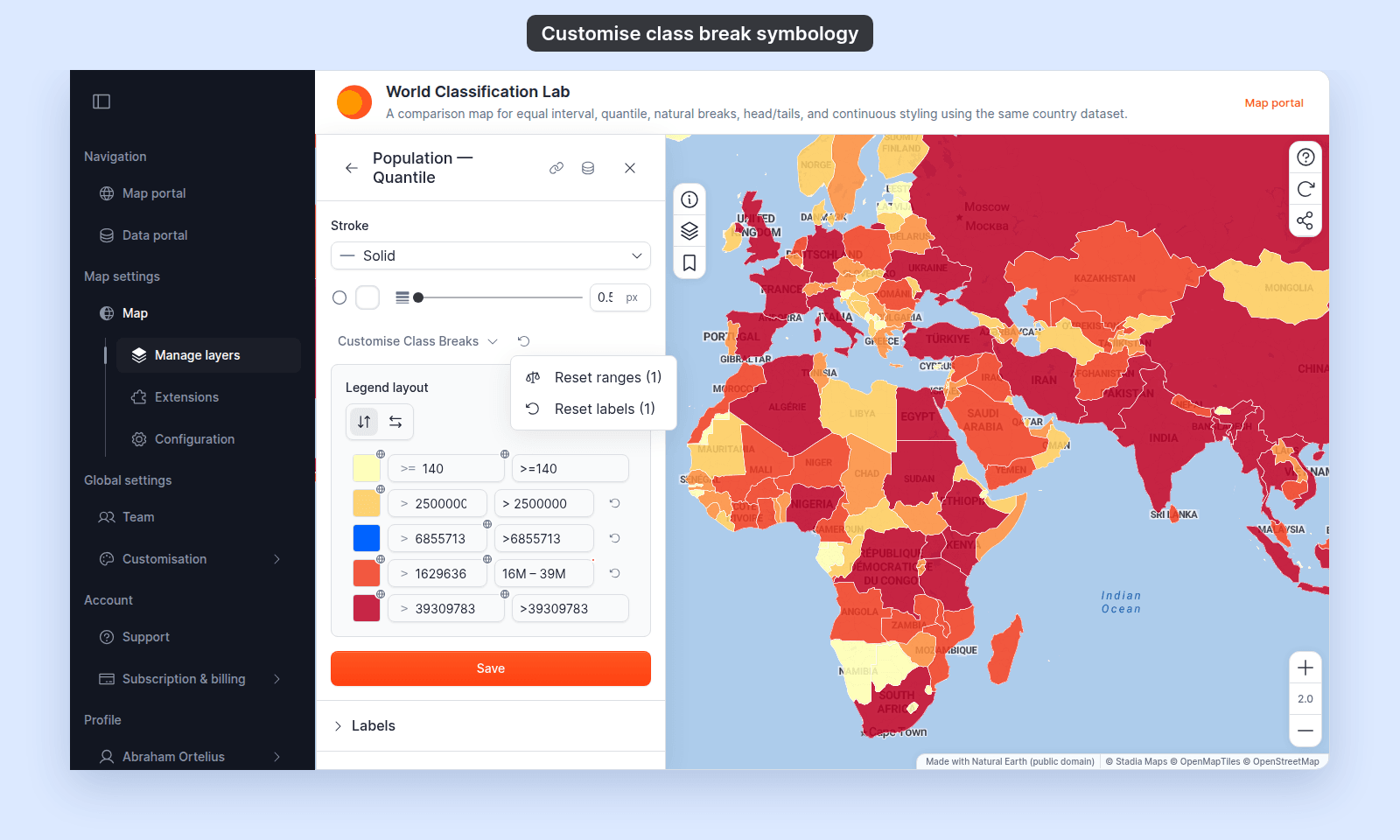 ### Legend layout
| | |
| --- | --- |
| Label | `Legend layout` |
| Where | Top of the expanded `Customise Class Breaks` panel. Category panels don't have it. |
| Choices | Two icon buttons: vertical layout (tooltip _"Show classes vertically in legend"_) and horizontal layout (tooltip _"Show classes horizontally in legend"_) |
| Default | Vertical |
## Which rows a category panel lists
A category panel has one row for each distinct value in the field. You can't add or remove rows; hide a row instead.
- Up to 50 values get their own row. For numbers, these are the 50 lowest values; for text, the first 50 from A to Z.
- If the field has more values, one `Other` row covers the rest.
- If some features have no value, a `Null` row covers them.
## Row cells for every geometry
These cells are the same on point, line, and polygon layers. The symbol settings behind the swatch differ by geometry; see the sections below.
| Cell | Category rows | Class break rows | Notes |
| ---- | ------------- | ---------------- | ----- |
| Swatch | Yes | Yes | Click to open the row's symbol settings |
| Value | No | Yes | The lower bound of the class. The first row shows `>=` and the others show `>`. The class runs up to the next row's value, so classes have no gaps. Features below the first row's value do not draw. |
| Label | Yes | Yes | The legend text. A category label starts as the value. Changing a class break's value resets its label to the default. |
| Eye icon | Yes | No | Hides the category from the legend and the map |
| Drag handle | Yes | No | Reorders the rows in the legend |
| Reset icon | No | Yes | Appears once the row is customised, on line and polygon layers only. Tooltip: `Reset this class break to global settings`. |
| `Reset to global` | Yes | Yes | In the swatch settings, once the row's symbol is customised. Returns the symbol to the layer settings. |
## Symbol settings — Point
| Setting | Default | Notes |
| ------- | ------- | ----- |
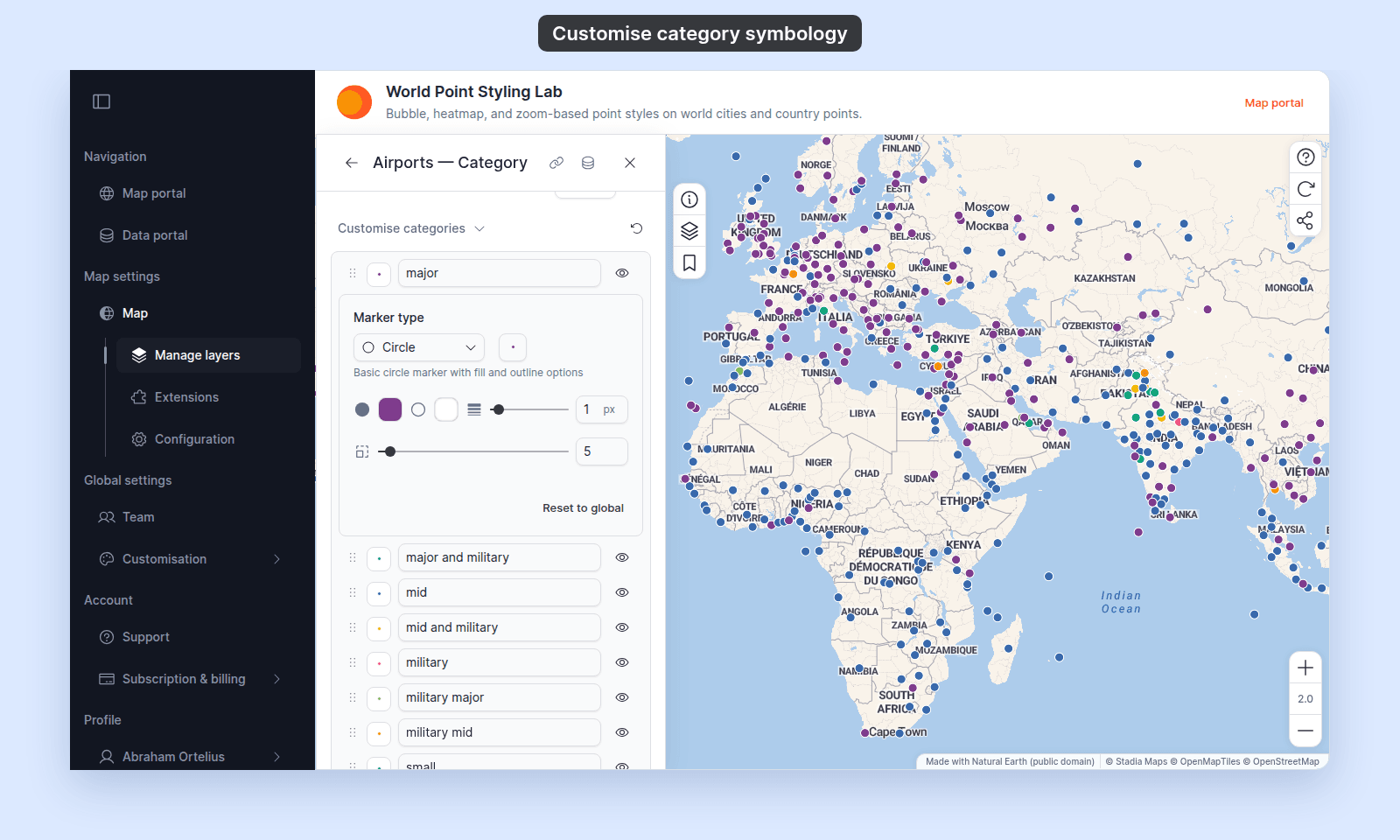
| Marker type | Layer marker type | Choices: `Circle`, `Icon`, `Custom Icon`. Each choice shows its own settings: an icon picker and rotation for `Icon`, a custom icon picker and opacity for `Custom Icon`. |
| Fill colour | From the colour palette | The picker's transparency is the row's opacity. It shows on the map for `Circle` and `Icon` rows. `Custom Icon` rows have no fill colour. |
| Opacity (`Custom Icon` only) | `100%` | 0–100%, with a slider and a number box. Replaces `Fill colour` for a custom icon. The layer's opacity slider does not change it. |
| Outline (`Circle` only) | Layer outline | Outline colour, opacity, and width. Width range 0.5–5 px, step 0.5. |
| Marker size | Layer marker size | Slider, 2–50 px, step 1. A fixed pixel size for this row, separate from the layer's `Size markers by` field. Hidden for `Custom Icon` rows, which follow the layer size. Disabled while the layer's `Vary size by zoom level` is on; see below. |
| Rotation (`Icon` only) | Layer rotation | 0–360°, step 5° |
### Legend layout
| | |
| --- | --- |
| Label | `Legend layout` |
| Where | Top of the expanded `Customise Class Breaks` panel. Category panels don't have it. |
| Choices | Two icon buttons: vertical layout (tooltip _"Show classes vertically in legend"_) and horizontal layout (tooltip _"Show classes horizontally in legend"_) |
| Default | Vertical |
## Which rows a category panel lists
A category panel has one row for each distinct value in the field. You can't add or remove rows; hide a row instead.
- Up to 50 values get their own row. For numbers, these are the 50 lowest values; for text, the first 50 from A to Z.
- If the field has more values, one `Other` row covers the rest.
- If some features have no value, a `Null` row covers them.
## Row cells for every geometry
These cells are the same on point, line, and polygon layers. The symbol settings behind the swatch differ by geometry; see the sections below.
| Cell | Category rows | Class break rows | Notes |
| ---- | ------------- | ---------------- | ----- |
| Swatch | Yes | Yes | Click to open the row's symbol settings |
| Value | No | Yes | The lower bound of the class. The first row shows `>=` and the others show `>`. The class runs up to the next row's value, so classes have no gaps. Features below the first row's value do not draw. |
| Label | Yes | Yes | The legend text. A category label starts as the value. Changing a class break's value resets its label to the default. |
| Eye icon | Yes | No | Hides the category from the legend and the map |
| Drag handle | Yes | No | Reorders the rows in the legend |
| Reset icon | No | Yes | Appears once the row is customised, on line and polygon layers only. Tooltip: `Reset this class break to global settings`. |
| `Reset to global` | Yes | Yes | In the swatch settings, once the row's symbol is customised. Returns the symbol to the layer settings. |
## Symbol settings — Point
| Setting | Default | Notes |
| ------- | ------- | ----- |
| Marker type | Layer marker type | Choices: `Circle`, `Icon`, `Custom Icon`. Each choice shows its own settings: an icon picker and rotation for `Icon`, a custom icon picker and opacity for `Custom Icon`. |
| Fill colour | From the colour palette | The picker's transparency is the row's opacity. It shows on the map for `Circle` and `Icon` rows. `Custom Icon` rows have no fill colour. |
| Opacity (`Custom Icon` only) | `100%` | 0–100%, with a slider and a number box. Replaces `Fill colour` for a custom icon. The layer's opacity slider does not change it. |
| Outline (`Circle` only) | Layer outline | Outline colour, opacity, and width. Width range 0.5–5 px, step 0.5. |
| Marker size | Layer marker size | Slider, 2–50 px, step 1. A fixed pixel size for this row, separate from the layer's `Size markers by` field. Hidden for `Custom Icon` rows, which follow the layer size. Disabled while the layer's `Vary size by zoom level` is on; see below. |
| Rotation (`Icon` only) | Layer rotation | 0–360°, step 5° |
 ### Marker size while zoom sizing is on
When `Size markers by` is `Uniform size` and `Vary size by zoom level` is on, the layer's zoom stops set the size of every `Circle` row. The per-row size control is disabled and shows `Size varies by zoom level — set on the layer's size control`. Each row's own size is kept and comes back when you turn zoom sizing off. Rows that use an `Icon` or `Custom Icon` marker keep their fixed size. See [How to vary marker size by zoom level](/docs/styling-layers/vary-marker-size-by-zoom).
## Symbol settings — Line
| Setting | Default | Notes |
| ------- | ------- | ----- |
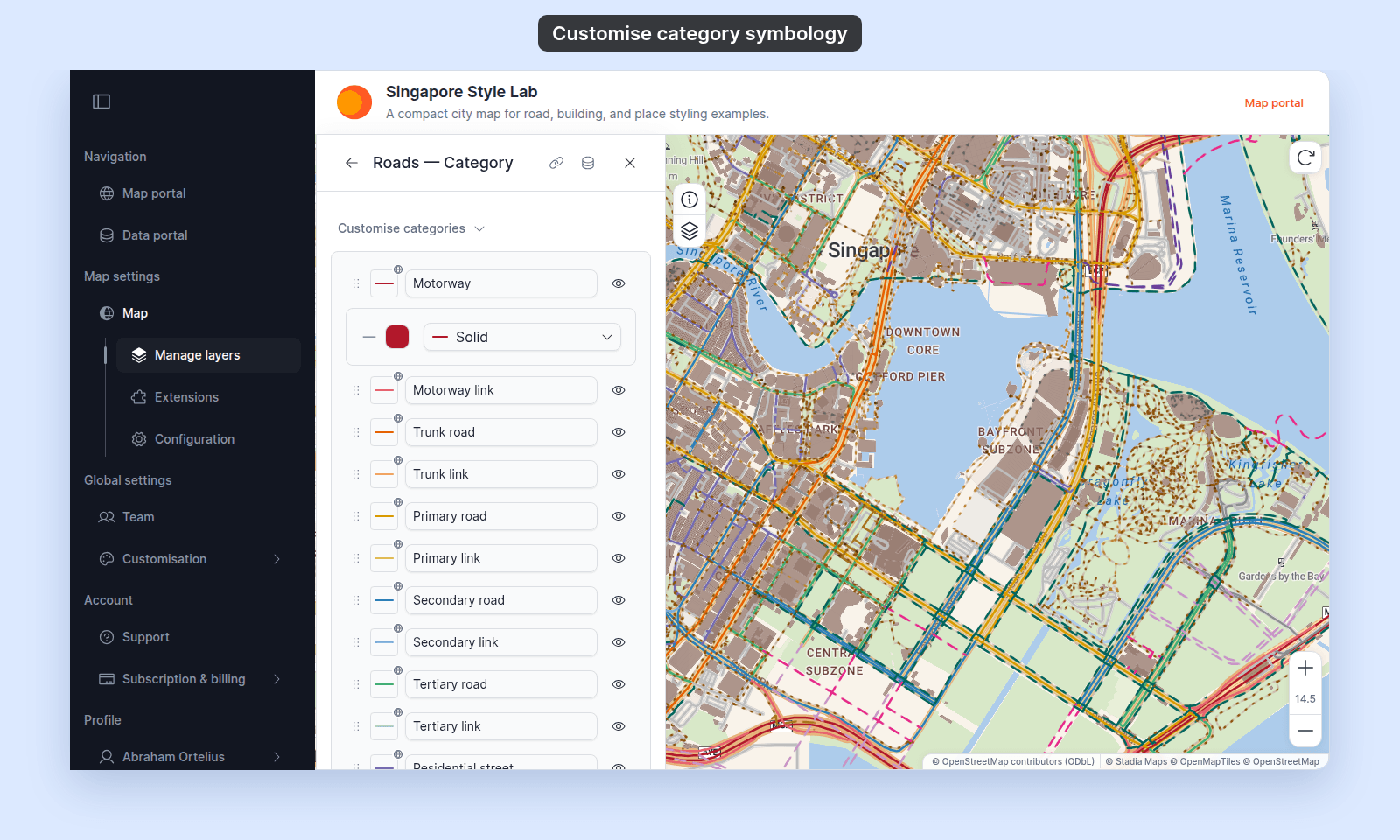
| Line colour | From the colour scheme | The picker's transparency is the row's opacity |
| Line pattern | Layer line pattern | Choices: `Solid`, `Dashed`, `Dotted` |
| Line width | Layer line width | Not set per row. Set it for the whole layer. Line width by a field is not available. |
| Casing | Layer casing | Not set per row. Turn it on and pick a colour for the whole layer. See [How to style line patterns and casing](/docs/styling-layers/style-line-patterns). |
The row swatch shows the row's colour and pattern with the layer's line cap and casing. Picking a `Line pattern` for the whole layer in `More line settings` sets every category row to that pattern.
### Marker size while zoom sizing is on
When `Size markers by` is `Uniform size` and `Vary size by zoom level` is on, the layer's zoom stops set the size of every `Circle` row. The per-row size control is disabled and shows `Size varies by zoom level — set on the layer's size control`. Each row's own size is kept and comes back when you turn zoom sizing off. Rows that use an `Icon` or `Custom Icon` marker keep their fixed size. See [How to vary marker size by zoom level](/docs/styling-layers/vary-marker-size-by-zoom).
## Symbol settings — Line
| Setting | Default | Notes |
| ------- | ------- | ----- |
| Line colour | From the colour scheme | The picker's transparency is the row's opacity |
| Line pattern | Layer line pattern | Choices: `Solid`, `Dashed`, `Dotted` |
| Line width | Layer line width | Not set per row. Set it for the whole layer. Line width by a field is not available. |
| Casing | Layer casing | Not set per row. Turn it on and pick a colour for the whole layer. See [How to style line patterns and casing](/docs/styling-layers/style-line-patterns). |
The row swatch shows the row's colour and pattern with the layer's line cap and casing. Picking a `Line pattern` for the whole layer in `More line settings` sets every category row to that pattern.
 ## Symbol settings — Polygon
| Setting | Default | Notes |
| ------- | ------- | ----- |
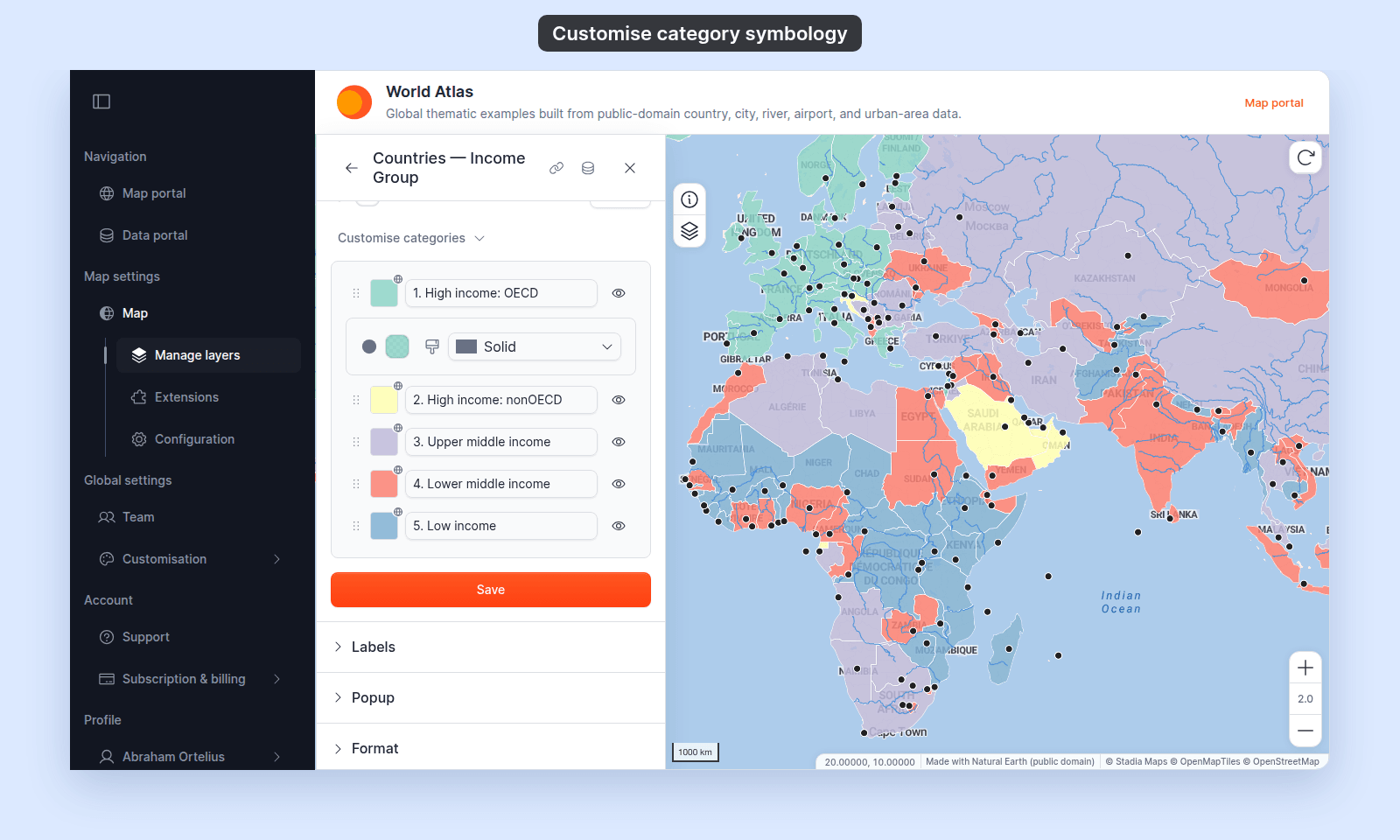
| Fill colour | From the colour scheme | The picker's transparency is the row's opacity |
| Fill pattern | Layer fill pattern | Choices: `Solid`, `Vertical Line`, `Horizontal Line`, `Slash`, `Back Slash`, `Grid`, `Diagonal Grid`, `Dots`, `Filled Arrow`, `Open Arrow`, `None`. Changing the layer fill pattern sets every row to it. See [How to style polygon fill patterns](/docs/styling-layers/style-polygon-fill-patterns). |
| Stroke | Layer stroke | Not set per row. Set `Stroke` (`None`, `Solid`, `Dashed`, or `Dotted`), stroke colour, and stroke width for the whole layer. |
## Symbol settings — Polygon
| Setting | Default | Notes |
| ------- | ------- | ----- |
| Fill colour | From the colour scheme | The picker's transparency is the row's opacity |
| Fill pattern | Layer fill pattern | Choices: `Solid`, `Vertical Line`, `Horizontal Line`, `Slash`, `Back Slash`, `Grid`, `Diagonal Grid`, `Dots`, `Filled Arrow`, `Open Arrow`, `None`. Changing the layer fill pattern sets every row to it. See [How to style polygon fill patterns](/docs/styling-layers/style-polygon-fill-patterns). |
| Stroke | Layer stroke | Not set per row. Set `Stroke` (`None`, `Solid`, `Dashed`, or `Dotted`), stroke colour, and stroke width for the whole layer. |
 ## Default labels
A class break label starts as the class's lower bound with an operator: `>=` on the first row and `>` on every other row, such as `>= 140` and `> 2500000`. Editing the label marks the row as customised. `Reset labels` reverts every customised class break label at once.
A category label starts as the value itself, including numeric codes such as `1.5`. The number formats set in the layer's attribute formatting don't apply to category labels. Editing a label changes the text the legend shows, not the value it matches. `Reset labels` (line and polygon) or `Reset all labels` (point) reverts every customised category label, after a confirmation.
## What this reference does NOT cover
- **Layer controls**: the colour driver, `Style as`, the size driver (`Size markers by`), colour scheme, classification method, class count, fill colour, marker type, and zoom stops. They are above the rows. See [How to style features by category](/docs/styling-layers/style-by-category), [How to style features by quantity](/docs/styling-layers/style-by-quantity), [How to size points by a number](/docs/styling-layers/size-points-by-a-number), and the per-geometry references in this folder.
- **Save behaviour**: the `Save` button at the bottom of the Style tab saves all of these. Raster and WMS layers use `Save Style`, and they don't have categories or class breaks. See [How layer styling works in MangoMap](/docs/styling-layers/concepts-layer-styling).
- **Reordering class breaks**: class break rows follow their values and have no drag handle. Change the method or the class count instead.
## Default labels
A class break label starts as the class's lower bound with an operator: `>=` on the first row and `>` on every other row, such as `>= 140` and `> 2500000`. Editing the label marks the row as customised. `Reset labels` reverts every customised class break label at once.
A category label starts as the value itself, including numeric codes such as `1.5`. The number formats set in the layer's attribute formatting don't apply to category labels. Editing a label changes the text the legend shows, not the value it matches. `Reset labels` (line and polygon) or `Reset all labels` (point) reverts every customised category label, after a confirmation.
## What this reference does NOT cover
- **Layer controls**: the colour driver, `Style as`, the size driver (`Size markers by`), colour scheme, classification method, class count, fill colour, marker type, and zoom stops. They are above the rows. See [How to style features by category](/docs/styling-layers/style-by-category), [How to style features by quantity](/docs/styling-layers/style-by-quantity), [How to size points by a number](/docs/styling-layers/size-points-by-a-number), and the per-geometry references in this folder.
- **Save behaviour**: the `Save` button at the bottom of the Style tab saves all of these. Raster and WMS layers use `Save Style`, and they don't have categories or class breaks. See [How layer styling works in MangoMap](/docs/styling-layers/concepts-layer-styling).
- **Reordering class breaks**: class break rows follow their values and have no drag handle. Change the method or the class count instead.