---
title: "How to change your password"
description: "Change your MangoMap password when you know the current one. Your other sessions sign out, and this device stays signed in with the new password."
sidebar:
label: "Change your password"
---
Change your password when you know the current password. MangoMap signs out your other sessions and keeps this device signed in with the new password.
If you do not know the current password, submit a reset request at [mangomap.com/forgot-password](https://mangomap.com/forgot-password).
## Before you start
- You must be signed in.
- Have your current password ready.
- Choose a new password with at least eight characters, including lowercase, uppercase, a number, and a special character.
## Open the password form
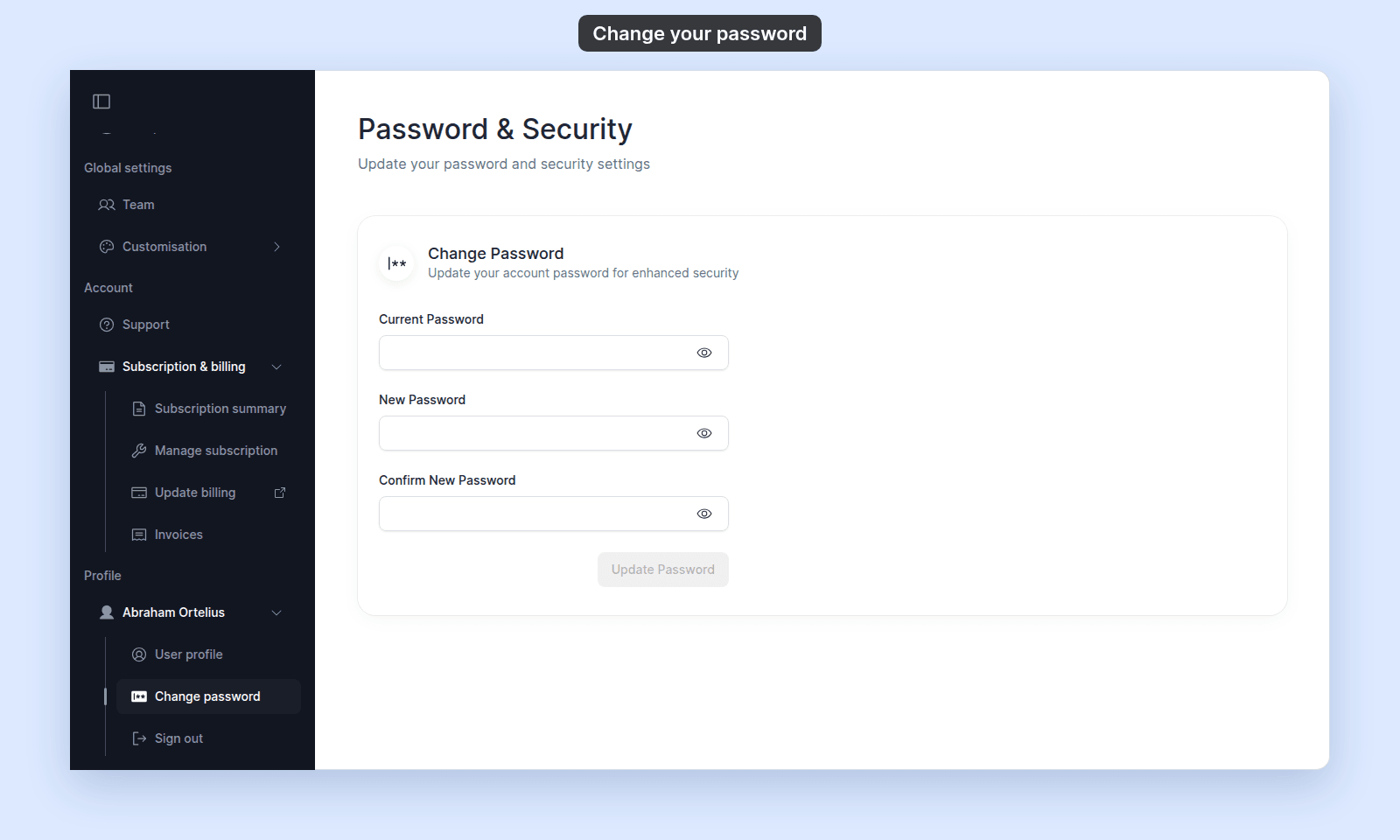
In the profile section of the admin navigation, click `Change password`.
 ## Enter the passwords
Complete `Current Password`, `New Password`, and `Confirm New Password`. The confirmation must exactly match the new password.
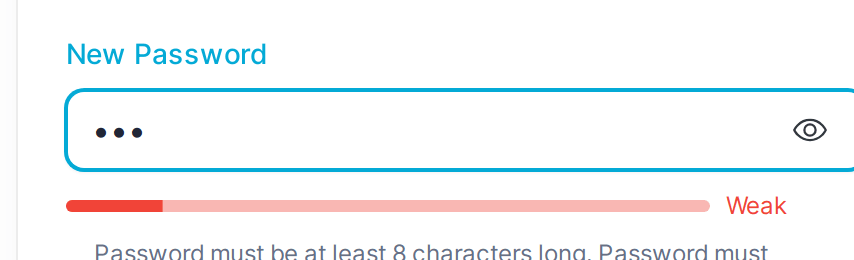
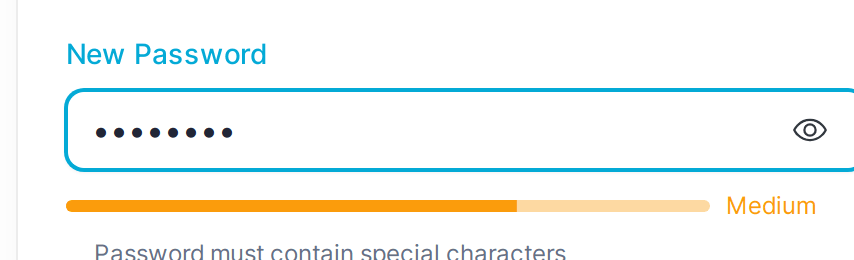
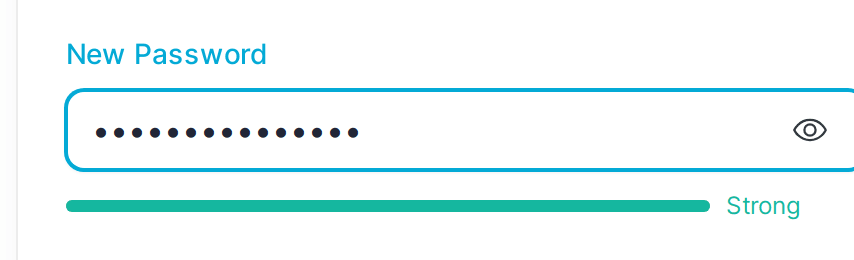
As you type, the new password must meet these rules:
- At least 8 characters.
- Lowercase letters.
- Uppercase letters.
- Numbers.
- Special characters.
## Enter the passwords
Complete `Current Password`, `New Password`, and `Confirm New Password`. The confirmation must exactly match the new password.
As you type, the new password must meet these rules:
- At least 8 characters.
- Lowercase letters.
- Uppercase letters.
- Numbers.
- Special characters.
 ## Update the password
Click `Update Password`. `Update Password` becomes available only after every field meets its rule.
After a successful update:
- The form clears.
- MangoMap signs out other devices and browser sessions.
Use the new password the next time you sign in elsewhere.
## Troubleshooting
**The button remains disabled.** Complete all three fields and satisfy every new-password requirement.
**The update fails.** Re-enter the current password. If you cannot remember it, use [forgot-password recovery](https://mangomap.com/forgot-password).
**Another device still appears signed in.** Refresh it, and it asks you to sign in.
## Related
- [How profile and password settings work](/docs/profile/concepts-profile)
- [Profile and password reference](/docs/profile/profile-and-password-reference)
- [Reset a forgotten password](/docs/signing-in/reset-a-forgotten-password)
## Update the password
Click `Update Password`. `Update Password` becomes available only after every field meets its rule.
After a successful update:
- The form clears.
- MangoMap signs out other devices and browser sessions.
Use the new password the next time you sign in elsewhere.
## Troubleshooting
**The button remains disabled.** Complete all three fields and satisfy every new-password requirement.
**The update fails.** Re-enter the current password. If you cannot remember it, use [forgot-password recovery](https://mangomap.com/forgot-password).
**Another device still appears signed in.** Refresh it, and it asks you to sign in.
## Related
- [How profile and password settings work](/docs/profile/concepts-profile)
- [Profile and password reference](/docs/profile/profile-and-password-reference)
- [Reset a forgotten password](/docs/signing-in/reset-a-forgotten-password)