---
title: "How to change your account URL slug"
description: "Change your account URL slug as the account owner. MangoMap does not redirect old links, so update every shared link, embed, and bookmark after you save."
sidebar:
label: "Change the account URL slug"
---
Changing the account URL slug changes links to shared maps, datasets, embeds, and sign-in pages. MangoMap does not redirect old links, so update each published link after you save.
## Before you start
- You must be the account owner.
- Partner-managed accounts must ask their partner to make this change.
- Prepare a list of embeds, bookmarks, and shared links that use the current slug.
- Choose a unique slug containing 3–50 letters, numbers, hyphens, or underscores. It cannot start or end with a hyphen or underscore.
## Open the URL slug editor
{/* video-content: id=change-your-account-url-slug
Start: The fully loaded Profile settings page with the current URL Slug field visible.
Show:
1. Focus the URL Slug field so the current account URL is easy to locate.
2. Click Edit.
3. Show the Edit Account URL Slug warning dialog and its consequences.
End: Hold on the open warning dialog without editing or submitting a slug.
Exclude: Authentication, loading screens, fixture setup, typing a new slug,
submitting the dialog, or changing the account URL.
*/}
{/* walkthrough: id=change-your-account-url-slug */}
{/* /walkthrough */}
Open `User profile`, then find `URL Slug` in the owner-only organisation settings.
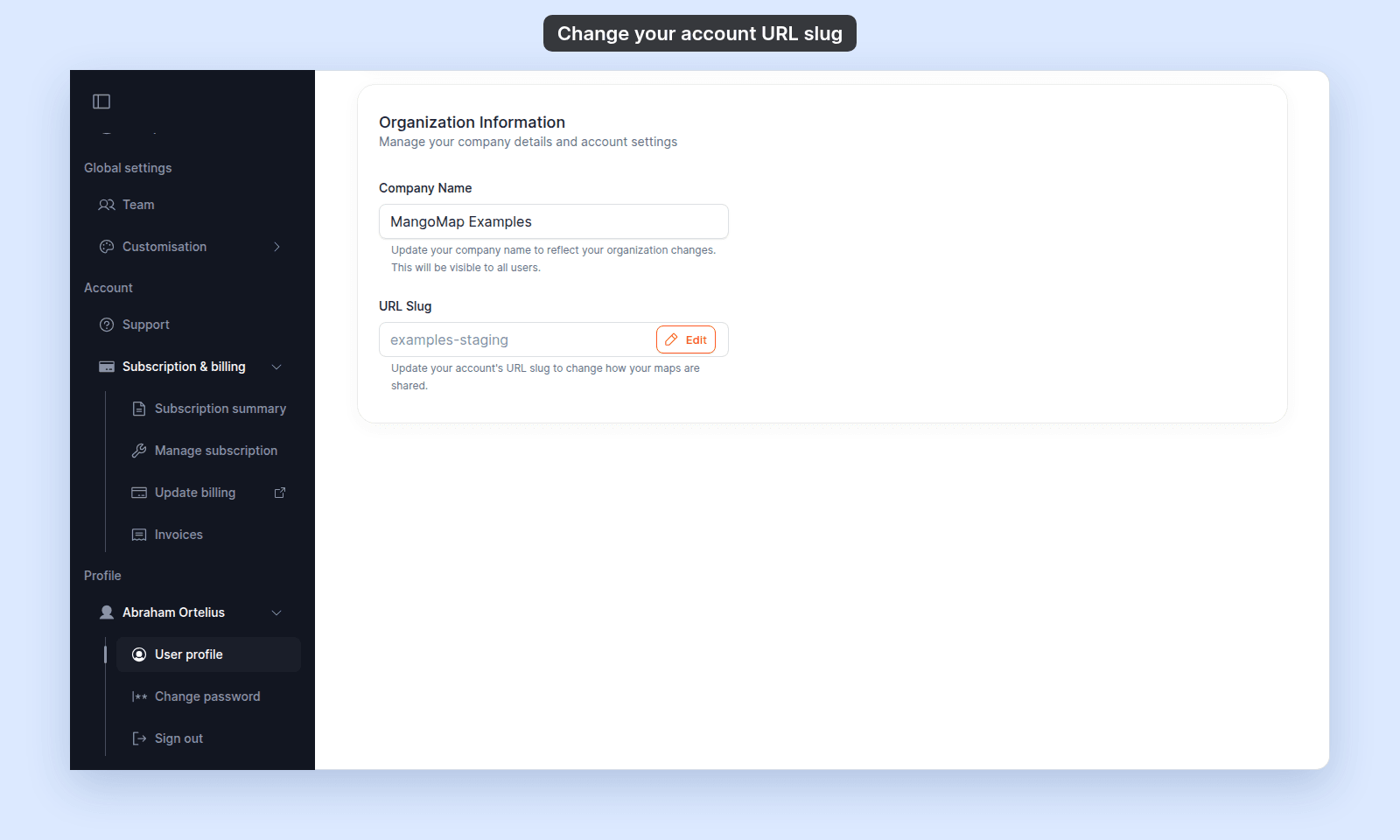 Click `Edit`.
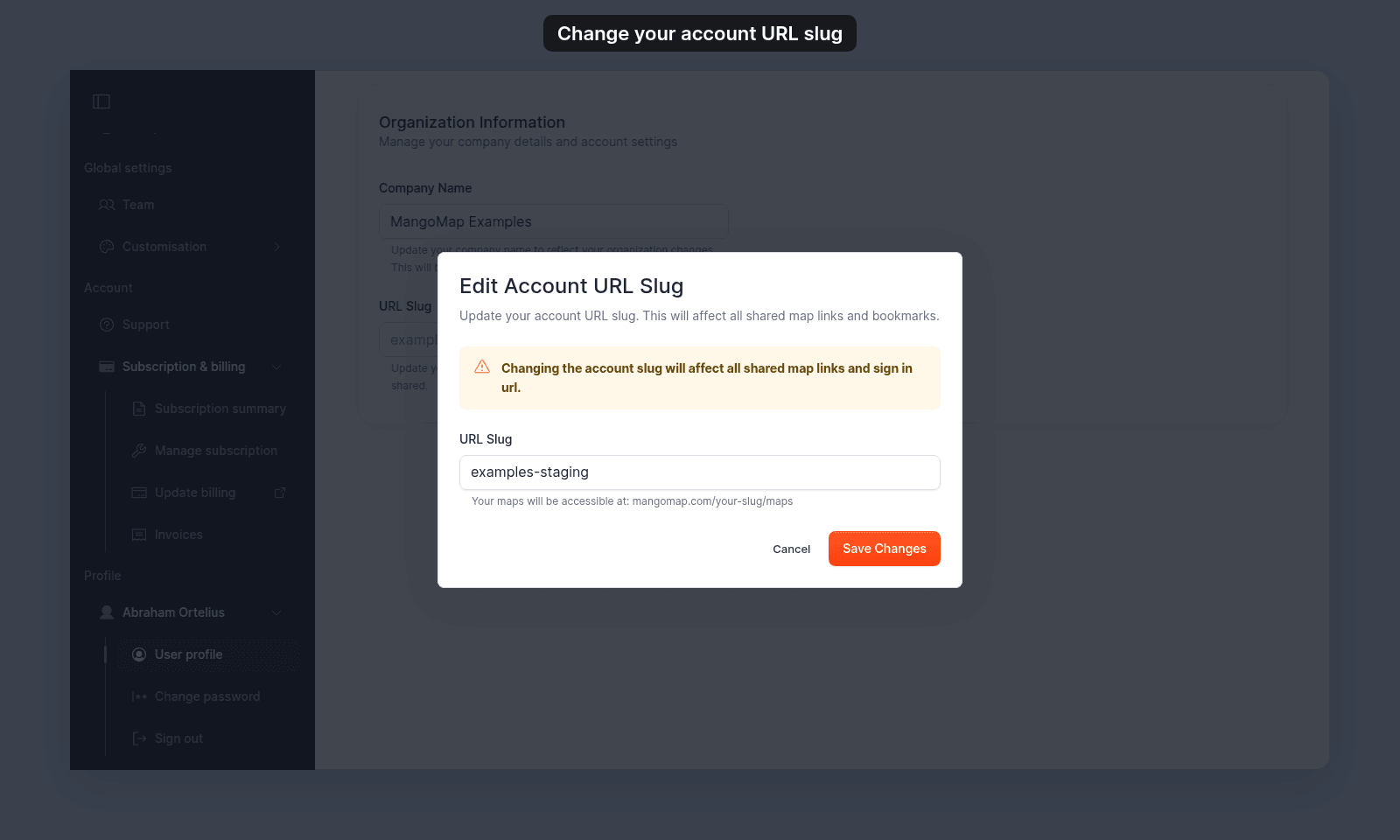 ## Enter a new slug
Type the new value in `URL Slug`. Uppercase letters are converted to lowercase and spaces are converted to hyphens while you type.
The form checks the format and availability before it enables `Save Changes`.
| Problem | Validation message |
| --- | --- |
| Empty | `URL slug cannot be empty` |
| Fewer than 3 characters | `URL slug must be at least 3 characters long` |
| More than 50 characters | `URL slug must be less than 50 characters` |
| Unsupported characters | `URL slug can only contain letters, numbers, hyphens, and underscores` |
| Hyphen or underscore at either end | `URL slug cannot start or end with hyphens or underscores` |
| Already assigned | `This URL slug is already taken` |
## Save and update links
> [!WARNING]
> When you save, old links to your maps, datasets, embeds, and sign-in page stop working. MangoMap does not redirect them.
Click `Save Changes`. MangoMap sends this browser to the profile page under the new account URL.
Update:
- Embedded-map source URLs.
- Public and private links shared with viewers.
- Team bookmarks and documentation.
- Integrations that store MangoMap URLs.
If you later change the slug back, it must still be available.
## Troubleshooting
**The URL slug control is absent.** You are not the account owner, or the account is partner-managed.
**The availability check succeeds but saving fails.** Retry the check. Another account may have taken the slug after the check.
**Old links return an error.** MangoMap does not redirect the former slug. Replace the old value in each link or embed.
## Related
- [How to update your profile](/docs/profile/update-your-profile)
- [Profile and password reference](/docs/profile/profile-and-password-reference)
- [How to embed a map](/docs/map-access/embed-a-map)
## Enter a new slug
Type the new value in `URL Slug`. Uppercase letters are converted to lowercase and spaces are converted to hyphens while you type.
The form checks the format and availability before it enables `Save Changes`.
| Problem | Validation message |
| --- | --- |
| Empty | `URL slug cannot be empty` |
| Fewer than 3 characters | `URL slug must be at least 3 characters long` |
| More than 50 characters | `URL slug must be less than 50 characters` |
| Unsupported characters | `URL slug can only contain letters, numbers, hyphens, and underscores` |
| Hyphen or underscore at either end | `URL slug cannot start or end with hyphens or underscores` |
| Already assigned | `This URL slug is already taken` |
## Save and update links
> [!WARNING]
> When you save, old links to your maps, datasets, embeds, and sign-in page stop working. MangoMap does not redirect them.
Click `Save Changes`. MangoMap sends this browser to the profile page under the new account URL.
Update:
- Embedded-map source URLs.
- Public and private links shared with viewers.
- Team bookmarks and documentation.
- Integrations that store MangoMap URLs.
If you later change the slug back, it must still be available.
## Troubleshooting
**The URL slug control is absent.** You are not the account owner, or the account is partner-managed.
**The availability check succeeds but saving fails.** Retry the check. Another account may have taken the slug after the check.
**Old links return an error.** MangoMap does not redirect the former slug. Replace the old value in each link or embed.
## Related
- [How to update your profile](/docs/profile/update-your-profile)
- [Profile and password reference](/docs/profile/profile-and-password-reference)
- [How to embed a map](/docs/map-access/embed-a-map)