---
title: "How to delete a dataset"
description: "Delete a dataset from the Data portal with the card menu. MangoMap blocks deletion while any map uses it. You cannot recover a deleted dataset."
sidebar:
label: "Delete a dataset"
---
Deleting a dataset removes its data file and records. MangoMap blocks deletion while any map uses the dataset. After you remove it from those maps, you can confirm deletion. You cannot recover the dataset or undo the action.
## Before you start
- You need the `Delete dataset` permission. This is available to the dataset's creator, the account Owner, and to Admins who have edit access to the dataset via group membership. Editor and Viewer roles cannot delete datasets they did not create. See [Account roles reference](/docs/account-roles/account-roles-reference).
- If the dataset is used in any maps, you'll be shown which maps use it and asked to remove the dataset from those maps before you can delete.
- Confirm that deletion is what you want. Alternatives:
- To stop a dataset from appearing publicly, turn off `Public access` in its access settings rather than deleting it. See [Dataset access](/docs/dataset-access).
- To rename or change a dataset's metadata, open the dataset's settings page rather than deleting and re-importing. See [How to set the dataset name and description](/docs/dataset-settings/set-dataset-name-and-description).
If you cannot delete a dataset, the `…` menu doesn't appear on its card.
## Open the dataset card menu
Find the dataset you want to delete. Hover over its card (or its row in list view) and click the `…` button in the top-right corner of the thumbnail.
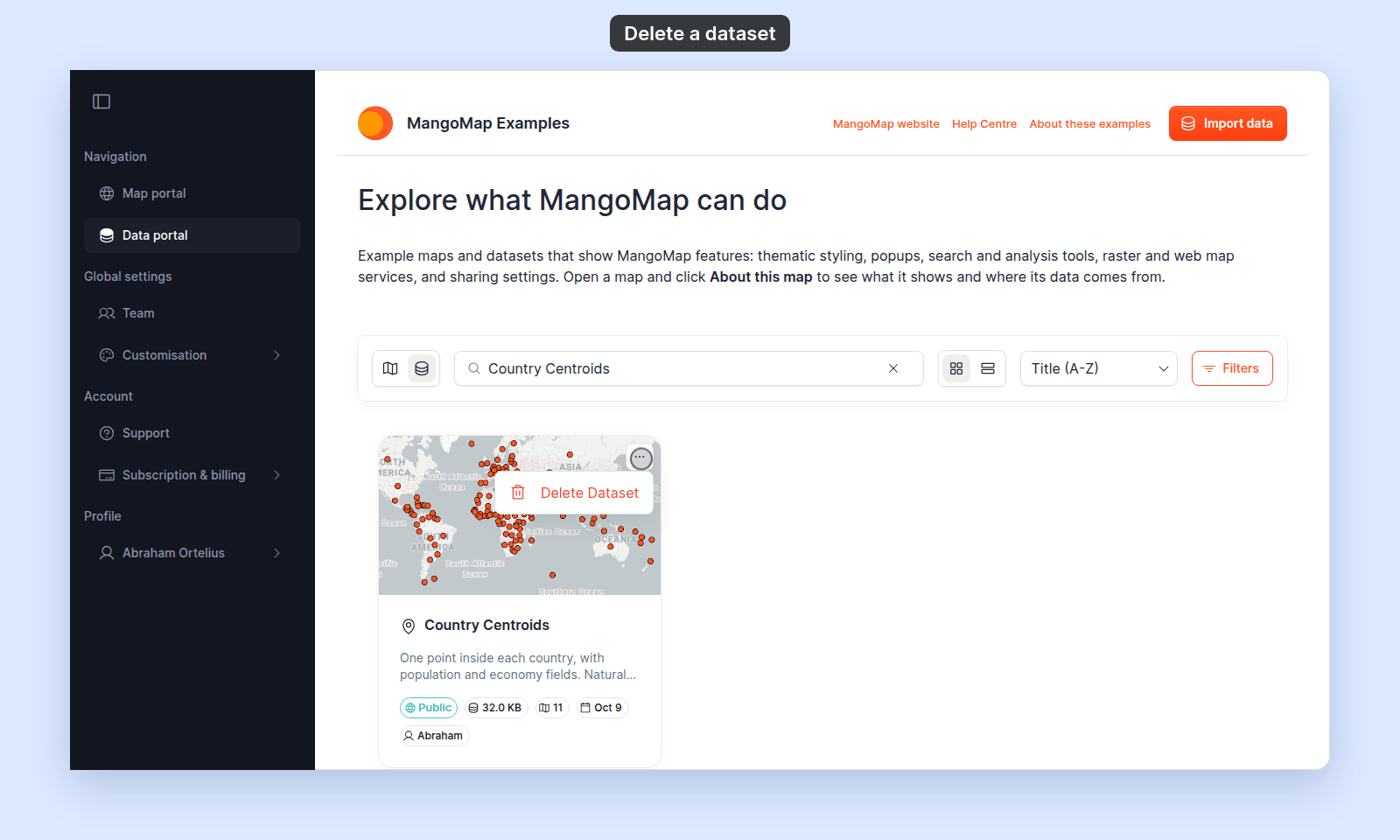 The menu opens with a single item: `Delete Dataset`, in red, with a trash icon.
## Click Delete Dataset
What happens next depends on whether the dataset is in use.
### If the dataset is in use
The menu opens with a single item: `Delete Dataset`, in red, with a trash icon.
## Click Delete Dataset
What happens next depends on whether the dataset is in use.
### If the dataset is in use
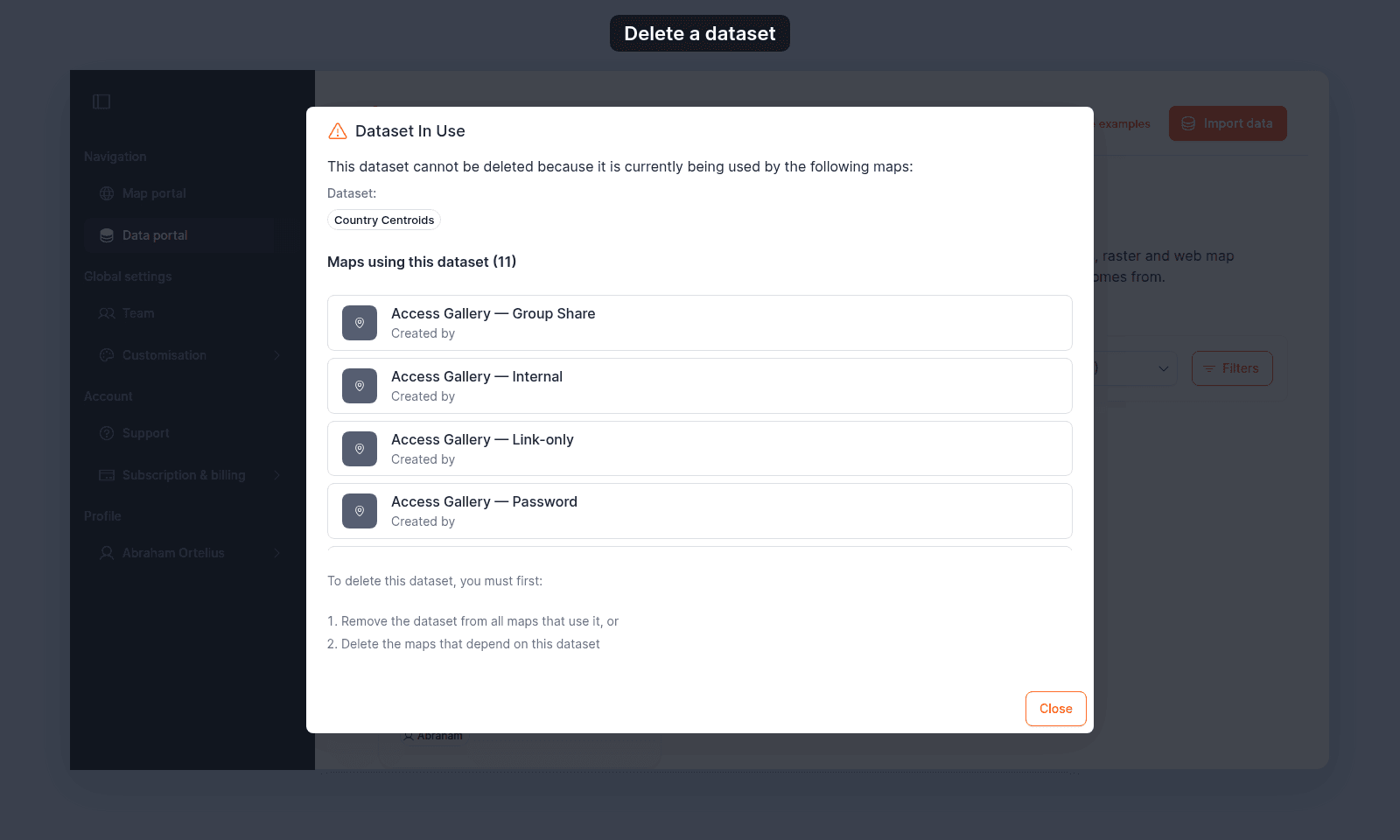 A `Dataset In Use` dialog opens with a warning icon. The dialog shows:
- The message `This dataset cannot be deleted because it is currently being used by the following maps:`.
- The dataset name in a chip.
- A list — `Maps using this dataset (N)` — with one row per map (thumbnail, name, creator).
- Two instructions:
1. `Remove the dataset from all maps that use it`, or
2. `Delete the maps that depend on this dataset`.
- A single `Close` button.
There is **no `Delete` button on this dialog**.
To proceed:
1. Note the maps in the list.
2. Close the dialog.
3. For each map in the list, open it in the editor and either remove the layer that points at this dataset (see [How to remove a layer](/docs/managing-layers/remove-a-layer)) or delete the map entirely (see [How to delete a map](/docs/portals/delete-a-map)).
4. Return to the `Data` page, open the `…` menu on the dataset card, and click `Delete Dataset` again.
When no maps use the dataset, the confirmation dialog opens instead.
### If the dataset is not in use
A `Dataset In Use` dialog opens with a warning icon. The dialog shows:
- The message `This dataset cannot be deleted because it is currently being used by the following maps:`.
- The dataset name in a chip.
- A list — `Maps using this dataset (N)` — with one row per map (thumbnail, name, creator).
- Two instructions:
1. `Remove the dataset from all maps that use it`, or
2. `Delete the maps that depend on this dataset`.
- A single `Close` button.
There is **no `Delete` button on this dialog**.
To proceed:
1. Note the maps in the list.
2. Close the dialog.
3. For each map in the list, open it in the editor and either remove the layer that points at this dataset (see [How to remove a layer](/docs/managing-layers/remove-a-layer)) or delete the map entirely (see [How to delete a map](/docs/portals/delete-a-map)).
4. Return to the `Data` page, open the `…` menu on the dataset card, and click `Delete Dataset` again.
When no maps use the dataset, the confirmation dialog opens instead.
### If the dataset is not in use
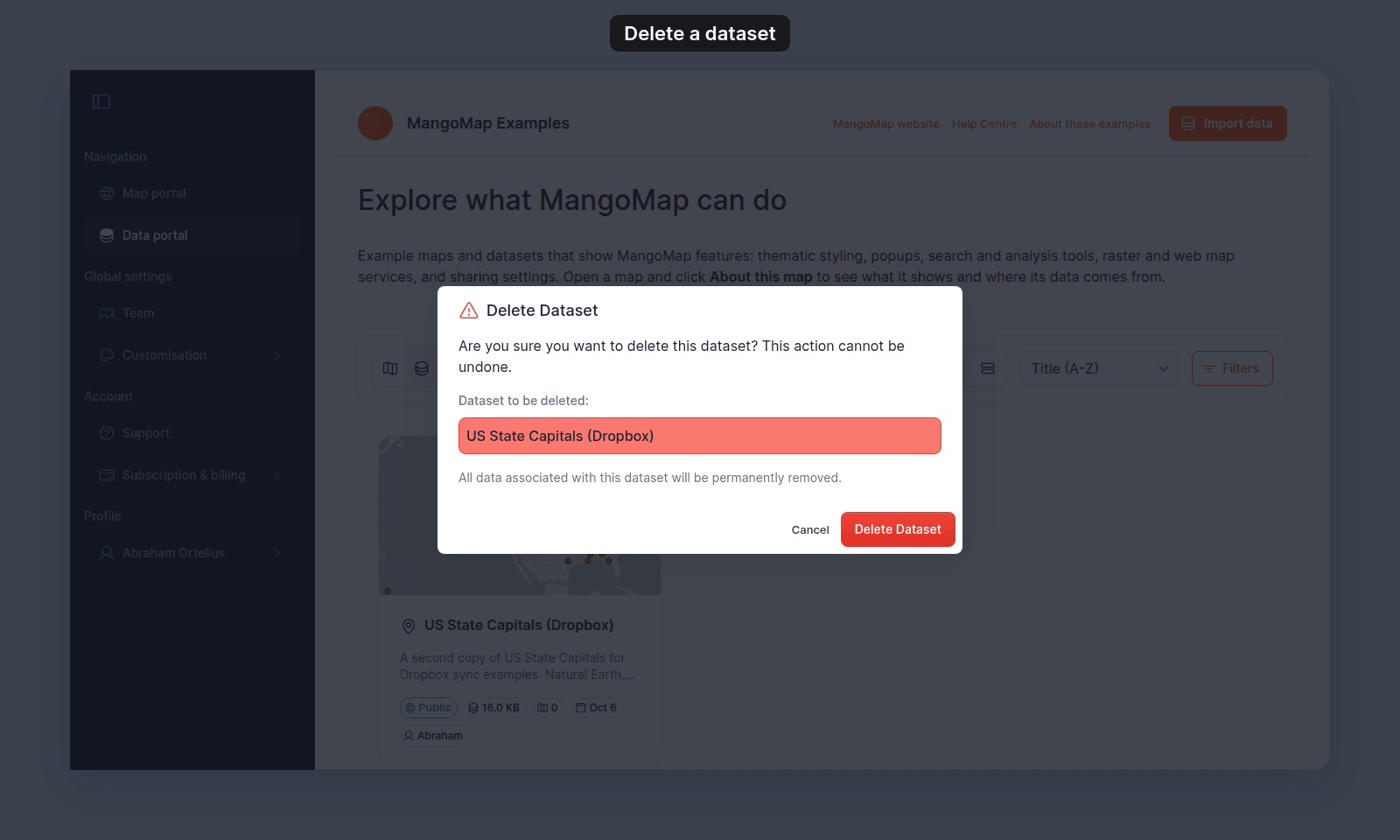 A `Delete Dataset` confirmation dialog opens with a warning icon. The dialog shows:
- The prompt `Are you sure you want to delete this dataset? This action cannot be undone.`.
- `Dataset to be deleted:` followed by the dataset name in a red-bordered box.
- The note `All data associated with this dataset will be permanently removed.`.
- Two buttons — `Cancel` and `Delete Dataset` (red).
> [!WARNING]
> Deleting a dataset removes it and all its data permanently. You cannot undo it.
Click `Delete Dataset` to confirm. The portal removes the dataset and the card disappears from the list.
Click `Cancel`, press `Escape`, or click outside the dialog to abandon the action.
## What's deleted, and what isn't
| Removed permanently | Unaffected |
| ------------------------------------ | --------------------------------------------------- |
| The dataset's data file | Maps in the account (the dataset can only be deleted once they don't use it) |
| The dataset's records and attributes | Other datasets in the account |
| Its sync configuration | Account-wide customisation |
| Its access settings and group access | |
## Related
- [Data portal reference](/docs/portals/data-portal-reference) — the delete flow in the reference.
- [How to find a dataset (signed in)](/docs/portals/find-a-dataset) — use `Show unused only` to find datasets you can delete.
- [How to remove a layer](/docs/managing-layers/remove-a-layer) — required before deleting a dataset that's in use.
- [How to delete a map](/docs/portals/delete-a-map) — the parallel destructive action for maps.
- [How to set the dataset name and description](/docs/dataset-settings/set-dataset-name-and-description) — to rename instead of delete.
- [Account roles reference](/docs/account-roles/account-roles-reference) — who can delete.
A `Delete Dataset` confirmation dialog opens with a warning icon. The dialog shows:
- The prompt `Are you sure you want to delete this dataset? This action cannot be undone.`.
- `Dataset to be deleted:` followed by the dataset name in a red-bordered box.
- The note `All data associated with this dataset will be permanently removed.`.
- Two buttons — `Cancel` and `Delete Dataset` (red).
> [!WARNING]
> Deleting a dataset removes it and all its data permanently. You cannot undo it.
Click `Delete Dataset` to confirm. The portal removes the dataset and the card disappears from the list.
Click `Cancel`, press `Escape`, or click outside the dialog to abandon the action.
## What's deleted, and what isn't
| Removed permanently | Unaffected |
| ------------------------------------ | --------------------------------------------------- |
| The dataset's data file | Maps in the account (the dataset can only be deleted once they don't use it) |
| The dataset's records and attributes | Other datasets in the account |
| Its sync configuration | Account-wide customisation |
| Its access settings and group access | |
## Related
- [Data portal reference](/docs/portals/data-portal-reference) — the delete flow in the reference.
- [How to find a dataset (signed in)](/docs/portals/find-a-dataset) — use `Show unused only` to find datasets you can delete.
- [How to remove a layer](/docs/managing-layers/remove-a-layer) — required before deleting a dataset that's in use.
- [How to delete a map](/docs/portals/delete-a-map) — the parallel destructive action for maps.
- [How to set the dataset name and description](/docs/dataset-settings/set-dataset-name-and-description) — to rename instead of delete.
- [Account roles reference](/docs/account-roles/account-roles-reference) — who can delete.