---
title: "How to set the map title and description"
description: "Set the Map title and Description. They appear in the browser tab, the portal listing, search results, and the optional title block."
seo:
title: "Set the map title and description"
sidebar:
label: "Set title and description"
---
`Map title` and `Description` appear in the browser tab, public portal card, SEO fields, and optional title block. The title is required and capped at 200 characters; the description is optional and uncapped (but truncates in the portal listing card if very long), and both save as you click out of the field or tab away.
**[See it on an example map](https://mangomap-staging.com/examples-staging/maps/vi0nznxp/world-atlas)**
Open the World Atlas. The title block above the map shows the title `World Atlas` and the map description.
## Before you start
- You need edit access to the map (Owner, Admin, or an Editor with edit access).
- The title shows in the browser tab, the public portal listing, search engine results (when the map is public), and the title block above the map (when it's on). The description shows in the portal listing card, search engine results, and the title block, under the title.
## Open the map's `Configuration` page
Open the map you want to rename and click `Configuration` in the sidebar. The page opens at `Map details`, with `Map title` and `Description` as the first two fields.
## Edit the title
{/* video-content: id=set-map-title-and-description
Start: Fully loaded Map settings at the top of Map details, with the map preview visible.
Show:
1. Focus the Map title field and hold so its current value and preview are readable.
2. Move to the Description field.
3. Hold so the current description and preview context are readable.
End: The Description field remains framed in the loaded Map details surface.
Exclude: Authentication, loading screens, fixture setup, typing, saving,
validation errors, or changing the map's title or description.
*/}
{/* walkthrough: id=set-map-title-and-description */}
{/* /walkthrough */}
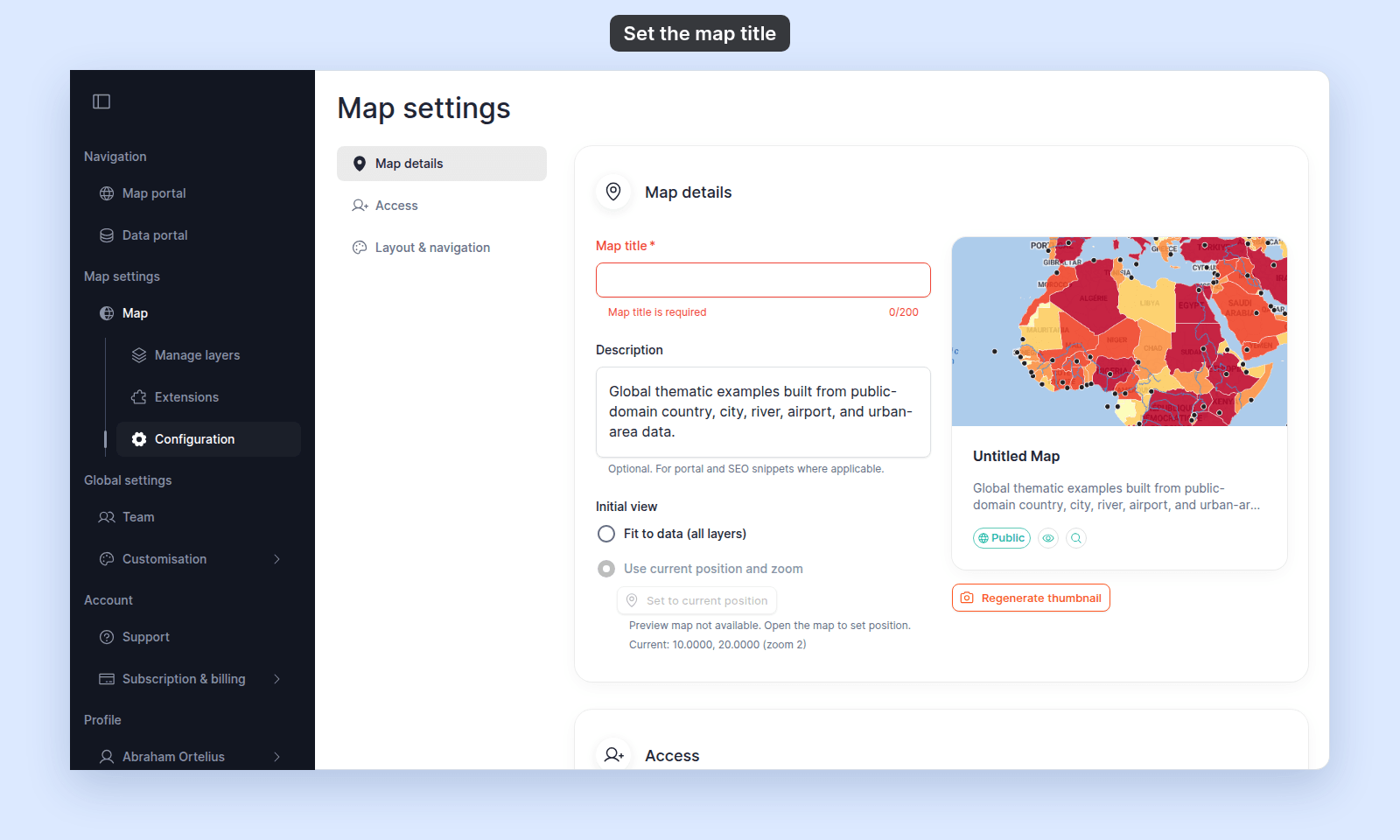
Click the `Map title` field and type the new name, up to 200 characters. Click out of the field or tab to the next one to save it.
The title is required. If you empty the field, MangoMap shows an error and keeps the saved title:
 ## Edit the description
Click the `Description` field and type. There's no length limit. Click out of the field or tab away to save it.
## Verify the result
The preview card on the right of `Map details` updates as you type, so you can spot a typo there. To verify that viewers see the new values:
- **Browser tab** — refresh the map's URL; the tab title updates.
- **Portal listing** — open the public portal (if the map is listed); the card uses the new title and description.
- **Title block on the map** — open the map; if the title block is enabled (see [How to show or hide the title block on the map](/docs/map-settings/show-the-map-title-block)), it shows the new title and description in the bar above the map.
## What if the title block is hiding the map
If the title block takes space you want for the map, you can shorten the title and description, or hide the title block from `Layout & navigation` → `Display title block`. See [How to show or hide the title block on the map](/docs/map-settings/show-the-map-title-block).
The portal listing and browser tab still use the title and description even when the title block is hidden.
## Edit the description
Click the `Description` field and type. There's no length limit. Click out of the field or tab away to save it.
## Verify the result
The preview card on the right of `Map details` updates as you type, so you can spot a typo there. To verify that viewers see the new values:
- **Browser tab** — refresh the map's URL; the tab title updates.
- **Portal listing** — open the public portal (if the map is listed); the card uses the new title and description.
- **Title block on the map** — open the map; if the title block is enabled (see [How to show or hide the title block on the map](/docs/map-settings/show-the-map-title-block)), it shows the new title and description in the bar above the map.
## What if the title block is hiding the map
If the title block takes space you want for the map, you can shorten the title and description, or hide the title block from `Layout & navigation` → `Display title block`. See [How to show or hide the title block on the map](/docs/map-settings/show-the-map-title-block).
The portal listing and browser tab still use the title and description even when the title block is hidden.