---
title: "How to set the initial map view"
description: "Choose whether a map opens fitted to all its data or at a saved position and zoom. Set the initial view from the Configuration page."
sidebar:
label: "Set the initial map view"
---
The initial view sets the centre and zoom when viewers open the map. Choose `Fit to data (all layers)` or `Use current position and zoom`. `Fit to data` is off until the map has at least one layer. `Use current position and zoom` takes the centre and zoom of the map you have open, so open the map first and then go to its `Configuration` page from the sidebar, in the same browser tab.
## Before you start
- You need edit access to the map.
- Decide which mode fits the map:
- **`Fit to data`** — best for maps where you want viewers to see everything as the data evolves. The view auto-adjusts when you add or remove layers.
- **`Use current position and zoom`** — best when you want viewers to land on a specific area regardless of what data is on the map (for example, your office, a project site, or a country-level overview).
## Open the map's `Configuration` page
Open the map and click `Configuration` in the sidebar. The page opens at `Map details`. `Initial view` is below the `Description` field.
## Choose `Fit to data`
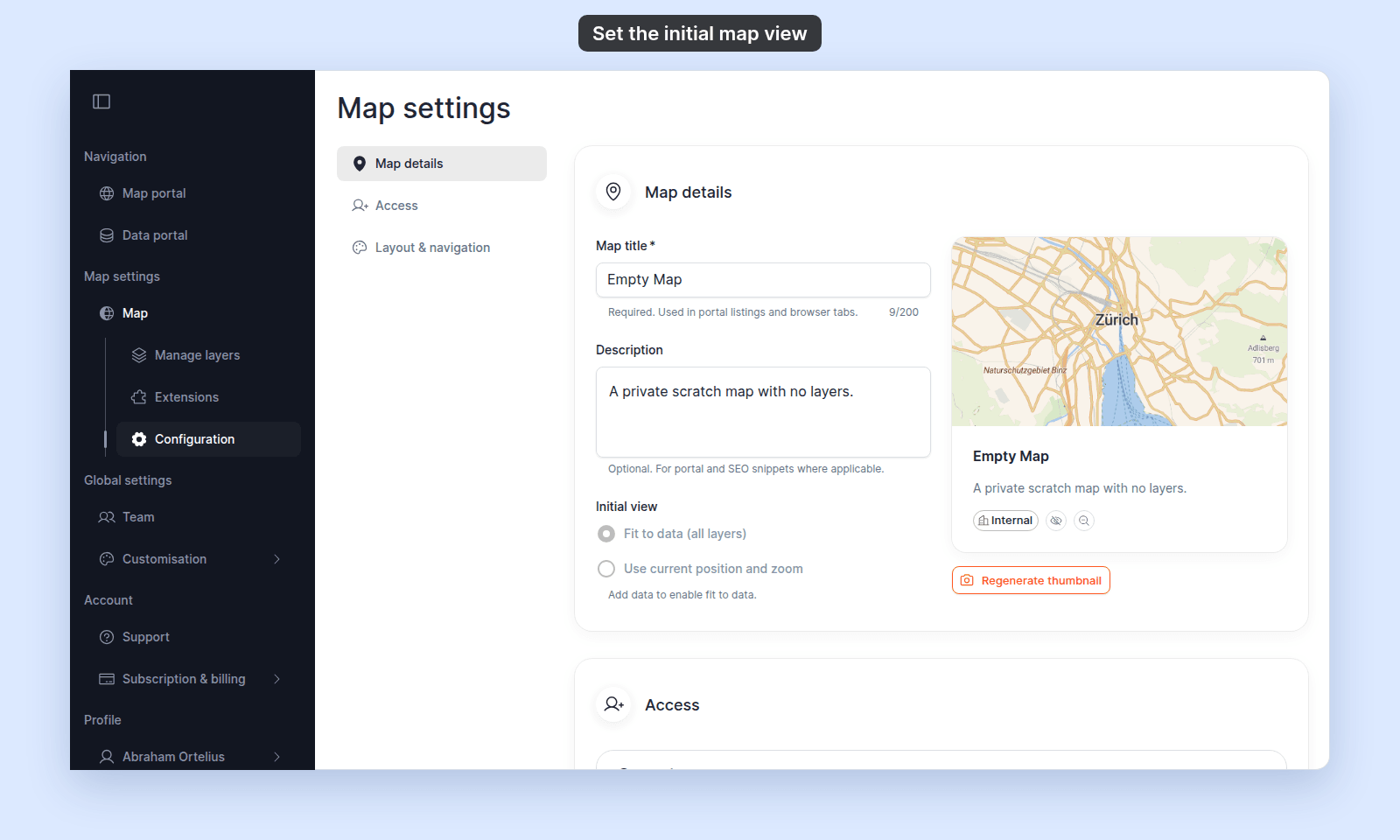
If you want viewers to land on a view that fits every layer, select `Fit to data (all layers)`. It saves on click. The view auto-adjusts when you add or remove layers. No other setting is needed.
On a map with no layers, `Fit to data (all layers)` is off until you add one:
 ## Choose `Use current position and zoom`
If you want viewers to land on a specific centre and zoom:
1. Open the map, and pan and zoom to the view you want viewers to see.
2. In the sidebar, click `Configuration`. Do not reload the page: the `Configuration` page reads the position from the map you just left.
3. Select `Use current position and zoom`. It saves on click.
4. Click `Set to current position`. MangoMap saves the map's centre and zoom as the initial view, and the `Current:` line below the button shows the saved values.
## Choose `Use current position and zoom`
If you want viewers to land on a specific centre and zoom:
1. Open the map, and pan and zoom to the view you want viewers to see.
2. In the sidebar, click `Configuration`. Do not reload the page: the `Configuration` page reads the position from the map you just left.
3. Select `Use current position and zoom`. It saves on click.
4. Click `Set to current position`. MangoMap saves the map's centre and zoom as the initial view, and the `Current:` line below the button shows the saved values.
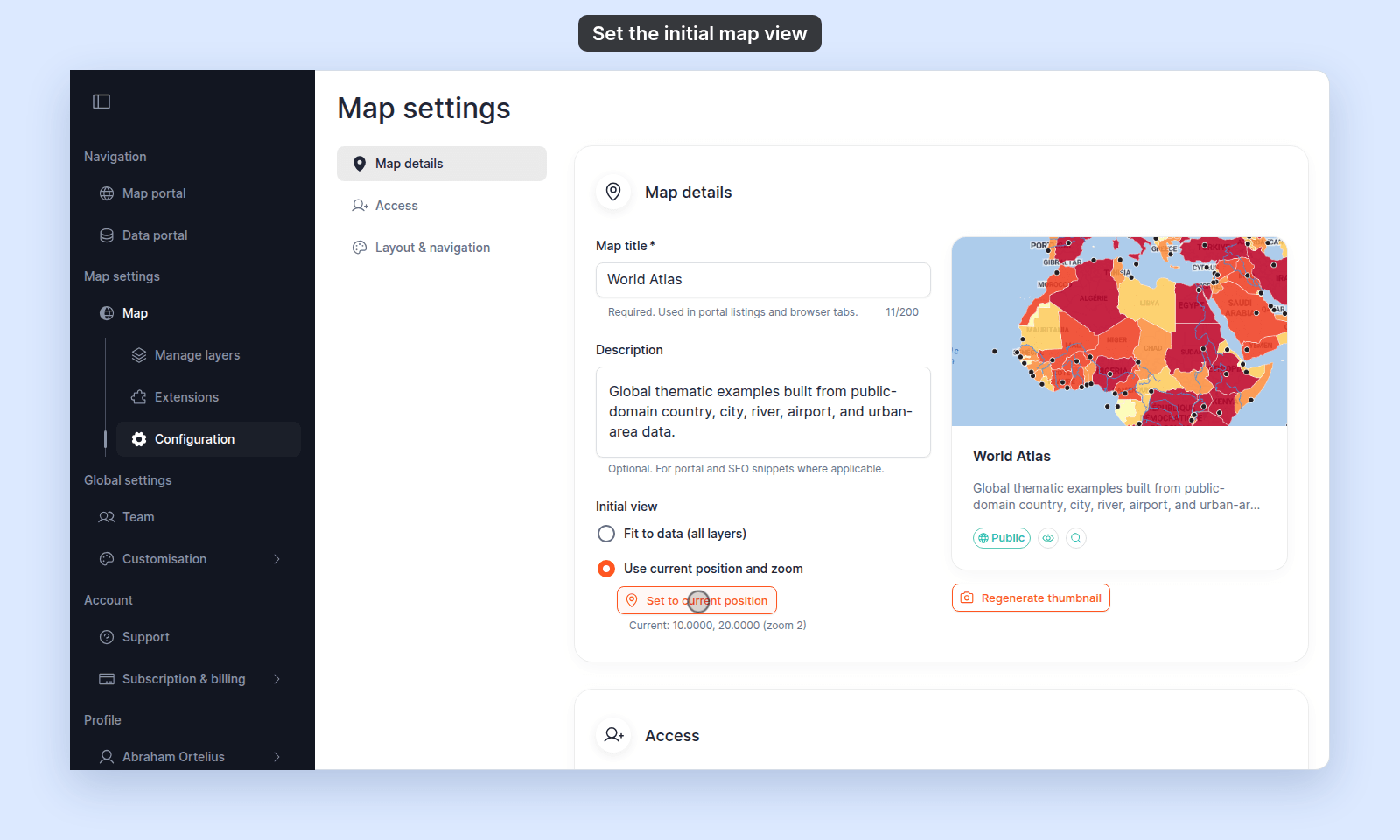 If you open the `Configuration` page from a link or reload it, `Use current position and zoom` and `Set to current position` are off, and the page shows `Preview map not available. Open the map to set position.` Open the map, then come back through the sidebar.
## Re-capture the position later
To change the saved position, open the map, pan and zoom to the new view, click `Configuration` in the sidebar, then click `Set to current position` again. It overwrites the previous values.
The radio choice and the saved coordinates are independent: switching from `Fit to data` to `Use current position and zoom` doesn't lose the coordinates if you'd already set them, and switching back to `Fit to data` doesn't clear them.
## Verify the result
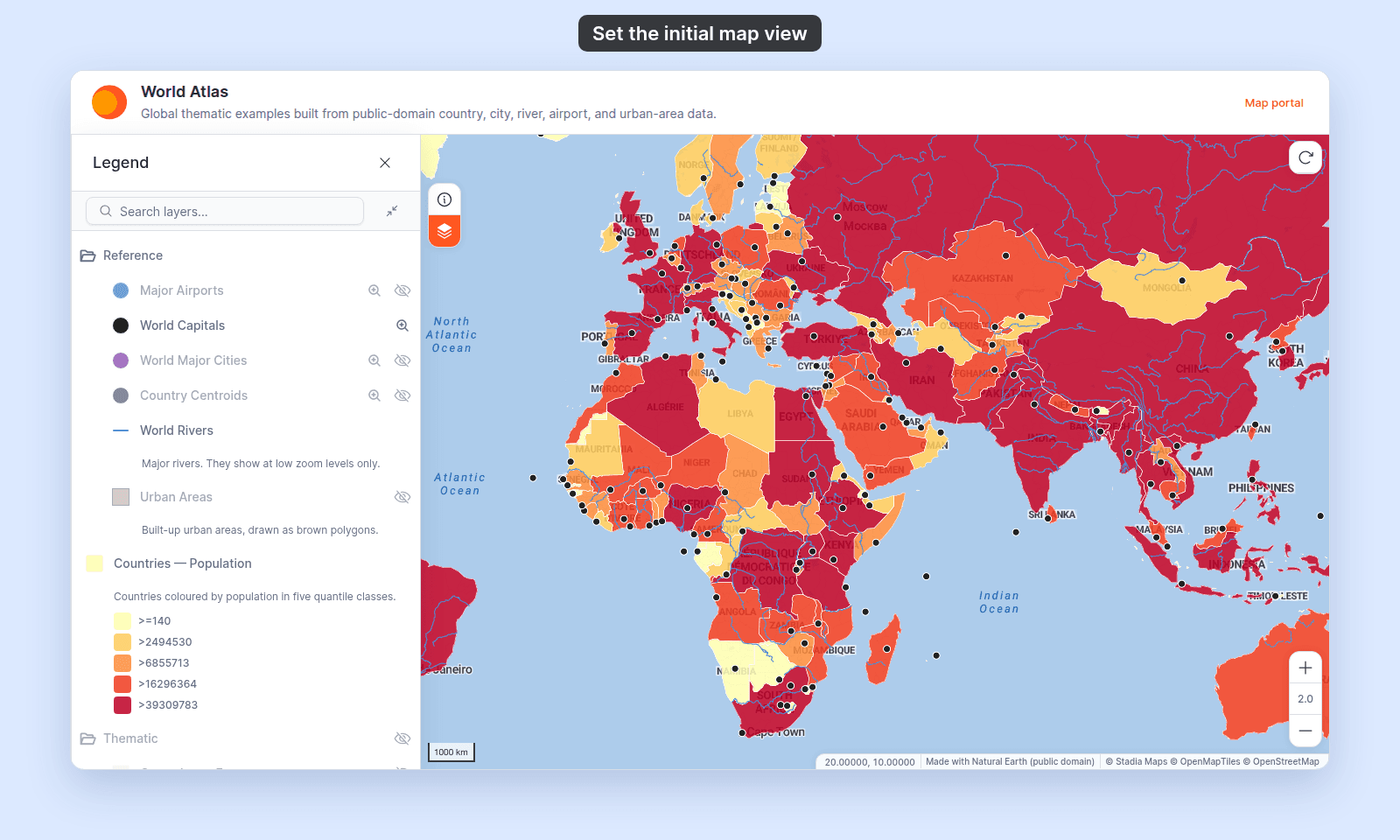
Open the map's link in a new private browser window to see it as a visitor. With `Fit to data`, expect a tight bounding box around the data. With `Use current position and zoom`, expect the exact centre and zoom you saved:
If you open the `Configuration` page from a link or reload it, `Use current position and zoom` and `Set to current position` are off, and the page shows `Preview map not available. Open the map to set position.` Open the map, then come back through the sidebar.
## Re-capture the position later
To change the saved position, open the map, pan and zoom to the new view, click `Configuration` in the sidebar, then click `Set to current position` again. It overwrites the previous values.
The radio choice and the saved coordinates are independent: switching from `Fit to data` to `Use current position and zoom` doesn't lose the coordinates if you'd already set them, and switching back to `Fit to data` doesn't clear them.
## Verify the result
Open the map's link in a new private browser window to see it as a visitor. With `Fit to data`, expect a tight bounding box around the data. With `Use current position and zoom`, expect the exact centre and zoom you saved:
 A [feature permalink](/docs/map-access/use-feature-permalinks) doesn't use the initial view. It opens the map zoomed to its feature.