---
title: "How to regenerate the map thumbnail"
description: "Regenerate the map thumbnail when the preview image in the portal listing and Configuration page looks out of date."
sidebar:
label: "Regenerate the thumbnail"
---
Regenerating the map thumbnail draws a new preview image of the map. The image appears in the preview card on the map's `Configuration` page and in the portal listing. MangoMap draws the thumbnail from the map's saved settings, not from what your browser shows now, and it draws a new one by itself each time you save a change to the map or its layers. Use `Regenerate thumbnail` when the image looks out of date.
## Before you start
- You need edit access to the map.
- The thumbnail shows the map as a visitor sees it when it opens: the saved initial view, the default basemap, and the layers that are visible on load, with their styles. Pan, zoom, and layer changes in your browser do not change it until you save them.
## Set up what the thumbnail shows
Save the view and layers you want in the thumbnail:
- **The area** — set the initial view. See [How to set the initial map view](/docs/map-settings/set-initial-map-view).
- **The basemap** — see [How to set the default basemap](/docs/managing-layers/set-default-basemap).
- **The layers** — choose which layers are visible on load. See [How to set which layers show when the map first loads](/docs/managing-layers/set-default-layer-visibility).
## Open the map's `Configuration` page
Open the map and click `Configuration` in the sidebar. The page opens at `Map details`. The preview card, with `Regenerate thumbnail` below it, is on the right.
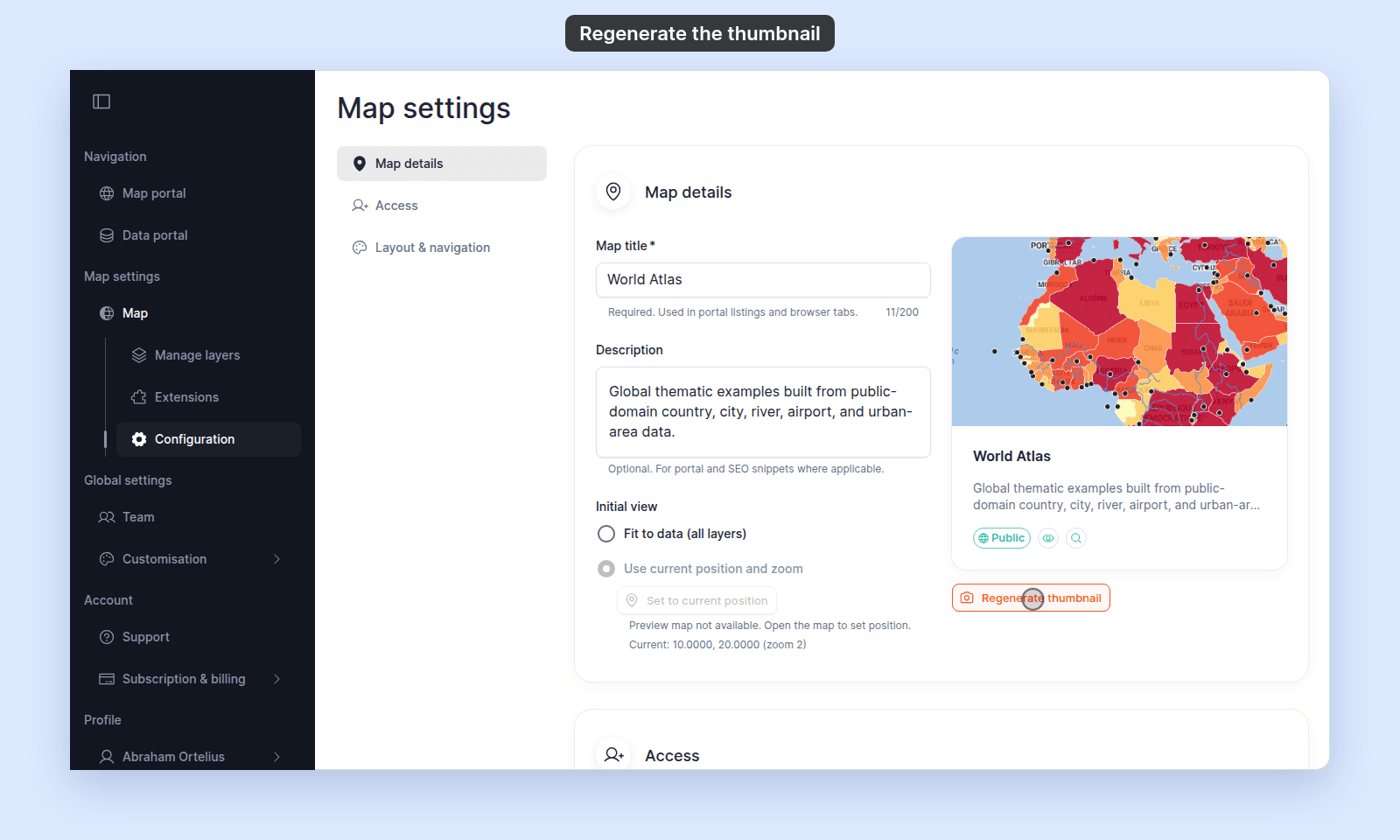 ## Click `Regenerate thumbnail`
Click `Regenerate thumbnail`. While MangoMap draws the image, the button shows `Regenerating...` and the preview card is dimmed. When it finishes, the new thumbnail replaces the old one in the preview card.
## Click `Regenerate thumbnail`
Click `Regenerate thumbnail`. While MangoMap draws the image, the button shows `Regenerating...` and the preview card is dimmed. When it finishes, the new thumbnail replaces the old one in the preview card.
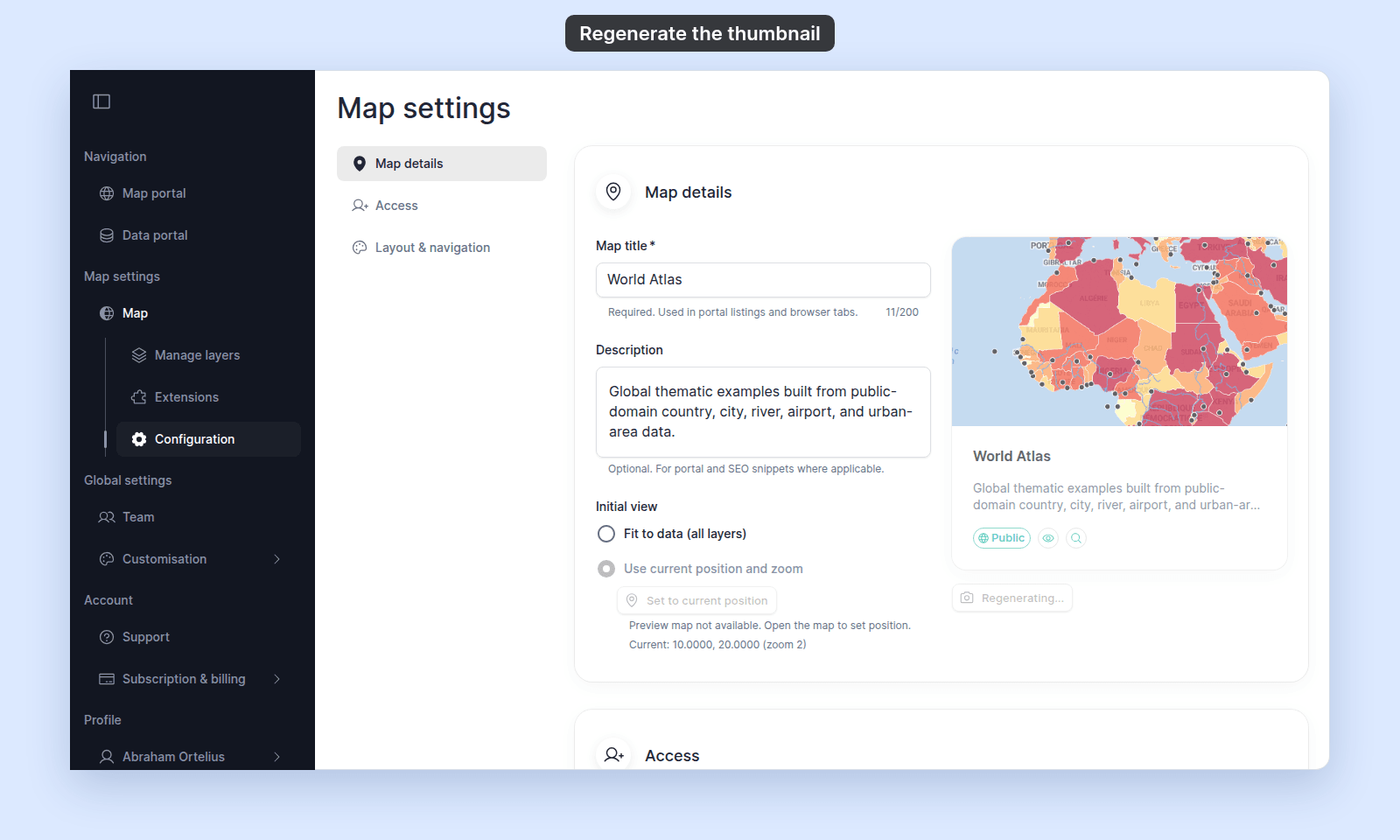 ## Verify the result
The portal listing card uses the same image as the preview card. To verify the change for viewers:
- **Public portal** — open the portal page (or refresh it). The card for this map uses the new thumbnail.
- **Maps portal in your account** — refresh the listing; the card updates.
If the image looks unchanged, hard-refresh the page (Ctrl/Cmd+Shift+R).
## When to regenerate
Click it when the thumbnail still shows an older version of the map after a change, for example after you add a layer, change the basemap or styles, or set a new initial view.
## Verify the result
The portal listing card uses the same image as the preview card. To verify the change for viewers:
- **Public portal** — open the portal page (or refresh it). The card for this map uses the new thumbnail.
- **Maps portal in your account** — refresh the listing; the card updates.
If the image looks unchanged, hard-refresh the page (Ctrl/Cmd+Shift+R).
## When to regenerate
Click it when the thumbnail still shows an older version of the map after a change, for example after you add a layer, change the basemap or styles, or set a new initial view.