---
title: "How the map settings page works in MangoMap"
description: "Understand how a map's Configuration page is laid out: the Map details, Access, and Layout & navigation sections, and how saving works."
seo:
title: "How map settings work"
sidebar:
label: "How map settings work"
---
This page explains how a map's `Configuration` page is structured — the three sections, what each one does, where it lives in the navigation, and how saving works. Every claim here describes a single map. Account-wide branding and customisation are in [Customisation](/docs/customisation).
## What the page is
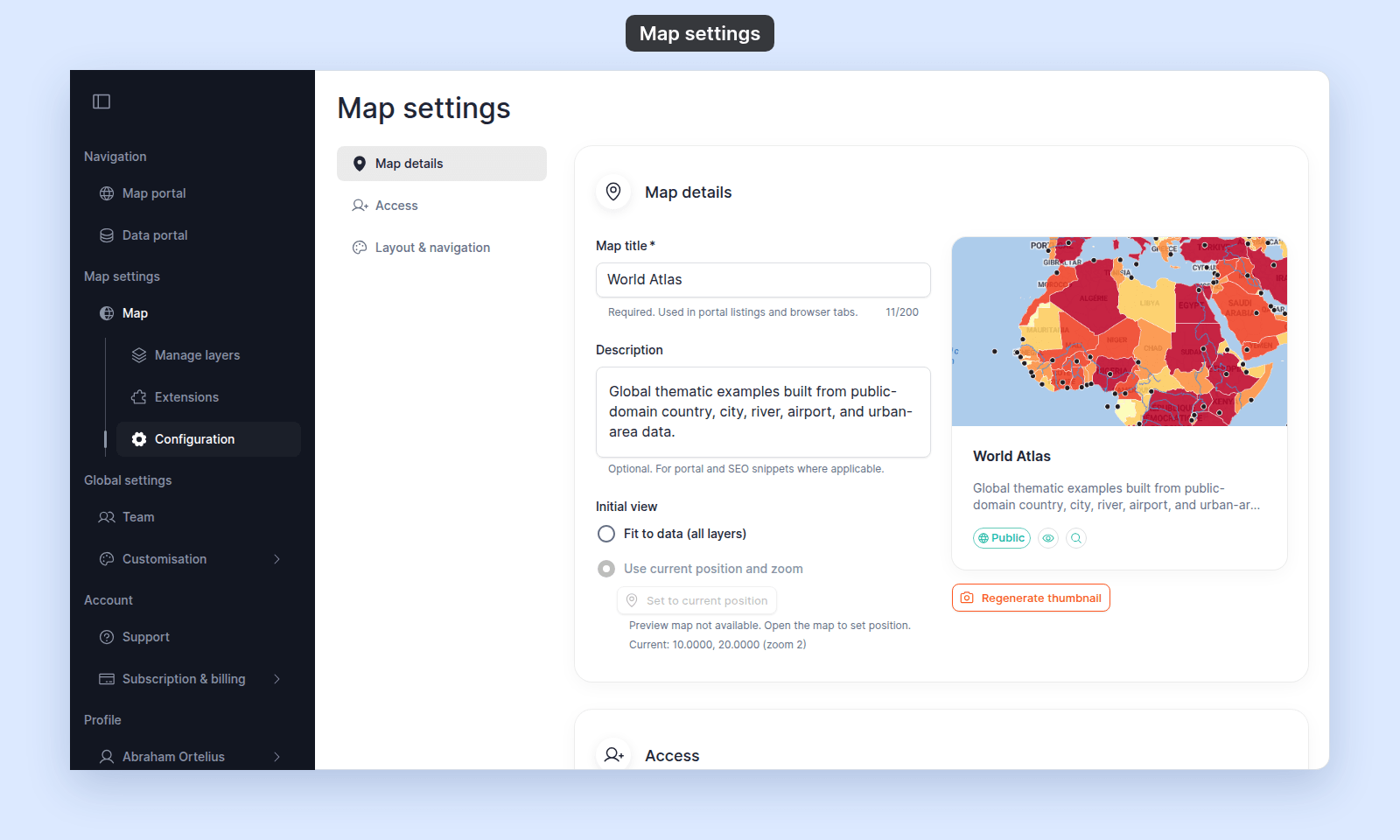
A map's `Configuration` page (its heading is `Map settings`) is where you edit the configuration of a single map. It is a single scrolling page with a side nav on the left and three sections stacked top-to-bottom on the right:
1. **Map details** — title, description, thumbnail, and the initial view a viewer sees when they open the map.
2. **Access** — public / link-only / password mode, the public portal toggle, search-engine indexing, and per-group view/edit toggles.
3. **Layout & navigation** — the title block above the map, and the custom navigation menu shown to viewers in that bar.
The side nav lists the three sections. Click one to jump to it.
## How to get there
Open a map you can edit. In the sidebar, under `Map settings`, click `Configuration`.
The page has no `Back` button. To return to the map, click `Map` in the sidebar. If a change hasn't saved yet, MangoMap asks first.
## How saving works
Every field on the `Configuration` page saves implicitly — there's no `Save` button at the bottom. Each control has a small save indicator (spinner / check / error icon) next to it that shows the state of the most recent save.
The exact save trigger depends on the field:
- **Text fields** save when you click out of the field or tab away.
- **Toggles and radios** save on click.
If you try to leave the page mid-save, MangoMap warns you and offers `Save & leave`, `Leave without saving`, or `Cancel`.
## The `Access` section
For everything about the `Access` section, see [Map access](/docs/map-access).
## What the three sections do *not* cover
- **The layers on the map** — covered by [Managing layers](/docs/managing-layers). The layer panel opens from the map toolbar, not from the `Configuration` page.
- **Per-layer styling, format, popup, labels** — covered by [Styling layers](/docs/styling-layers), [Attribute formatting overview](/docs/formatting-attributes), and [Configuring popups](/docs/configuring-popups).
- **Map Extensions** — covered by [Map extensions](/docs/map-extensions).
- **Custom domain, brand logo, account theme** — these are account-wide and live in [Customisation](/docs/customisation), not on a single map's settings.
- **Map title block on the map's portal listing** — the `Map details` `Map title` and `Description` are used in portal listings and SEO snippets, but the portal layout itself is configured in [How to configure the portal](/docs/customisation/configure-the-portal).
## Title block vs. portal title
Two places display a map's title and description, and they're easy to mix up:
- **Title block on the map** — the bar above the map view, controlled by `Layout & navigation` → `Display title block`. Turn it off if you want more room for the map.
- **Portal listing, browser tab, and search tags** — the same `Map title` and `Description` you set in `Map details` populate portal cards and, for public maps, the SEO tags that search engines and link previews read. The `Map title` also names the browser tab. None of these depend on the title-block toggle.
Hiding the title block doesn't hide the map from the portal; it only removes the title and description from the map view. The diagram shows where the two fields go, and which one place the toggle controls.
## What the navigation menu is for
The `Layout & navigation` section's `Use navigation` switch adds custom links to the bar above the map, separate from the basemap chooser, search, and other tools. Use it to link viewers to your other maps, your map portal, your data portal, an external website, an email contact, or a custom modal (for example, a legend explanation, terms of service, or contact details).
A custom navigation item is one of seven types: `Link`, `Email Link`, `Modal`, `Terms Modal`, `Maps`, `Map portal`, `Data portal`. Each type asks for the configuration it needs (URL, email address, modal content, target maps, etc.) — see [How to build a custom navigation menu](/docs/map-settings/build-custom-navigation-menu).
## Permissions
Editing the `Configuration` page requires edit permission on the map. The account owner and the map's creator always have it. An access group's `Edit` gives it only to members with the `Admin` role. Anyone else does not see `Configuration` in the sidebar, and opening its address sends them to the `Map portal`. See [How map access works in MangoMap](/docs/map-access/concepts-map-access).
For every control on the page, see the [Map settings reference](/docs/map-settings/map-settings-reference). For the other pages about the map's settings, see [Map settings](/docs/map-settings).
 1. **Map details** — title, description, thumbnail, and the initial view a viewer sees when they open the map.
2. **Access** — public / link-only / password mode, the public portal toggle, search-engine indexing, and per-group view/edit toggles.
3. **Layout & navigation** — the title block above the map, and the custom navigation menu shown to viewers in that bar.
The side nav lists the three sections. Click one to jump to it.
## How to get there
Open a map you can edit. In the sidebar, under `Map settings`, click `Configuration`.
The page has no `Back` button. To return to the map, click `Map` in the sidebar. If a change hasn't saved yet, MangoMap asks first.
## How saving works
Every field on the `Configuration` page saves implicitly — there's no `Save` button at the bottom. Each control has a small save indicator (spinner / check / error icon) next to it that shows the state of the most recent save.
The exact save trigger depends on the field:
- **Text fields** save when you click out of the field or tab away.
- **Toggles and radios** save on click.
If you try to leave the page mid-save, MangoMap warns you and offers `Save & leave`, `Leave without saving`, or `Cancel`.
## The `Access` section
For everything about the `Access` section, see [Map access](/docs/map-access).
## What the three sections do *not* cover
- **The layers on the map** — covered by [Managing layers](/docs/managing-layers). The layer panel opens from the map toolbar, not from the `Configuration` page.
- **Per-layer styling, format, popup, labels** — covered by [Styling layers](/docs/styling-layers), [Attribute formatting overview](/docs/formatting-attributes), and [Configuring popups](/docs/configuring-popups).
- **Map Extensions** — covered by [Map extensions](/docs/map-extensions).
- **Custom domain, brand logo, account theme** — these are account-wide and live in [Customisation](/docs/customisation), not on a single map's settings.
- **Map title block on the map's portal listing** — the `Map details` `Map title` and `Description` are used in portal listings and SEO snippets, but the portal layout itself is configured in [How to configure the portal](/docs/customisation/configure-the-portal).
## Title block vs. portal title
Two places display a map's title and description, and they're easy to mix up:
- **Title block on the map** — the bar above the map view, controlled by `Layout & navigation` → `Display title block`. Turn it off if you want more room for the map.
- **Portal listing, browser tab, and search tags** — the same `Map title` and `Description` you set in `Map details` populate portal cards and, for public maps, the SEO tags that search engines and link previews read. The `Map title` also names the browser tab. None of these depend on the title-block toggle.
Hiding the title block doesn't hide the map from the portal; it only removes the title and description from the map view. The diagram shows where the two fields go, and which one place the toggle controls.
## What the navigation menu is for
The `Layout & navigation` section's `Use navigation` switch adds custom links to the bar above the map, separate from the basemap chooser, search, and other tools. Use it to link viewers to your other maps, your map portal, your data portal, an external website, an email contact, or a custom modal (for example, a legend explanation, terms of service, or contact details).
A custom navigation item is one of seven types: `Link`, `Email Link`, `Modal`, `Terms Modal`, `Maps`, `Map portal`, `Data portal`. Each type asks for the configuration it needs (URL, email address, modal content, target maps, etc.) — see [How to build a custom navigation menu](/docs/map-settings/build-custom-navigation-menu).
## Permissions
Editing the `Configuration` page requires edit permission on the map. The account owner and the map's creator always have it. An access group's `Edit` gives it only to members with the `Admin` role. Anyone else does not see `Configuration` in the sidebar, and opening its address sends them to the `Map portal`. See [How map access works in MangoMap](/docs/map-access/concepts-map-access).
For every control on the page, see the [Map settings reference](/docs/map-settings/map-settings-reference). For the other pages about the map's settings, see [Map settings](/docs/map-settings).
1. **Map details** — title, description, thumbnail, and the initial view a viewer sees when they open the map.
2. **Access** — public / link-only / password mode, the public portal toggle, search-engine indexing, and per-group view/edit toggles.
3. **Layout & navigation** — the title block above the map, and the custom navigation menu shown to viewers in that bar.
The side nav lists the three sections. Click one to jump to it.
## How to get there
Open a map you can edit. In the sidebar, under `Map settings`, click `Configuration`.
The page has no `Back` button. To return to the map, click `Map` in the sidebar. If a change hasn't saved yet, MangoMap asks first.
## How saving works
Every field on the `Configuration` page saves implicitly — there's no `Save` button at the bottom. Each control has a small save indicator (spinner / check / error icon) next to it that shows the state of the most recent save.
The exact save trigger depends on the field:
- **Text fields** save when you click out of the field or tab away.
- **Toggles and radios** save on click.
If you try to leave the page mid-save, MangoMap warns you and offers `Save & leave`, `Leave without saving`, or `Cancel`.
## The `Access` section
For everything about the `Access` section, see [Map access](/docs/map-access).
## What the three sections do *not* cover
- **The layers on the map** — covered by [Managing layers](/docs/managing-layers). The layer panel opens from the map toolbar, not from the `Configuration` page.
- **Per-layer styling, format, popup, labels** — covered by [Styling layers](/docs/styling-layers), [Attribute formatting overview](/docs/formatting-attributes), and [Configuring popups](/docs/configuring-popups).
- **Map Extensions** — covered by [Map extensions](/docs/map-extensions).
- **Custom domain, brand logo, account theme** — these are account-wide and live in [Customisation](/docs/customisation), not on a single map's settings.
- **Map title block on the map's portal listing** — the `Map details` `Map title` and `Description` are used in portal listings and SEO snippets, but the portal layout itself is configured in [How to configure the portal](/docs/customisation/configure-the-portal).
## Title block vs. portal title
Two places display a map's title and description, and they're easy to mix up:
- **Title block on the map** — the bar above the map view, controlled by `Layout & navigation` → `Display title block`. Turn it off if you want more room for the map.
- **Portal listing, browser tab, and search tags** — the same `Map title` and `Description` you set in `Map details` populate portal cards and, for public maps, the SEO tags that search engines and link previews read. The `Map title` also names the browser tab. None of these depend on the title-block toggle.
Hiding the title block doesn't hide the map from the portal; it only removes the title and description from the map view. The diagram shows where the two fields go, and which one place the toggle controls.
## What the navigation menu is for
The `Layout & navigation` section's `Use navigation` switch adds custom links to the bar above the map, separate from the basemap chooser, search, and other tools. Use it to link viewers to your other maps, your map portal, your data portal, an external website, an email contact, or a custom modal (for example, a legend explanation, terms of service, or contact details).
A custom navigation item is one of seven types: `Link`, `Email Link`, `Modal`, `Terms Modal`, `Maps`, `Map portal`, `Data portal`. Each type asks for the configuration it needs (URL, email address, modal content, target maps, etc.) — see [How to build a custom navigation menu](/docs/map-settings/build-custom-navigation-menu).
## Permissions
Editing the `Configuration` page requires edit permission on the map. The account owner and the map's creator always have it. An access group's `Edit` gives it only to members with the `Admin` role. Anyone else does not see `Configuration` in the sidebar, and opening its address sends them to the `Map portal`. See [How map access works in MangoMap](/docs/map-access/concepts-map-access).
For every control on the page, see the [Map settings reference](/docs/map-settings/map-settings-reference). For the other pages about the map's settings, see [Map settings](/docs/map-settings).