---
title: "How to set up the Scale bar on a map"
description: "Show a scale bar that changes as viewers zoom. Choose Metric, Imperial, or Nautical units when you add it from the Extensions page."
sidebar:
label: "Scale bar"
---
The Scale bar shows distance on the map and changes as viewers zoom. It uses kilometres or metres, or the matching imperial or nautical units. Add it from the map's Extensions page and pick `Metric`, `Imperial`, or `Nautical`; the bar's position is fixed by the map template, and for viewer-driven point-to-point measurement, pair it with the [Measure tool](/docs/map-extensions/set-up-the-measure-tool).
**[See it on an example map](https://mangomap-staging.com/examples-staging/maps/xawapsxc/interlaken-raster-lab)**
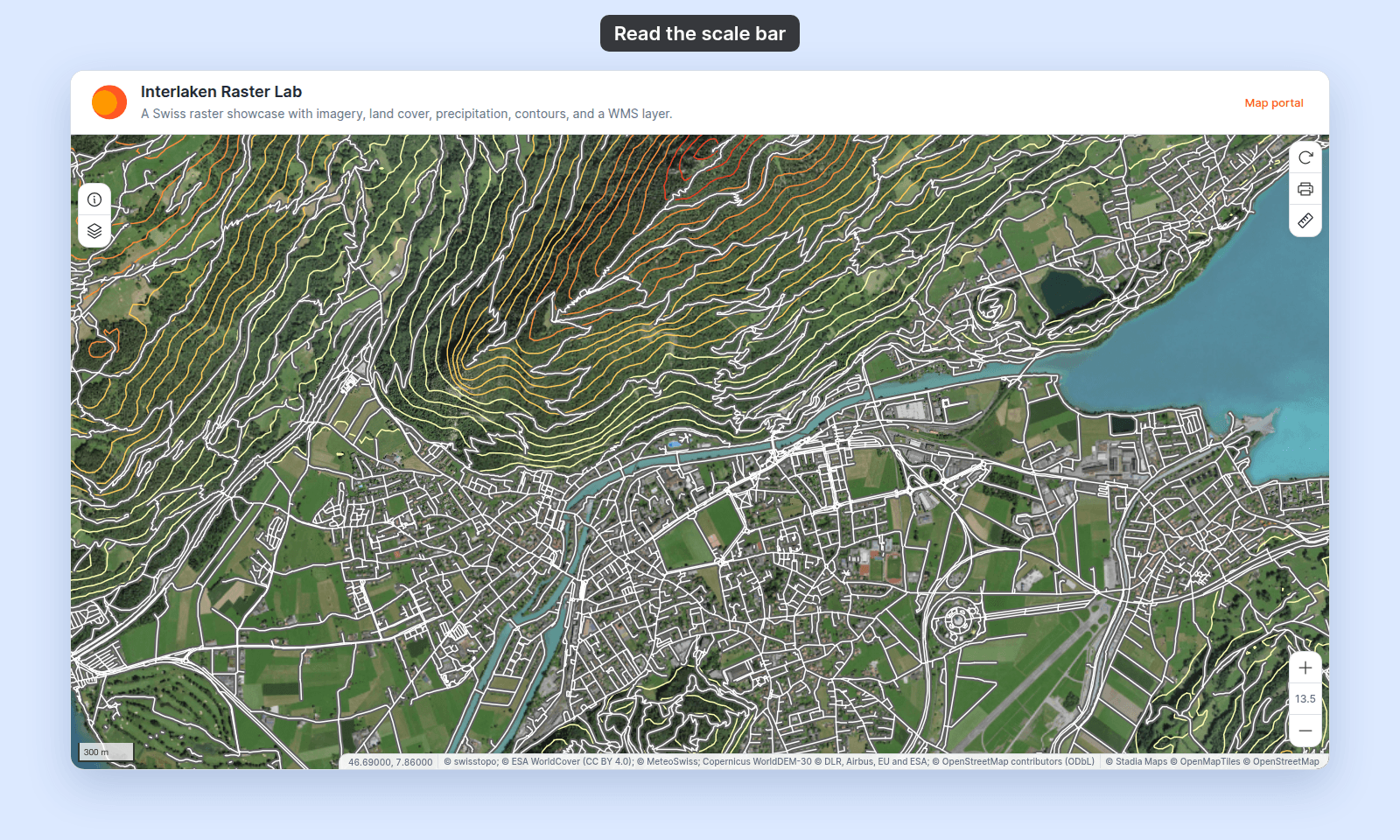
Open the Interlaken Raster Lab. Look at the bottom left of the map. Zoom in and out. The scale bar changes as you zoom.
## Before you start
- You need edit access to the map.
- Decide which unit set fits your audience:
- **`Metric`** — kilometres and metres. Default for most regions.
- **`Imperial`** — miles and feet. Use for US audiences.
- **`Nautical`** — nautical miles. Use on marine maps.
## Open the Extensions page
From the map's admin sidebar, click `Extensions`. The Scale bar card is towards the bottom of the list, near Mouse position.
## Enable the Scale bar
Click the `Add` button on the Scale bar card. The Scale bar turns on in Metric and its settings page opens.
The Scale bar is enabled immediately — even before you save the settings, it renders on the map in Metric.
## Pick units
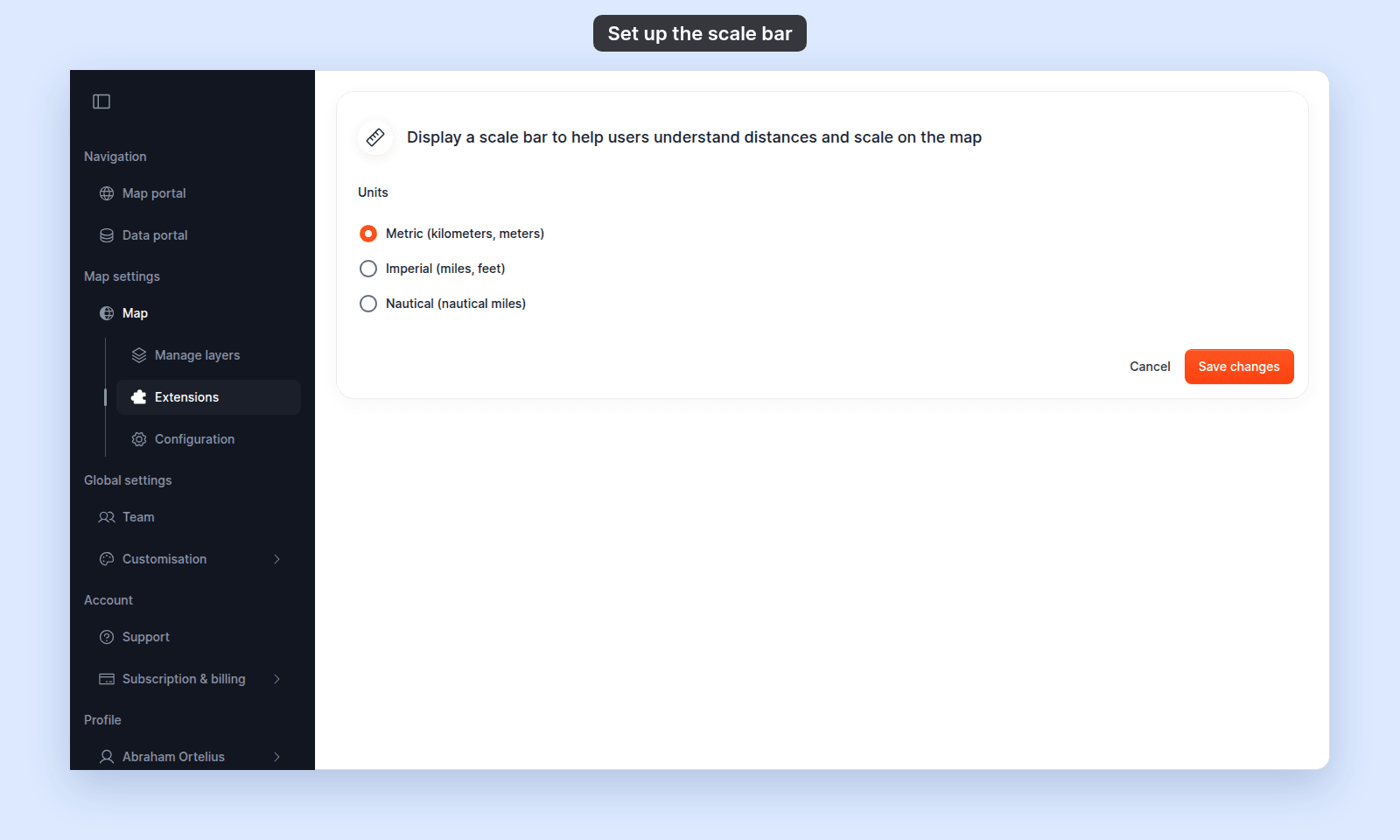 The settings page has one control — a radio group under the `Units` heading with three options:
- **`Metric (kilometers, meters)`** — the Scale bar shows kilometres or metres depending on zoom.
- **`Imperial (miles, feet)`** — miles or feet.
- **`Nautical (nautical miles)`** — nautical miles.
## Save
Click `Save changes` at the bottom of the page. The page returns to the map view.
If you only enabled the Scale bar and don't need to change the unit from the default Metric, you can leave the settings page without saving — the Scale bar is already on the map.
## Verify the result
Open the map in a viewer-state session (a new tab or incognito window). The Scale bar should appear at the bottom left of the map. Confirm:
- It's visible at the current zoom.
- It shows the unit set you chose (km/m, mi/ft, or nautical miles).
- Zoom in and out — the bar should scale automatically, and the unit may switch (for example, km → m as you zoom in).
The settings page has one control — a radio group under the `Units` heading with three options:
- **`Metric (kilometers, meters)`** — the Scale bar shows kilometres or metres depending on zoom.
- **`Imperial (miles, feet)`** — miles or feet.
- **`Nautical (nautical miles)`** — nautical miles.
## Save
Click `Save changes` at the bottom of the page. The page returns to the map view.
If you only enabled the Scale bar and don't need to change the unit from the default Metric, you can leave the settings page without saving — the Scale bar is already on the map.
## Verify the result
Open the map in a viewer-state session (a new tab or incognito window). The Scale bar should appear at the bottom left of the map. Confirm:
- It's visible at the current zoom.
- It shows the unit set you chose (km/m, mi/ft, or nautical miles).
- Zoom in and out — the bar should scale automatically, and the unit may switch (for example, km → m as you zoom in).
 If the Scale bar isn't visible, check that the Scale bar card on the Extensions page shows the `Settings` and `Remove` buttons (it's active) rather than the `Add` button.
## What this doesn't cover
- **Interactive measurement** — the Scale bar is always-on context. For viewer-driven distance and area measurement, see [Measure](/docs/map-extensions/set-up-the-measure-tool).
- **Scale on printed PDFs** — the Scale bar is one of the Print checkboxes; see [`/docs/map-extensions/set-up-printing`](/docs/map-extensions/set-up-printing). Print uses the Scale bar tool's unit if both are enabled.
If the Scale bar isn't visible, check that the Scale bar card on the Extensions page shows the `Settings` and `Remove` buttons (it's active) rather than the `Add` button.
## What this doesn't cover
- **Interactive measurement** — the Scale bar is always-on context. For viewer-driven distance and area measurement, see [Measure](/docs/map-extensions/set-up-the-measure-tool).
- **Scale on printed PDFs** — the Scale bar is one of the Print checkboxes; see [`/docs/map-extensions/set-up-printing`](/docs/map-extensions/set-up-printing). Print uses the Scale bar tool's unit if both are enabled.